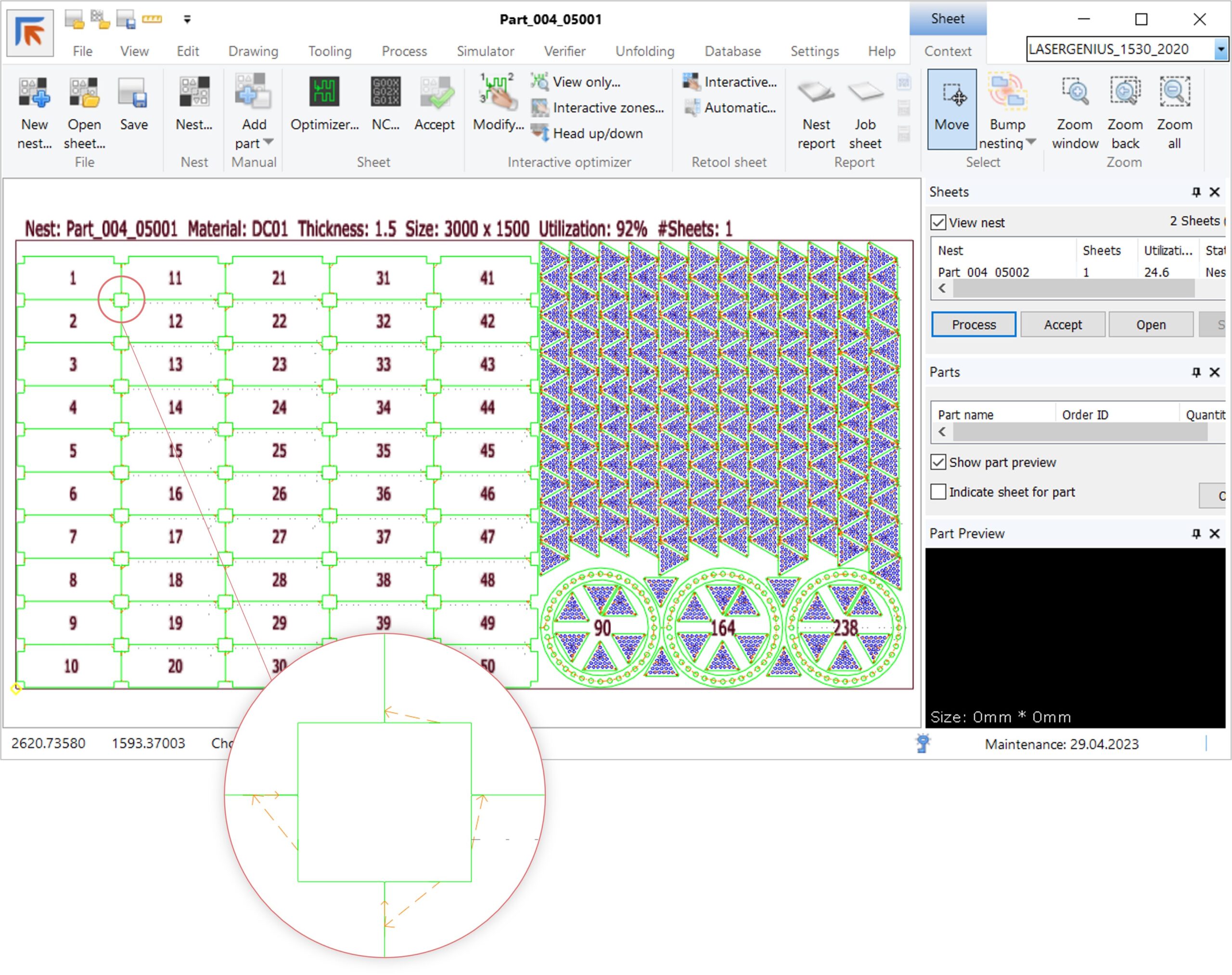
NC Express 25.1 Release

Following Prima Power software strategy ‘All in one’ which aims to create a continuous and integrated production flow for all Prima Power machines, I’m pleased to announce the release of NC Express.
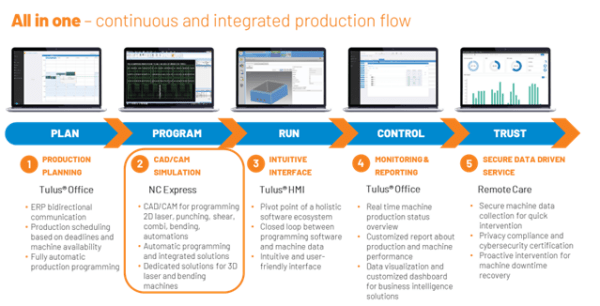
NC Express 25.1 technical release notes document about new features.

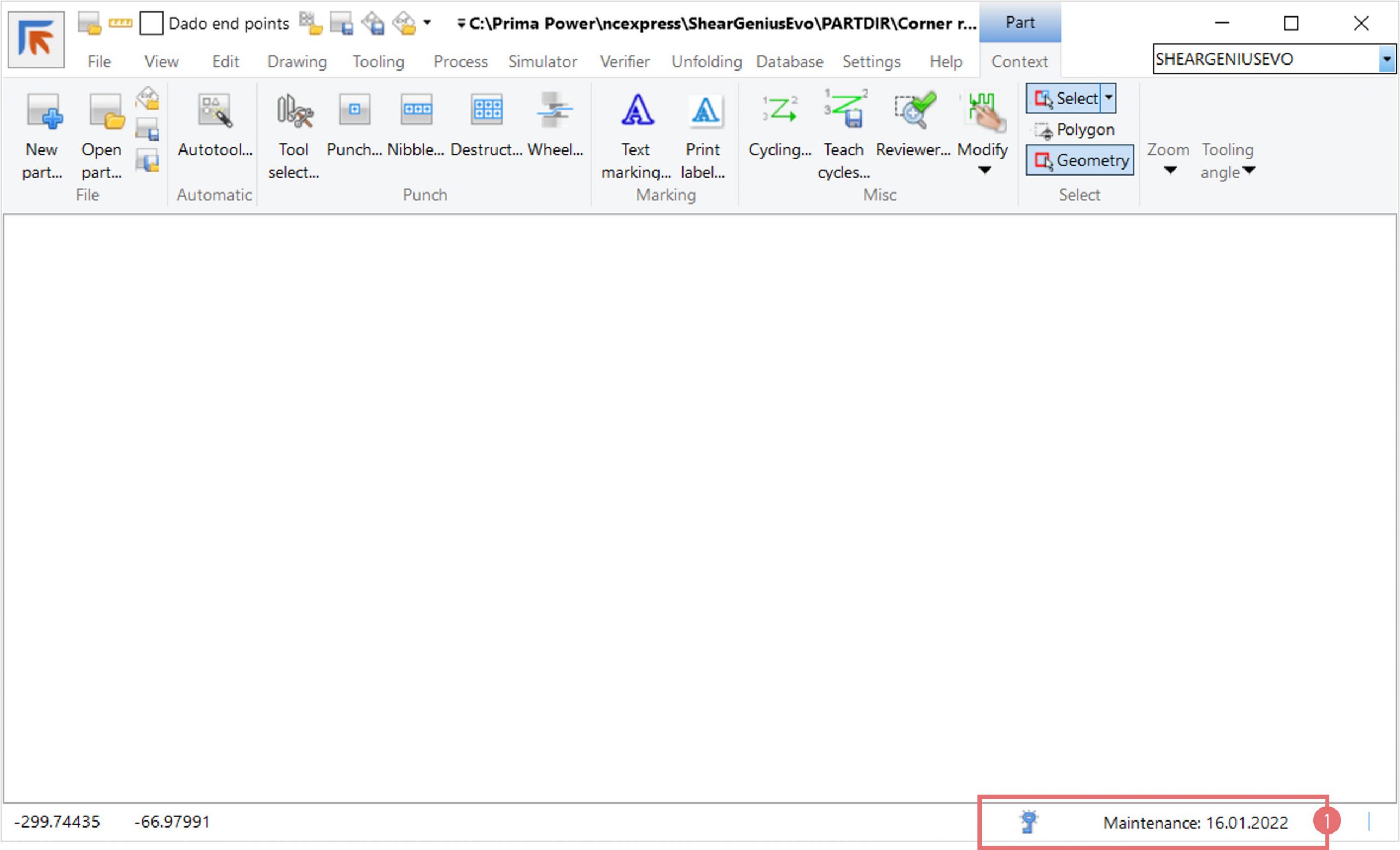
You are entitled to this update when your license maintenance is valid.

Key Highlights of NC Express 25.1:

Unfolding & Visualization

  • Top Side Coloring Change: Top side of parts now shown in green or blue depending on plastic protection, reversing previous color conventions.
  • Improved 3D Format Handling: Broader support for importing and unfolding complex part geometries.
  • Updated 3D Format Support: Expanded compatibility with major CAD formats like Inventor, SolidWorks, Catia, NX, Creo, and more—up to their 2025 versions.

Machine-Specific Features

BEND Machines

  • USS Picking Phase: New programmable phase for gripper positioning and stack handling.
  • ACP Enhancements: Allows initial part rotation and better nesting for UCP parts.

LASER Machines

  • Laser Optimizer Defaults: Save and restore optimization settings.
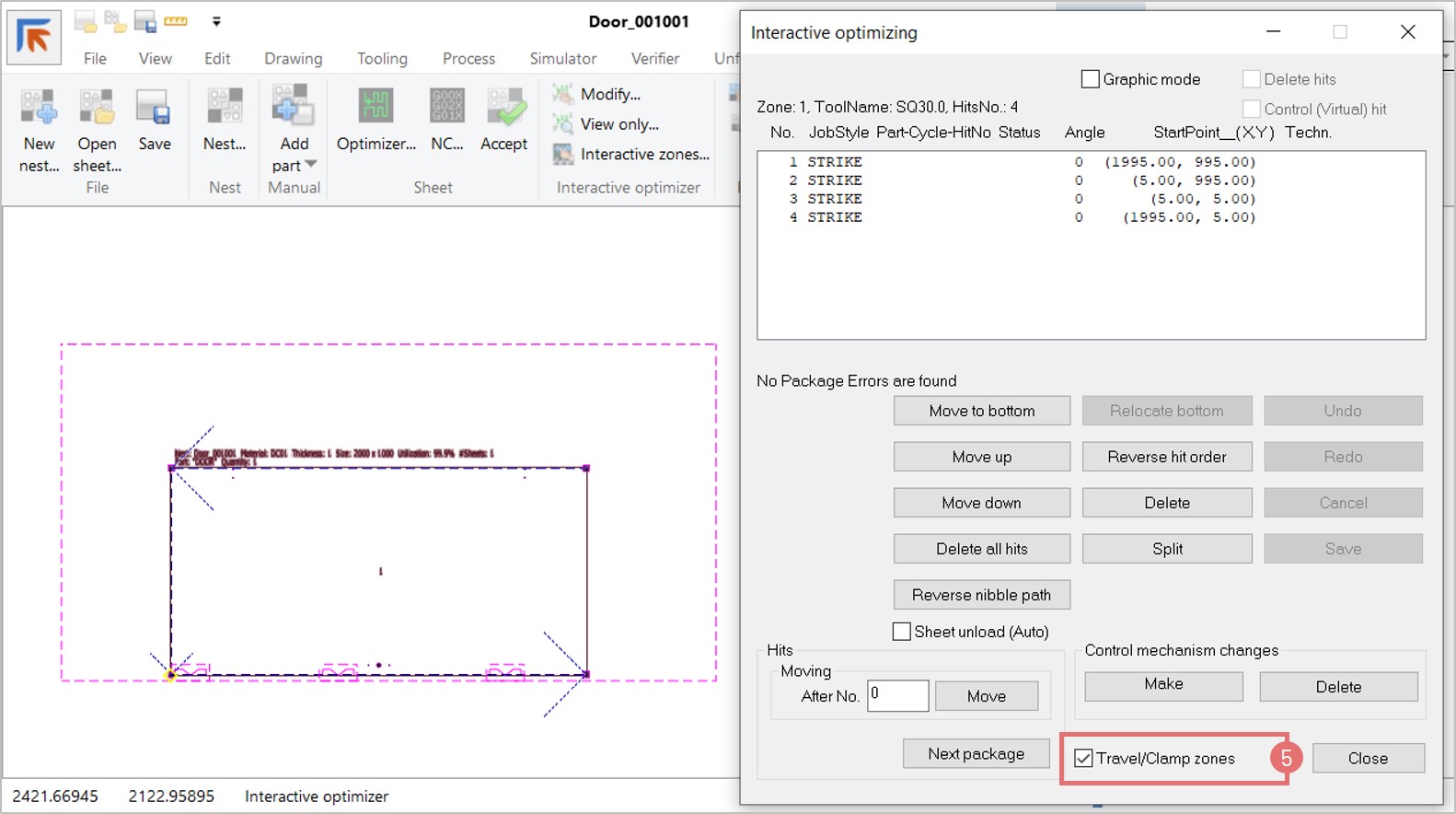
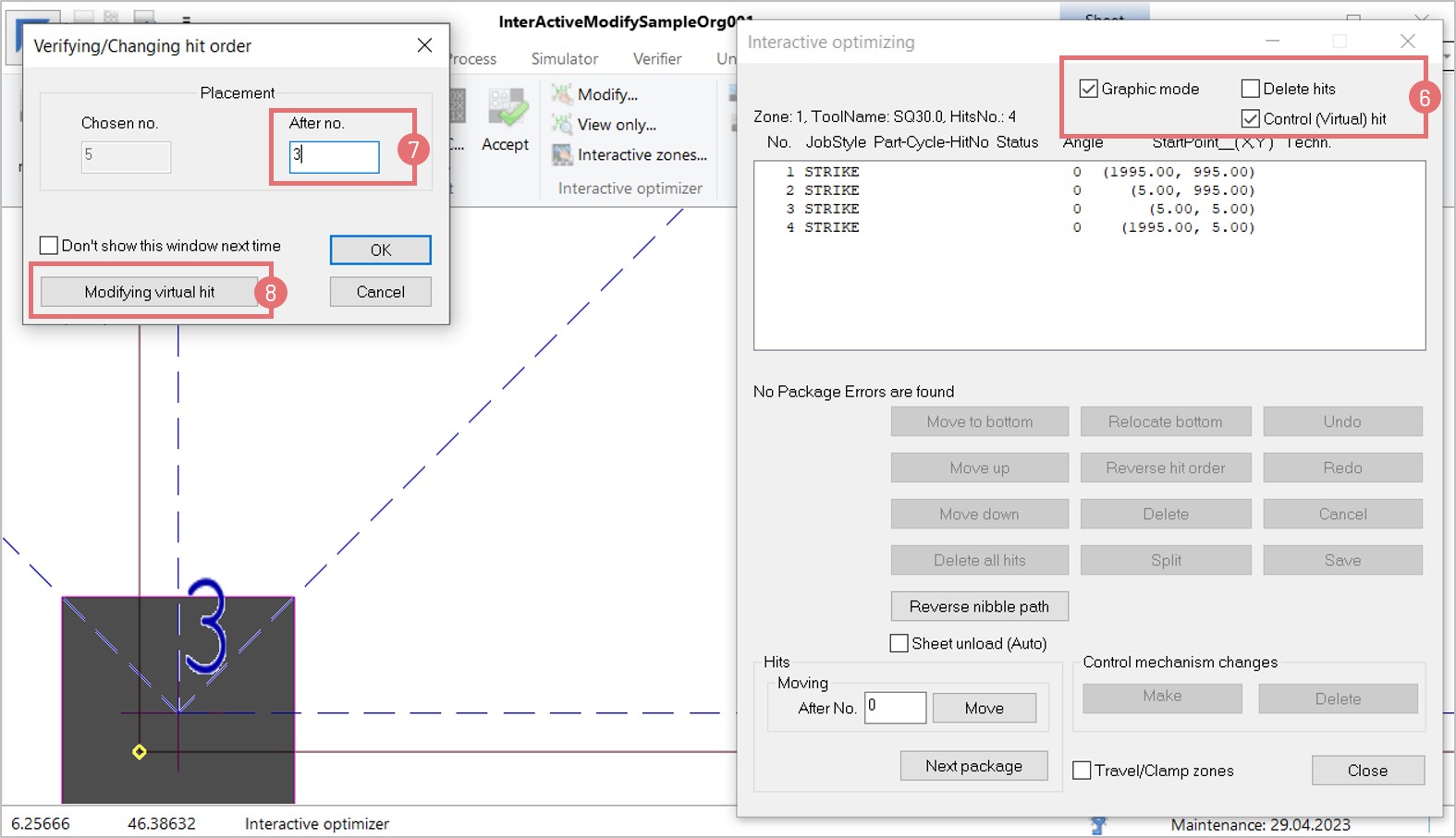
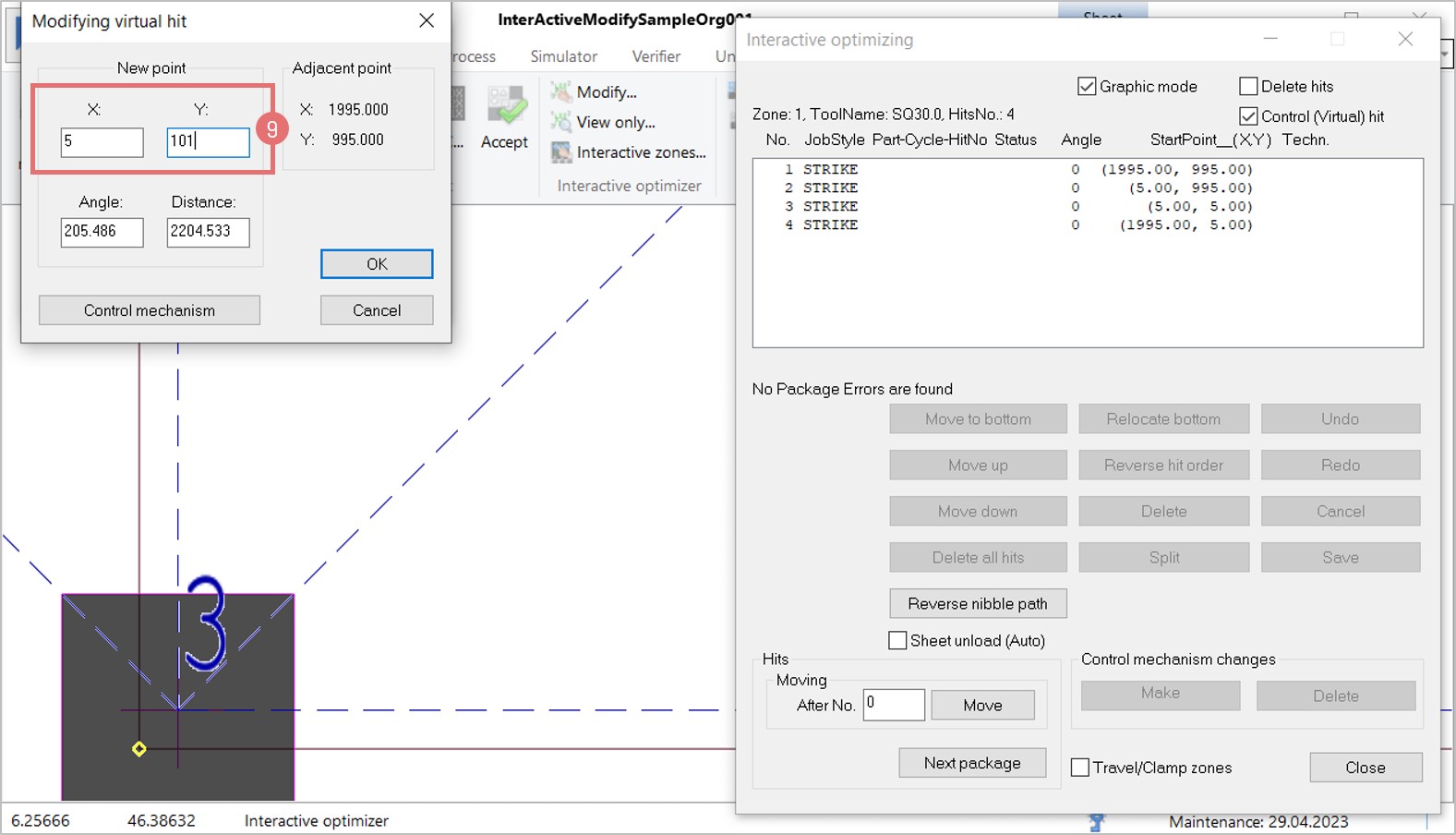
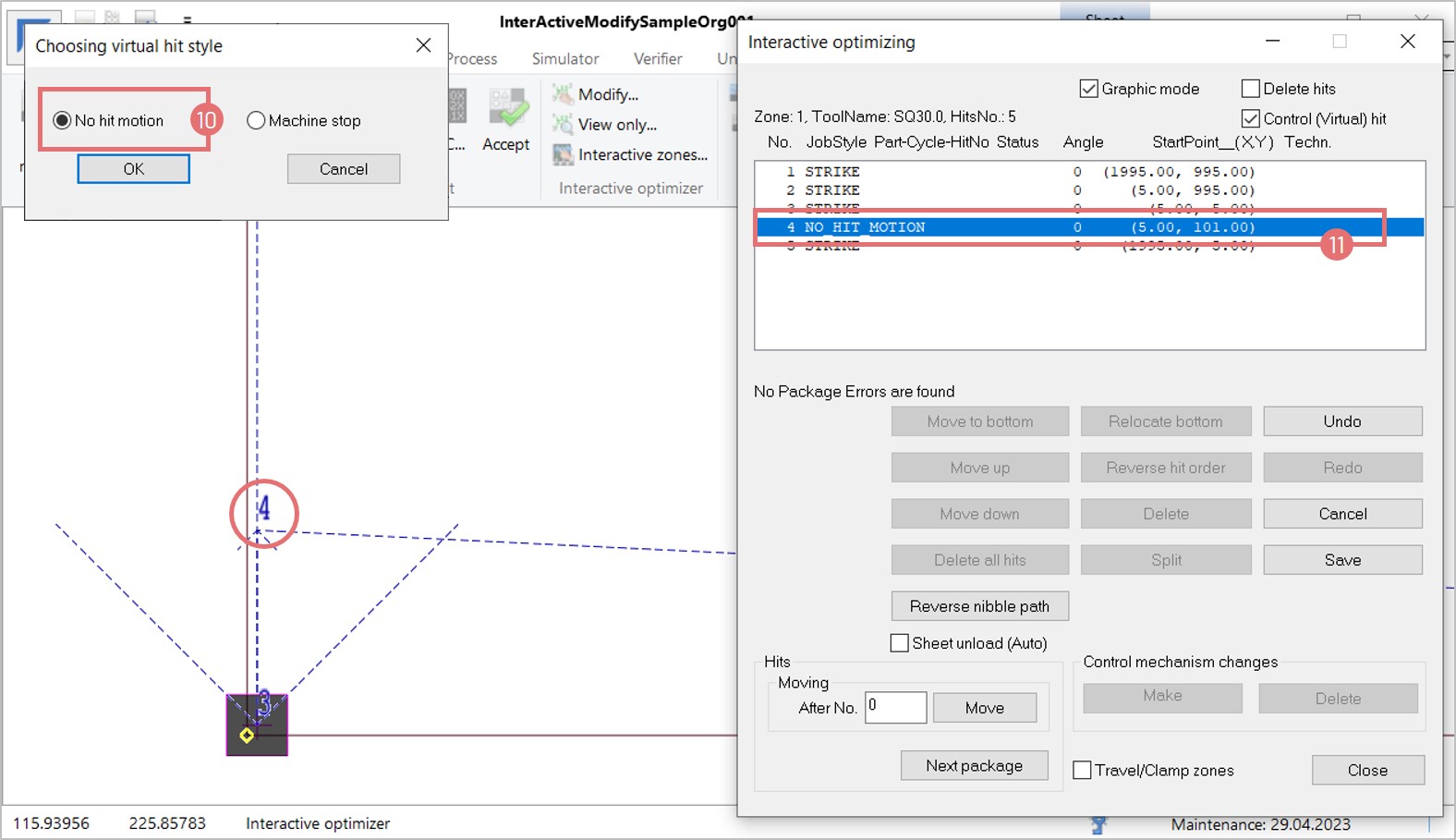
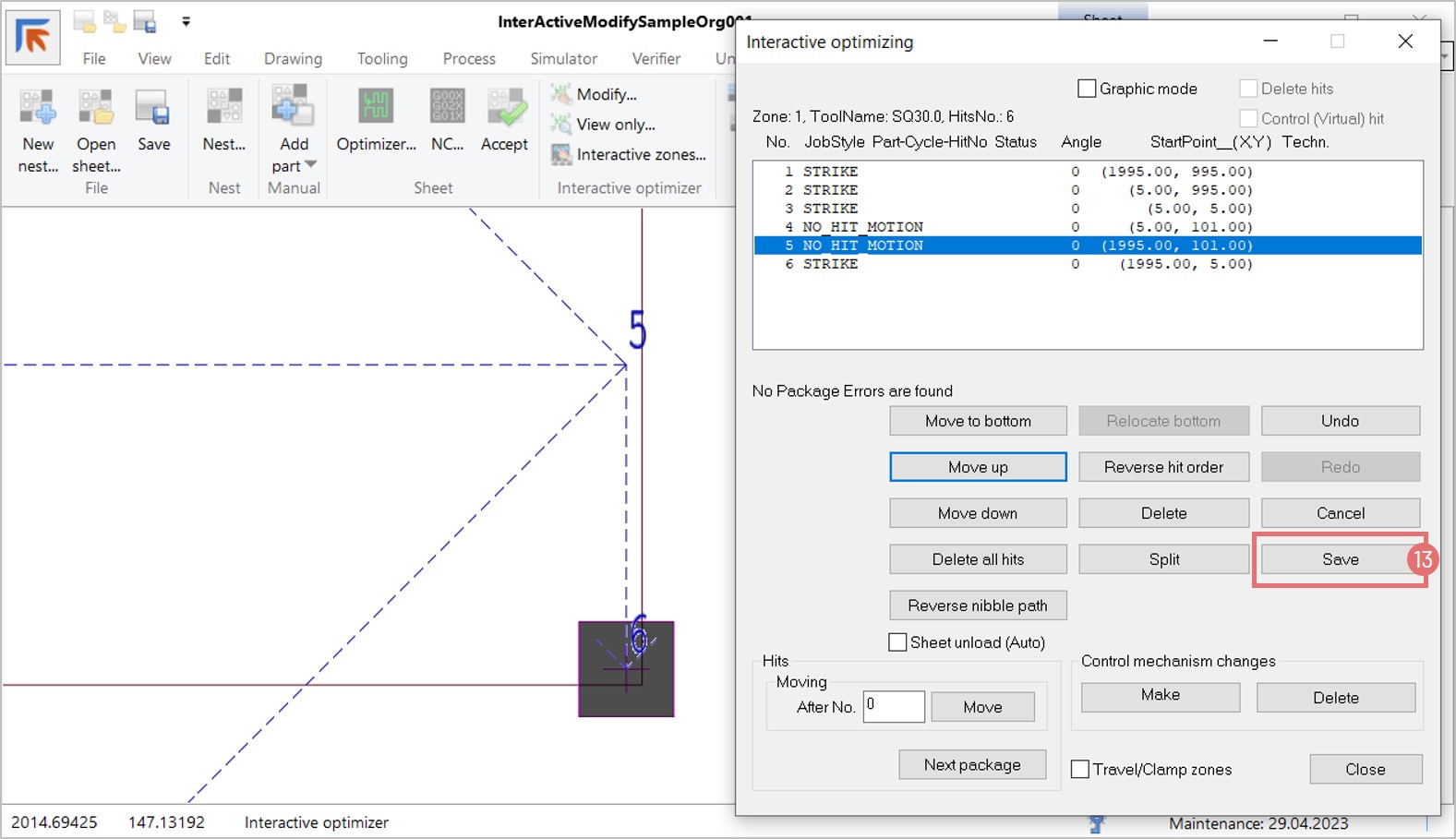
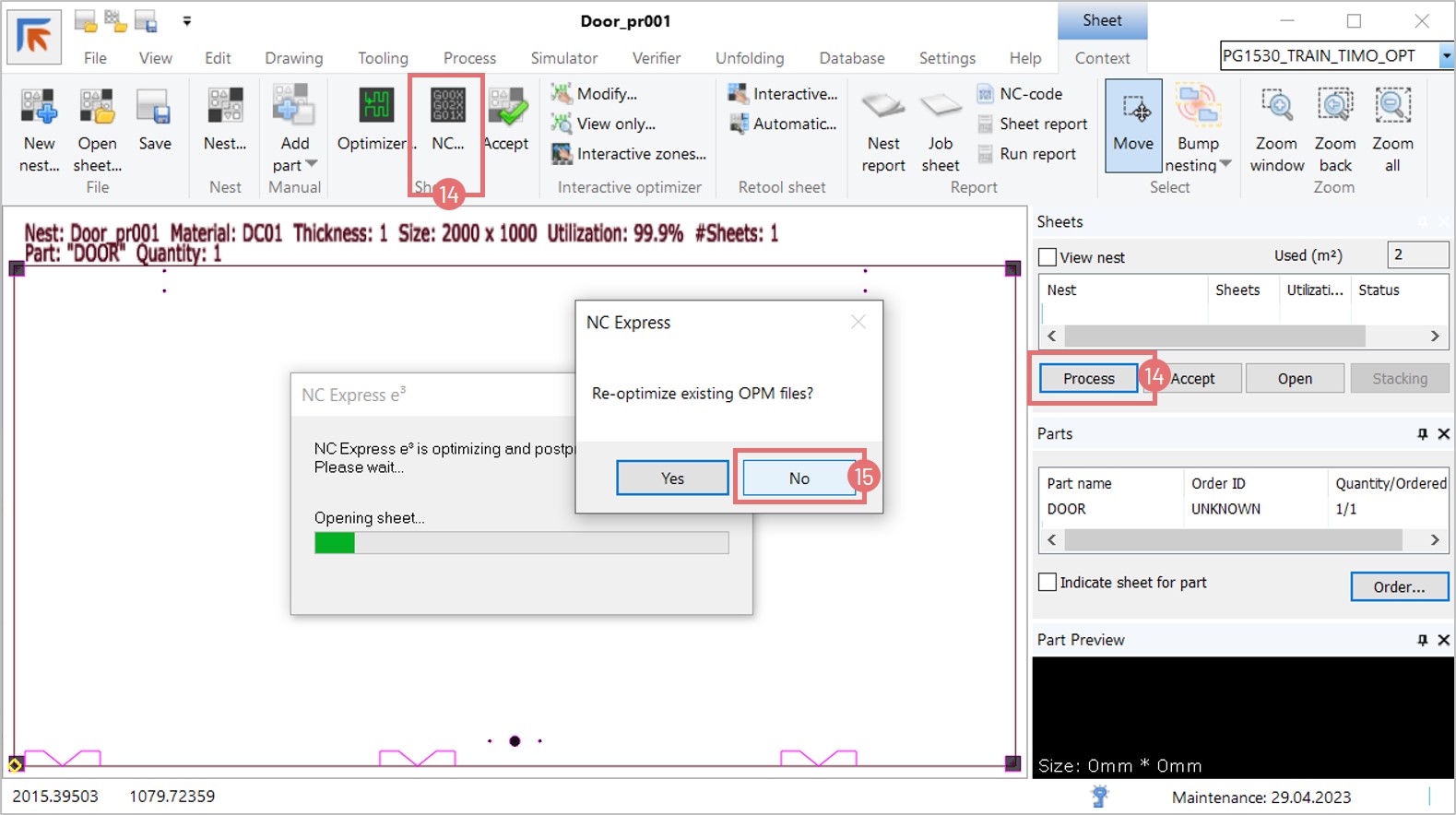
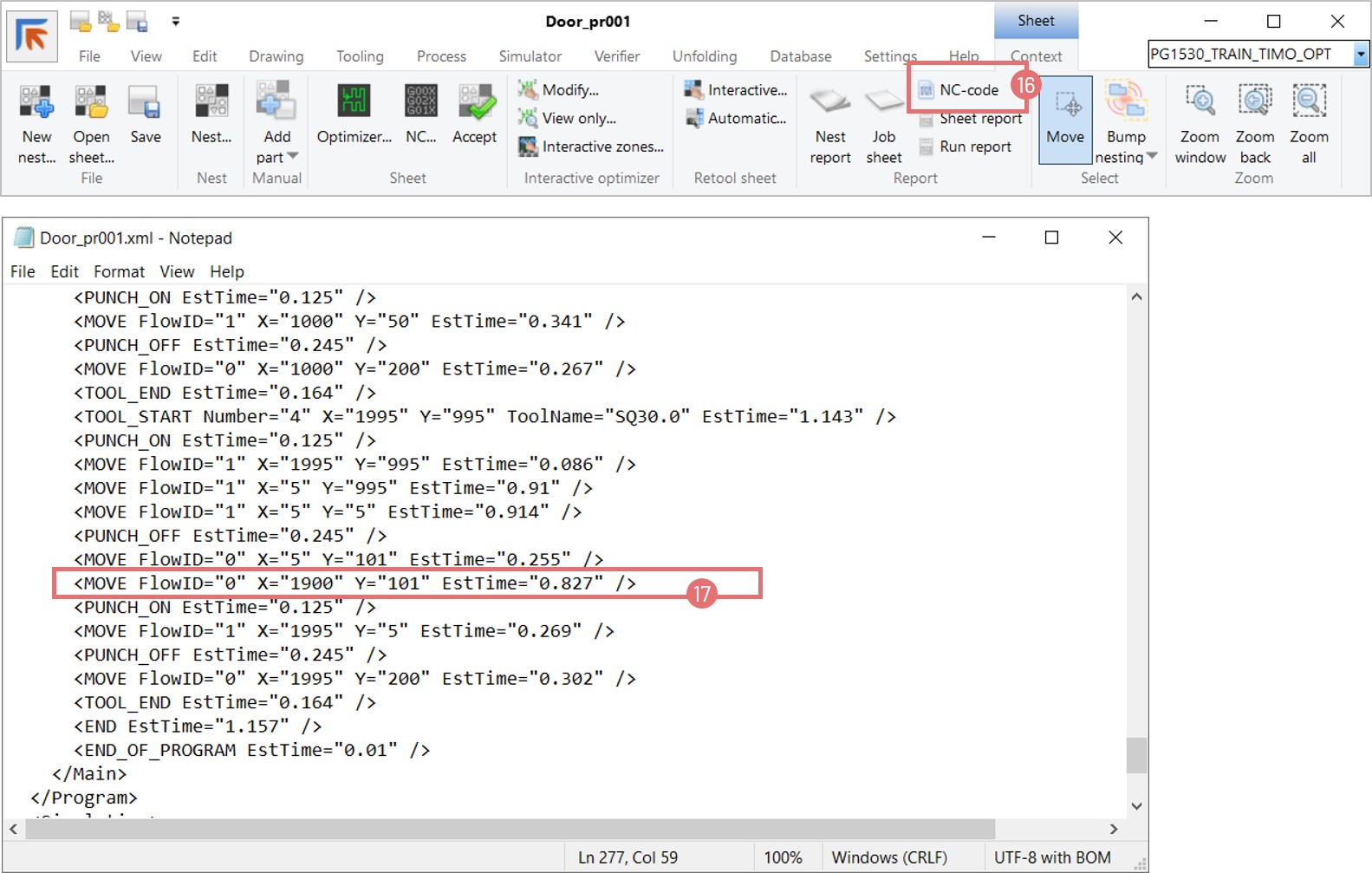
  • No Hit Motion Support: Enables rapid skeleton traversal with virtual hits.
  • Part Position Warnings: Alerts when parts are placed outside the sheet area.

COMBI (Punch-Shear) Machines

  • Autotool for Selected Device: Tooling layers now tailored to specific sorting devices.
  • Robot Placement with DSD: Improved logic for double sheet detection during robotic handling.
  • Edge Destruct Parameters: New settings for punch overcut distances.

COMBI (Laser-Punch) Machines

  • Release Sequence Support: Now available for laser-punch machines, improving part flow and nesting control.

Usability & Database Improvements

  • Order Database Filters: New filters by part name and notes; bulk removal and export options.
  • Multi-Part Selection: Add multiple parts from the order database to nesting runs.
  • Part & Nest Database Filters: Enhanced search by thickness, sheet size, and nesting name.
  • Parts List & Database Info: Displays part revision and next phase directly in the interface.

Tooling & Nesting Enhancements

  • Autotool Warnings: Alerts for geometry violations and untooled segments.
  • Arrowhead Indicators: Visual cues for small slugs and untooled areas.
  • Default Tool Size Check: Automatically selects appropriate station size based on tool dimensions.
  • Panel Bender Programming: Improved programming capabilities for EBe and BCe machines.
  • Unfolding Enhancements: Support for the latest 3D formats and versions, including Autodesk Inventor, SolidWorks, Solid Edge, Siemens JT, Siemens NX, PTC Creo, Catia, IGES, STEP, Spatial ACIS, and Parasolid.
  • Micro-Jointed Area for Manipulator Clamping: New feature to set internal contours for micro-jointing, enhancing part clamping during bending.
  • Laser Machine Enhancements: New scrap settings for every edge of the sheet, laser surface processing with selected line types/colors, and support for Platino Linear and Sinumerik One 3D Laser.
  • Punch-Shear Machines: Support for bend relief machining with milling heads and setting cassette types in CAM.
  • Laser-Punch Machines: Enhanced laser surface processing, external part marking device support, and laser crop lines in both X and Y directions.
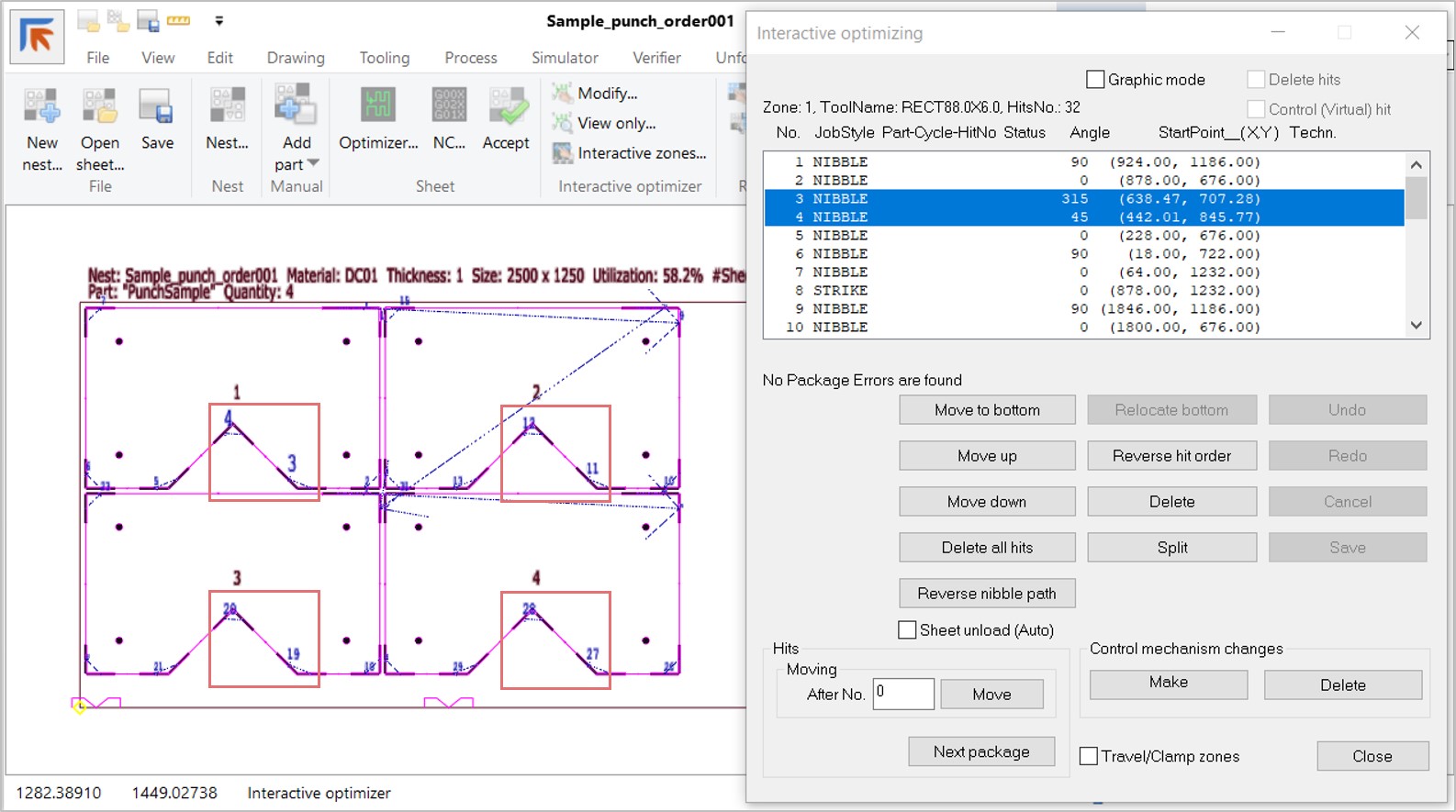
  • Usability Enhancements: Creating standard tools from part geometry, triangular-shaped dimple feature recognition, nibbling priority settings, and marking selected parts as completed in the order database.
  • Windows Support: Compatibility with Windows 7, Server 2012 to 2022, and the latest Windows 10 and 11 versions.

Important Notes on 32-bit vs. 64-bit Builds:

  • 64-bit Build: Recommended for new customers. Note that old customized 32-bit report templates cannot be used and must be recreated.
  • 32-bit Build: Backwards compatible with older versions. Recommended for updates if you currently use the 32-bit version.
  • Integration Considerations: If you have software integrated with NC Express using the ParaNCX-interface, please contact Prima Power before updating to the 64-bit build. This affects applications such as Tulus Office Premium, Tulus Office Power Processing, Batch Processing, and PowerPlan, which also need to be compiled in 64-bit.
Interactive skeleton unload

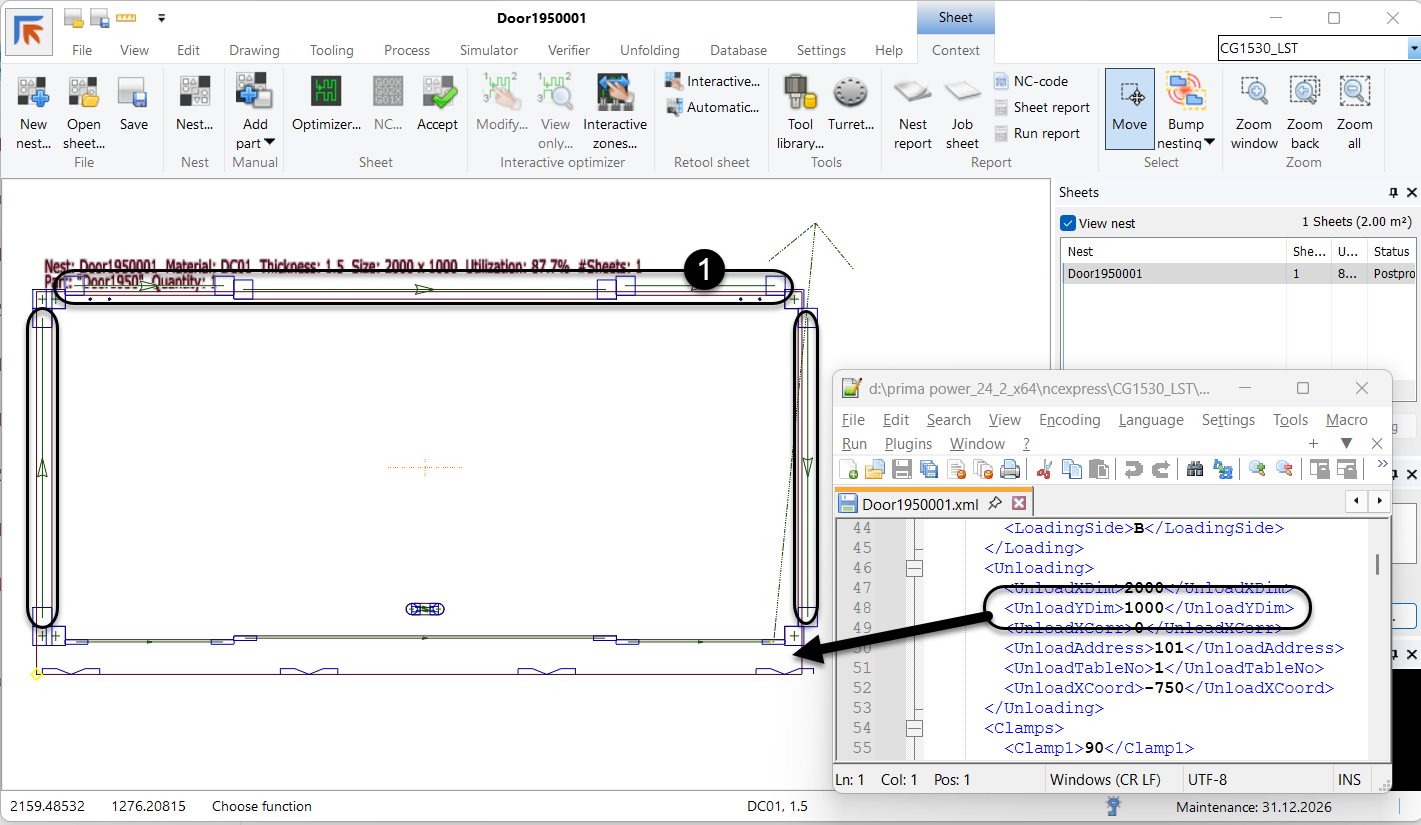
This article describes a workflow how to set sheet unloading size interactively on punching or Combi Laser machines equipped with a skeleton unloading device (UD/UDC). Typically, NC Express will automatically define the skeleton size and pick positions for the unloading clamps during nest optimization. However, there are cases when you need to define the unloading sheet size interactively:

  1. When part tooling destructs sheet edges, leaving no skeleton behind except for the clamp strip.

  2. When you retool a sheet interactively to add tool hits to either edge of the sheet that results in smaller skeleton size.

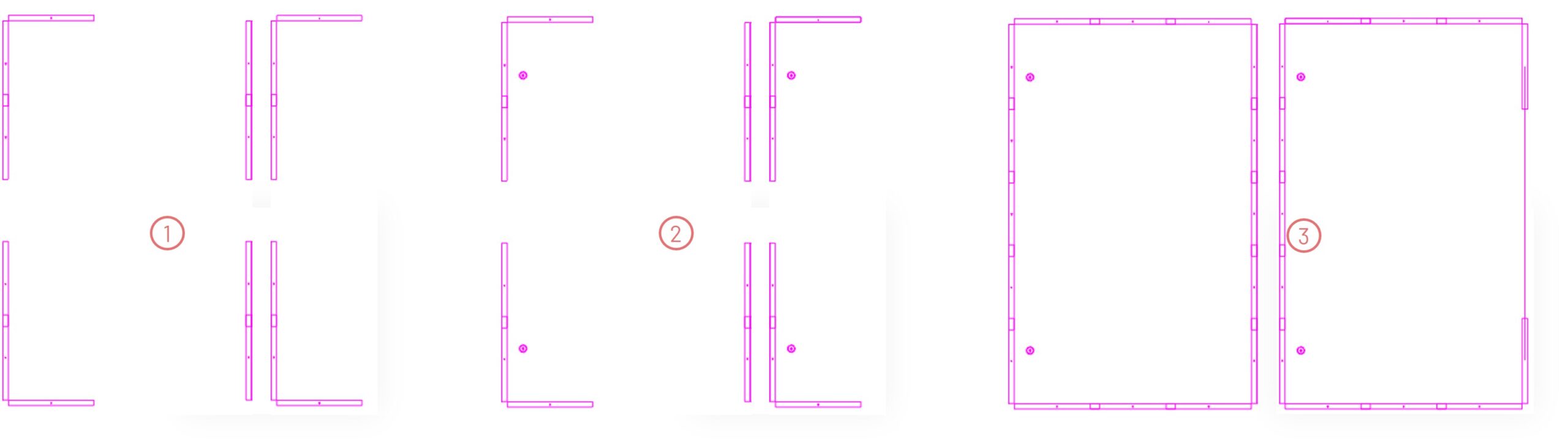
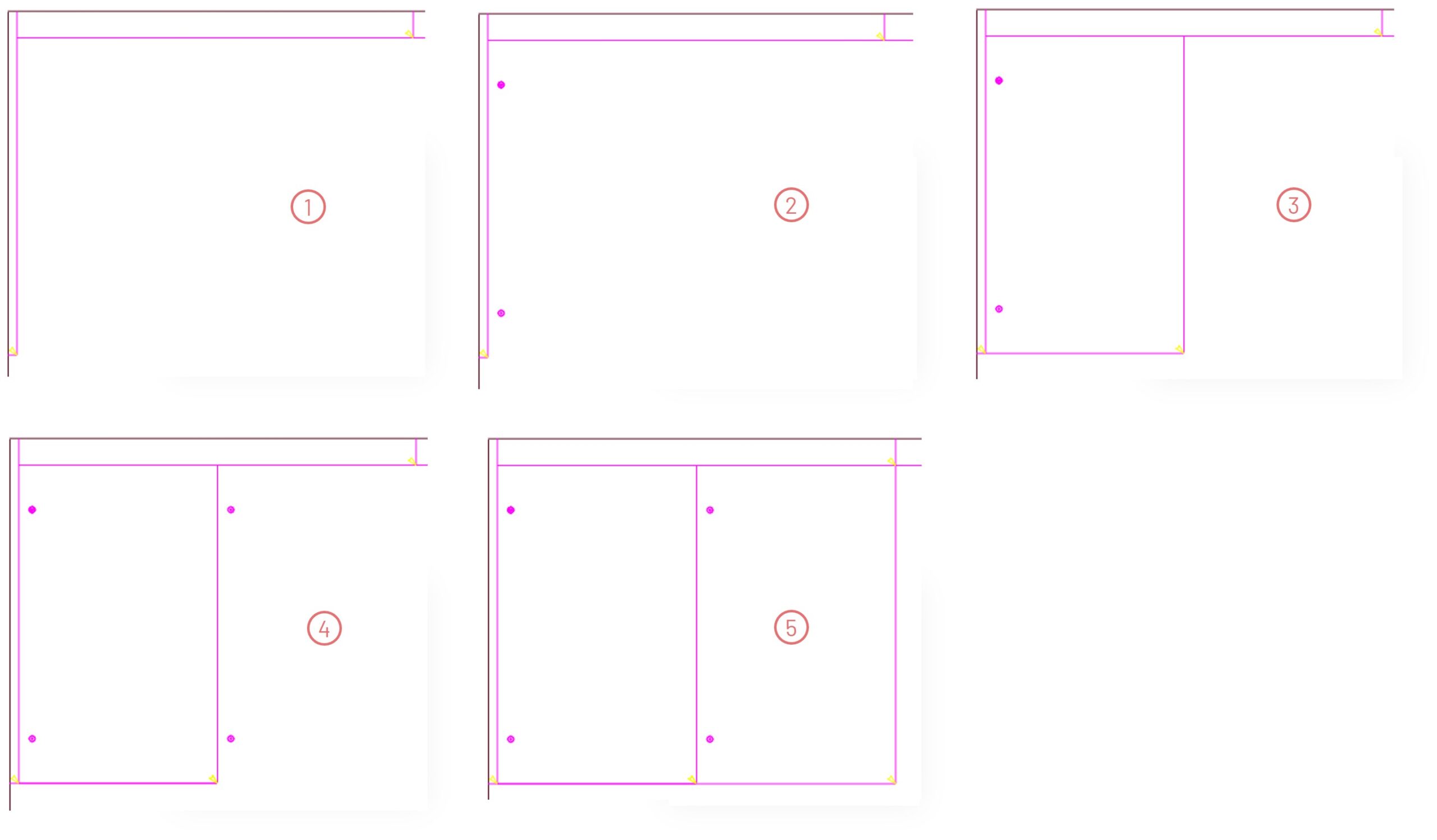
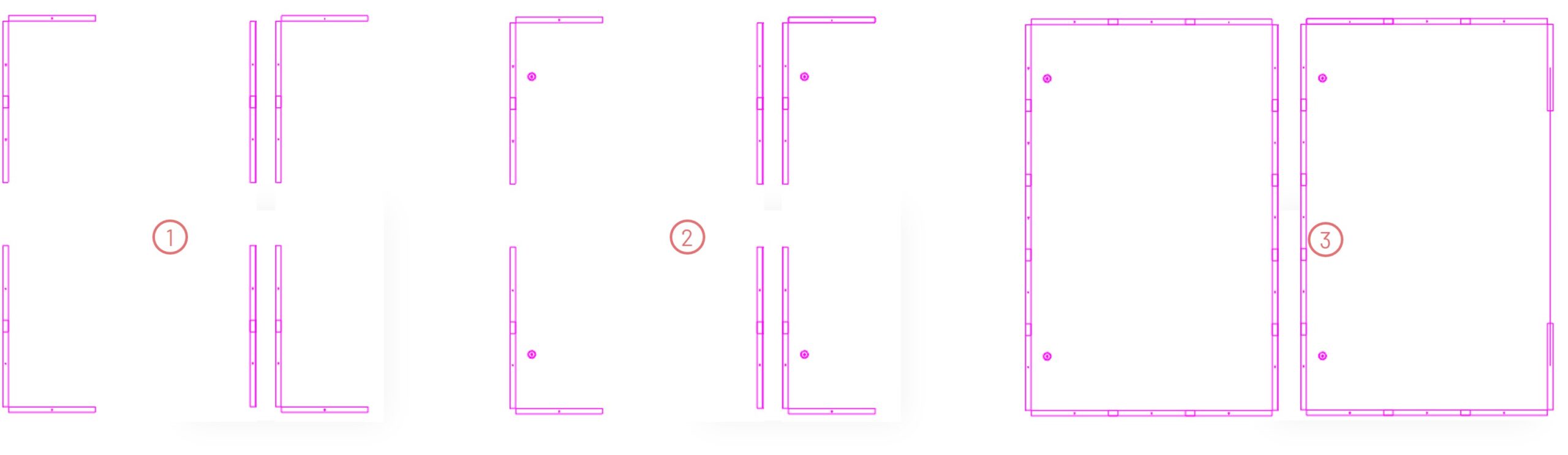
In the example below, one large part is nested per one sheet. Part tooling has destructed edges of the sheet, leaving no skeleton behind (1). To unload the clamp strip with the Unloading device, edit the unloading skeleton size.

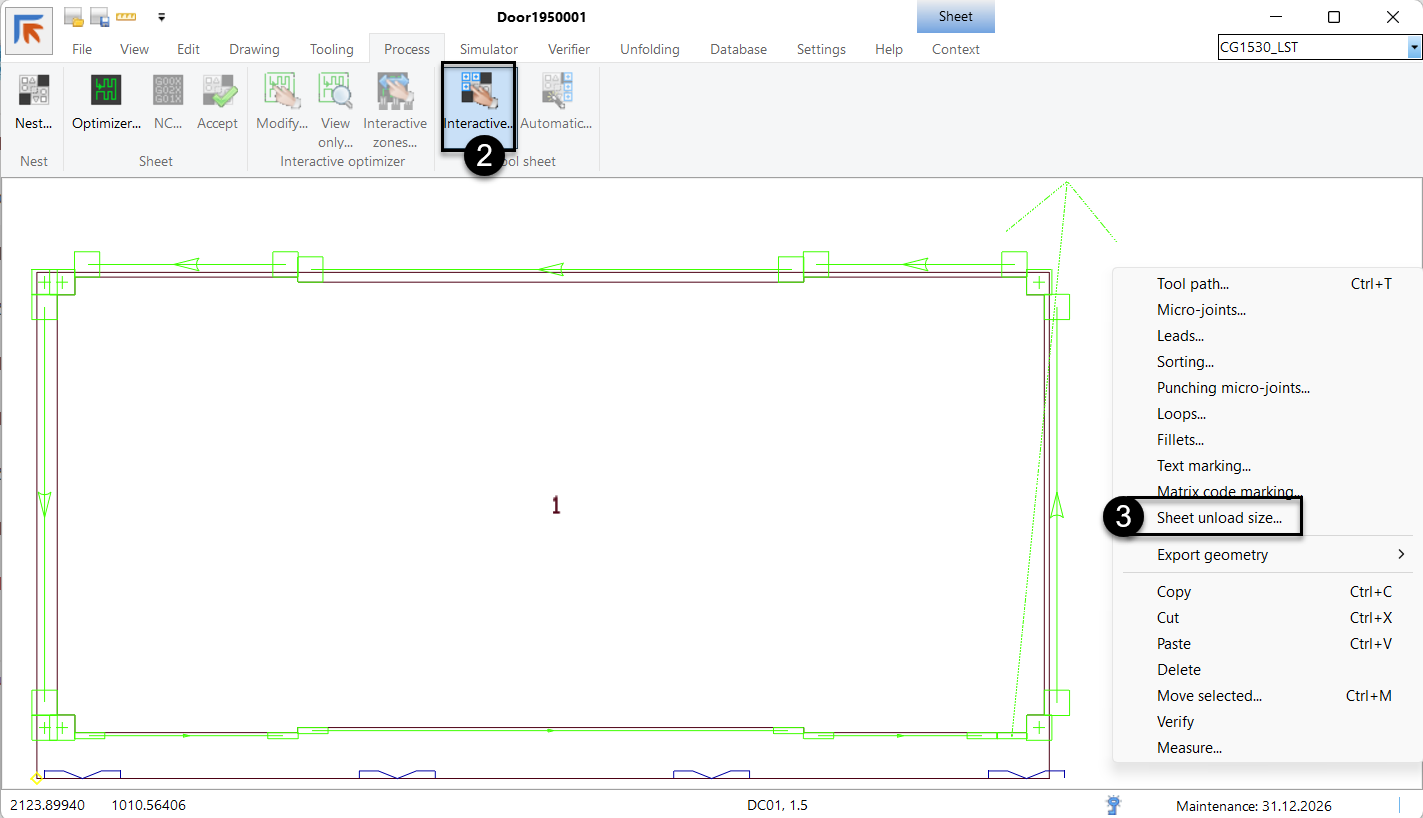
2. Select a nest and run the Optimizer. Switch to the Interactive nest tooling view (2). Open the right-mouse-click menu, and select the Sheet unload size option (3).

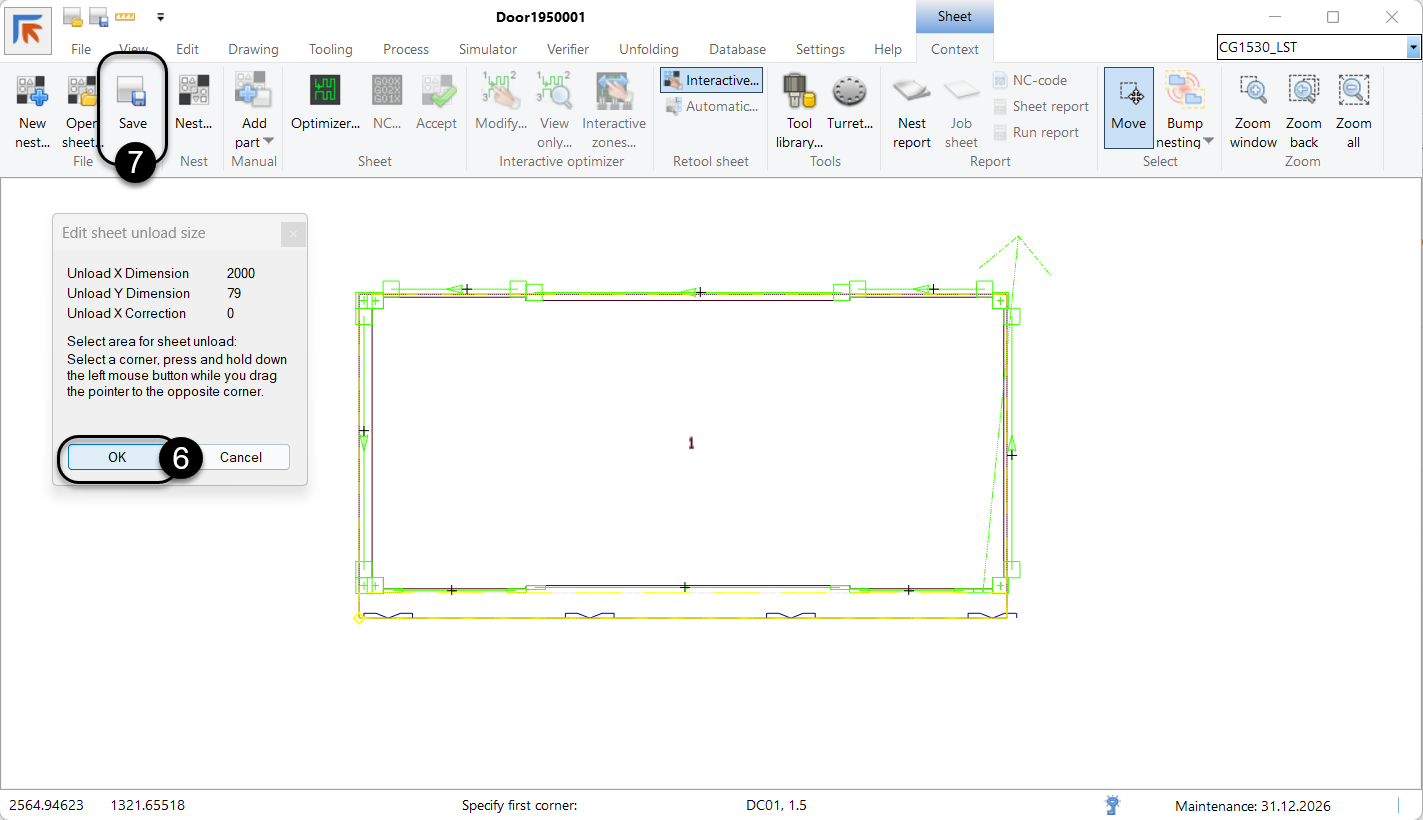
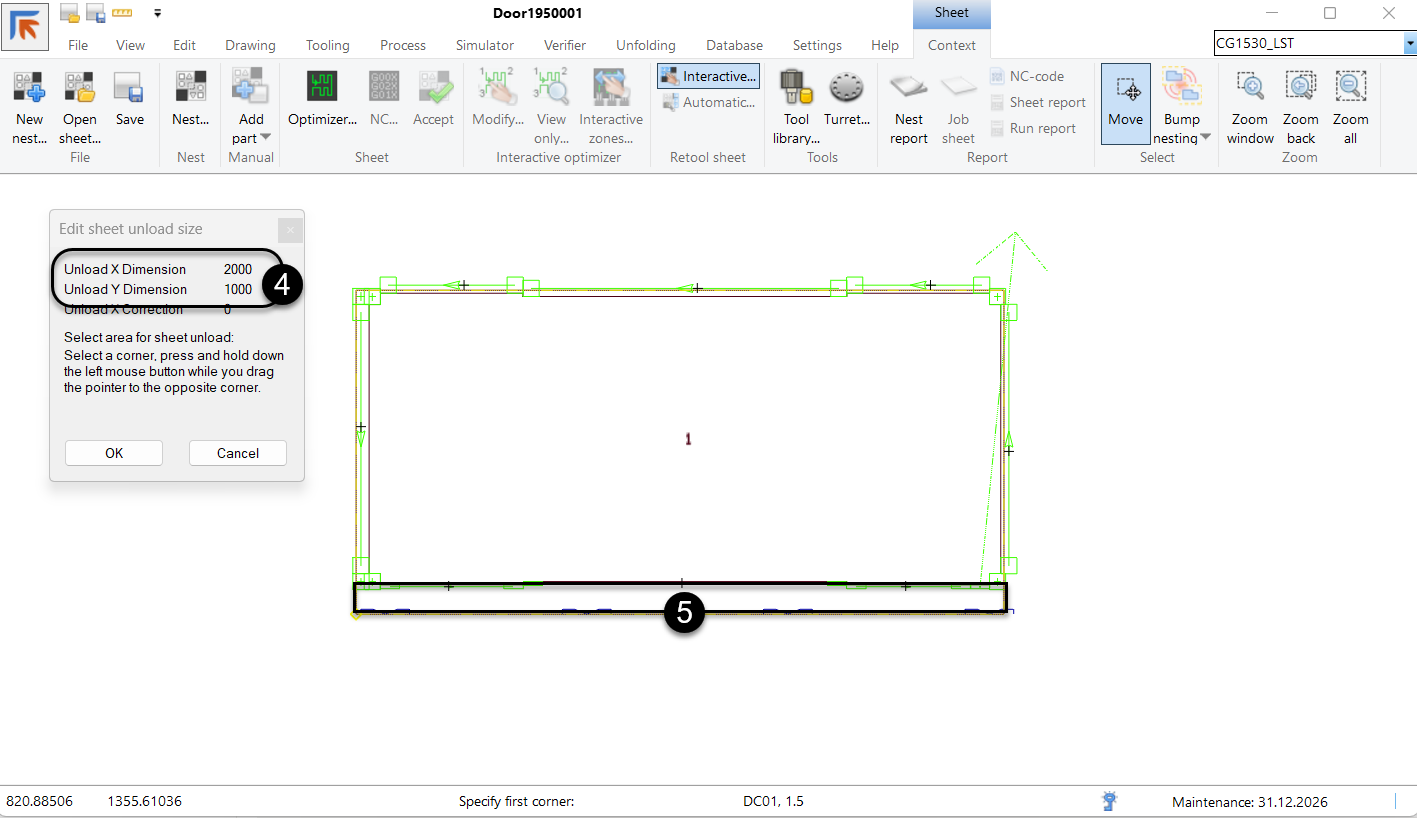
3. The Edit sheet unload size dialog shows the current dimensions of the unload sheet (4). Select a desired unload sheet dimension on the graphical view (5).

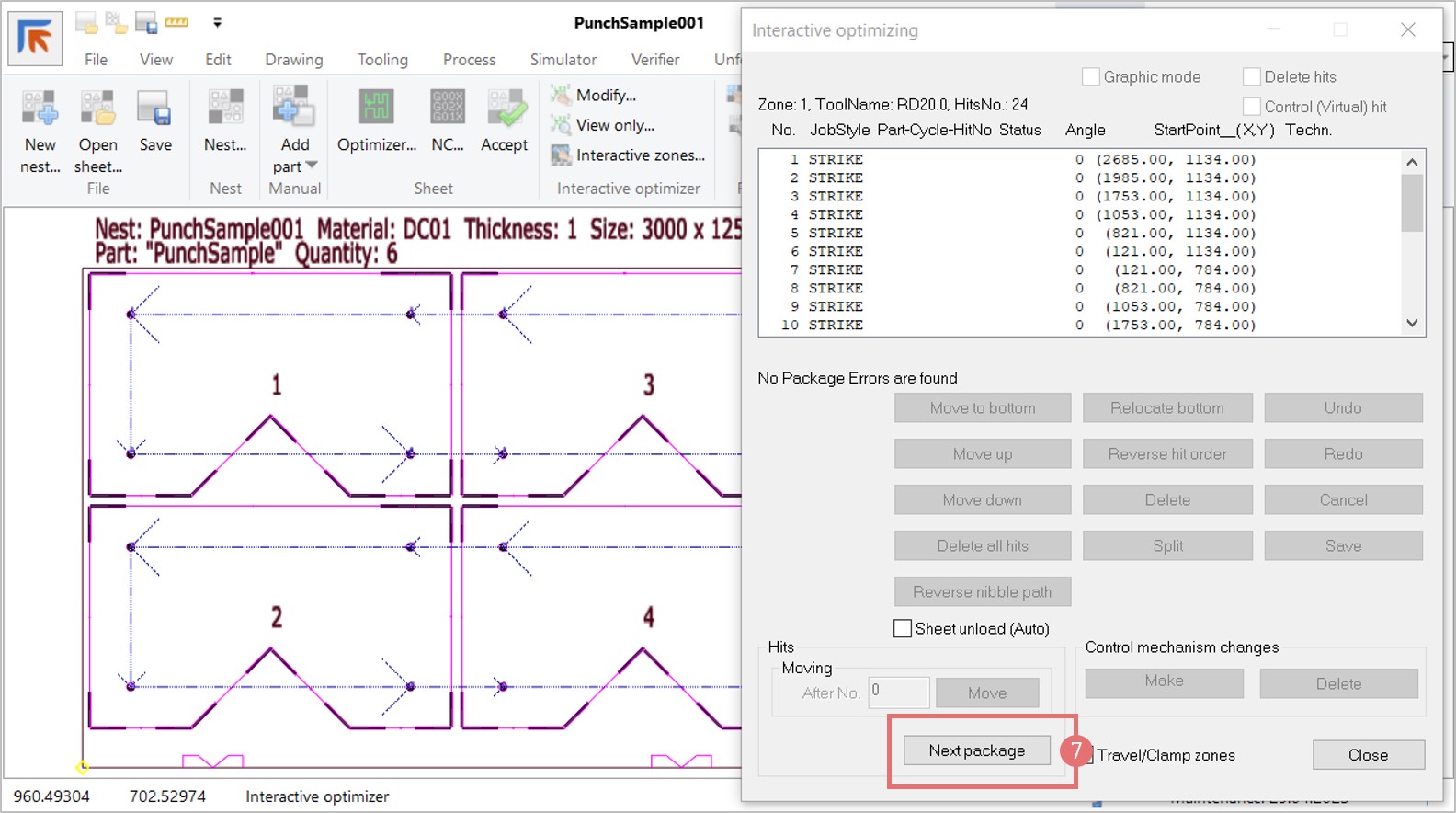
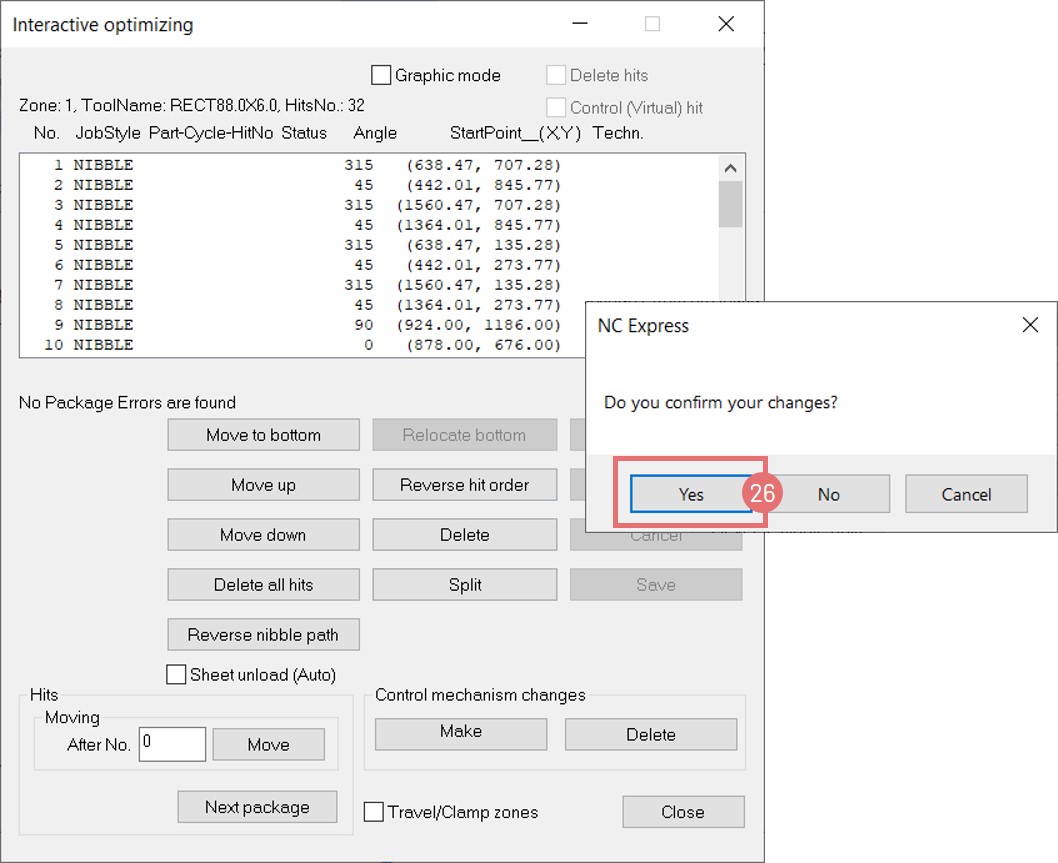
4. The Unload Y dimension value has changed from 1000 mm to 79 mm. Press OK to confirm the selected area (6). Press the Save button to apply changes and exit the Interactive nest tooling view (7).

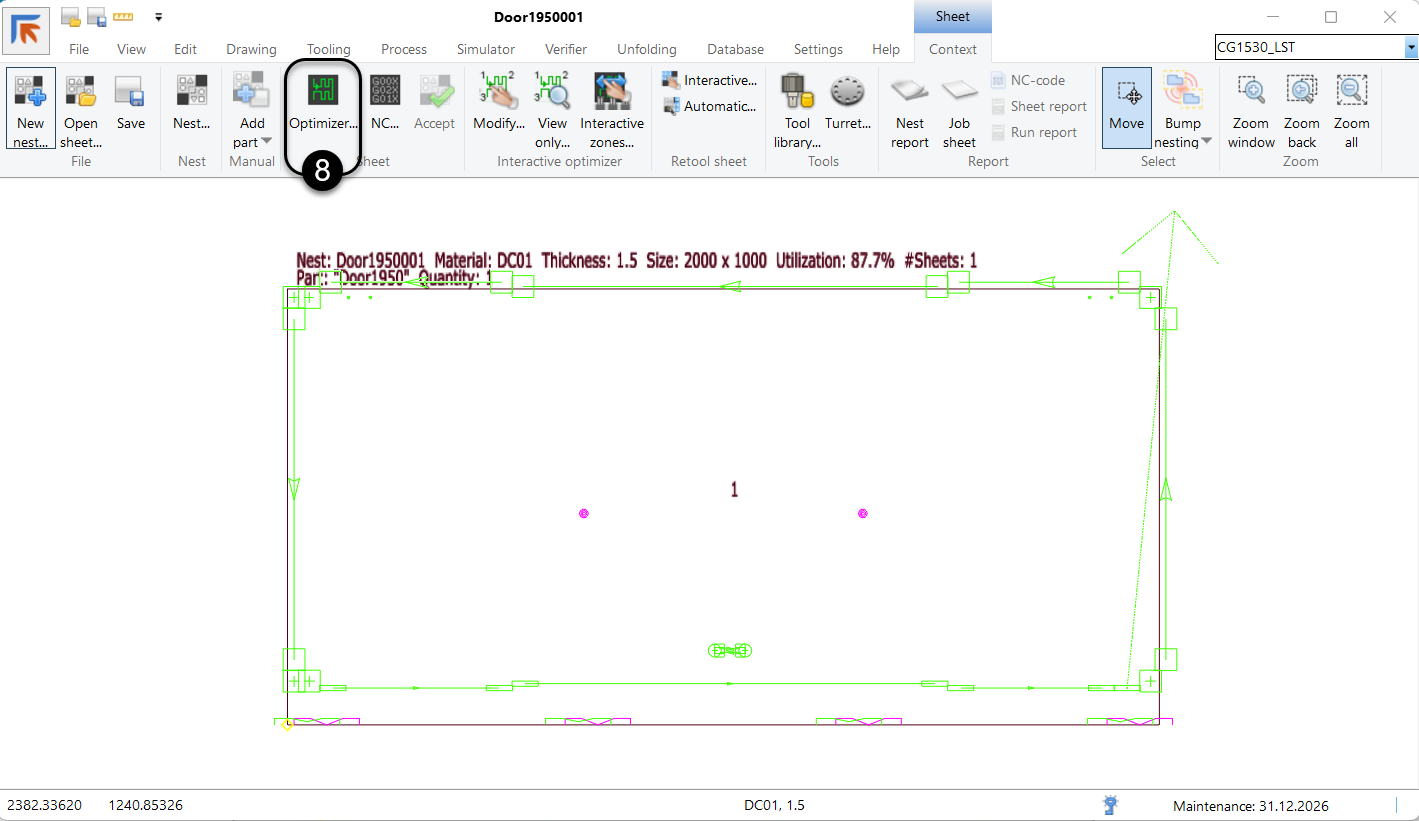
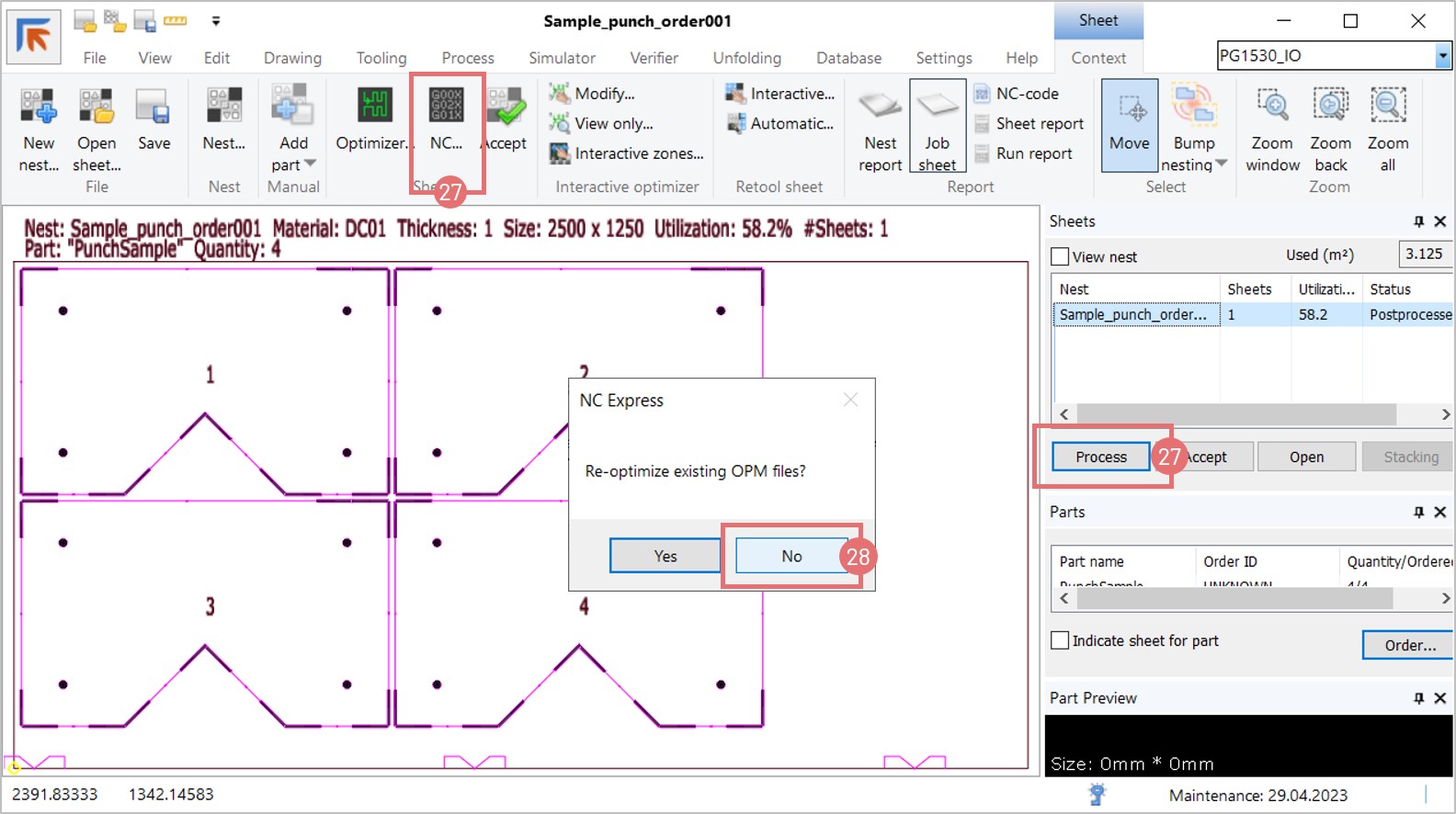
5. Optimize the sheet again (8).

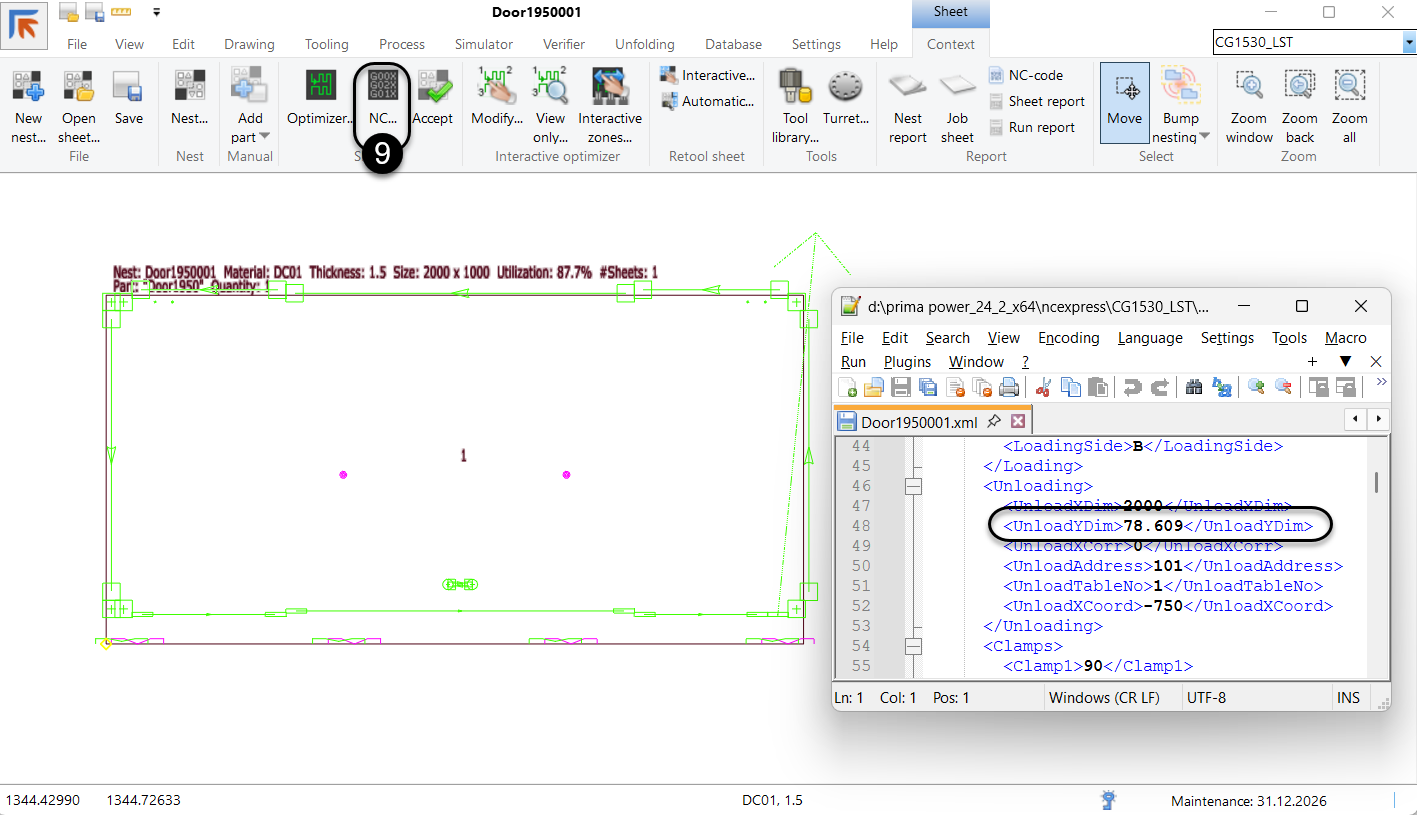
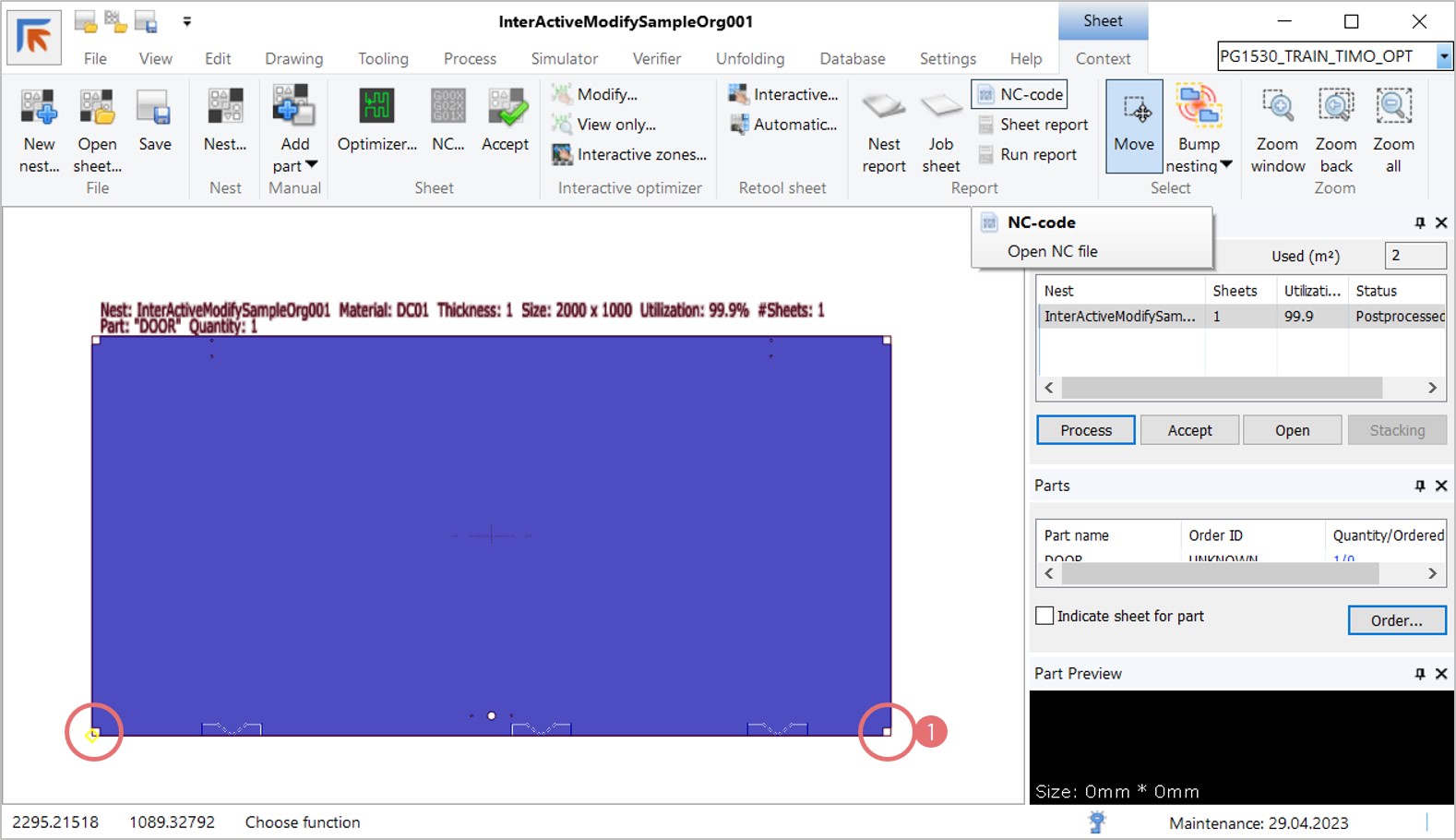
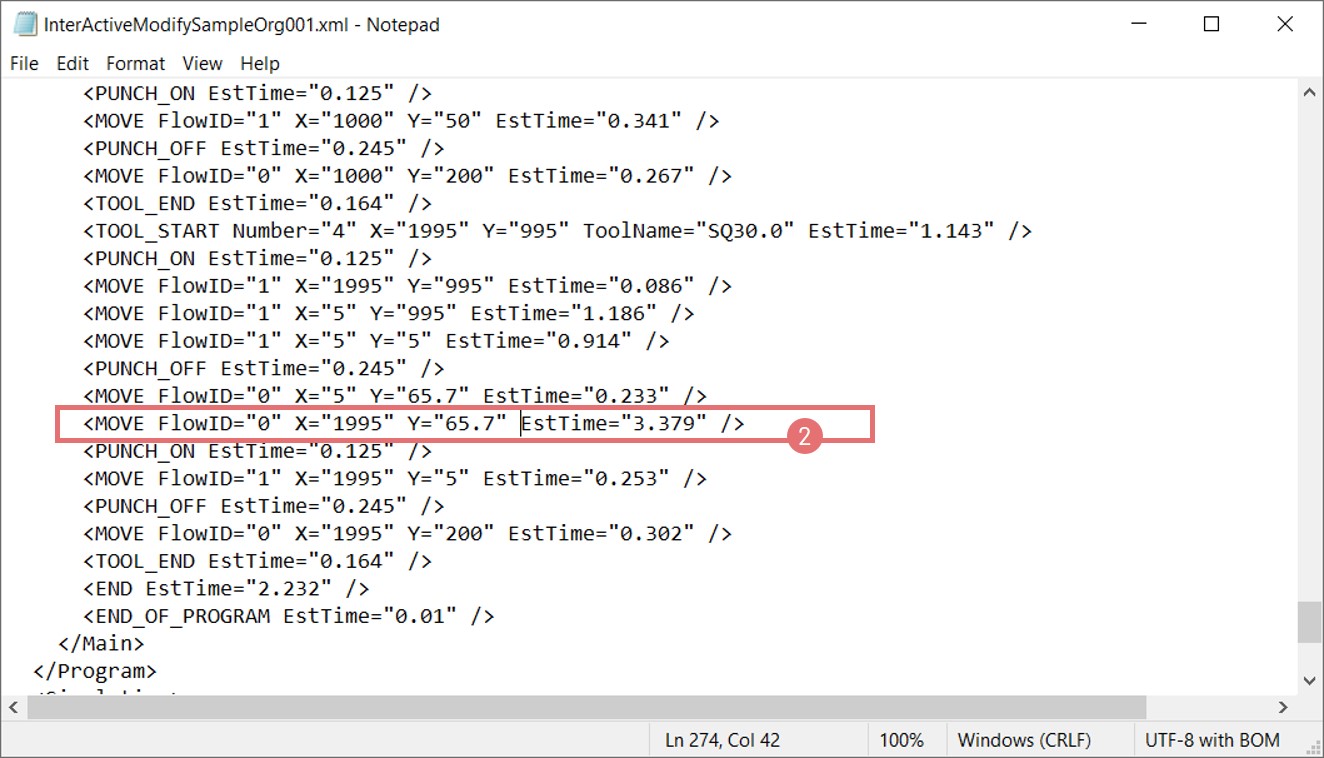
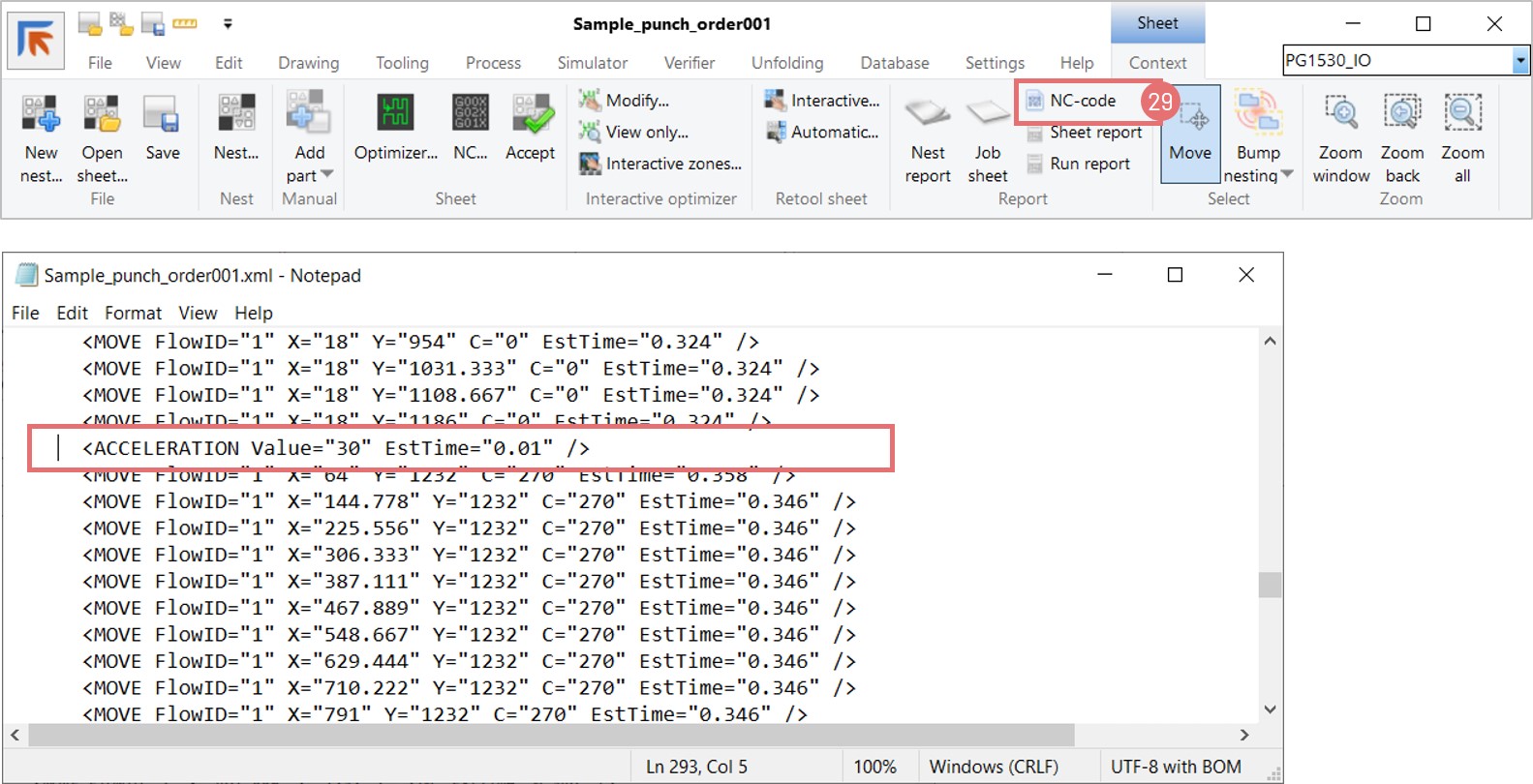
6. Generate the NC code for the newly optimized sheet by pressing the NC code button (9). Scroll to the Unloading line to verify the unloading sheet size in the Y-direction equals the value given in the Interactive nest tooling phase.

NC Express 24.2 Release

We are excited to announce the release of NC Express 24.2, a significant update in line with Prima Power’s ‘All in one’ software strategy. This strategy aims to create a continuous and integrated production flow for all Prima Power machines.

NC Express 24.2 technical release notes document about new features.

You are entitled to this update when your license maintenance is valid.

Key Highlights of NC Express 24.2:

  • Panel Bender Programming: Improved programming capabilities for EBe and BCe machines.
  • Unfolding Enhancements: Support for the latest 3D formats and versions, including Autodesk Inventor, SolidWorks, Solid Edge, Siemens JT, Siemens NX, PTC Creo, Catia, IGES, STEP, Spatial ACIS, and Parasolid.
  • Micro-Jointed Area for Manipulator Clamping: New feature to set internal contours for micro-jointing, enhancing part clamping during bending.
  • Laser Machine Enhancements: New scrap settings for every edge of the sheet, laser surface processing with selected line types/colors, and support for Platino Linear and Sinumerik One 3D Laser.
  • Punch-Shear Machines: Support for bend relief machining with milling heads and setting cassette types in CAM.
  • Laser-Punch Machines: Enhanced laser surface processing, external part marking device support, and laser crop lines in both X and Y directions.
  • Usability Enhancements: Creating standard tools from part geometry, triangular-shaped dimple feature recognition, nibbling priority settings, and marking selected parts as completed in the order database.
  • Windows Support: Compatibility with Windows 7, Server 2012 to 2022, and the latest Windows 10 and 11 versions.

Important Notes on 32-bit vs. 64-bit Builds:

  • 64-bit Build: Recommended for new customers. Note that old customized 32-bit report templates cannot be used and must be recreated.
  • 32-bit Build: Backwards compatible with older versions. Recommended for updates if you currently use the 32-bit version.
  • Integration Considerations: If you have software integrated with NC Express using the ParaNCX-interface, please contact Prima Power before updating to the 64-bit build. This affects applications such as Tulus Office Premium, Tulus Office Power Processing, Batch Processing, and PowerPlan, which also need to be compiled in 64-bit.
Grid-style cutting for 2D Laser and Combi Laser machines

The grid-style laser cutting functionality in NC Express (or DpM+ on Combi laser machines) creates a path that follows a grid pattern. During grid-style cutting, piercing is done on the contour without a lead-in, the cutting sequence is tangential (all segments in the same axis are cut first before changing direction inside a cluster), and the laser head does not stop on the motion trajectory. This results in much faster processing time. However, the grid quality is worse due to pierce splatter. Grid-style cutting has material and thickness limitations depending on the laser source power.

Applying grid-style cutting automatically

1. Open a part in NC Express, switch to the Tooling tab, and open the Autotool dialog (1). Enable grid-style cutting under the Grid cut tab. Select the Separate adjacent clusters checkbox to break the laser path into smaller grids (2).

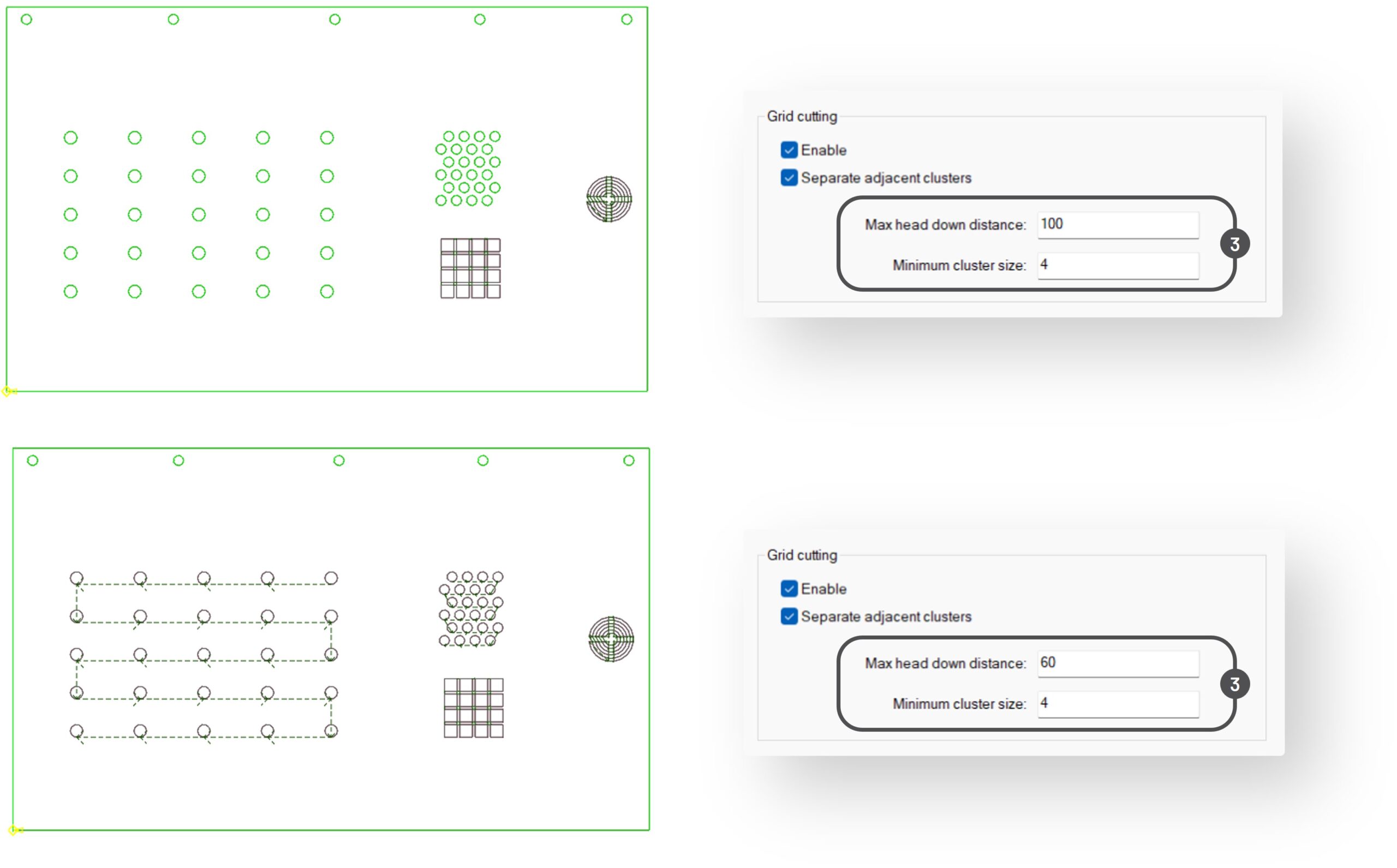
2. Depending on part design, adjust the Max head down distance and Min cluster size values to recognize the correct grid pattern (3). Max head down distance defines the sparsity of geometry elements in a cluster.

3. If clusters cannot be recognized automatically, or if only some area of the part should be cut in a grid style, you can apply grid-style cutting selectively. Select the desired geometry with the left mouse button and run Autotool with the required settings.

4. Compare this result with grid cutting enabled and disabled.

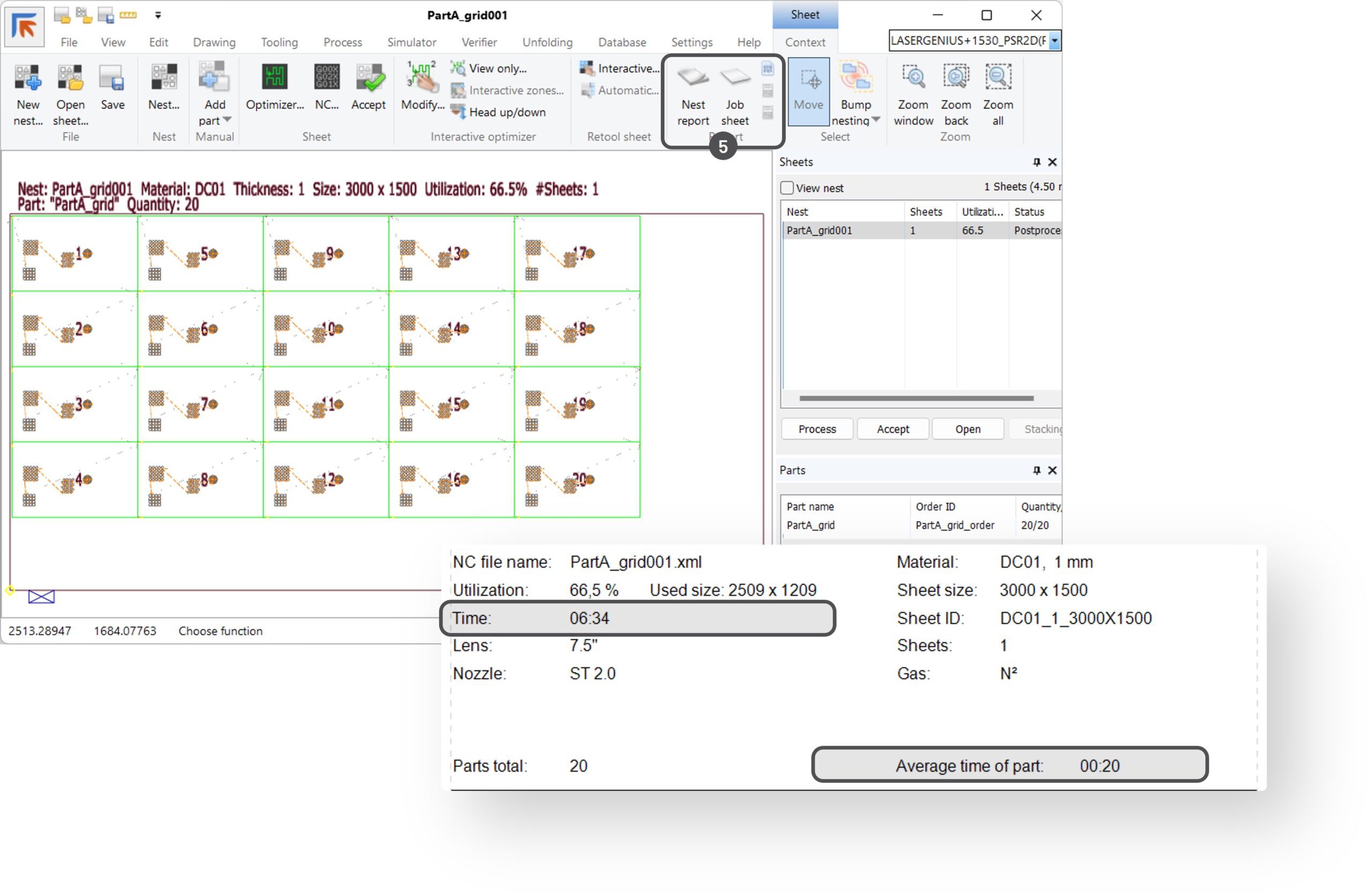
5. Switch to the Process tab and nest part A (4).

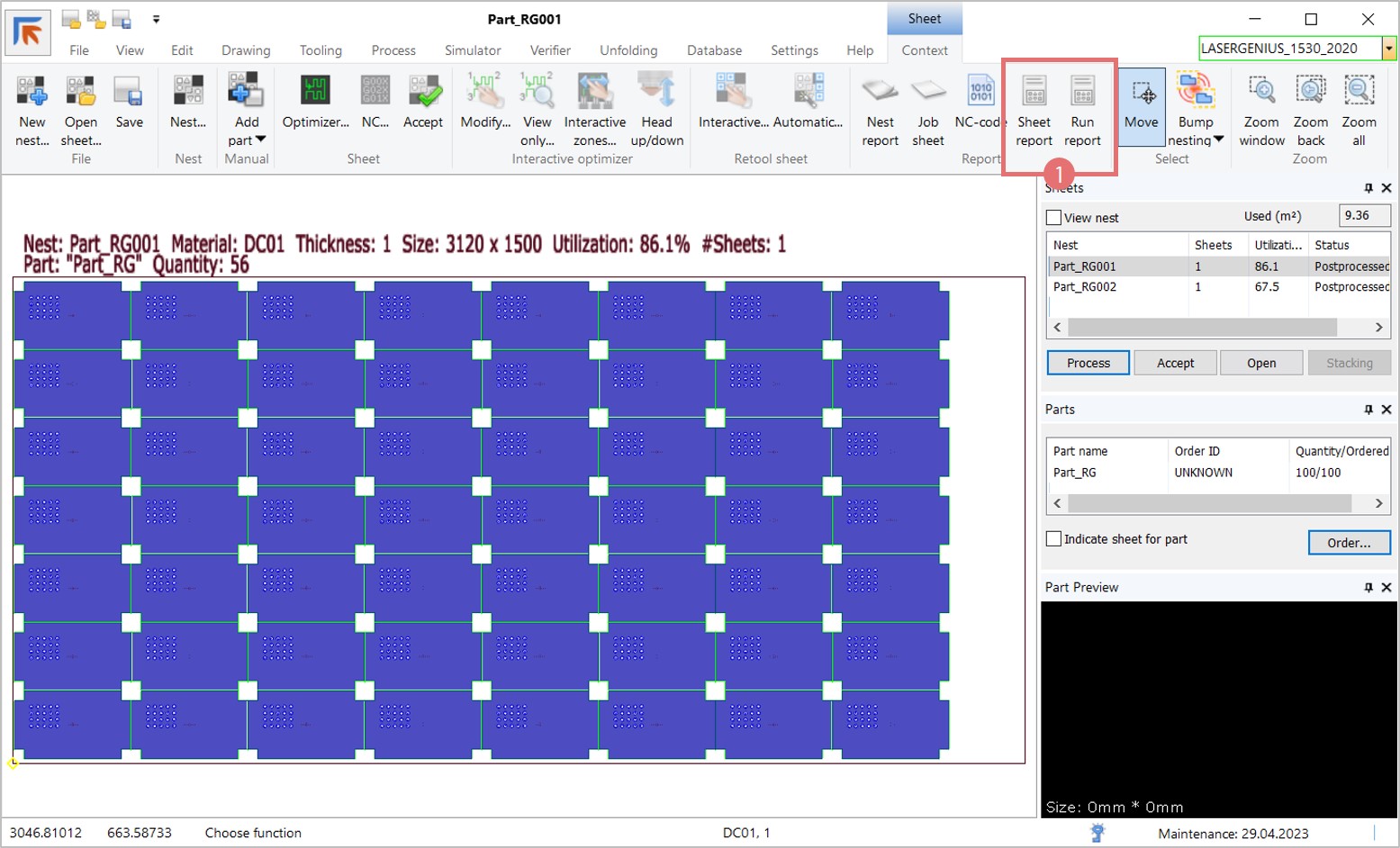
6. Process the sheet and press the Sheet report button to see the part processing time (5). Repeat the process using part B.  Compare the results.

a. Grid cutting enabled

b. Grid cutting disabled

Applying grid-style cutting interactively

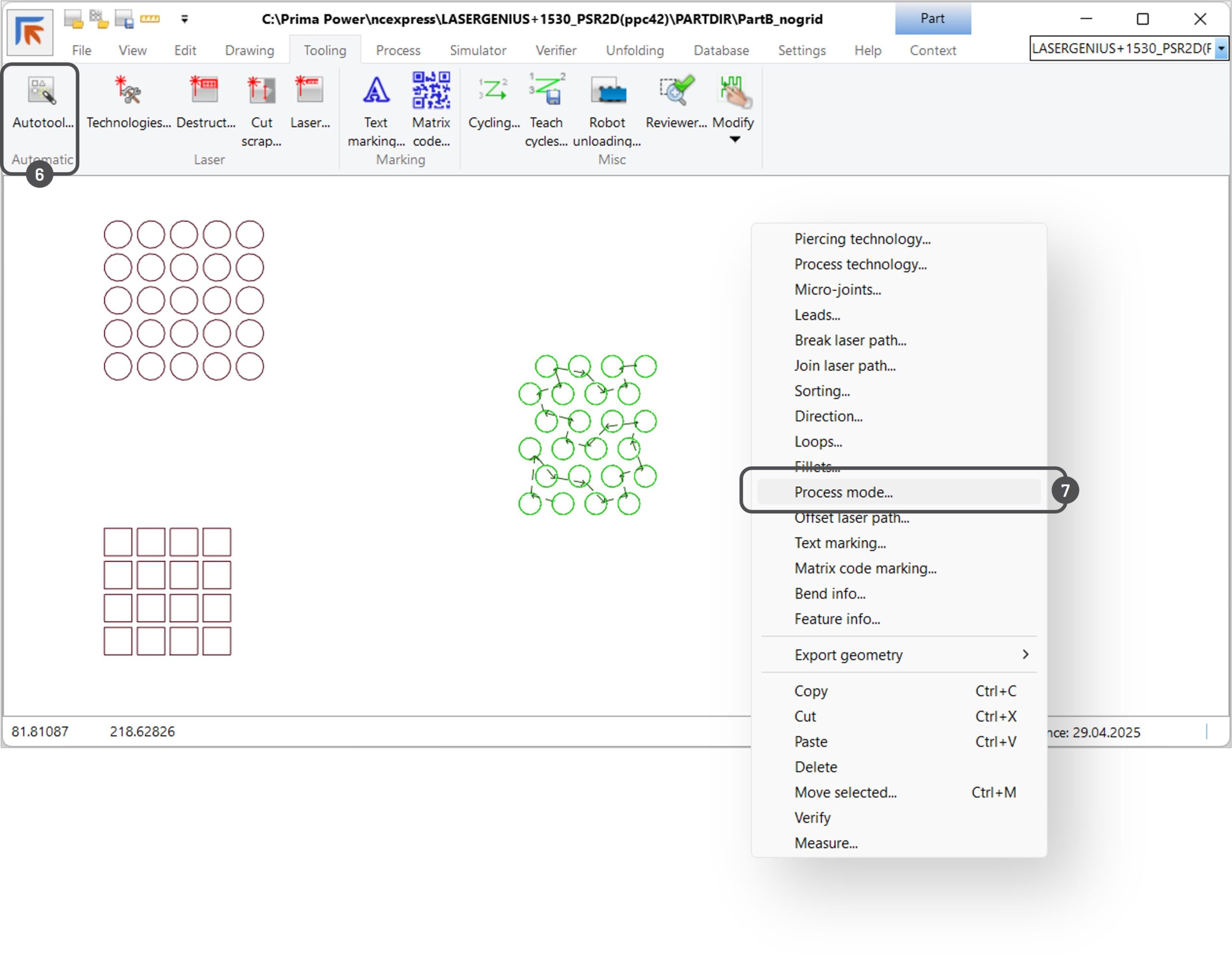
1. Open a part in NC Express. Select a desired geometry and run Autotool to apply the laser path (6). Then, select the laser path, open the right-mouse-click menu, and choose the Process mode option (7).

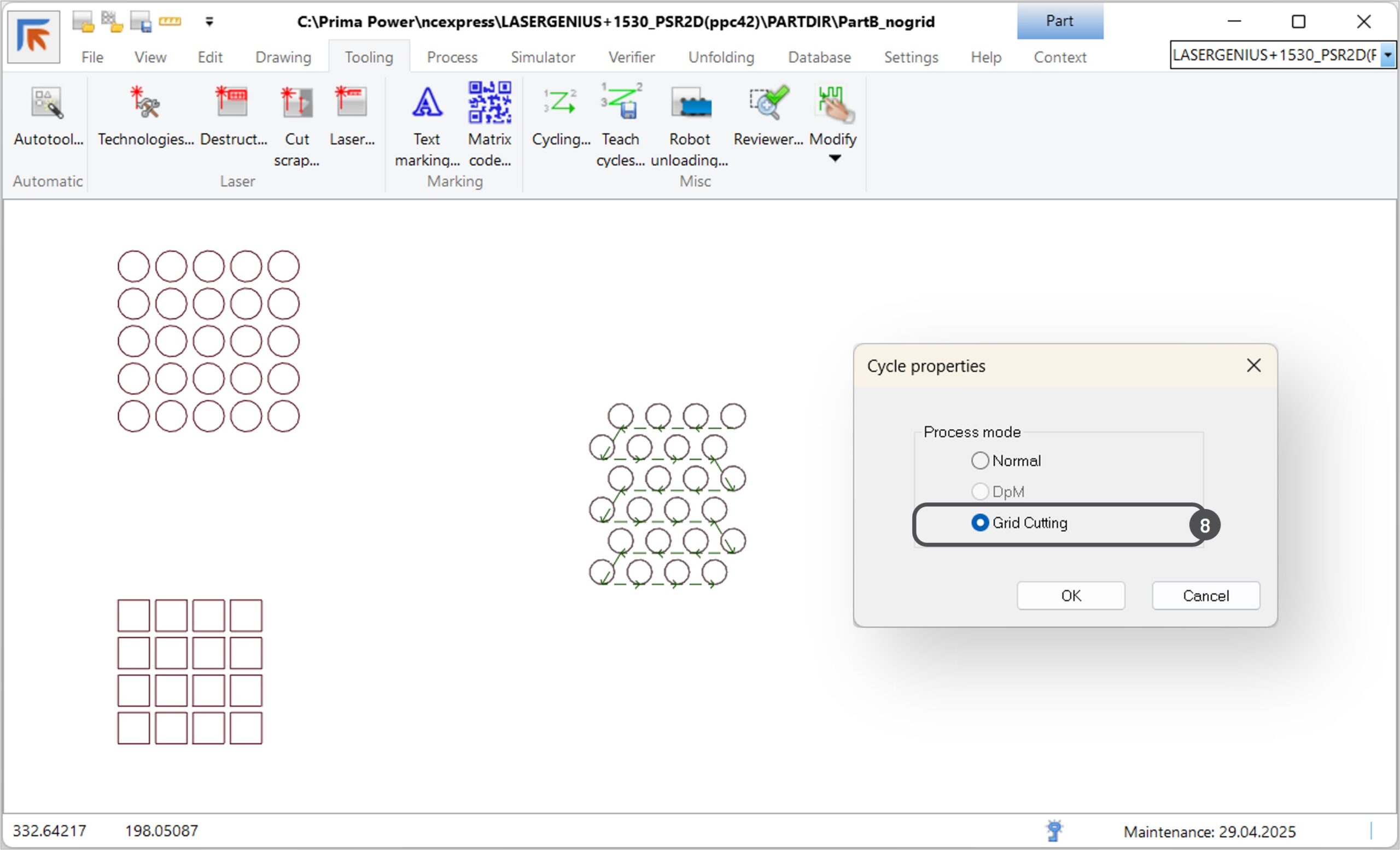
2. The Cycle properties dialog will open. Select the Grid cutting checkbox and press OK to change the selected laser path style (8). NC Express applies grid style cutting bypassing prior grid detection logic. Verify that the cutting path is safe when changing the process mode interactively. Save the part.

Tulus Office 24.2 Release

This document contains the main changes and features done in Tulus Office version 24.2. The new Tulus Office is licensed with three different product versions: 

  • Tulus Office Basic
  • Tulus Office Classic
  • Tulus Office Premium 

The changes described in this document apply to one or all versions of the product (depending on the feature or change made). 

Terminal

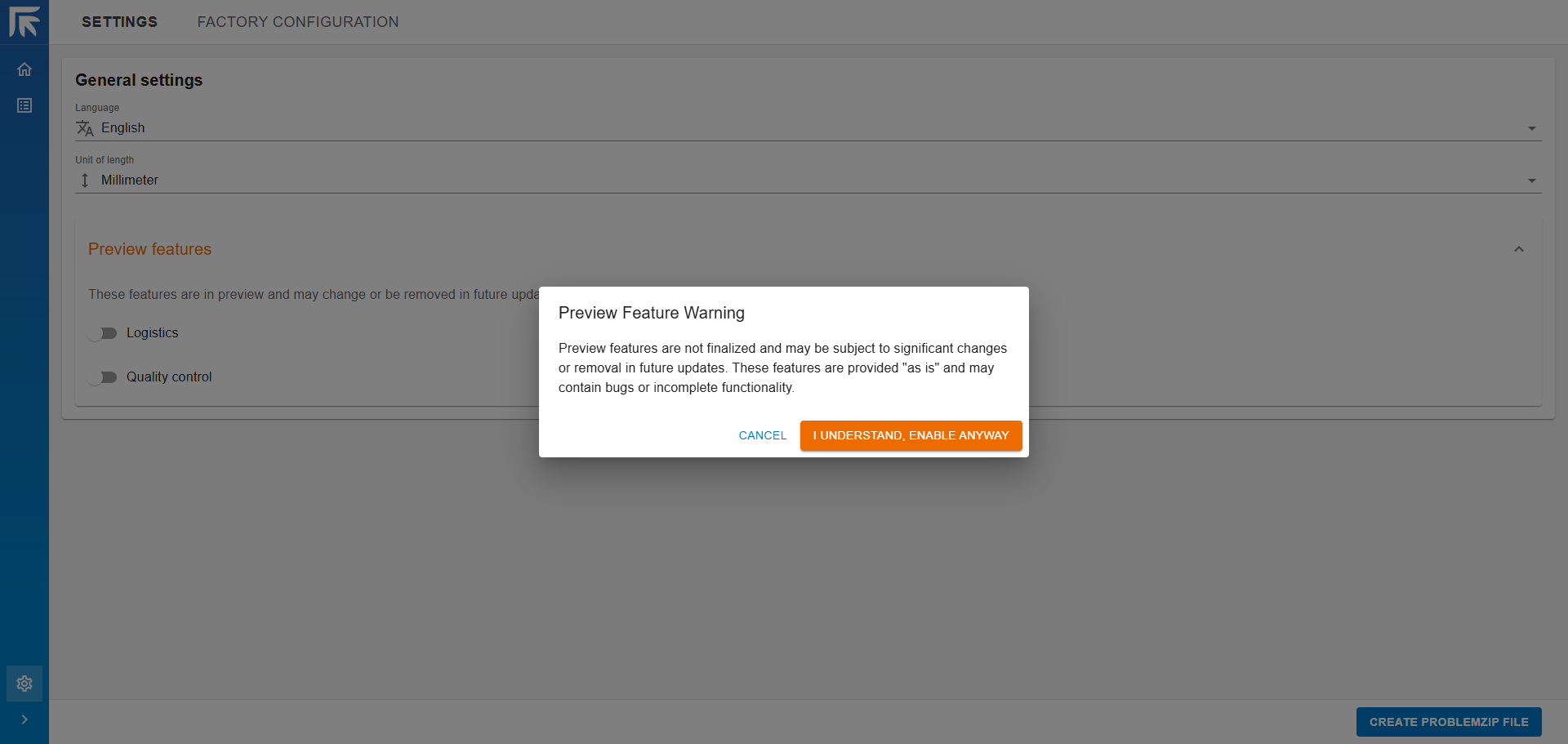
Preview features

In the terminal, users can now enable features that are not officially released and require user preview for feedback purposes.


Enable the feature and accept the disclaimer:

Task list

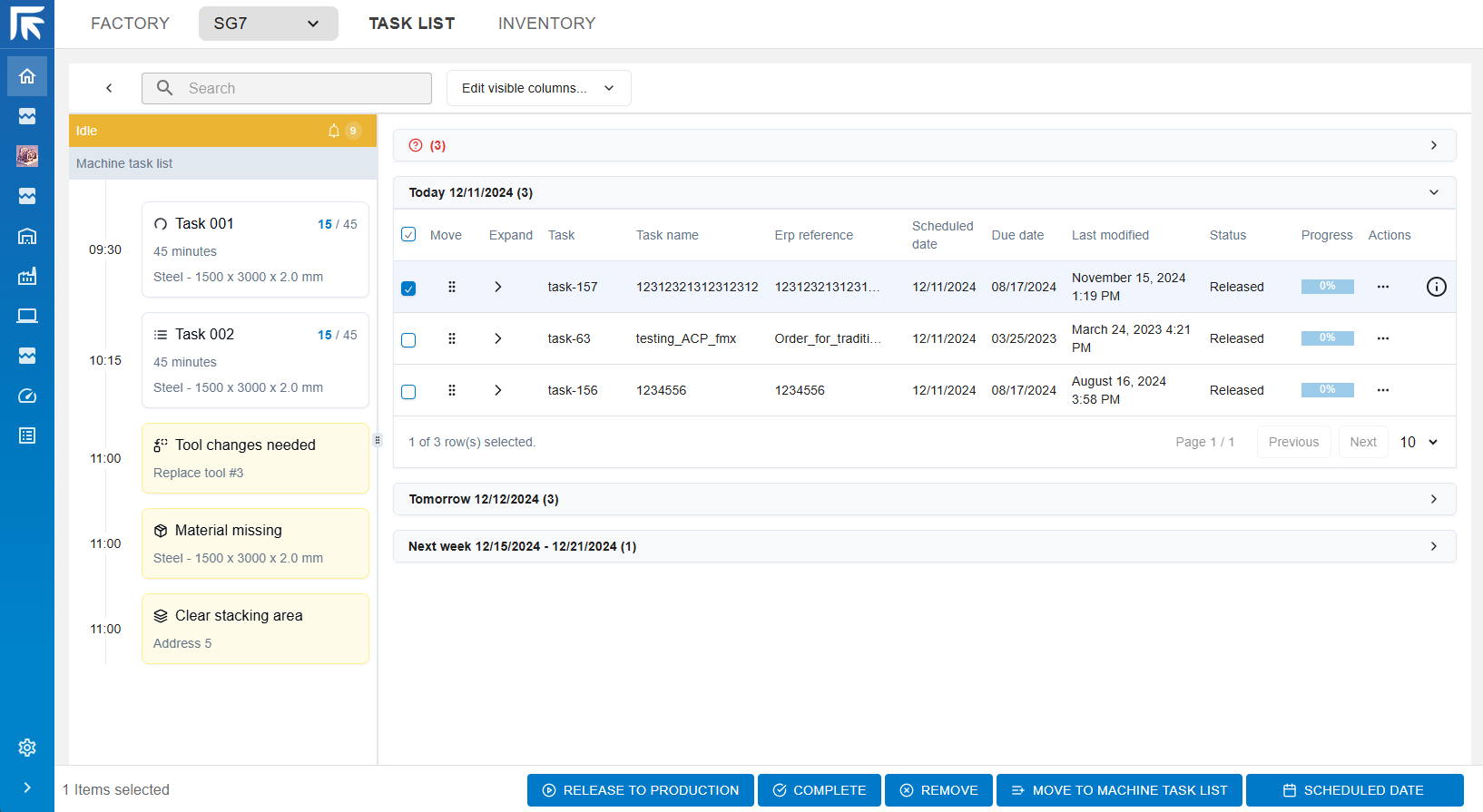
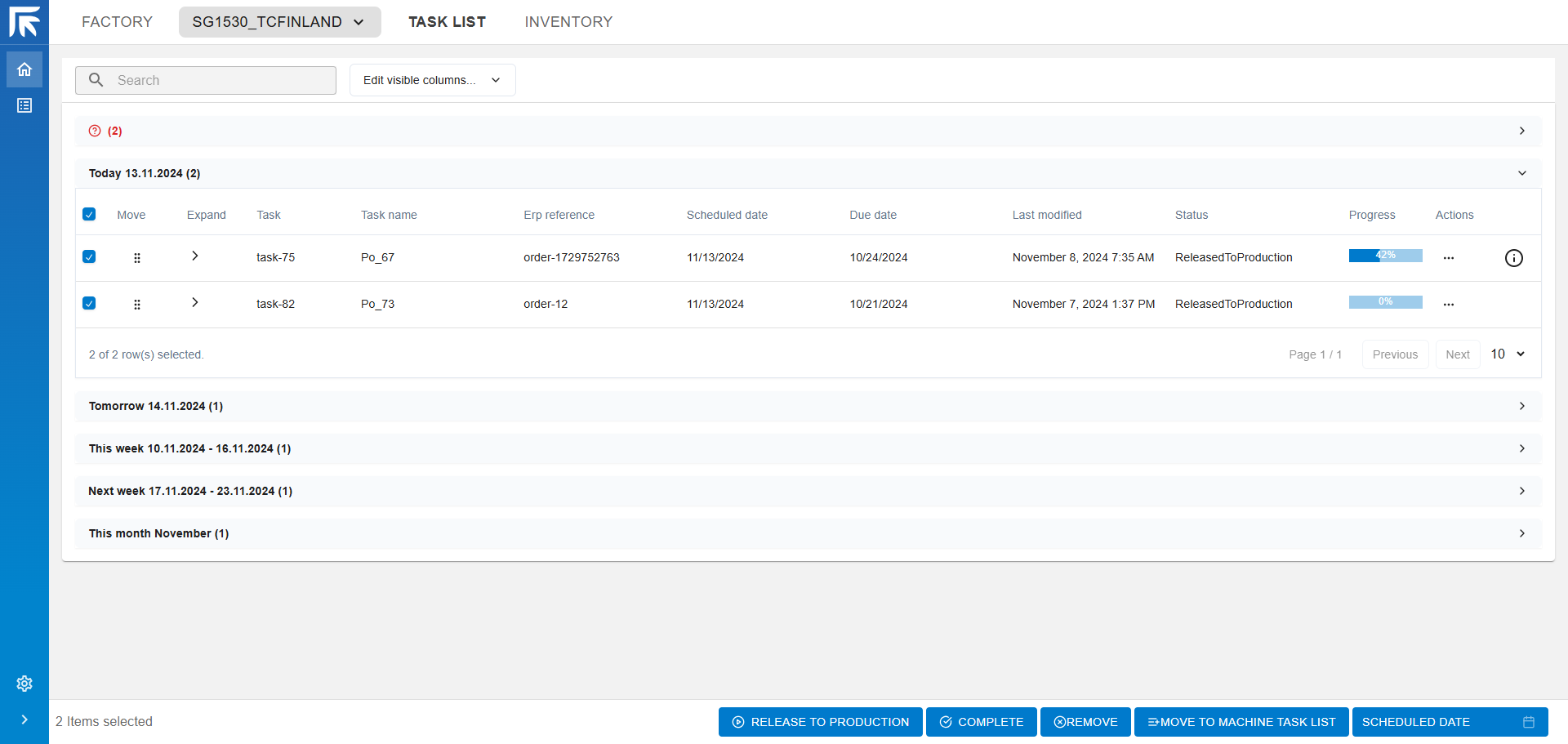
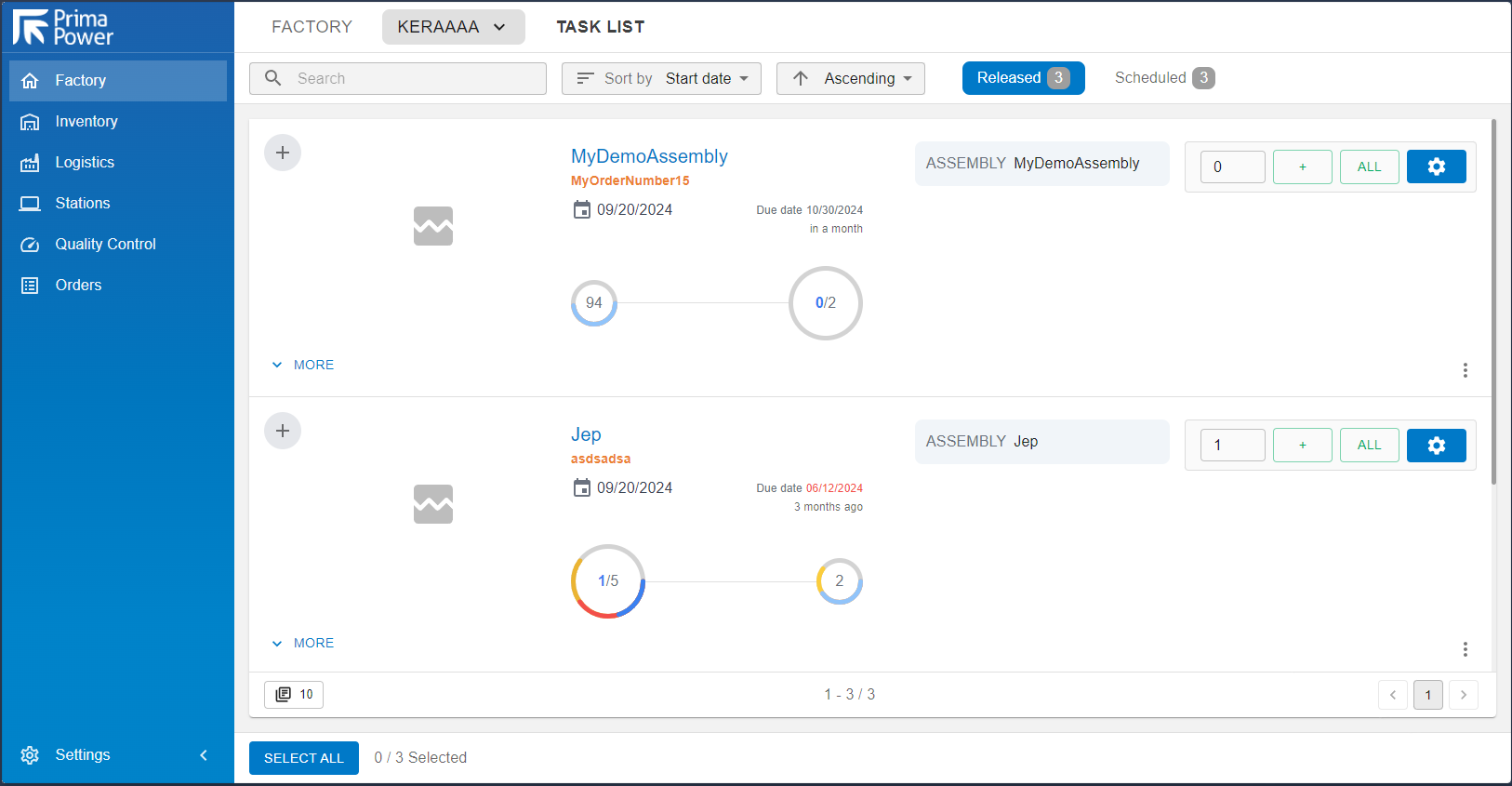
The task list is a list of tasks in the system. Task are divided into groups. Currently available groupings are today, tomorrow, this week, next week, this month, next month, future and flagged tasks.

Figure 1 Example groupings
Figure 2 Task list

A task contains columns to move, expand and execute actions on it. The table also contains information on the task: ID, name, erp reference, scheduled date, due date, last modified time, status and progress. 
 
As for a single task, the user can move the task to a machine, release/cancel/complete the task, re-validate the task, re-schedule the task, move the task up or down, and remove the task.

Figure 3 Task actions

The task list also contains a multiselect functionality, with which the user can select multiple tasks and execute an operation for all of them:

Figure 4 Multiselect operations

Generate a problem zip

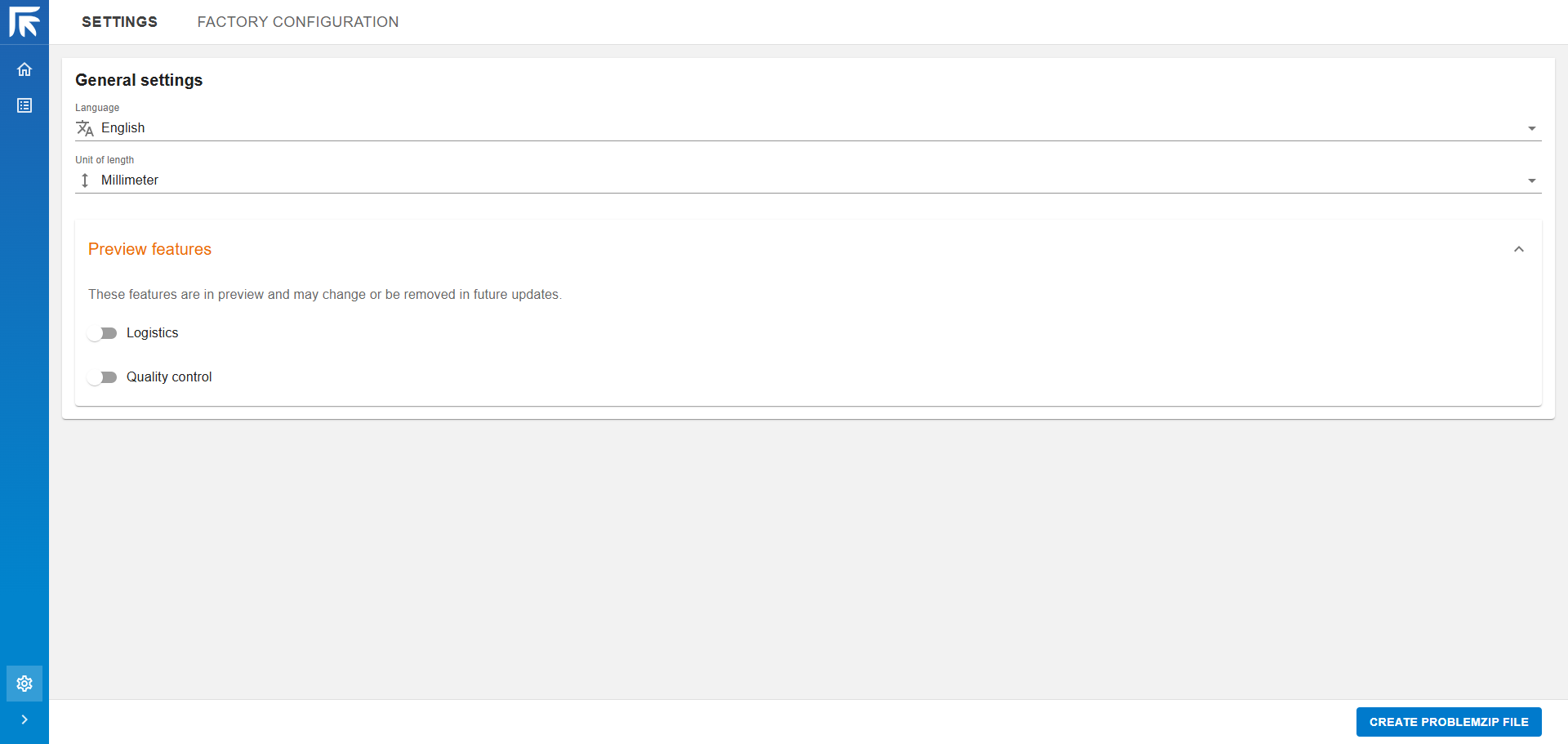
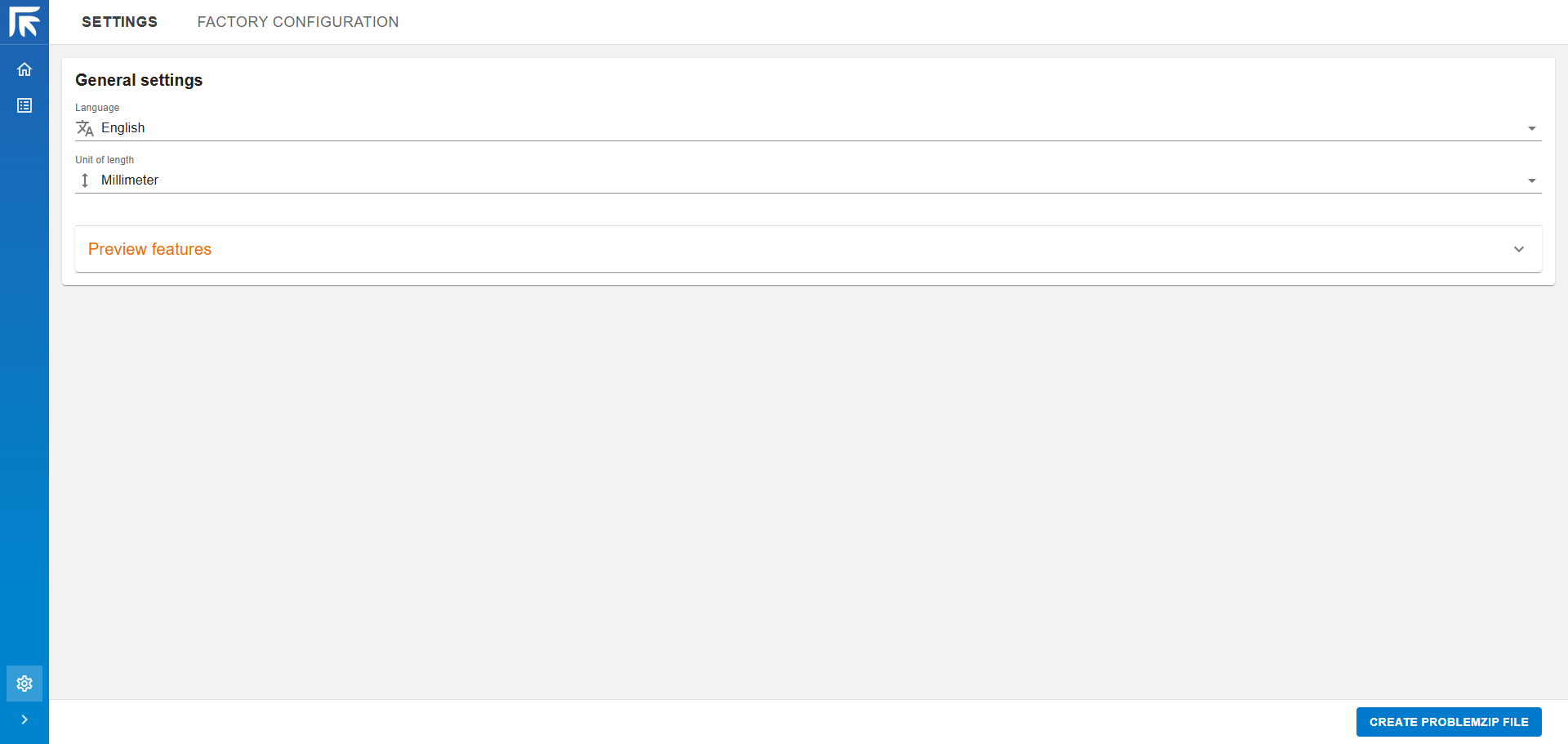
Image 1 Settings

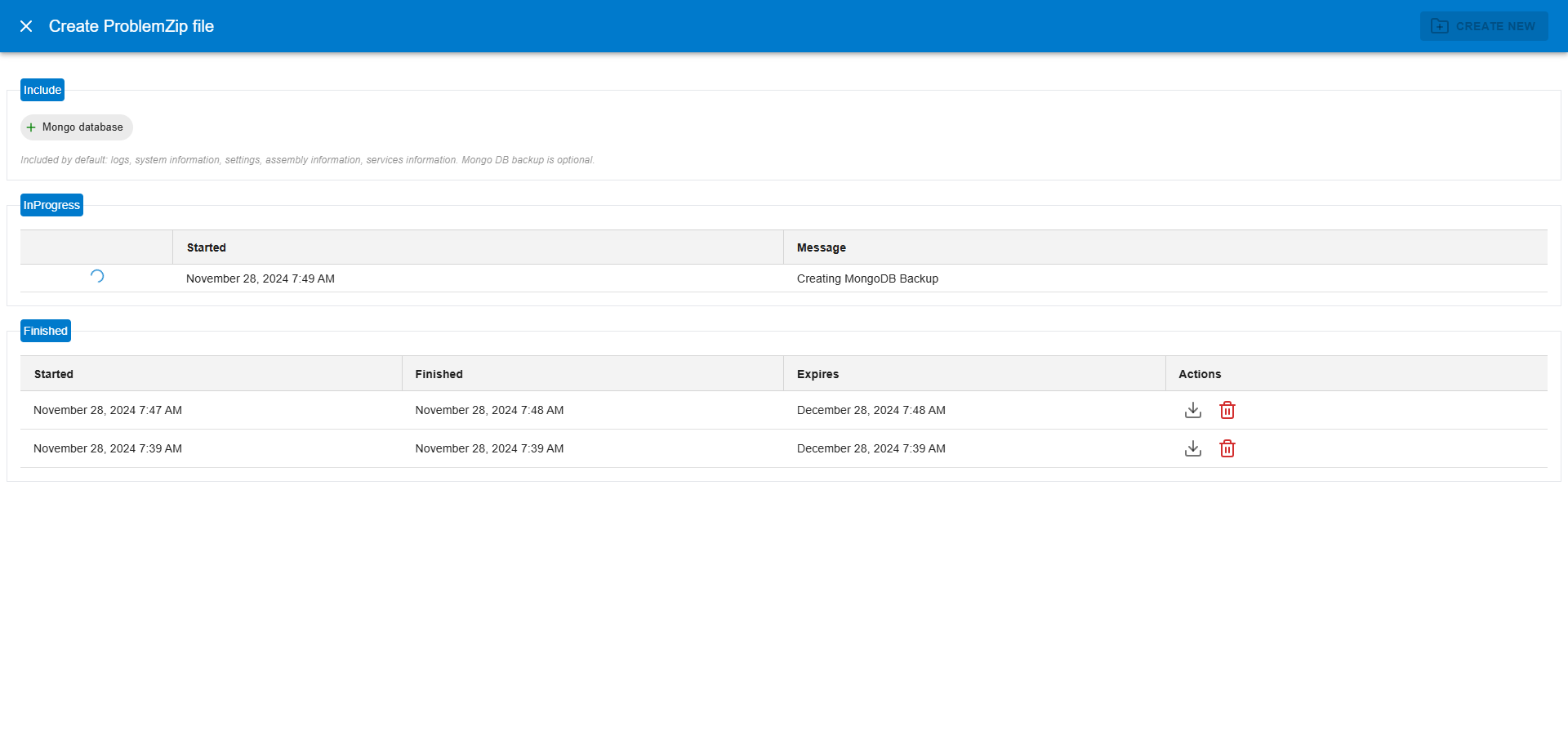
The Tulus Office problem zip can now also be generated from the terminal application. Browse to the settings and click the button ‘CREATE PROBLEMZIP FILE’. This opens a view that contains the information of the currently generating or the already-generated problem zip. There is also an option to exclude Mondo database backup from the problem zip. The generated problem zips can be downloaded or removed. A new problem zip can be created by clicking the button ‘CREATE NEW’ from the upper right corner. 

Image 2 Problem zip view

Bending assembly fixed sequence in Tulus Office Client

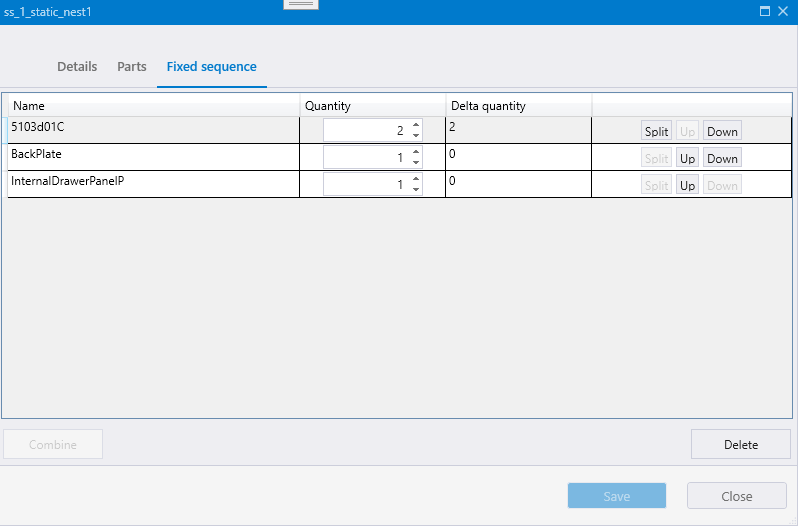
The new fixed sequence feature in the bending assembly allows users to easily define the bending sequence for parts within an assembly. This feature automatically creates the smallest common pattern based on the number of each part. For example, if an assembly has PartA × 4 and PartB × 2, the system creates the smallest pattern: PartA × 2 and PartB × 1. Users can then set their desired bending sequence for these patterns. You can also split part quantities into smaller groups, such as PartA × 1, PartB × 1, PartA × 1. When multiple assemblies are ordered, the same pattern is repeated as needed.
User Interface


The fixed sequence feature can be accessed from the bending task details dialog, which can be opened from the calendar view. The interface includes row-specific commands: Split, Up and Down. To combine two parts, select the part rows while holding the Ctrl key and press the Combine button. The Delete button removes the sequence, affecting all bending assemblies that include the same parts. The Save button saves any changes made.

Overview of wheel tools for Prima Power punching machines

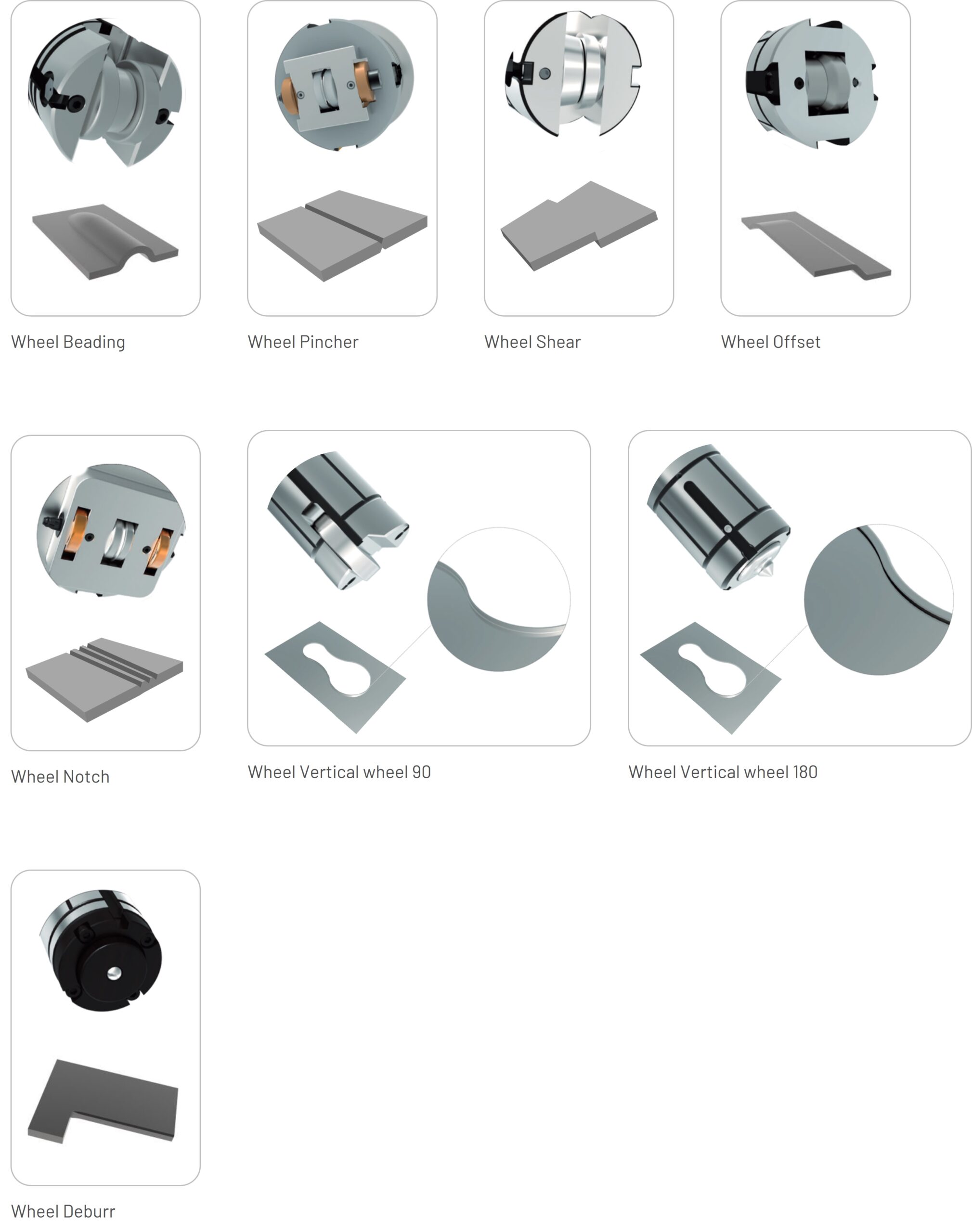
This article provides an overview of all the wheel tools supported by Prima Power punching machines, a procedure how to add a new wheel tool to the Tool library, and examples how to interactively apply and change wheel tool parameters.

Prima Power wheel tools

Adding a new wheel tool to the Tool library

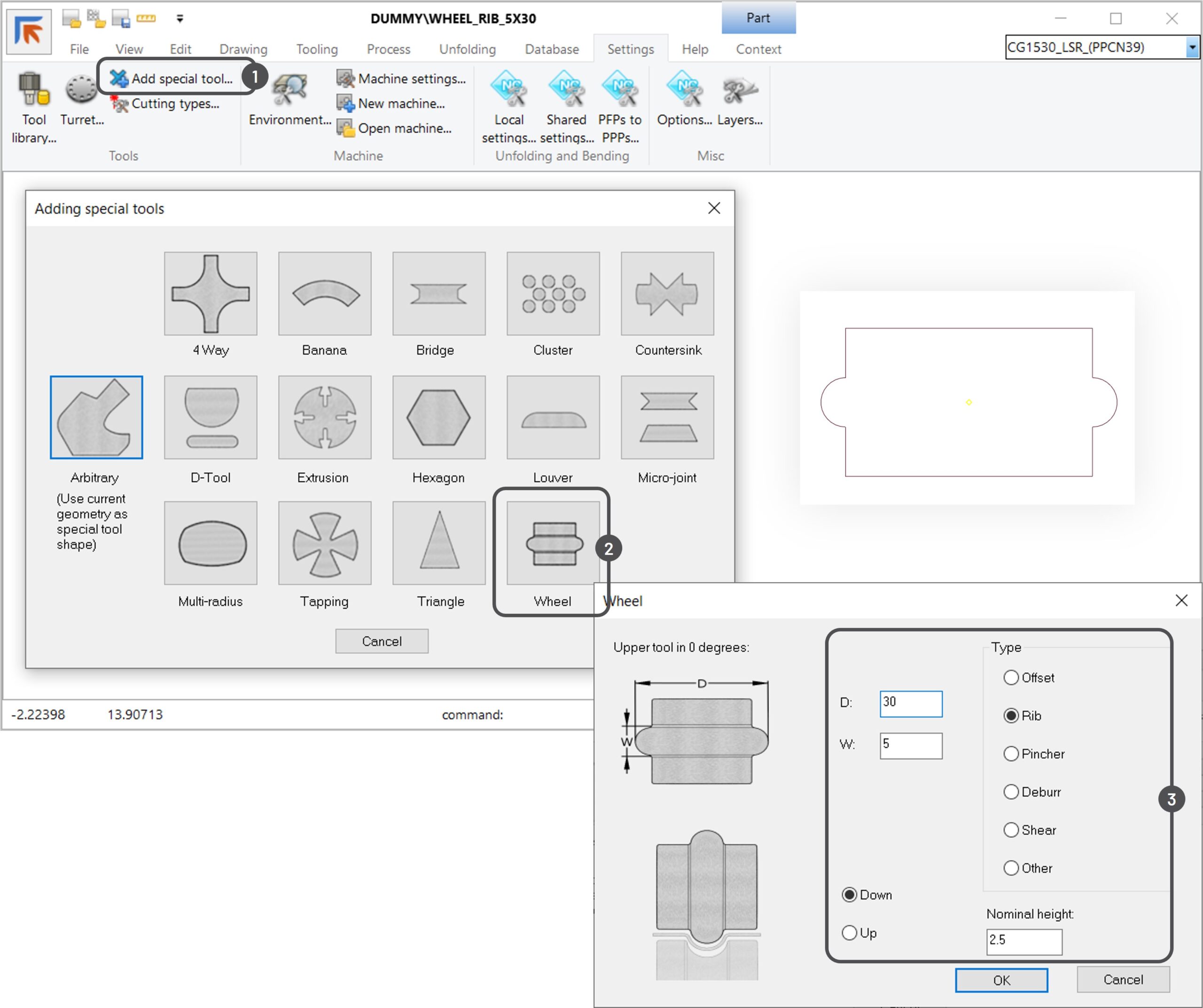
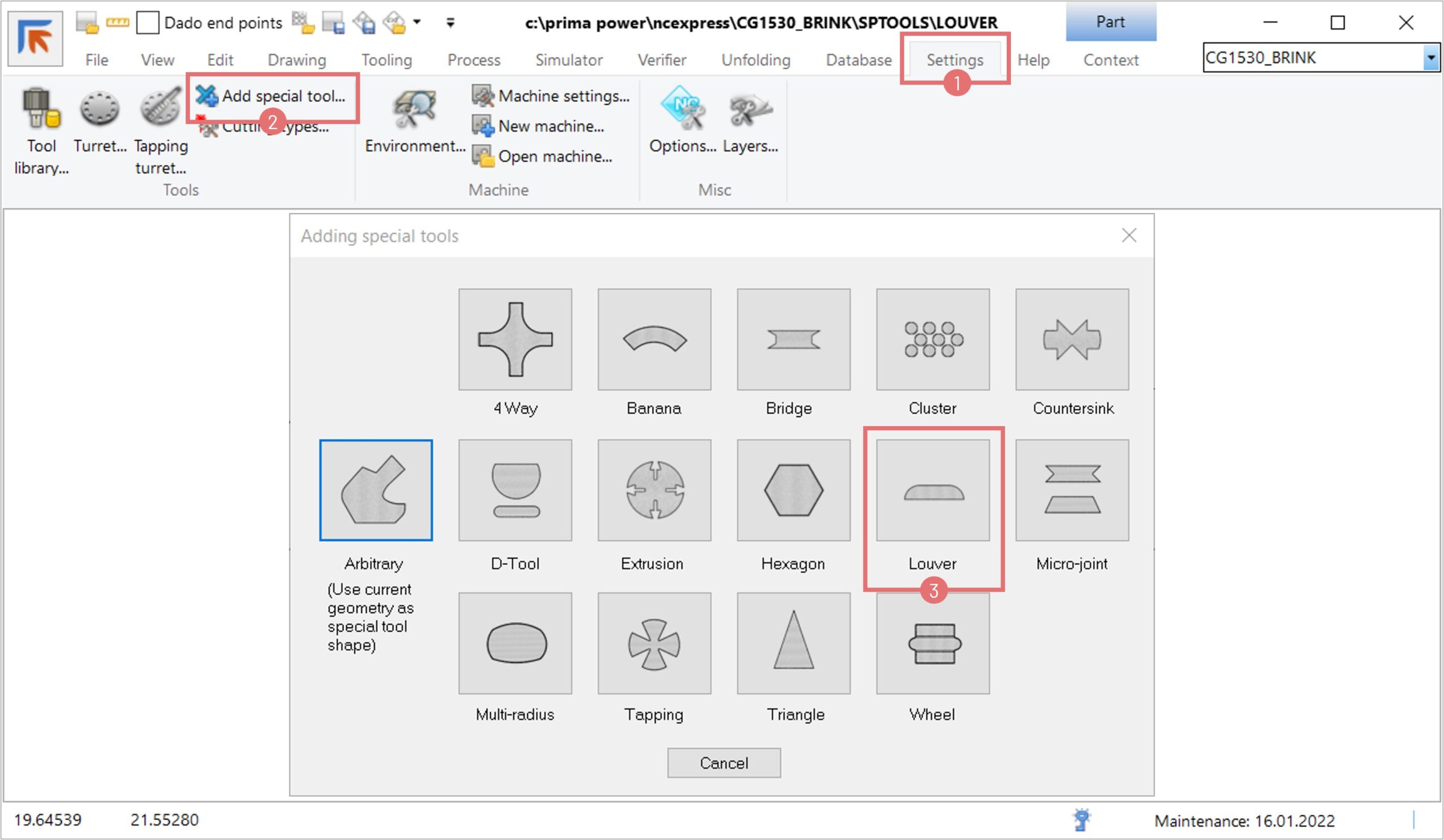
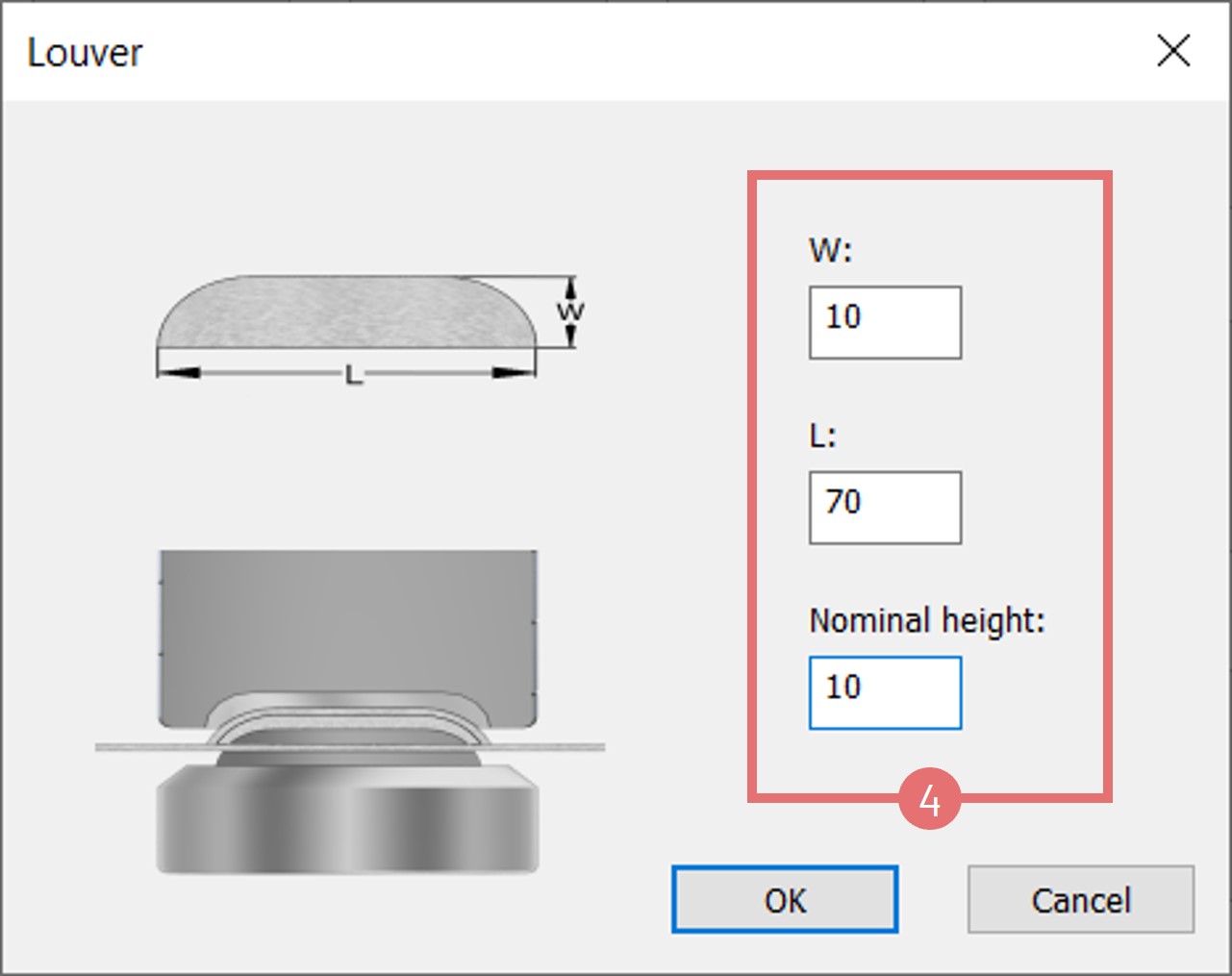
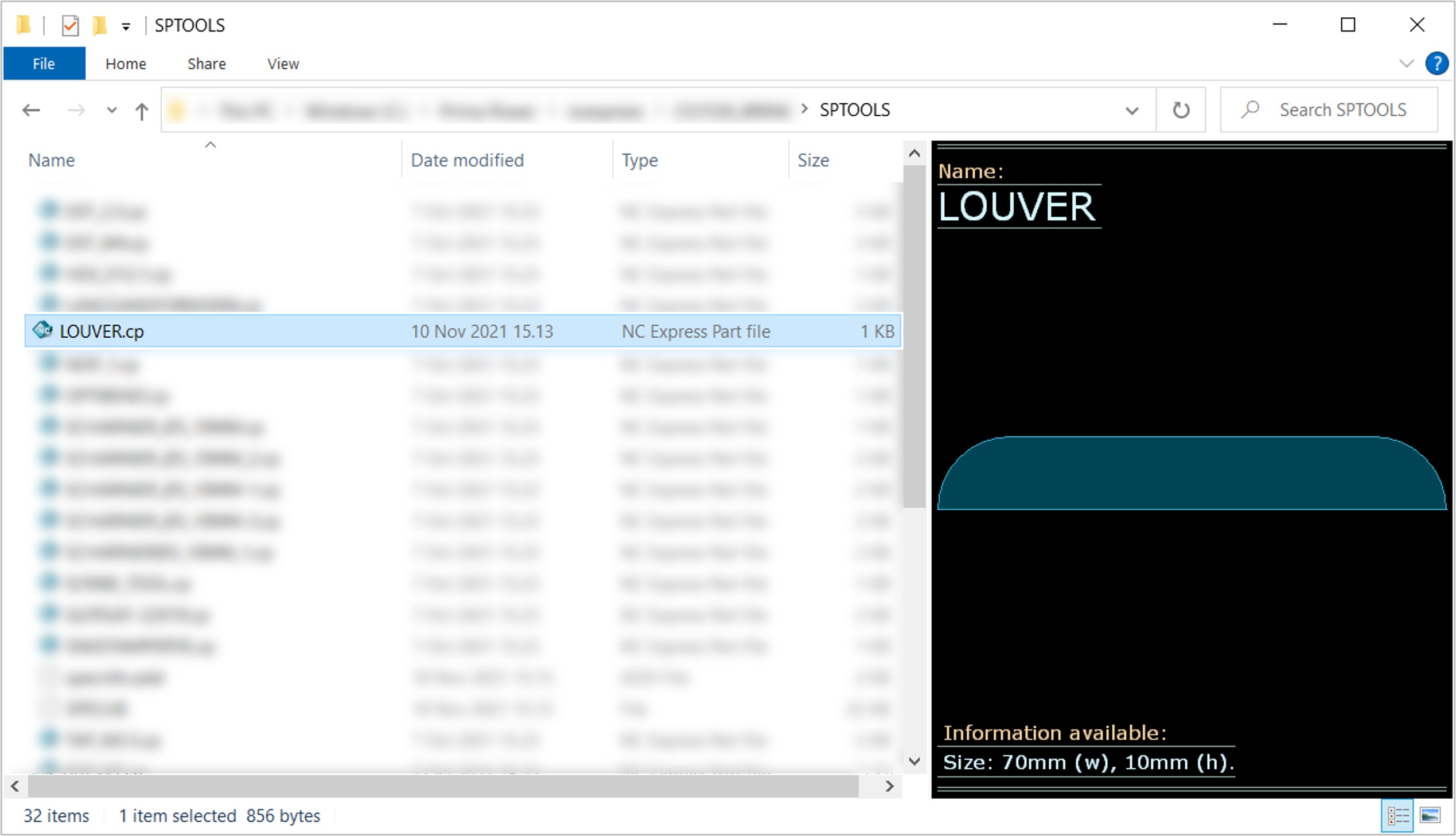
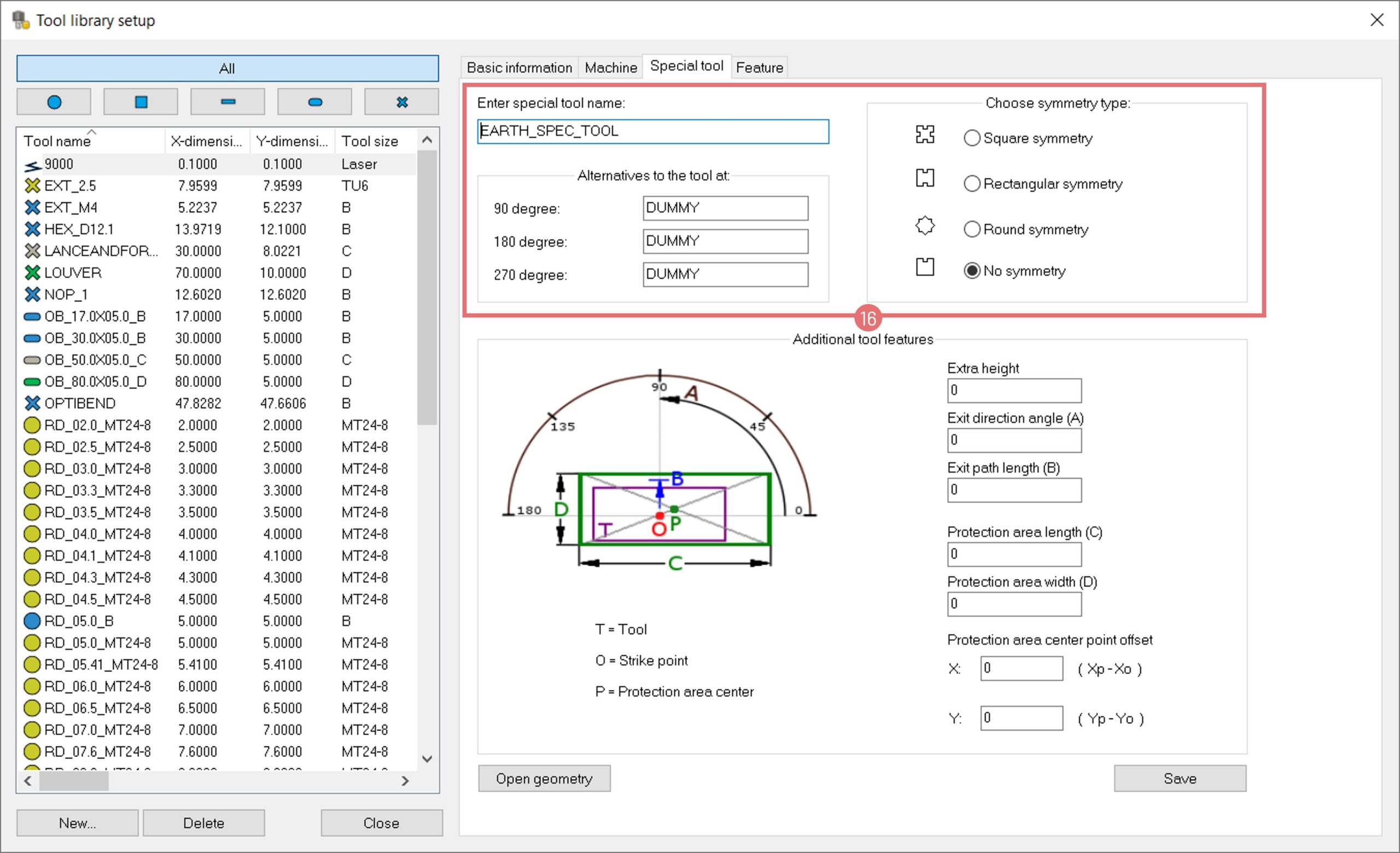
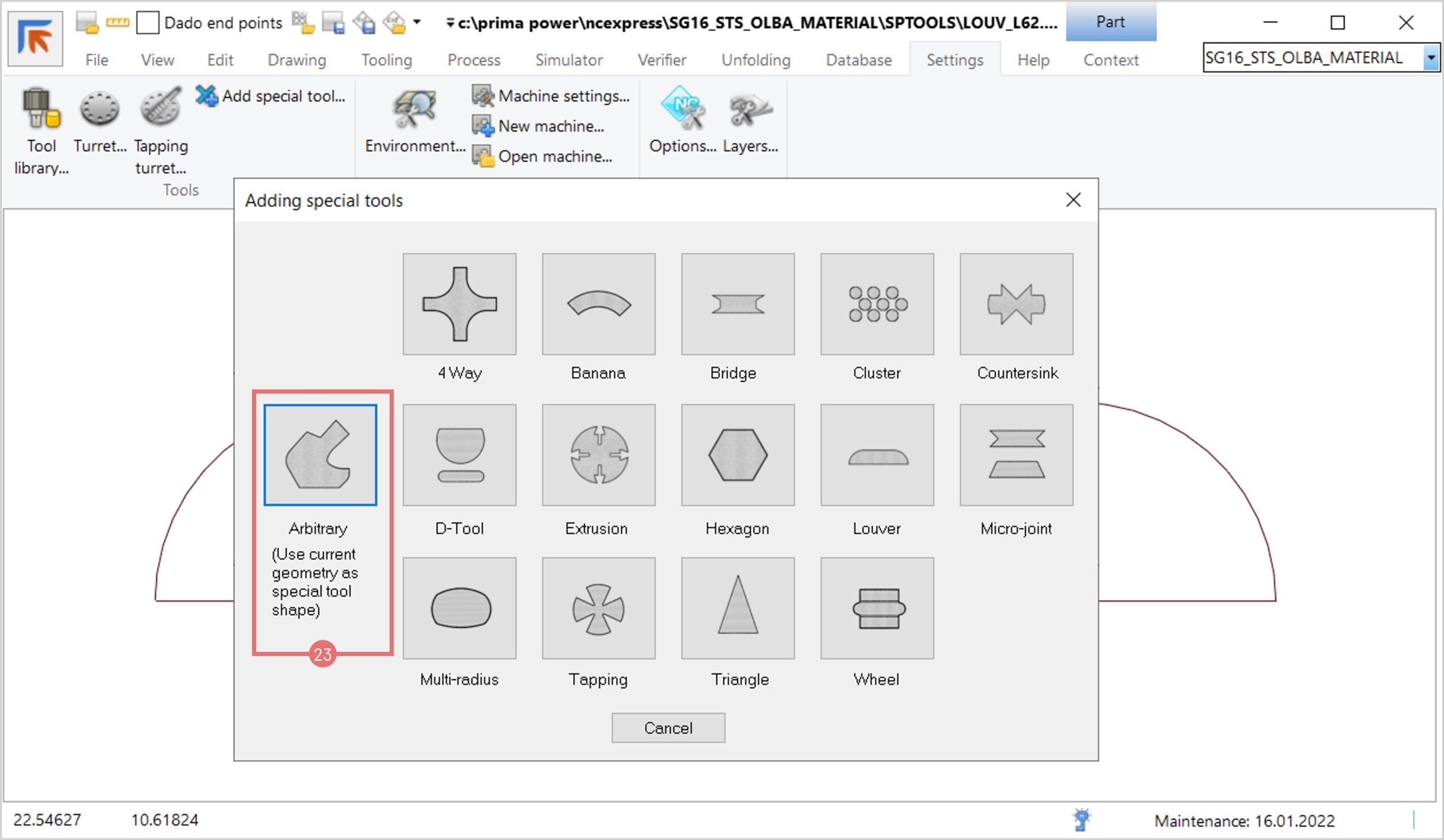
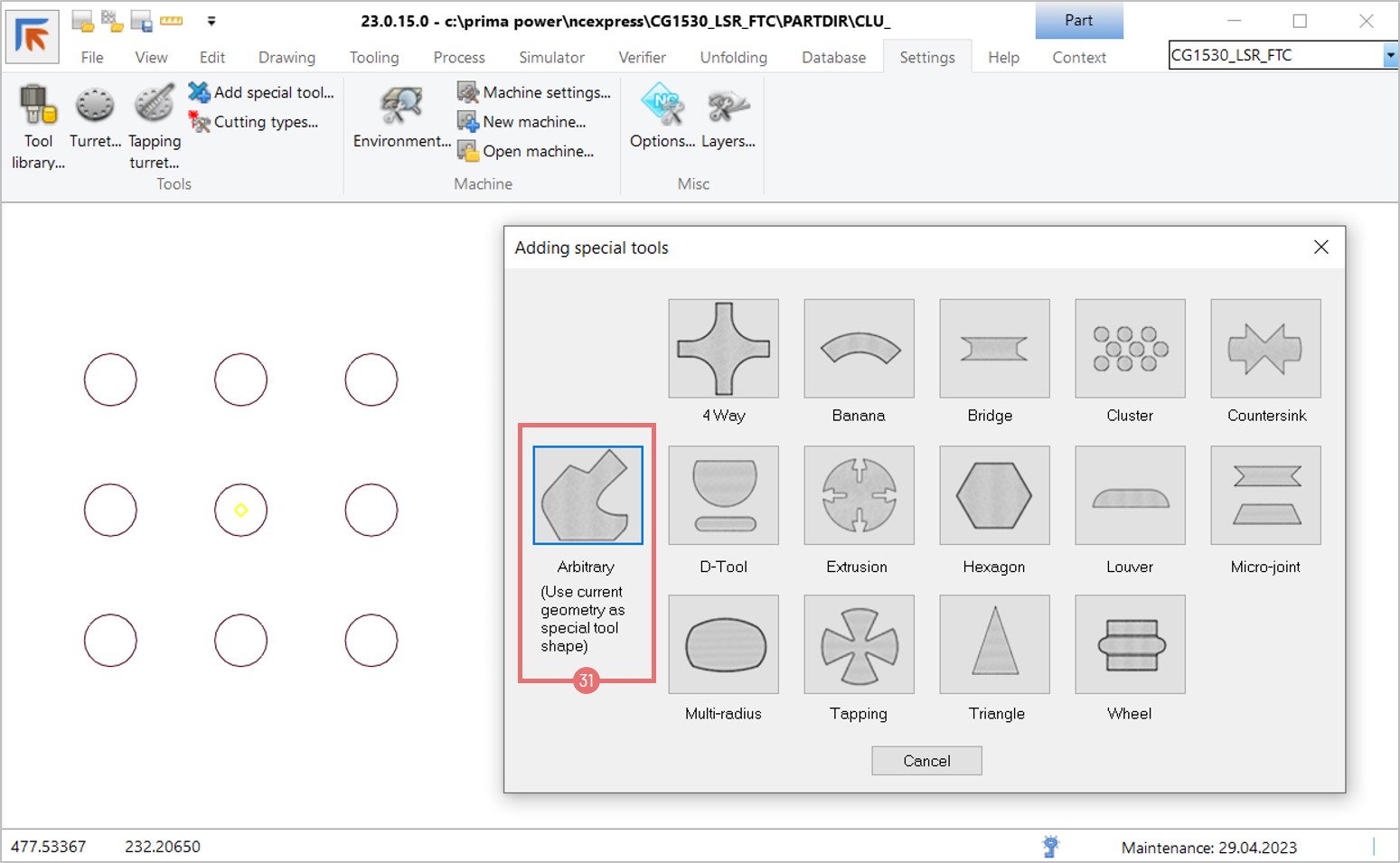
1. Navigate to the Settings tab and open the Add special tool window (1). Select Wheel from available options (2). Specify the wheel forming tool type and dimensions and press OK (3). NC Express will create the special tool geometry based on the given values. 

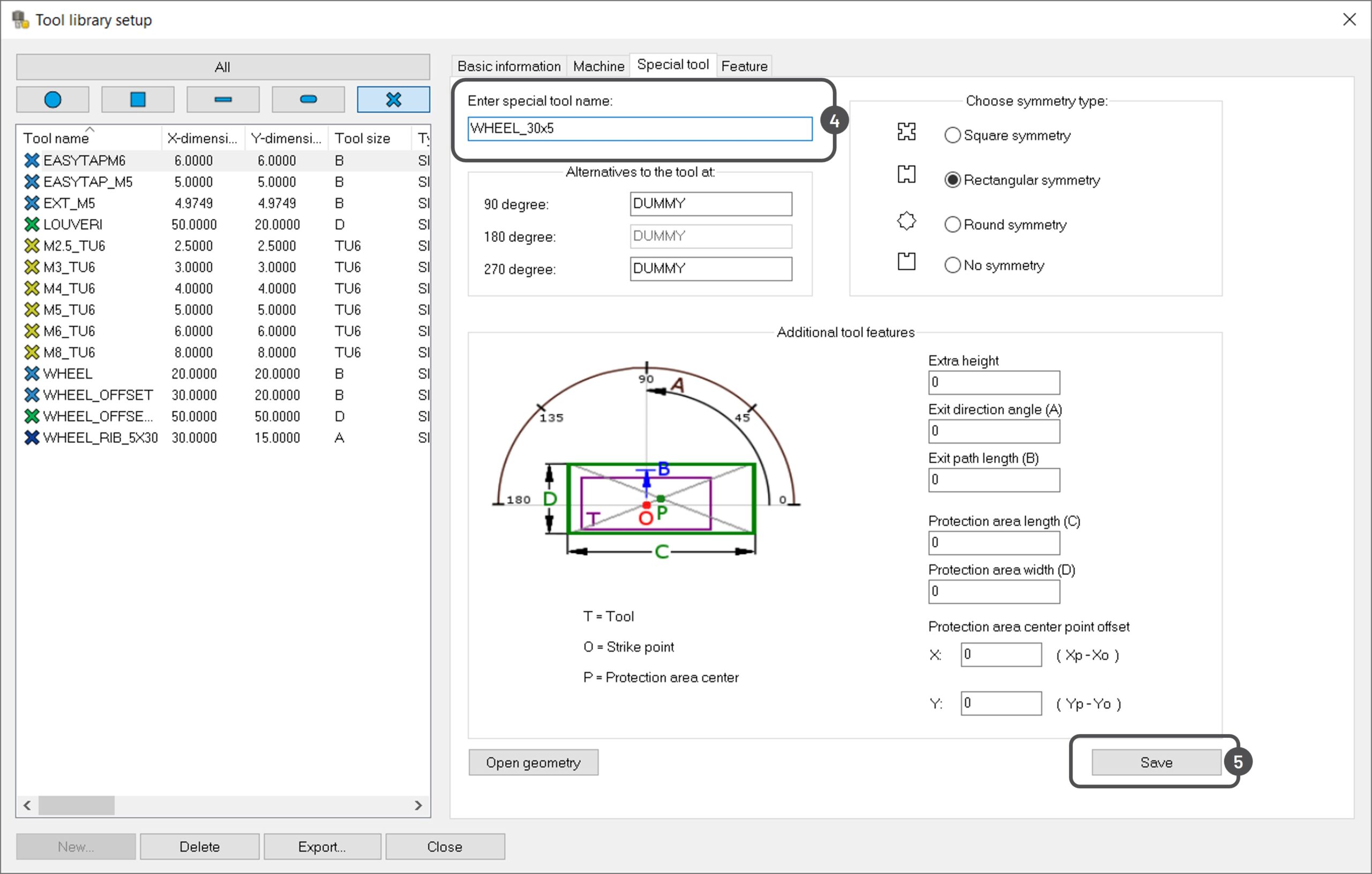
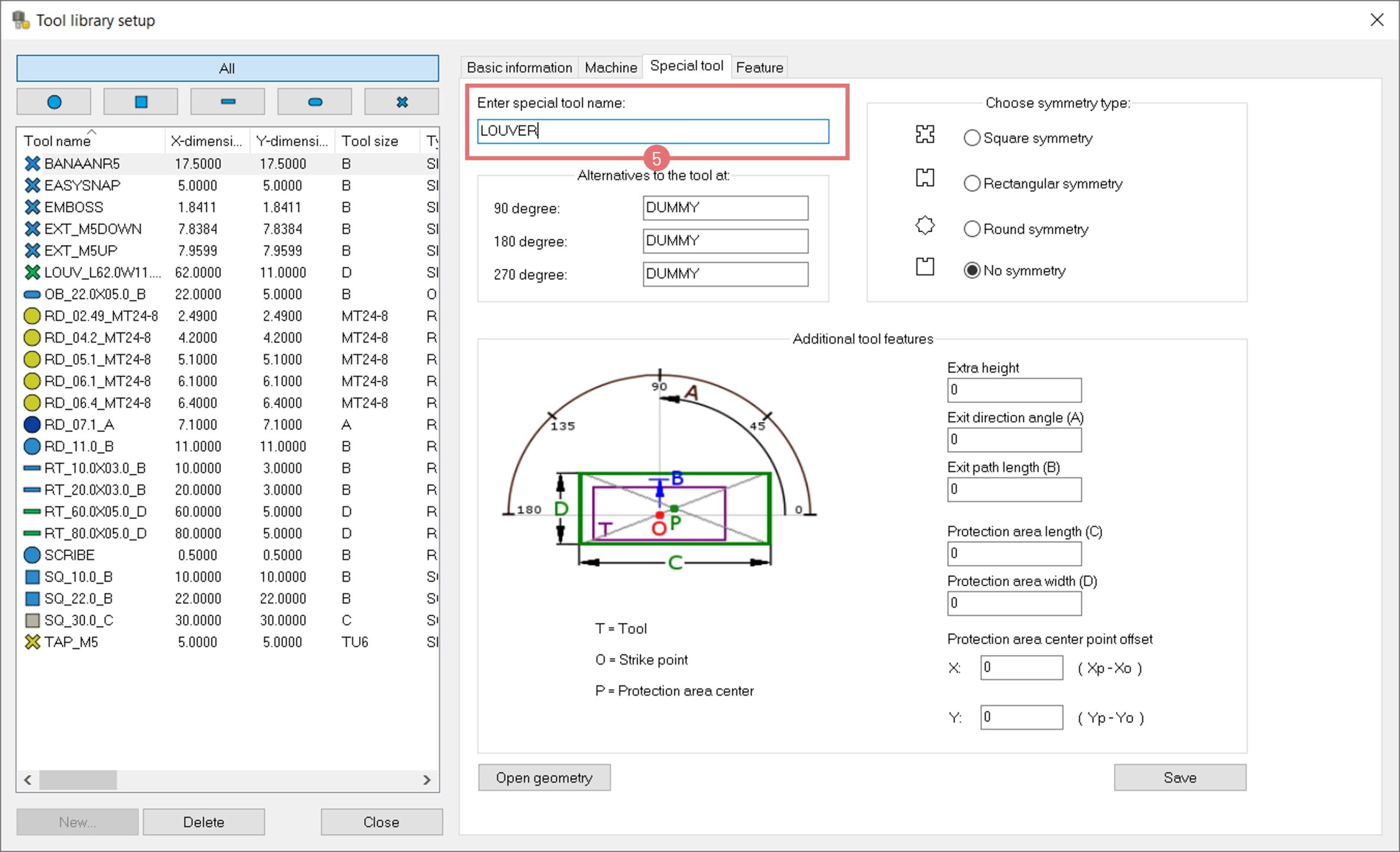
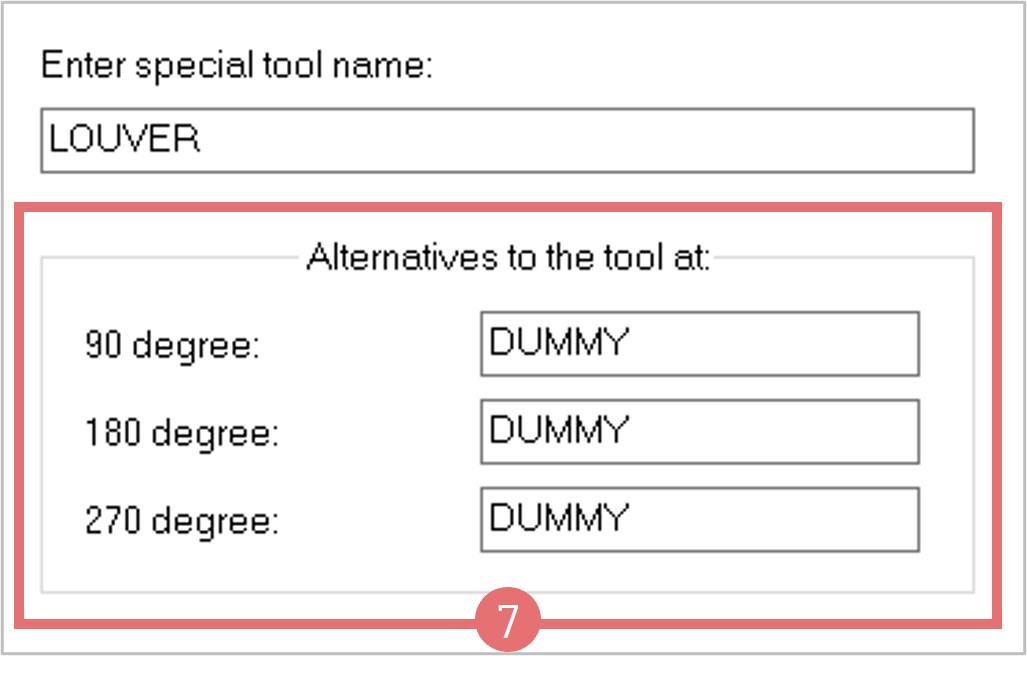
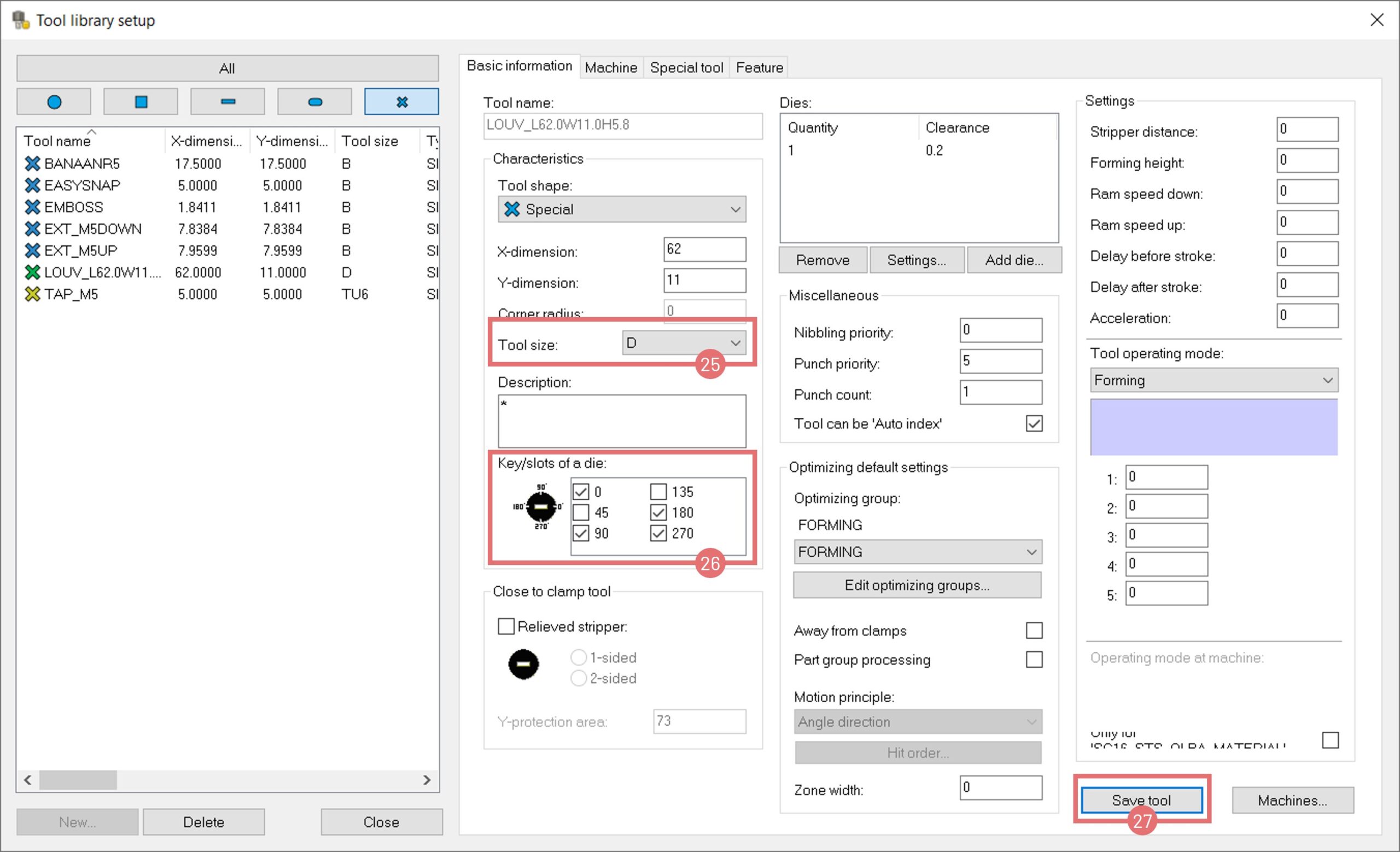
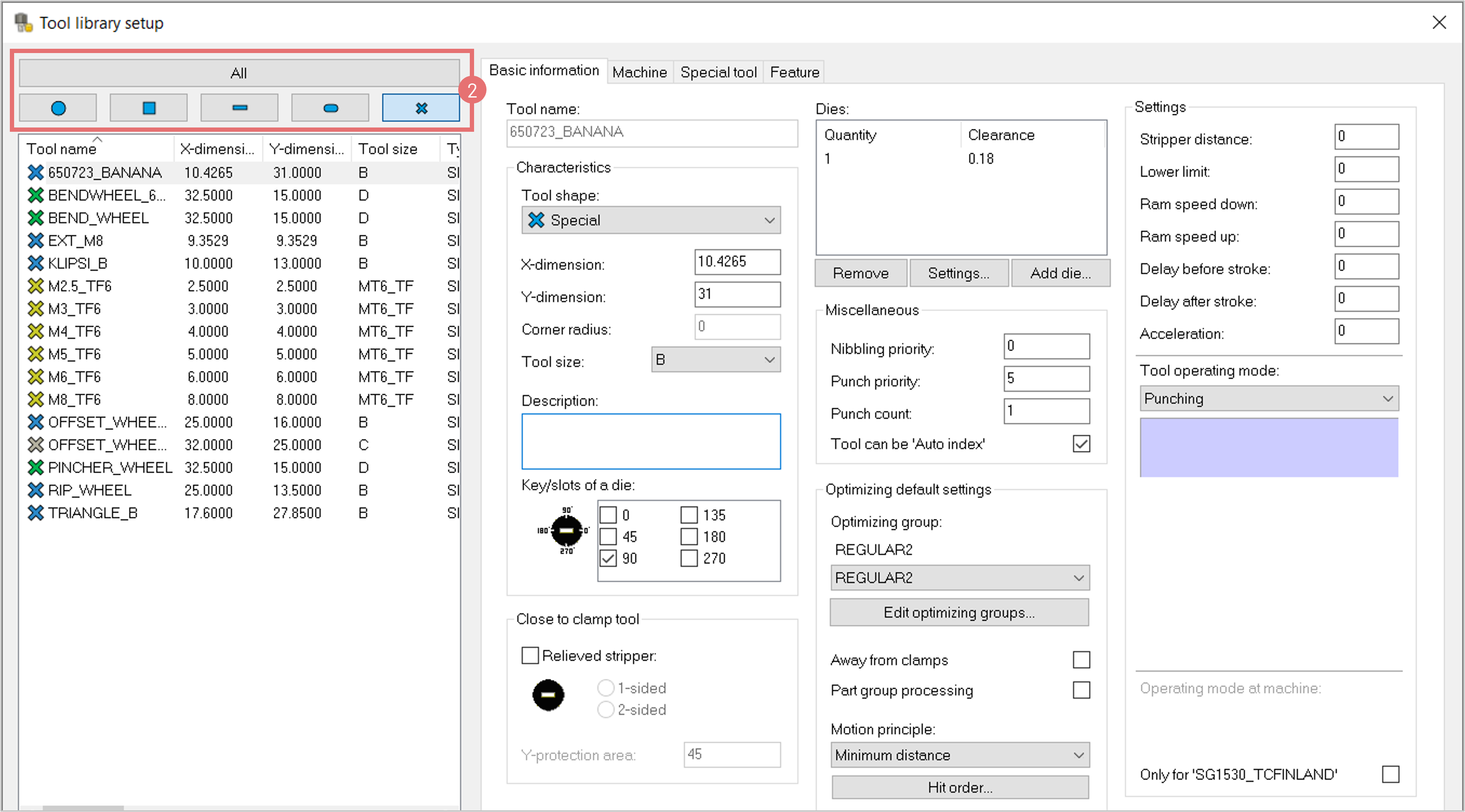
2. The Tool library setup will open. Enter the tool name (4) and press the Save button to create the tool (5).

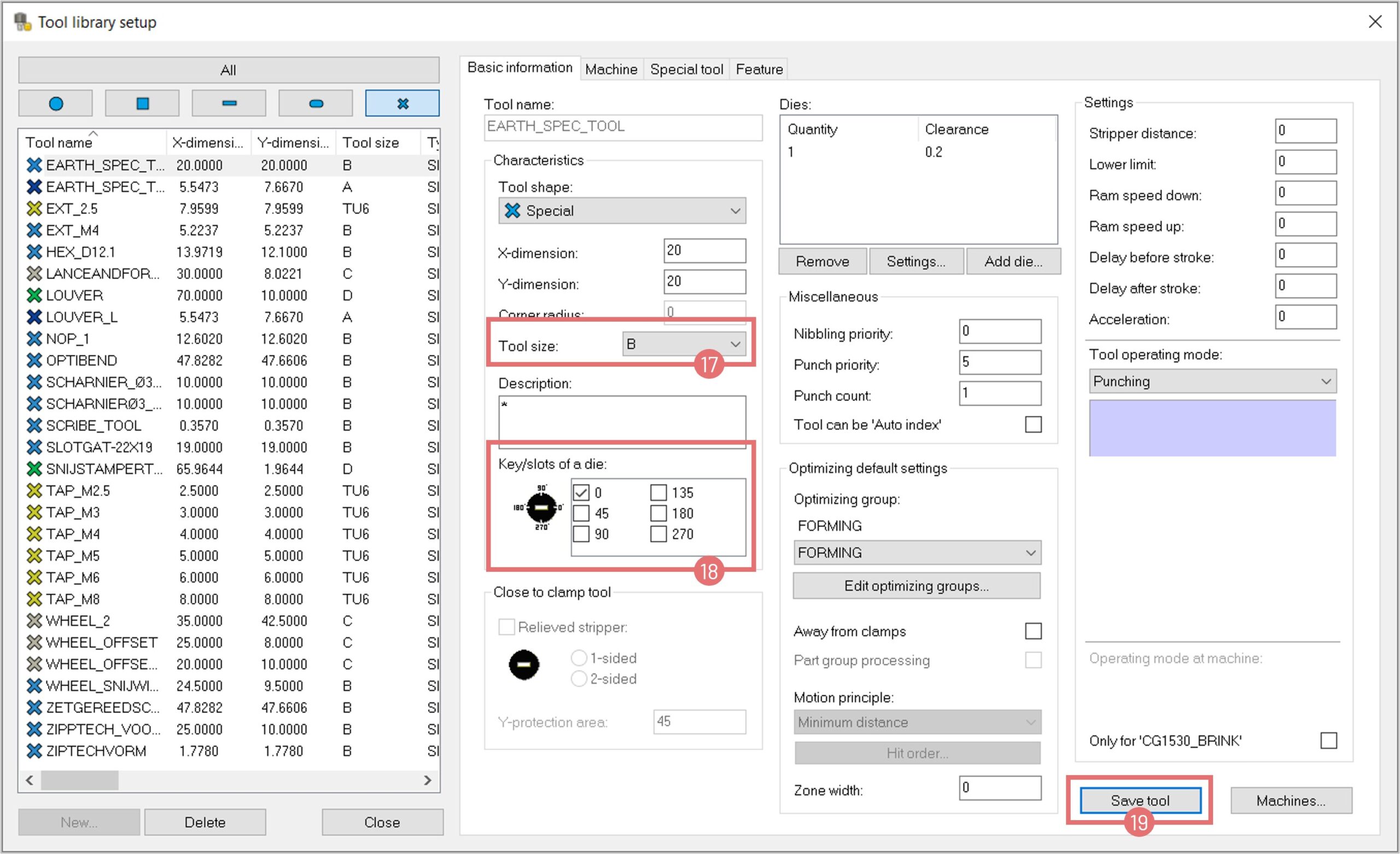
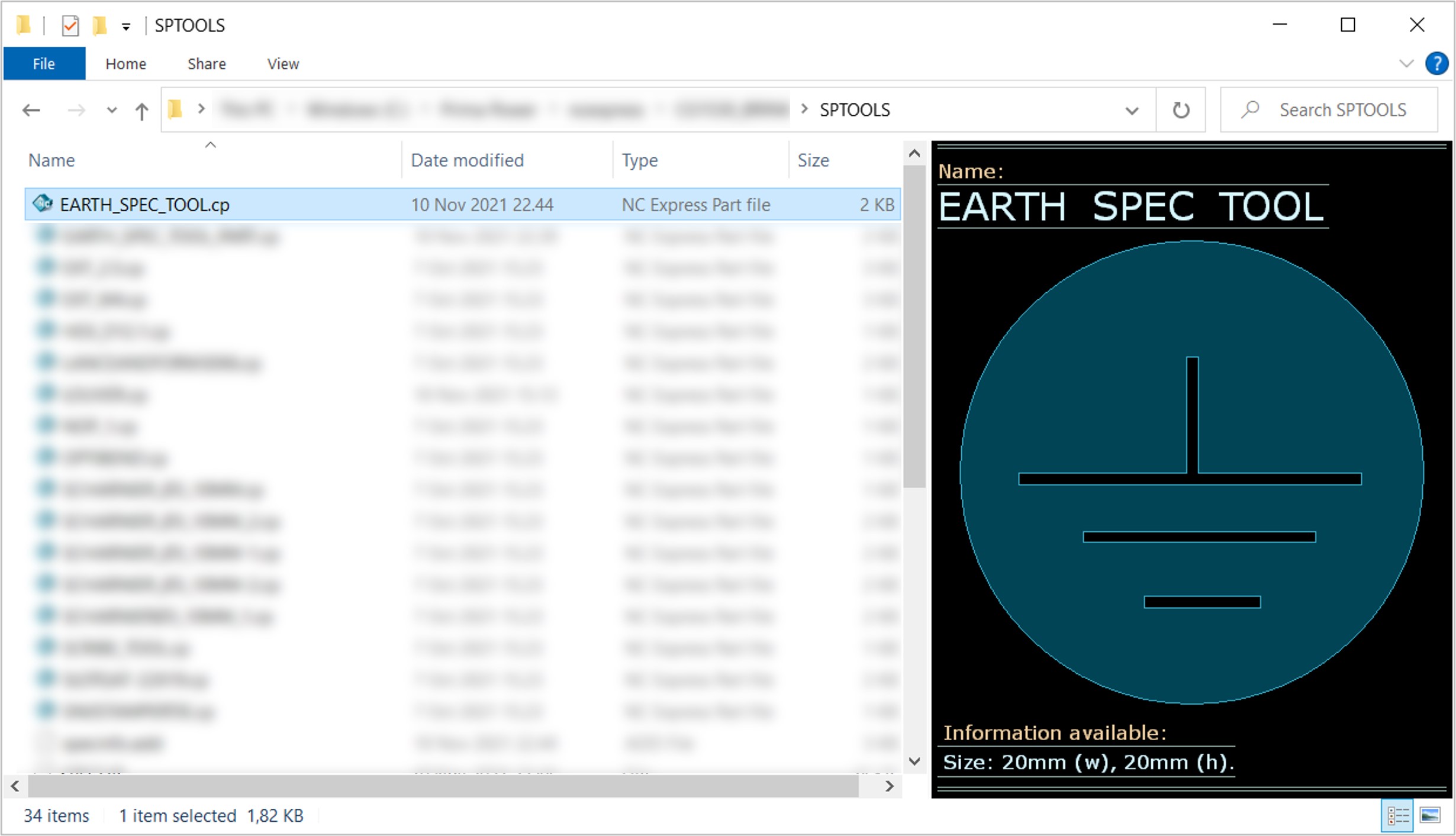
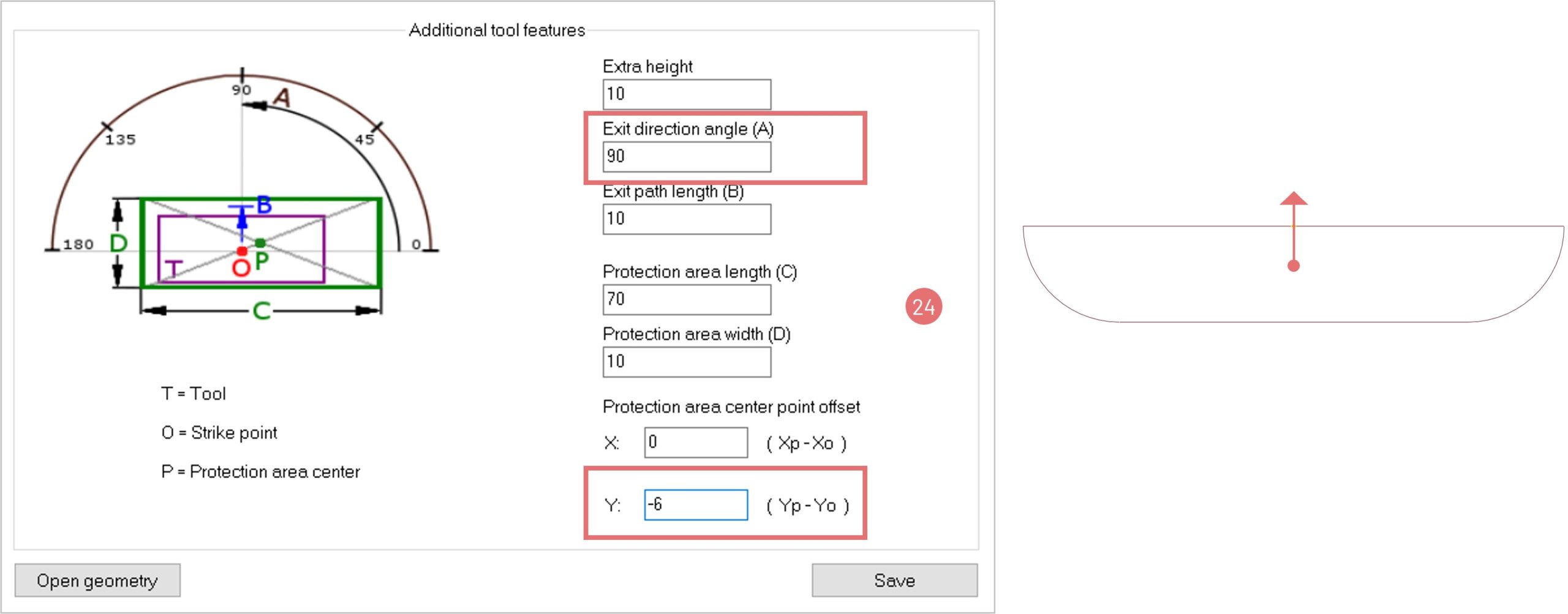
To read more about special tools features, read the Special tool definition article in Prima Power Connect.

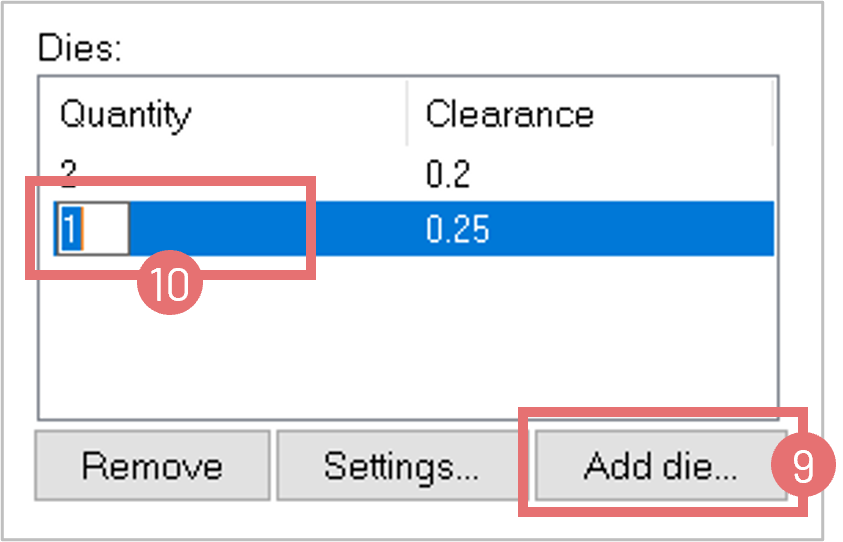
3. The Basic information tab will open after saving the new tool. Edit tool characteristics, add a new die, and activate the Auto index checkbox.

NOTE: Punching priority of wheel tools must always be 0 to avoid tool damage.

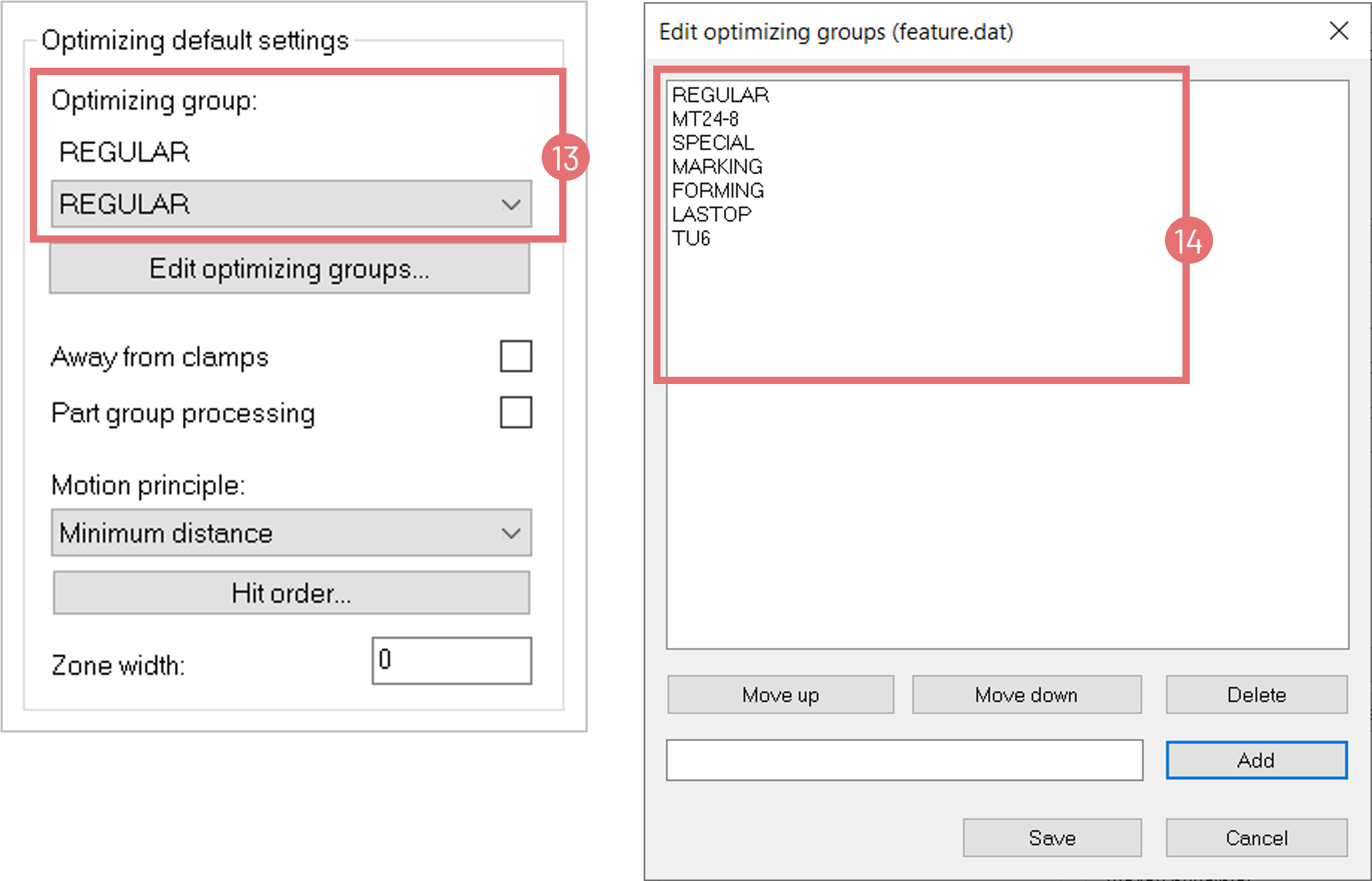
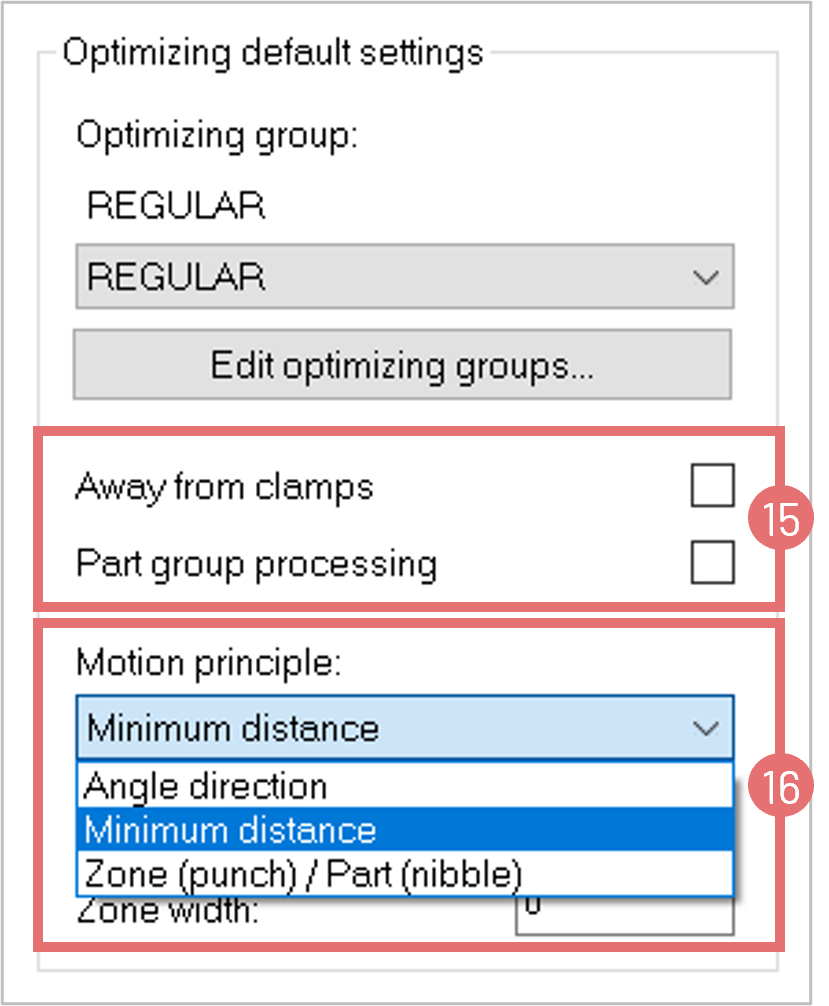
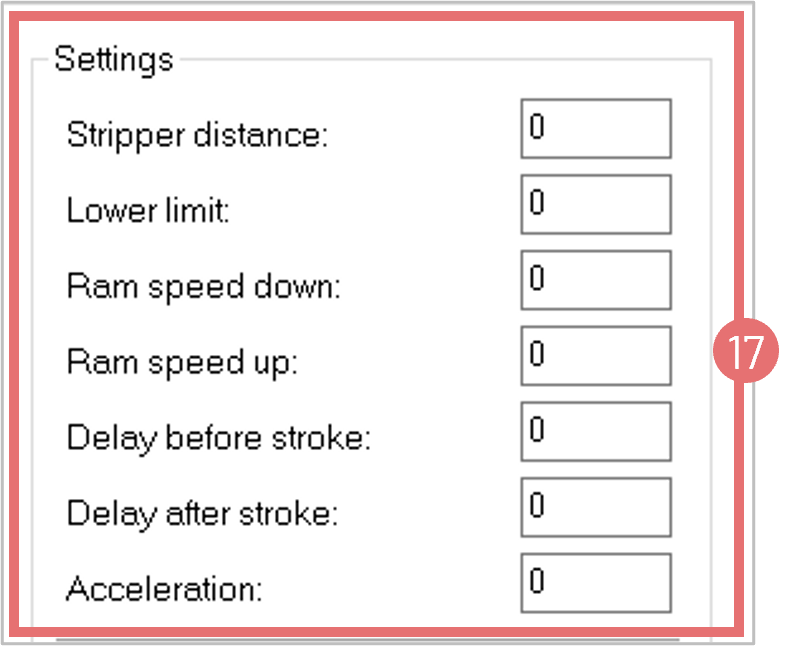
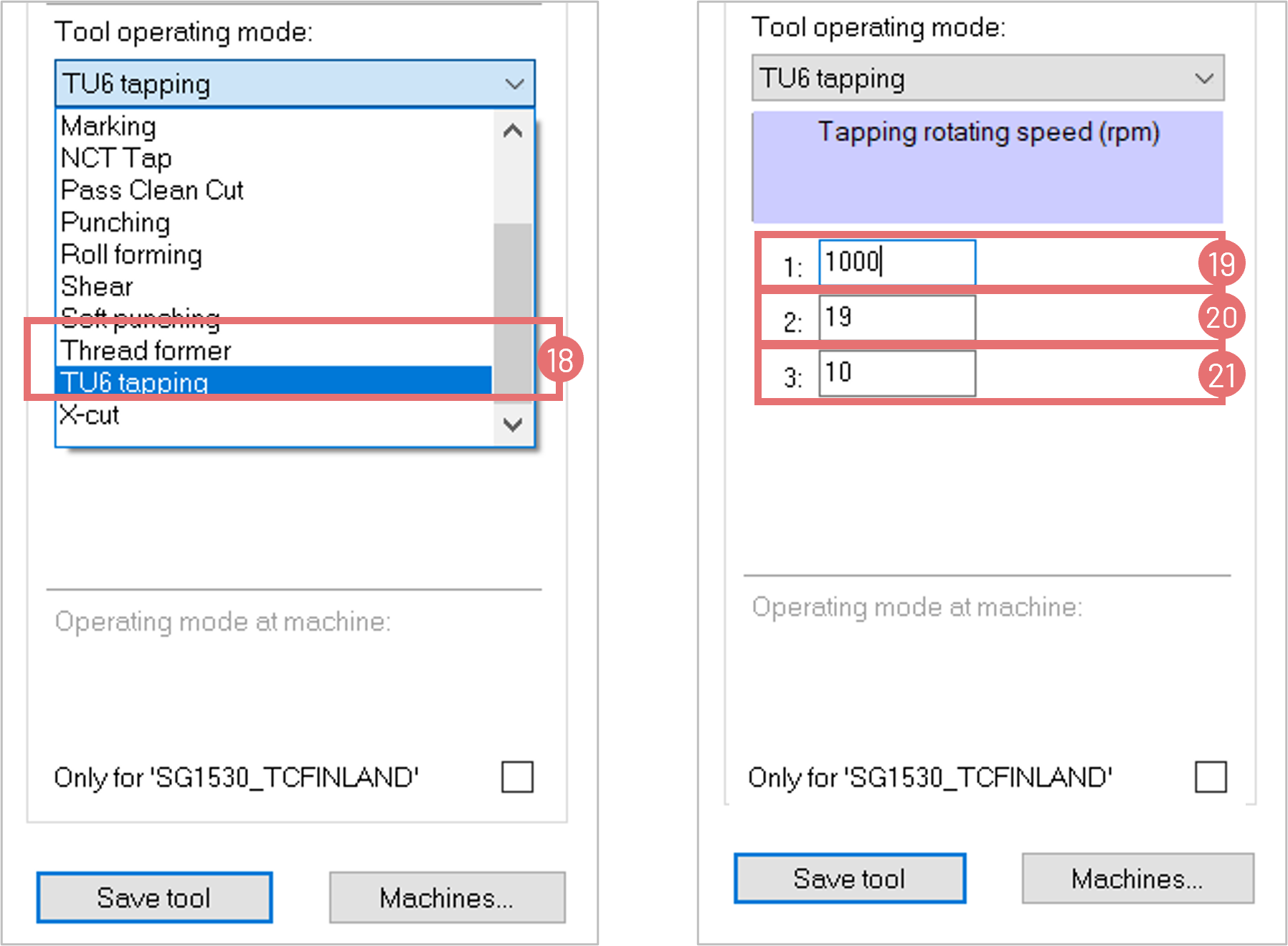
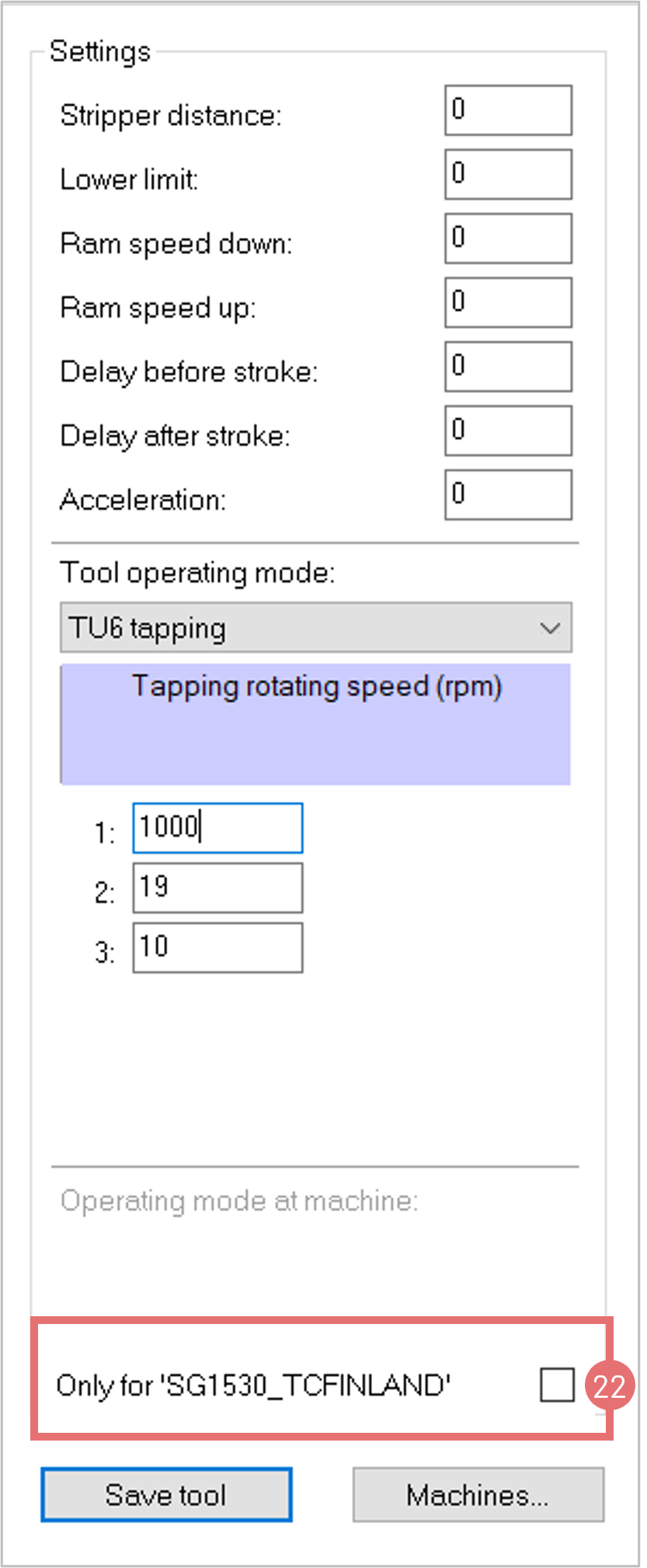
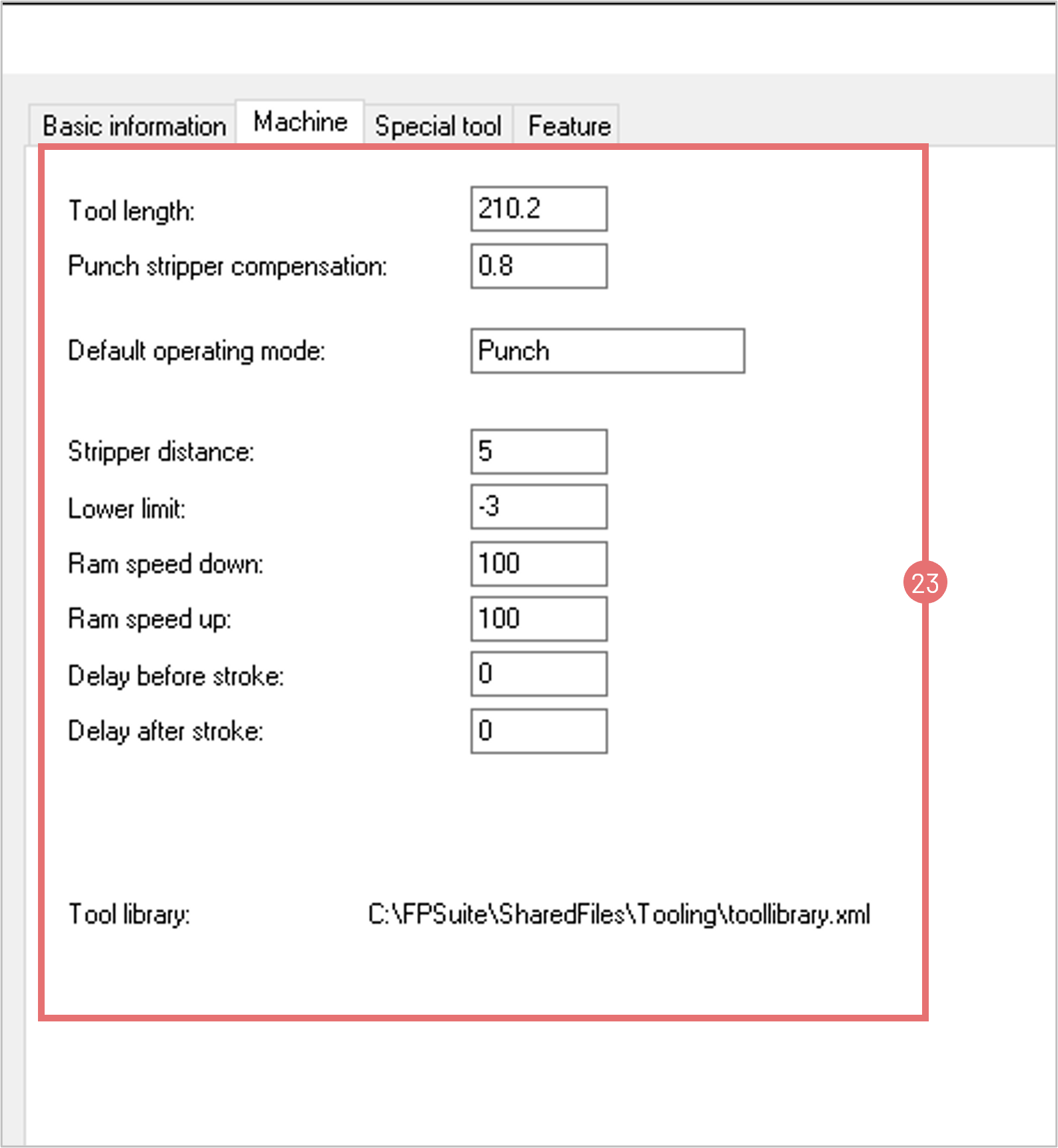
Pay attention to the Optimizing group: select the group reserved for wheel and roll forming tools from the list (6). Change the Tool operating mode to Roll forming (7). Wheel-related tool settings will appear. The screenshot below shows the default values. You can edit the parameters to fit your production preferences. You can customize these parameters for individual jobs in the Wheel dialog or Cycling dialog.

1. Feed rate – specify the feed rate speed in m/min (‘’/min) from 1 to 100.

2. Feed rate in arcs – adjust the feed rate speed when forming/cutting arc segments in m/min (‘’/min) from 1 to 100.

3. Job style – type 0 for cutting style – use this setting only for wheel shearing tools, when parts/scrap pieces are released from the sheet for sorting; type ‘1’ for forming style – use this setting for all the forming wheel tools.

4. Optimization on angle basis – set this parameter to ‘0’. If you select ‘1’, the machine will run all the wheel paths at the same angle on the sheet before rotating the wheel.

Parameters 5 – 8 are applied when the Smooth wheel path feature is selected in the Wheel dialog. This feature means a smooth transition to the working depth and is used to reduce stress on the tool bearings.

5. Ram axis movement down during soft beginning – vertical wheel distance in mm/’’ from the movement position to the machining position. The minimum value is the thickness of the used material, typically 1-2 mm more.

6. Distance of X- and Y-axis movement during soft beginning – the thinner material – the smaller this value can be (5-30 mm).

7. Ram axis movement up during soft ending – the opposite movement of parameter 5; usually the same value is used for open contours. For closed contour, you can type ‘0’.

8. Distance of X- and Y-axis movement during soft ending – the opposite movement of parameter 6; usually the same value is used for open contours. For closed contour, you can type ‘0’.

9. Minimum path length of tool run in lower limit – The recommended value to use in the Tool library is 0.

10. Selection of the soft tool – typical value is ‘0’ – the upper tool does the soft motion.

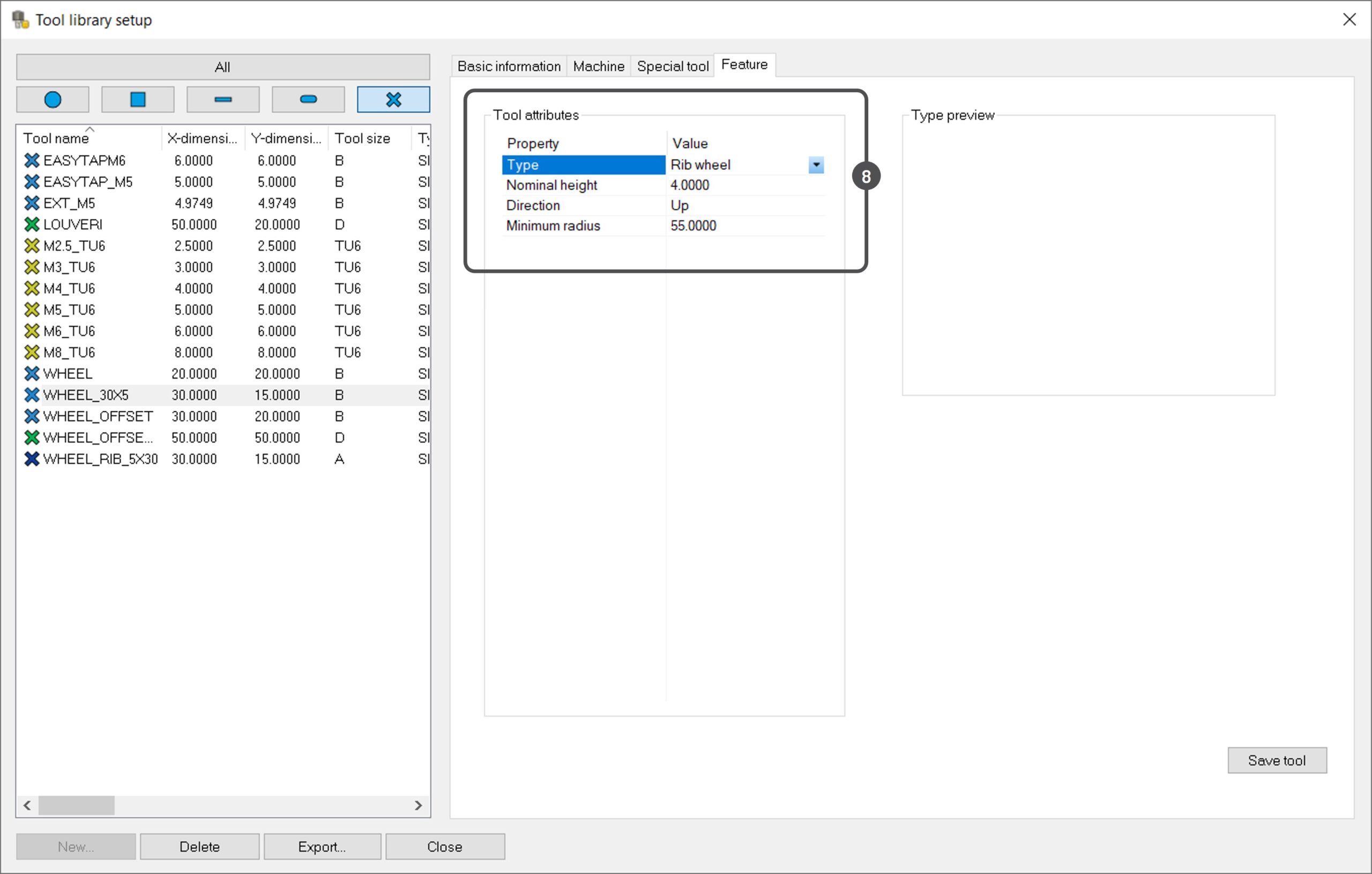
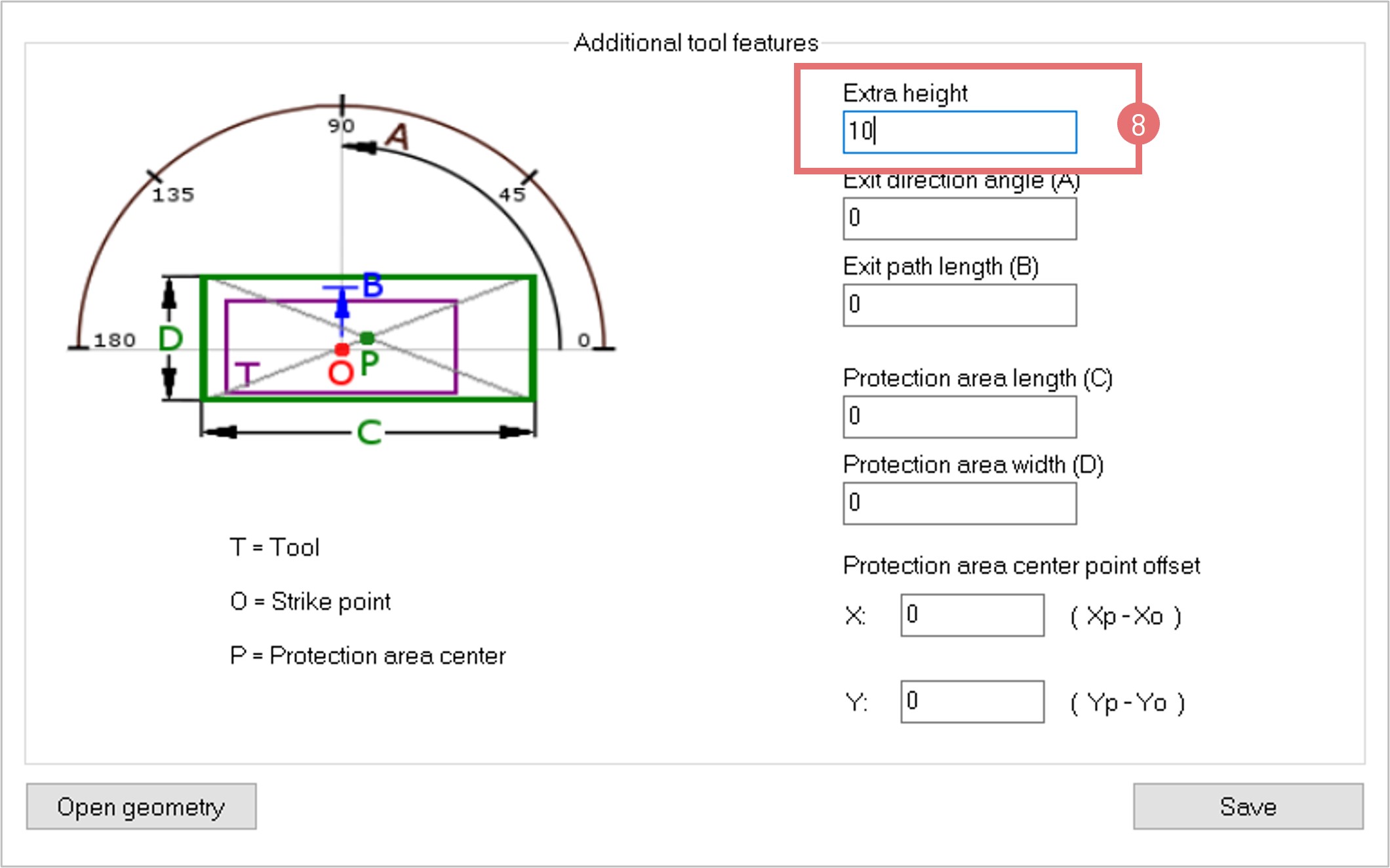
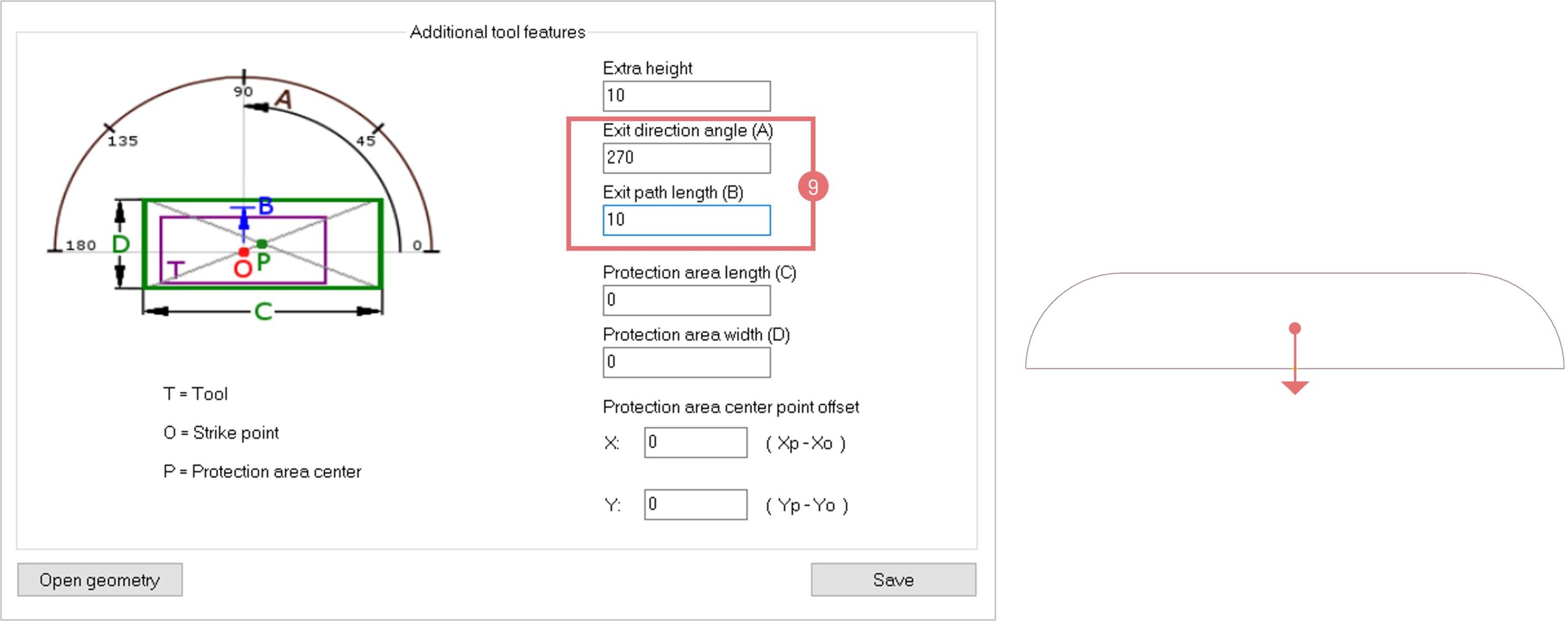
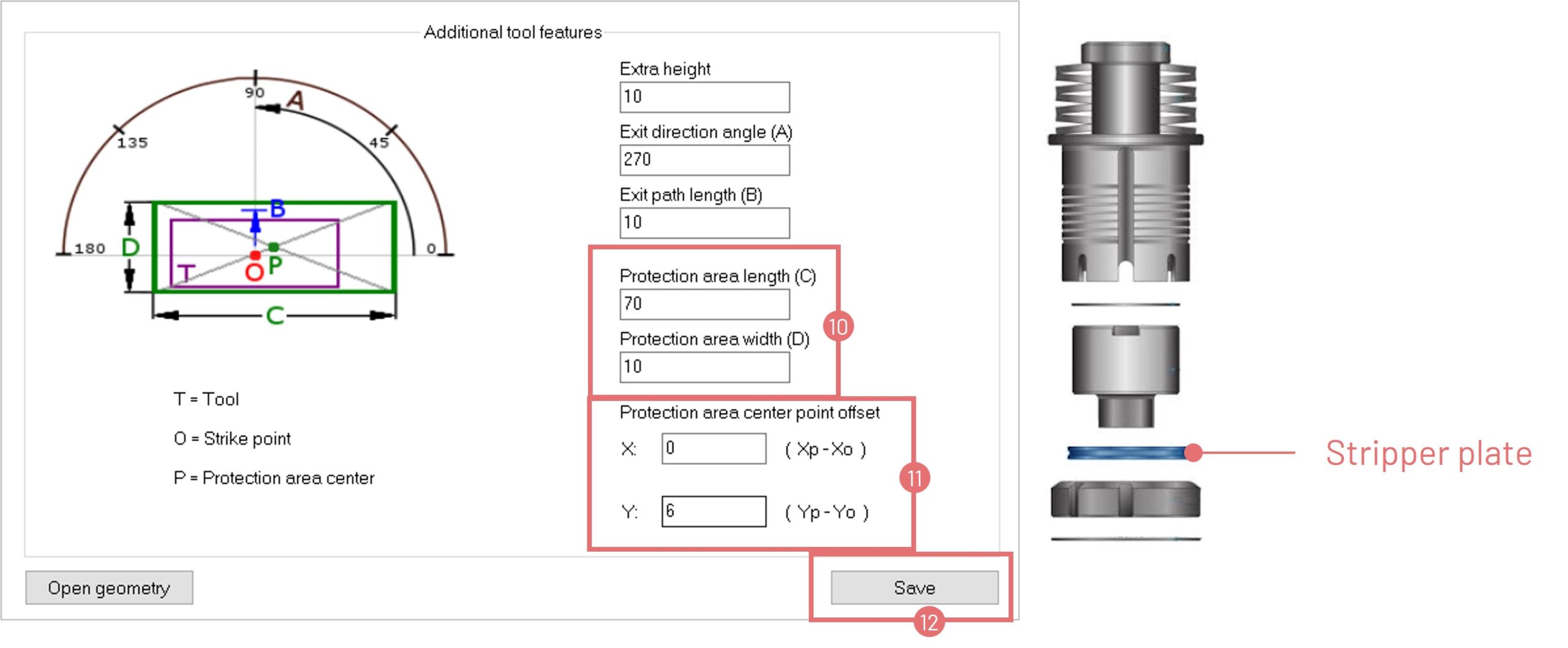
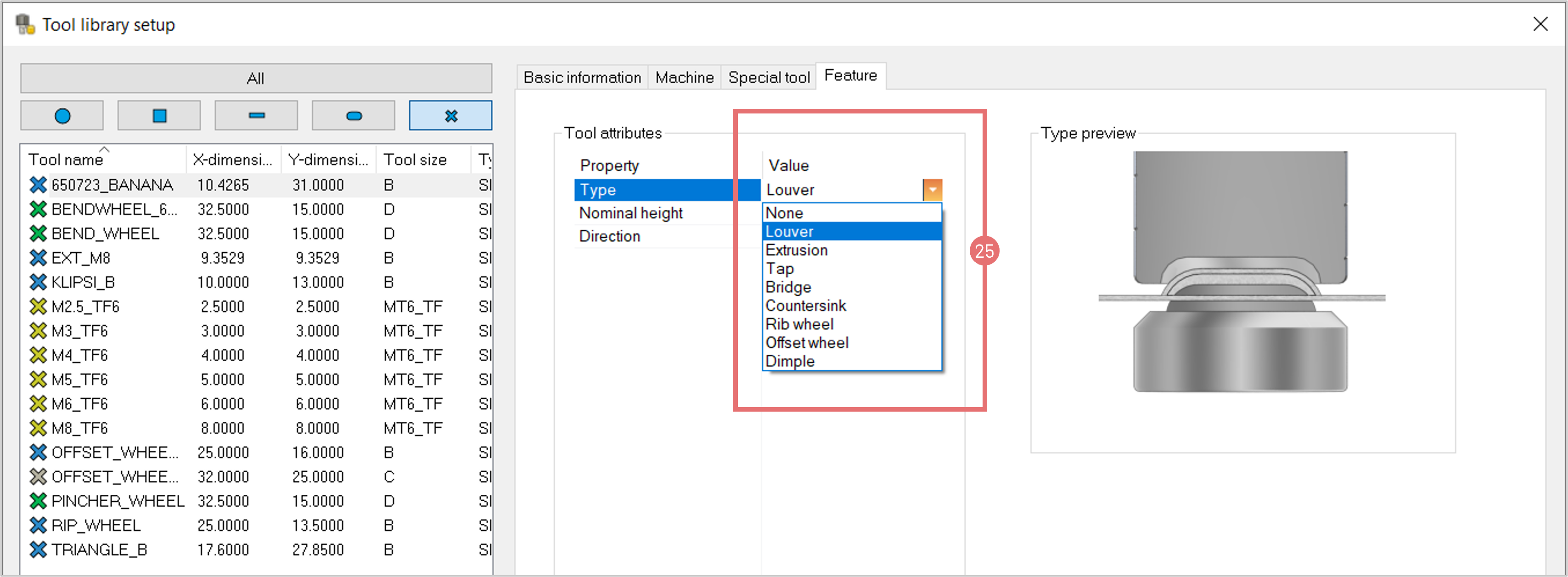
4. Switch to the Features tab. Here you can define the attributes of 3D features on parts surface. Once NC Express recognizes features within these values, it can apply the wheel tool automatically. First, select the type of wheel tool from the drop-down menu and specify the Nominal height, Forming direction, and Minimum radius values (8).

Automatic wheel tool application

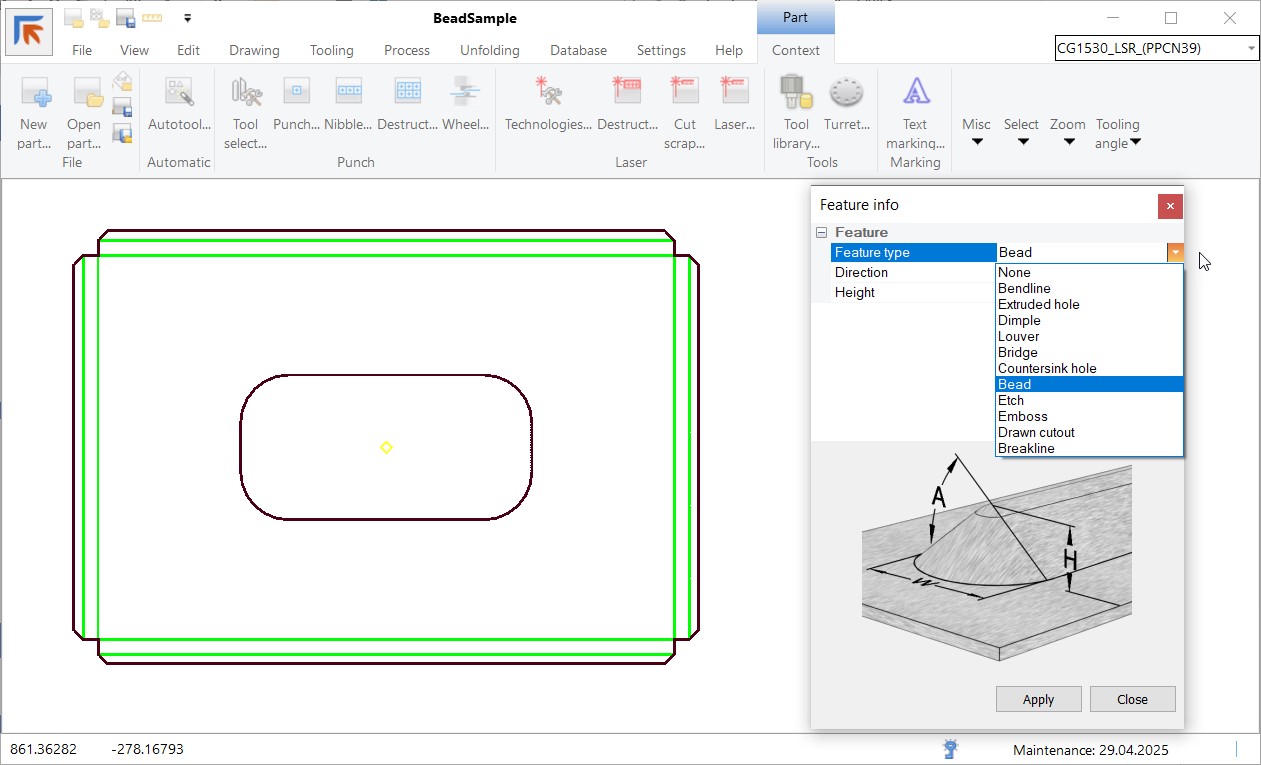
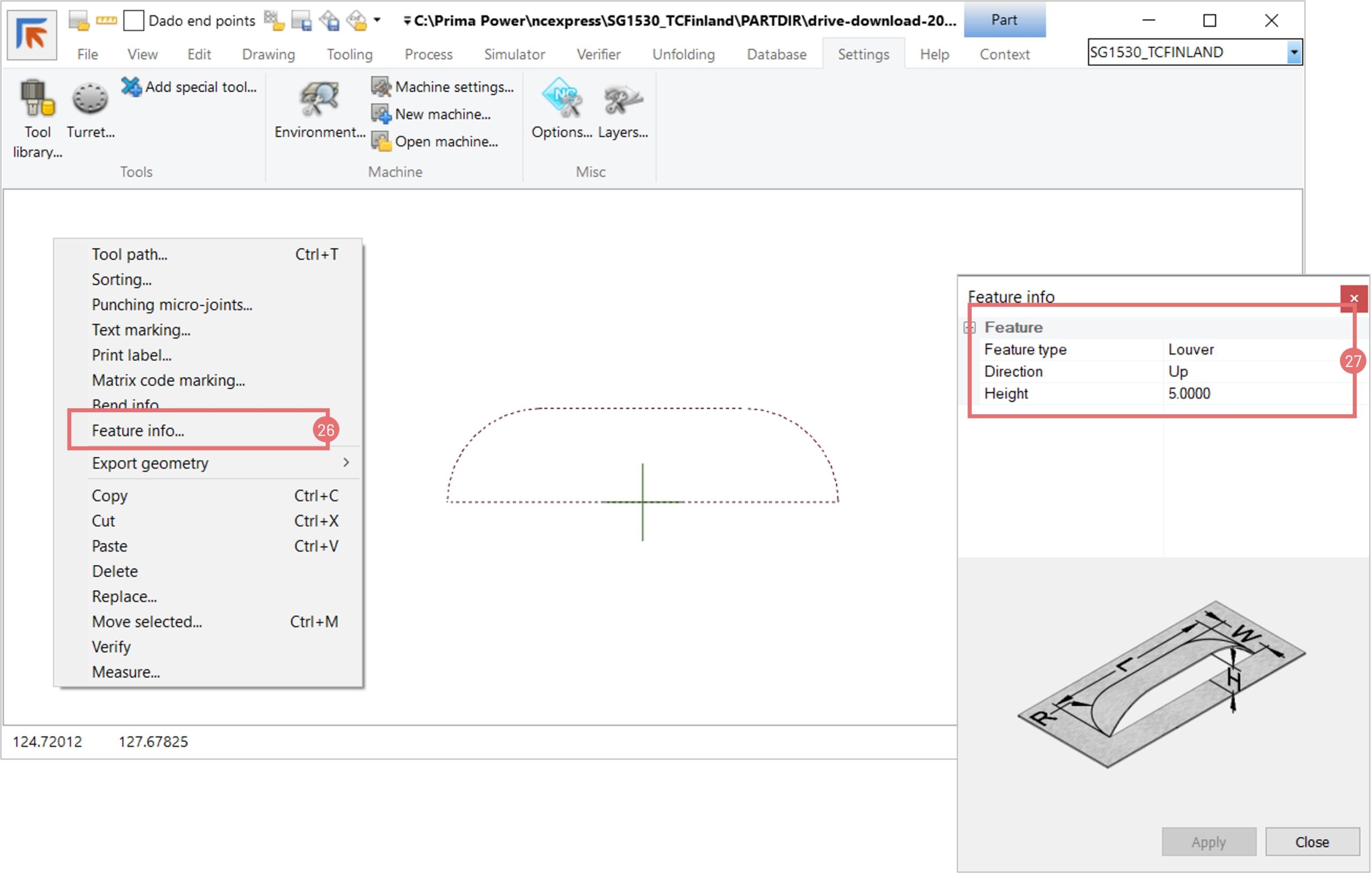
5. Both 3D models and flat geometry can carry information about features on the part surface. You can check or assign a feature to different contours.  Open the right-click menu and select the Feature info option (9). Select a contour from the graphical view to see what feature this is and its attributes (10).

6. If the info is missing, choose a desired feature type from the list, type in the values, and press the Apply button to save changes.

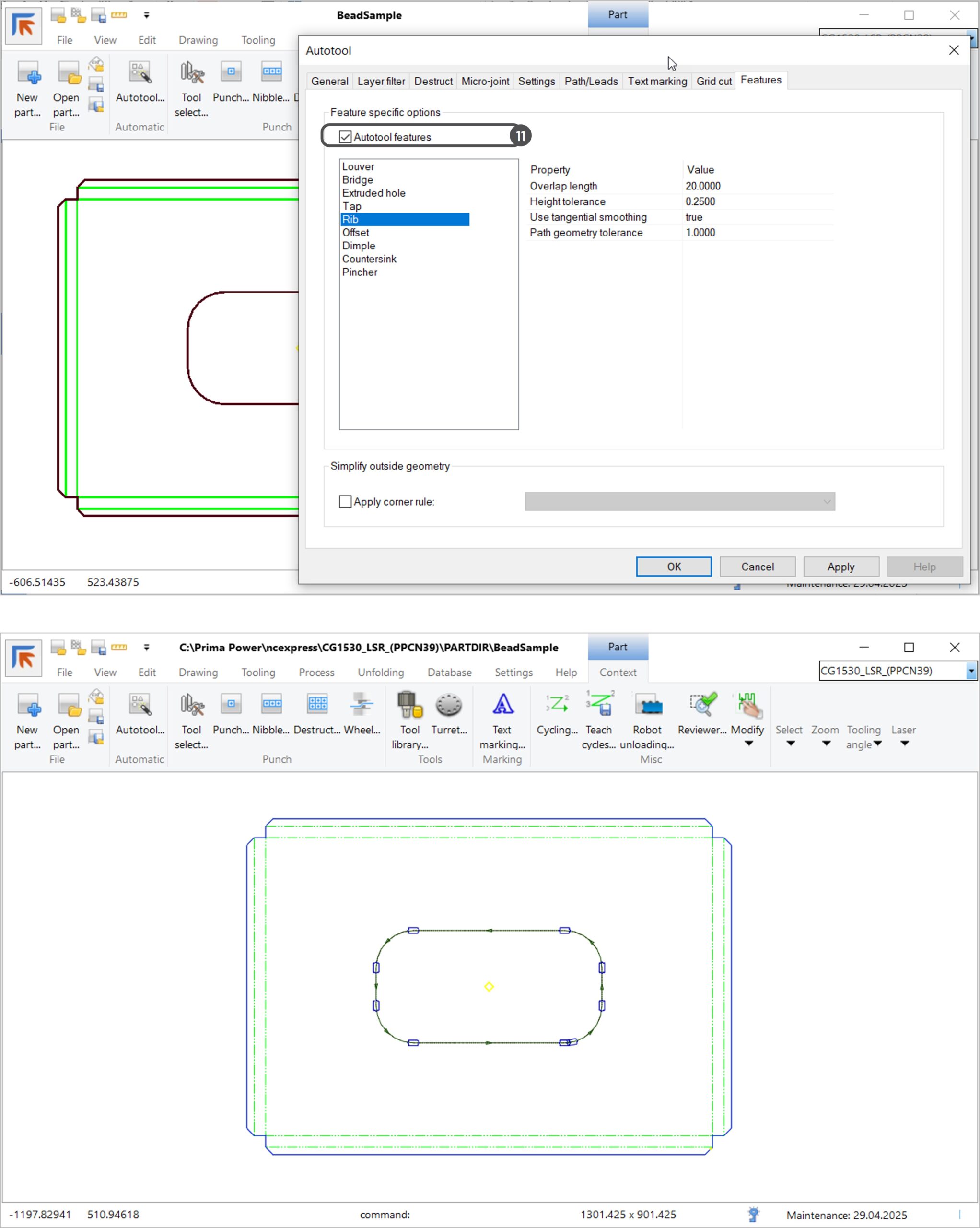
7. Open the Autotool dialog, switch to the Features tab, select the Autotool features checkbox, and press OK to apply the tooling (11).

Interactive wheel tool application with multiple runs

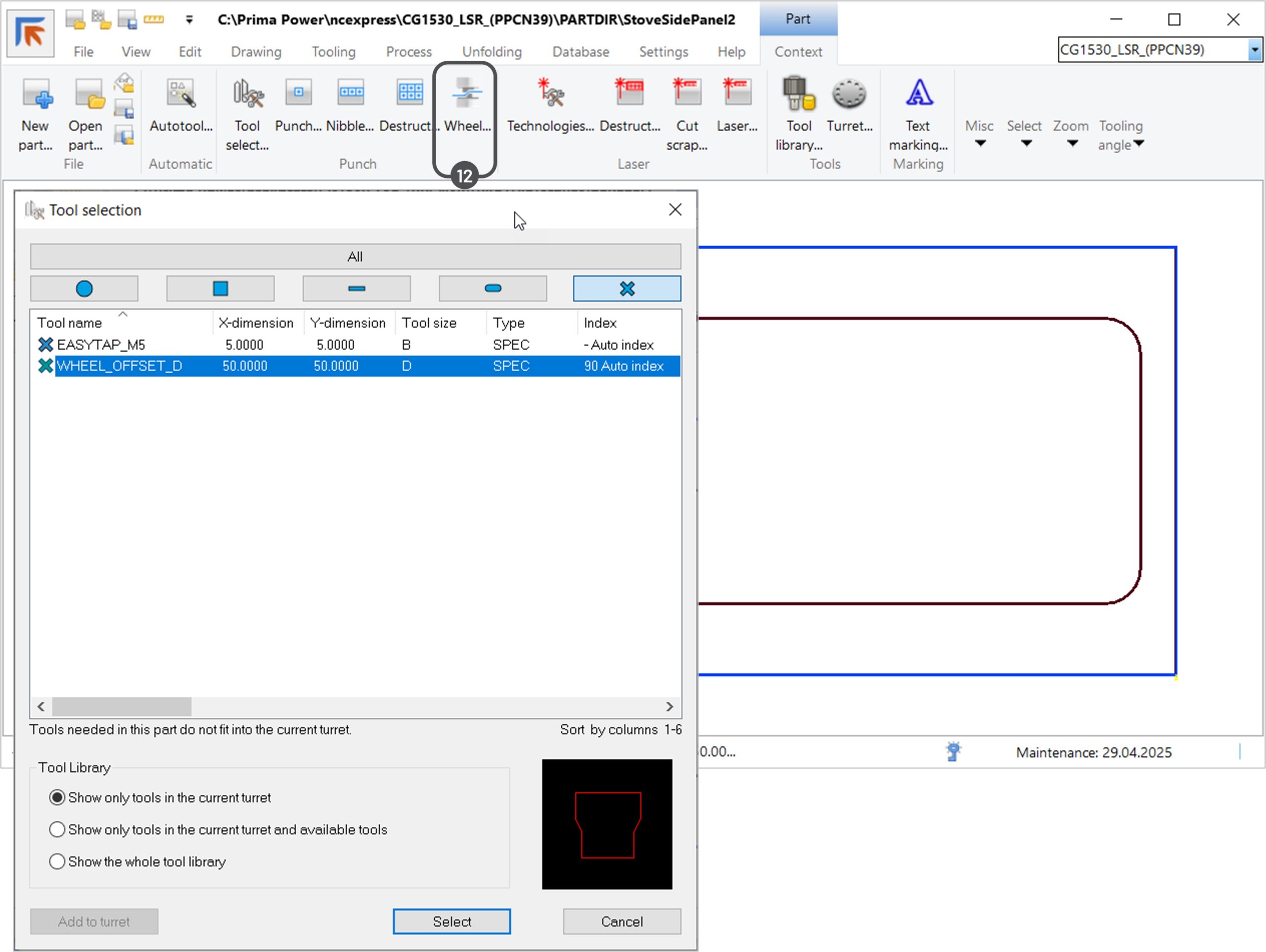
8. Open a part in NC Express where you want to apply a wheel tool.  Open the Interactive forming wheel dialog (12) and select the desired wheel from the Tool selection window.

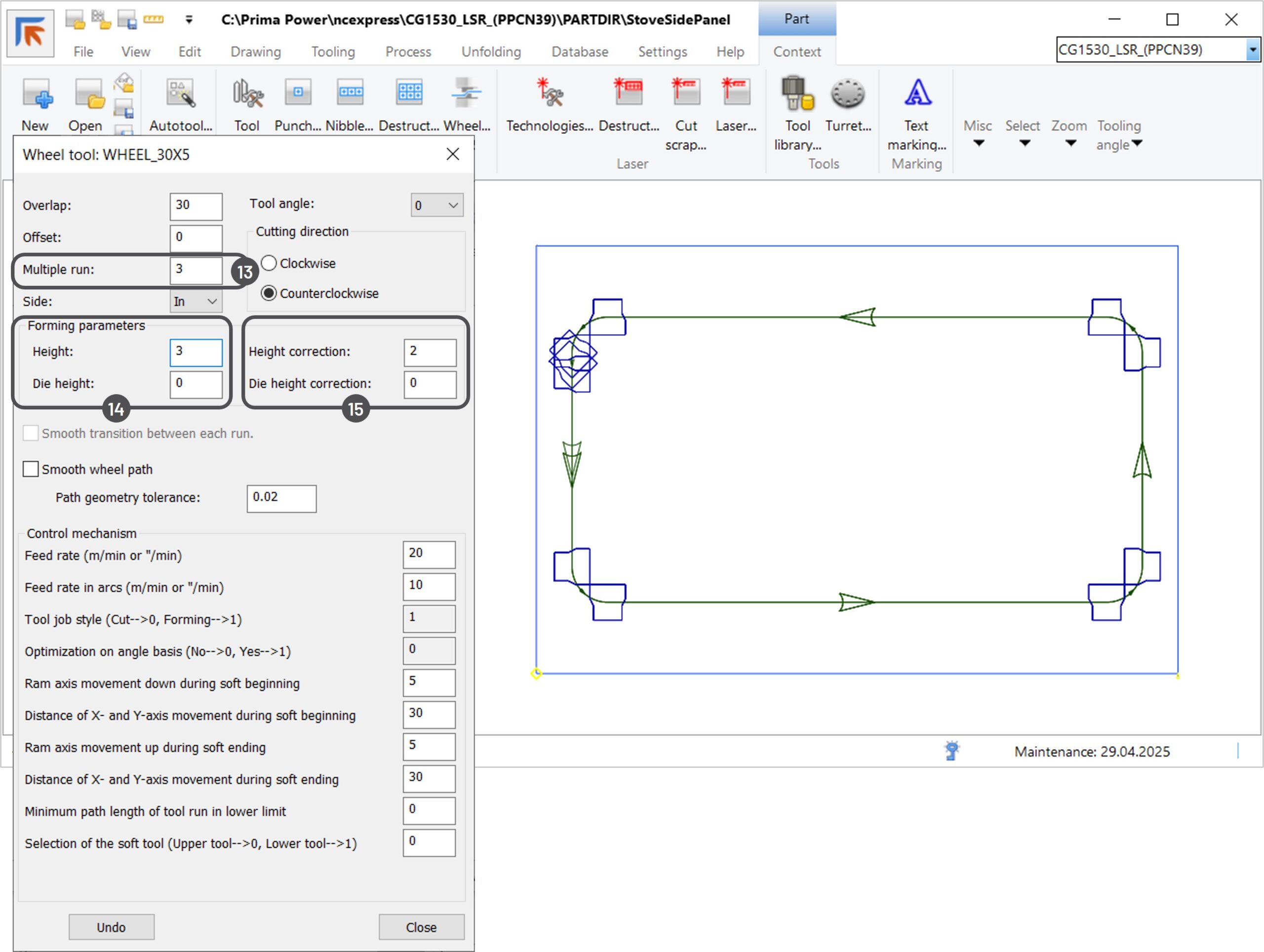
9. The Wheel tool dialog will open, where parameters can be applied. You can use the Multiple run feature to avoid sheet distortion or to decrease stress on the tool, especially with strong, thick materials. Specify the amount of wheel runs on the same contour (13). The required forming height thus can be distributed between different runs. Set the height of the first run (14) and the height correction for each repeated run (15). In the example below, the form height after the first run is 3 mm, after the second – 5 mm, and after the third – 7 mm. Click on the corresponding contour in the graphical view to apply the wheel tool.

Interactive wheel tool application with multiple runs and offset 

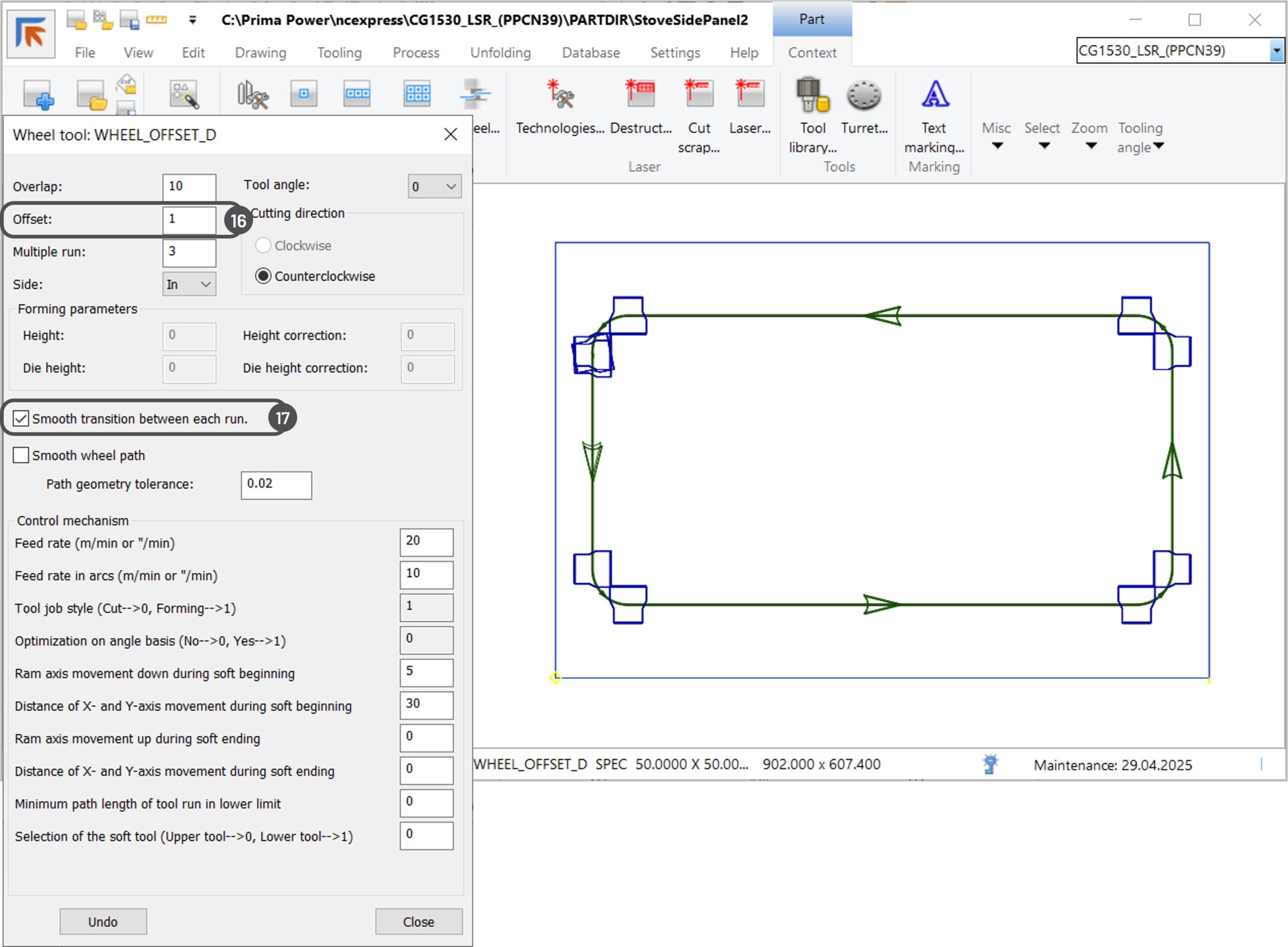
10. When selecting the Multiple run feature, you can change the Offset distance. The Offset value defines the lateral X and Y distance between multiple wheel runs on the same contour (16). With this feature, you can widen the forming shape. When the offset value is larger than 0, the checkbox Smooth transition between each run becomes available. This feature enables uninterrupted tangential transition when moving to the next run with an offset (17). Click on the corresponding contour in the graphical view to apply the wheel tool.

Smooth wheel path

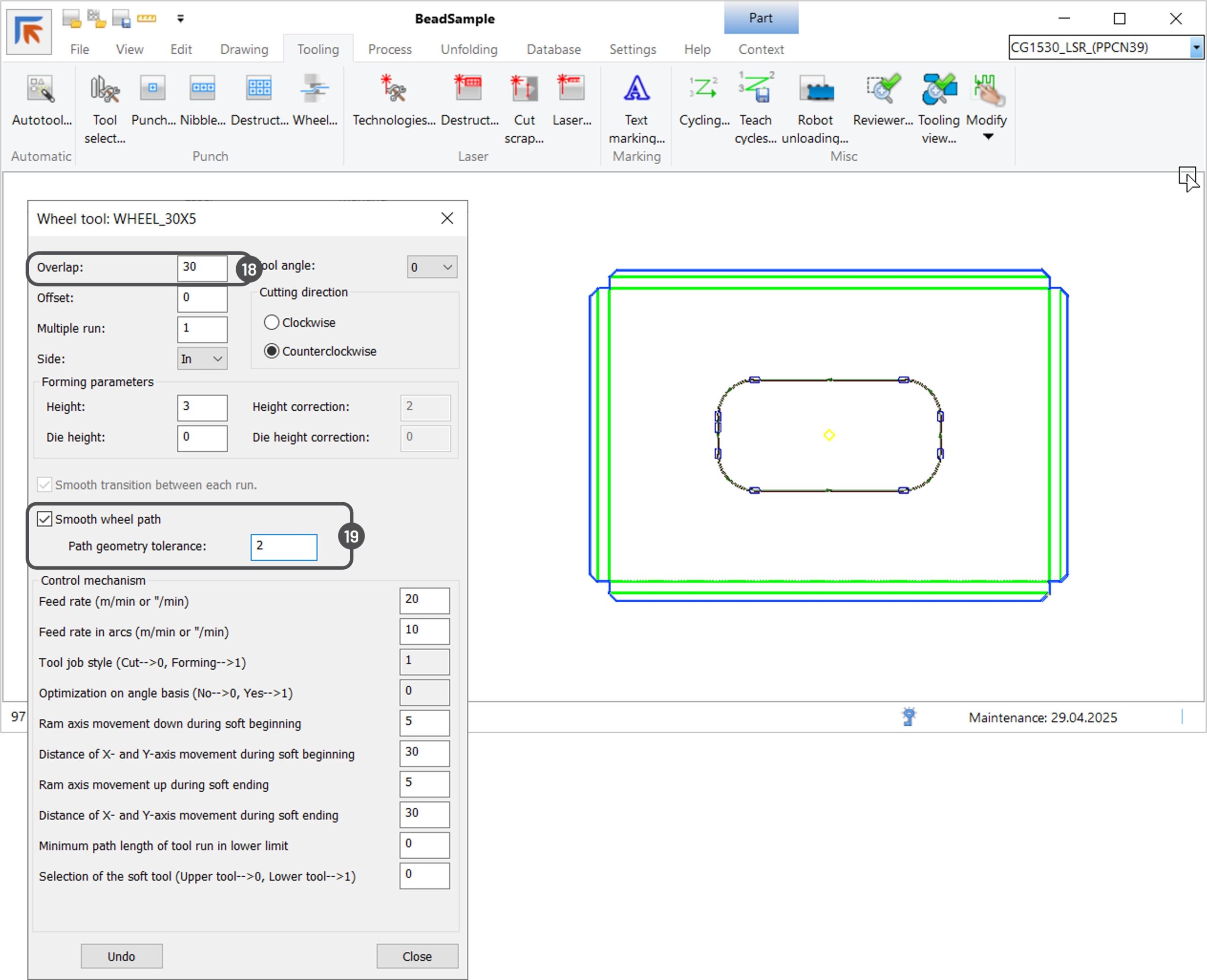
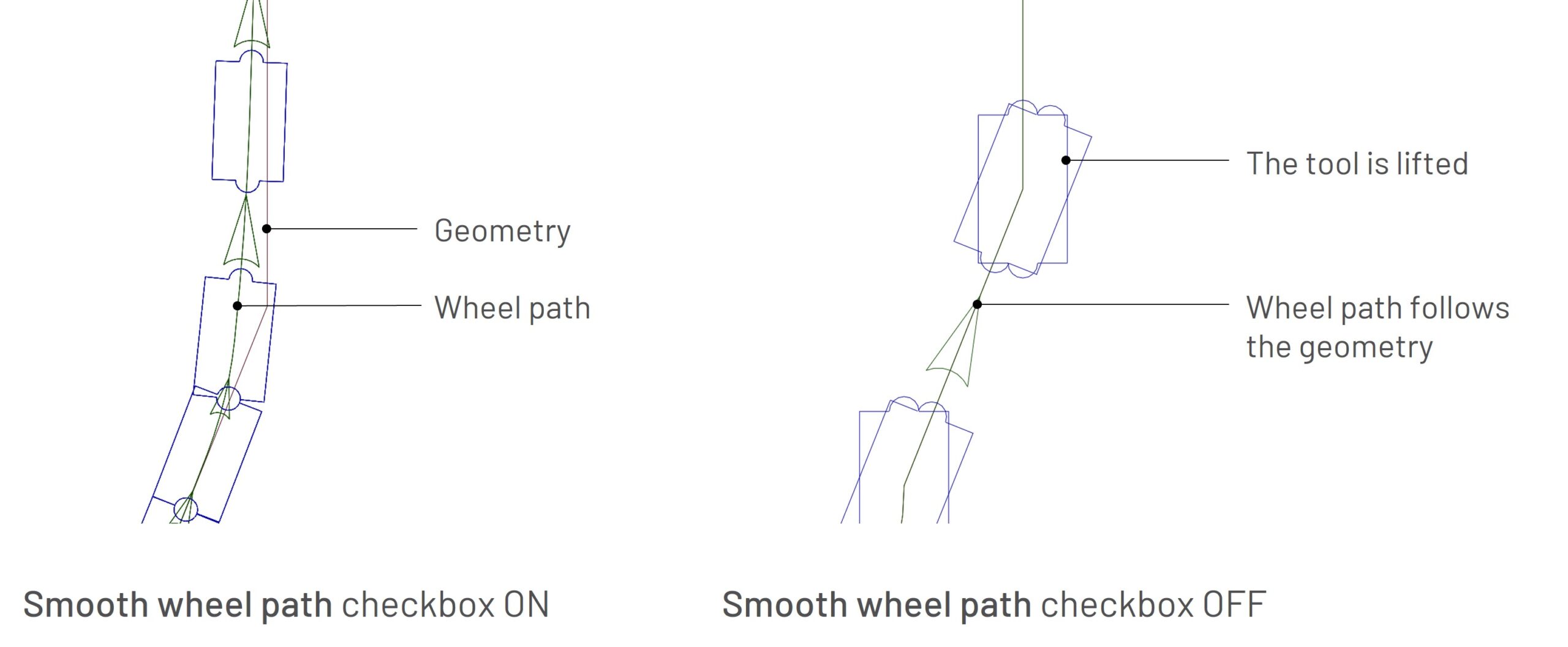
11. On closed contours you can change the length of the tool overlapping to conceal the place where forming starts and ends (18). If geometry has non-tangential segments, you can select the Smooth wheel path checkbox. NC Express will make a continuous tangential wheel path between the lines and arcs within the given tolerance (19). When the checkbox is not selected, the machine can lift and rotate the tool between segments.

Tulus Office 24.1 Release

This document contains the main changes and features done in Tulus Office version 24.1. The new Tulus Office is licensed with three different product versions:

  • Tulus Office Basic
  • Tulus Office Classic
  • Tulus Office Premium

The changes described in this document apply to one or all versions of the product (depending on the feature or change made).

Terminal

New Terminal UI


Completely revamped UI layout and appearance

The interface has been redesigned for a more modern and intuitive user experience. The old “Production Orders” section has been replaced with the “Task List” view accessible under Factory -> Machine.

New views for inventory management

Note! Inventory management features require a compatible Prima Power storage system.

Several new functionalities have been added to enhance inventory management:

  • Storage Inventory: Users can now manage inventory in the Prima Power storage system.
  • Floor Storage Places: Manage and monitor floor storage places inside the Prima Power storage system.
  • Machine Inventory: Users can clear stacking areas and move parts to designated storage places.

Tulus Office integration

A summary of recent orders from Tulus Office is now available, improving visibility of recent production orders.

Enhanced Task List functionality

Tasks can now source parts from specific storage places. After completing a work step, users can mark tasks as finished and move parts to the next storage location.

Logistic tasks added

Users can now define logistic tasks, such as moving a specified quantity of parts from one storage location to another. Once the storage worker completes the task, they can mark it as done.

Updated default port

The Terminal Web UI is now accessible via port 2150 by default.

Backup script

The script is designed to ensure that critical data, such as MongoDB databases and batch directories, are backed up regularly. The backup process is automated using Windows Scheduler, which is configured to run the script daily at midnight (00:00). A full copy of the database is taken, and the number of retained copies is configurable. The default value is 30, meaning that 30 days of backup history are stored.

Test After Installation

After Tulus Office installation or update, it is crucial to test the backup process. Open Windows Scheduler, locate the TulusOfficeFull task, and click “Run”.

Verify that the backup path contains the newly created folder. The folder name follows the time format syntax.

The default location is C:\TulusOffice\backup\<datetime>\. This folder should contain two .gz files and one additional folder. You can also check the log file, located at C:\TulusOffice\BackupScript\debug.log, to ensure it does not contain any errors.

Backup Script Location

The backup script is located in the following directory on the server:

C:\<Server_Installation_Directory>\BackupScript

Default Path: C:\TulusOffice\BackupScript

The script file is named ReBa1.0.ps1. The configuration file, named config.json, is located in the same directory.

Execution Method

The script is executed automatically using Windows Scheduler. The default schedule is set to run the script once per day at 00:00 (midnight), ensuring that backups are performed regularly without manual intervention. The Tulus Office server installer adds the TulusOfficeFull task to Windows Scheduler.

Script Configuration

The script uses a configuration file in JSON format (config.json) to allow customization of various parameters.

Default Parameters

Configuration File (config.json)

The script reads the config.json file located in the script’s directory to override the default parameters. The JSON file can include the following optional keys:

An example of config.json:

{
"targetBackupFolder": "\\123.123.123\TulusOffice\Backup",
  "historySize": 15,
  "mongoBinDir": "C:\MongoDB",
  "batchCount": 20
}

Backup Process

Log Management

The script manages the size of the log file (debug.log). If the log file exceeds 2MB, it is renamed with an .old extension to prevent it from growing indefinitely.

Loading Configuration

The script loads the configuration from the specified JSON file. If the file is not found or cannot be parsed, the script uses default values and logs the issue.

Directory Validation and Creation

Before performing backups, the script verifies that the target backup directory exists and creates it if necessary.

MongoDB Backup

The script uses MongoDB’s mongodump.exe tool to create compressed backups of the TulusOffice and TulusReportingService databases. These backups are stored in the designated backup directory.

Deleting Old Backups

To manage disk space, the script deletes older backups, retaining only a specified number of recent backups based on the historySize parameter.

Copying Batch Directories

The script copies the most recent batch directories from the StoredBatches directory to the backup destination. The StoredBatches folder contains a subfolder for each machine. Under each machine folder, there is a subfolder that contains the program file (.zip or .wqi), depending on the machine type.

Files and Directories Backed Up

The backup process includes the following:

The default folder for backup files is C:\TulusOffice\Backup

Log and Debugging

The script logs important events, such as the start and end times of the backup process, the paths used, and any errors encountered. These logs are stored in the script’s directory under debug.log.

Bending task grouping

This version introduces options to automate the creation and grouping of bending tasks in Tulus Office. To create bending tasks, production orders with parts that have a defined bending phase are required, along with the necessary system settings enabled.

Key features include two settings:

  1. Determines if tasks are created by Batch or Order.
  2. Defines how tasks are grouped within the selected context, such as by AssemblyName, OrderNumber, Part, or NextPhase.

These options allow for more efficient and automated bending task management, tailored to the specific needs of production batches and orders.

Other minor improvements and features

Bug fixes

  • TU-2201 Client window disappears and can only be restored by deleting settings file
  • TU-2880 Cannot cancel task from calendar
  • TU-3238 Calendar task WQImport failure
  • TU-3271 Task is not released if it contains skipped quantities
  • TU-3337 Machine path validation fails for files
  • TU-3340 Multipart resolving to be more precise when TaskId or machine id provided
  • TU-3341 Terminal: Machine images are not shown on factory load view
  • TU-3342 Implement in backend part transfer from the machine device to the selected storage place
  • TU-3374 StaticPrograms does not work correctly
  • TU-3375 BlackBoxNester: Find first function in script when x64-environment
  • TU-3377 Bug in searching and validating ProductStructureAttachments
  • TU-3380 Scroll bar missing in calendar view
  • TU-3387 Selected row logic does not work correctly in inventory view
  • TU-3388 Selected source shows stack id
  • TU-3389 Destination container card shows stack id
  • TU-3390 Book out is visible for wrong work step
  • TU-3406 Creating multiple book out from Terminal is prevented
  • TU-3407 Terminal: Task list shows blanking work step for no reason
  • TU-3412 False failure in path validation
  • TU-3417 Saving part duration does not work
  • TU-3418 New Terminal: All button does not work
  • TU-3419 Problem in scheduling
  • TU-3420 Calendar machine change is suggesting wrong machines
  • TU-3422 Terminal: Part size is wrong if Box1500 is moved to cold storage place
  • TU-3430 Change filler part quantity not working
  • TU-3433 Measurement unit conversion in ImportBlackBoxOrder
  • TU-3436 Use static nest from the machine folder does not work
  • TU-3437 Approved static nest attached to the order does not update nesting completed at production order view
  • TU-3439 Due date changes to 00/00/0000 when filler used
  • TU-3441 New Terminal language selection does not work
  • TU-3444 New Terminal: All button does not work
  • TU-3445 TaskReleaser does not release task
  • TU-3447 Pressbrake part done does not work in case of cold storage places
  • TU-3449 Inventory view in the terminal does not work in case of same part with different order number
  • TU-3450 Logistic task cannot be created without an existing source
  • TU-3454 New Terminal: Booking out container does not match with inventory view
  • TU-3456 New Terminal: Terminal closes task automatically when parts are done
  • TU-3457 New Terminal: Status window does not get updated automatically/lags when parts are moved
  • TU-3458 New Terminal: Move stack does not work in Storage station view
  • TU-3462 New Terminal: Parts are not reported to Terminal with Press Brake service
  • TU-3468 New Terminal: Manual bending status does not change when part is done
  • TU-3478 New Terminal: Unnecessary data is shown in Logistics transfers dialog
  • TU-3488 New Terminal: Hide “Bring stack” button if stack is already in the location
  • TU-3502 Tulus Terminal: Filtering history view in logistics does not sort dates correctly
  • TU-3507 Tulus Office Classic: Tulus Office client crashes/stops responding when create production order is pressed
  • TU-3509 Too long delay when opening “Create Production order” dialog
  • TU-3510 High CPU load with Tulus Office
  • TU-3528 Remove task is only called for blanking machine and fld
  • TU-3529 Parts not visible in Tulus Office and slow loading time
  • TU-3552 New Terminal: Booking out unavailable with Tulus Press Brake service when container is modified
  • TU-3575 If the kit contains different materials, it does not release to the bender
  • TU-3576 Blackbox nester: Call accept function instead of WriteQueue
  • TU-3581 External calendar rest query interface returns invalid data
  • TU-3401 REST API support for Bending task import file (.ibt)
  • TU-3554 Reporting Service: Disable all reports by default
  • TU-3599 New parameter “IsCoverPaperUsed” to IBO

Improvements

  • TU-3213 Add order item estimated duration to default production time
  • TU-3292 Terminal: Inventory view
  • TU-3326 Terminal: Factory logistics view
  • TU-3344 Create inventory worklist item from Production tasks view
  • TU-3345 Terminal: Setting page fixes
  • TU-3346 Terminal: Machine –> Inventory: Autorefresh
  • TU-3347 Terminal: Group inventory parts by partname and erpreference
  • TU-3348 Fix clear device dialog
  • TU-3349 Remove factory layout dialog button
  • TU-3350 Terminal: Inventory view grid
  • TU-3351 Booking out from global inventory
  • TU-3353 Add transfer button in logistics view
  • TU-3354 Terminal: Transfer parts from floor storage place/container to another floor storage place/container
  • TU-3355 Terminal: Transfer parts from cassette to floor storage place/container and from floor storage to Night Train
  • TU-3356 Work step information to the storage data
  • TU-3358 Progress buttons in production task card
  • TU-3359 Changes to part delivery report
  • TU-3360 Reorder logic flag
  • TU-3361 Build storage cache in Terminal backend
  • TU-3362 Remove source from logistics workitem
  • TU-3363 Add additional properties to the iao file
  • TU-3364 Action buttons in Storage view
  • TU-3365 Preset container if possible
  • TU-3366 Transfer button in Task list
  • TU-3368 Implement move storage transaction in part-done endpoint
  • TU-3369 Add storage place definition for machine in terminal configuration
  • TU-3371 Support composite parts at task list
  • TU-3372 Move parts from EBE to cold storage place
  • TU-3386 Add container in Parts in storage card
  • TU-3392 Autoselect part source if only 1 selection is available
  • TU-3393 Send stack button in Task list container card
  • TU-3394 Set grid to full height
  • TU-3395 Container card does not update after book out
  • TU-3397 Nesting Info field to iao
  • TU-3410 Book out does not work from inventory view
  • TU-3414 Group nesting parts based on nextphase
  • TU-3415 Cassette type handling
  • TU-3416 New grouping rule in Tulus Office programming
  • TU-3423 Remove internal batch read REST calls
  • TU-3428 Create “dummy” work steps
  • TU-3429 Async masterbend call
  • TU-3461 New Terminal: Moving stack from machine not possible
  • TU-3469 New Terminal: Make scroll bar thicker
  • TU-3482 New Terminal: Logistics transfers view quantity value should have prefilled value
  • TU-3511 SortingAddress to scheduled part
  • TU-3513 <Material> and <Thickness> options to the batch naming patterns
  • TU-3514 Select destruct tool based on material thickness
  • TU-3525 Client configuration is not saved when closing client
  • TU-3536 Order dashboard view to Terminal
  • TU-3557 Batch to calendar performance optimization
  • TU-3563 Due date and scheduled dates do not work when task is created by IBT
  • TU-3564 Fix stacking quantities
  • TU-3565 Reduce report collection size
  • TU-3572 Autobend: Add support for NC Express Bend
  • TU-3588 New Terminal: Container name should stay same when moving stacks between machines
  • TU-3589 Not possible to produce ordered quantity of parts
  • TU-3596 Hide all storage related views from terminal if storage is not configured in Tulus Office
  • TU-3600 Create independent bending tasks by using order+bending group rule
  • TU-3603 Improve bending validation result visualization
  • TU-3610 Scrollbar not visible on orders screen in Terminal
  • TU-3618 Use nlgo.config and Nlogger
  • TU-2777 Backup script
  • TU-3303 Part delivery process
  • TU-3318 Fix manual task create logic
  • TU-3321 ErpReference is not used in bending task
  • TU-3322 TaskScheduling interface based on ErpReference and work step
  • TU-3334 Auto start flag should set first sheet to false, not all sheets
  • TU-3379 Fix failed quantities handling
  • TU-3399 Add ACP Profile to nesting info
  • TU-3402 External API for querying material consumption based on calendar load
  • TU-3403 Press brake process managers return error code as string
  • TU-3404 Storage content is not always visible on Terminal
  • TU-3405 Add finished quantity and requested quantity in Pressbrake activate task DTO
  • TU-3425 External API for querying required cassette types based on calendar load
  • TU-3431 Support for Alias named multipart quantity syntax
  • TU-3435 Update Sorting address based on the order data
  • TU-3475 Show lastmodified datetime and modifier in programming grid
  • TU-3506 New Terminal: Booking out did not work correctly
  • TU-3508 Material change for static nest
  • TU-3512 Change sorting address when program is added to calendar
  • TU-3561 BlackBoxNester: Add handling for PunchTrimStripTool in destruct-tool.json
  • TU-3578 Mark Automatic work step items as complete in case of no children
  • TU-3521 Production Orders: Show finished datetime in orders history

NC Express 24.1 is released

Prima Power software strategy ‘All in one’ aims to create a continuous and integrated production flow for all Prima Power machines, we are pleased to announce the release of NC Express 24.1:

NC Express 24.1 technical release notes document about new features.

You are entitled to this update when your license maintenance is valid.

Notes on selecting between 32- and 64-bit build:

  • The 64-bit is recommended for new customers.
  • The 32-bit build is backwards compatible with older versions. We recommend this for updates if you now have 32-bit (see ‘Help’ – ‘About’).
  • The 64-bit build cannot use old customized 32-bit report templates. They must be made again on new syntax when moving from a 32-bit build to a 64-bit build.
  • If you have software integrated to NC Express using ParaNCX-interface, please contact Prima Power before updating to 64-bit build. This concerns applications such as Tulus Office Premium, Tulus Office Power Processing, Batch Processing and PowerPlan, among others. The integrated software needs to compiled in 64-bit too.

Using Teach cycles to create a custom Teach cycle pattern on a perforated part

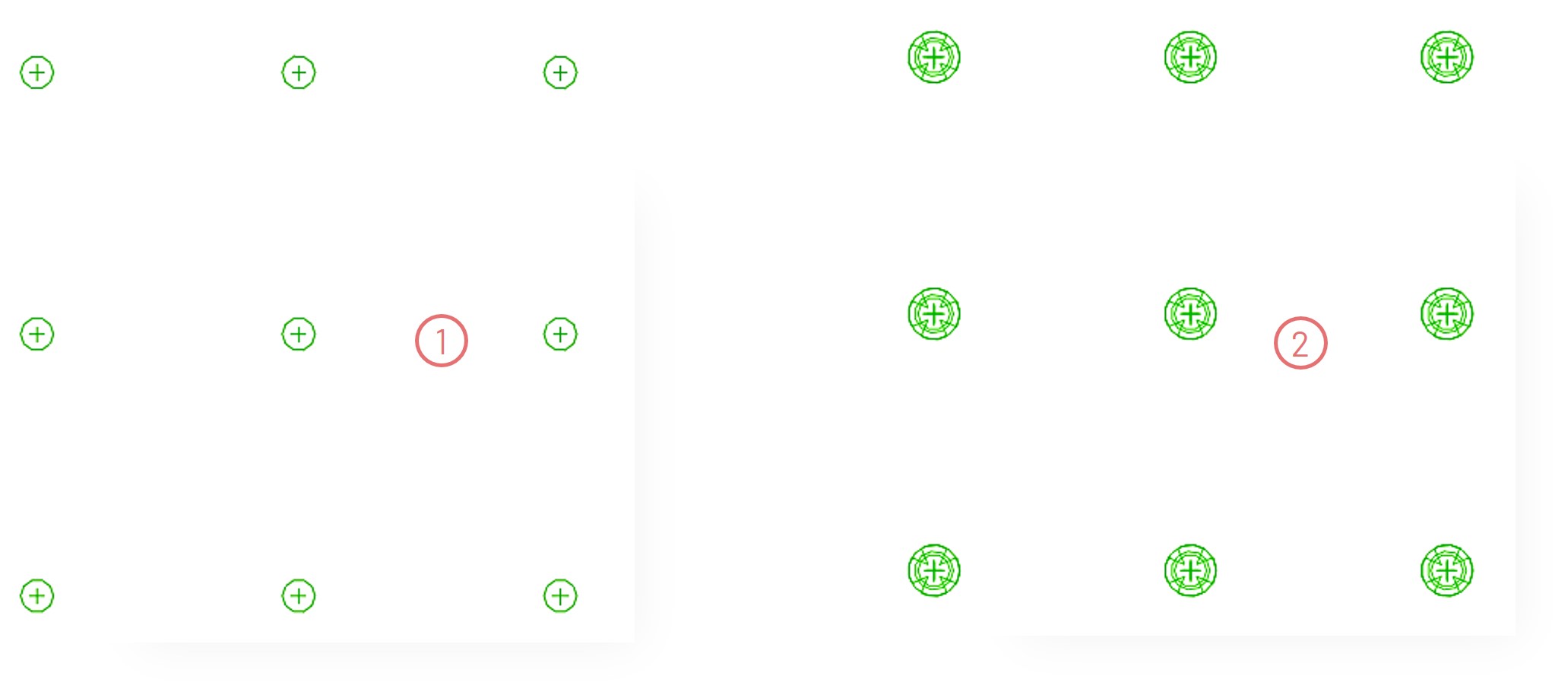
The Teach cycles function is an efficient method for creating custom tooling patterns on challenging geometry elements (such as complicated corners, forming features, etc.) and for applying them automatically to recurring features. This article describes a use case where the Teach cycles function is used to apply a cluster tool on a perforated part and to create a custom pattern to automatically sparse multiple rows of tool hits. This feature will avoid sheet distortion during the punching process.

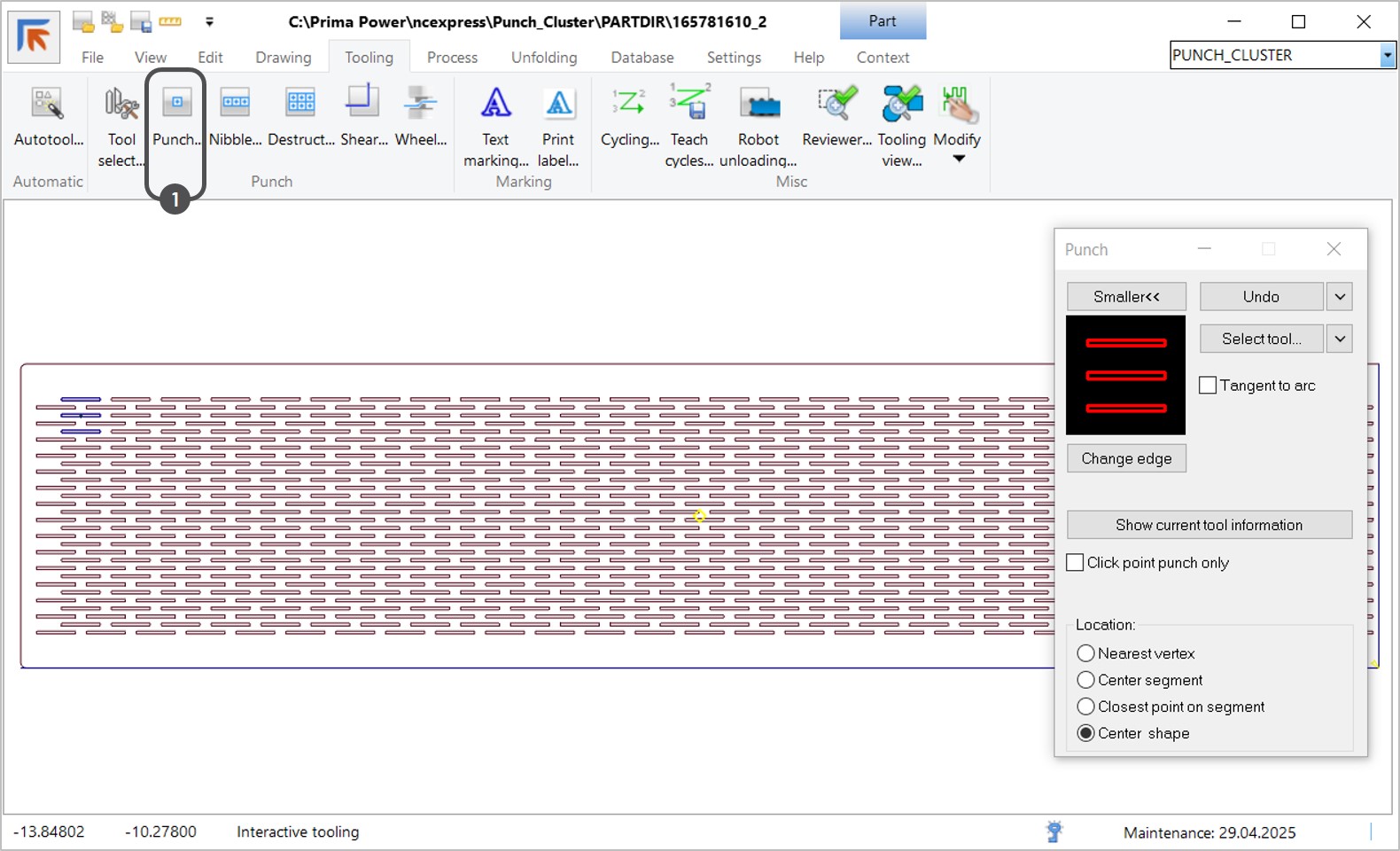
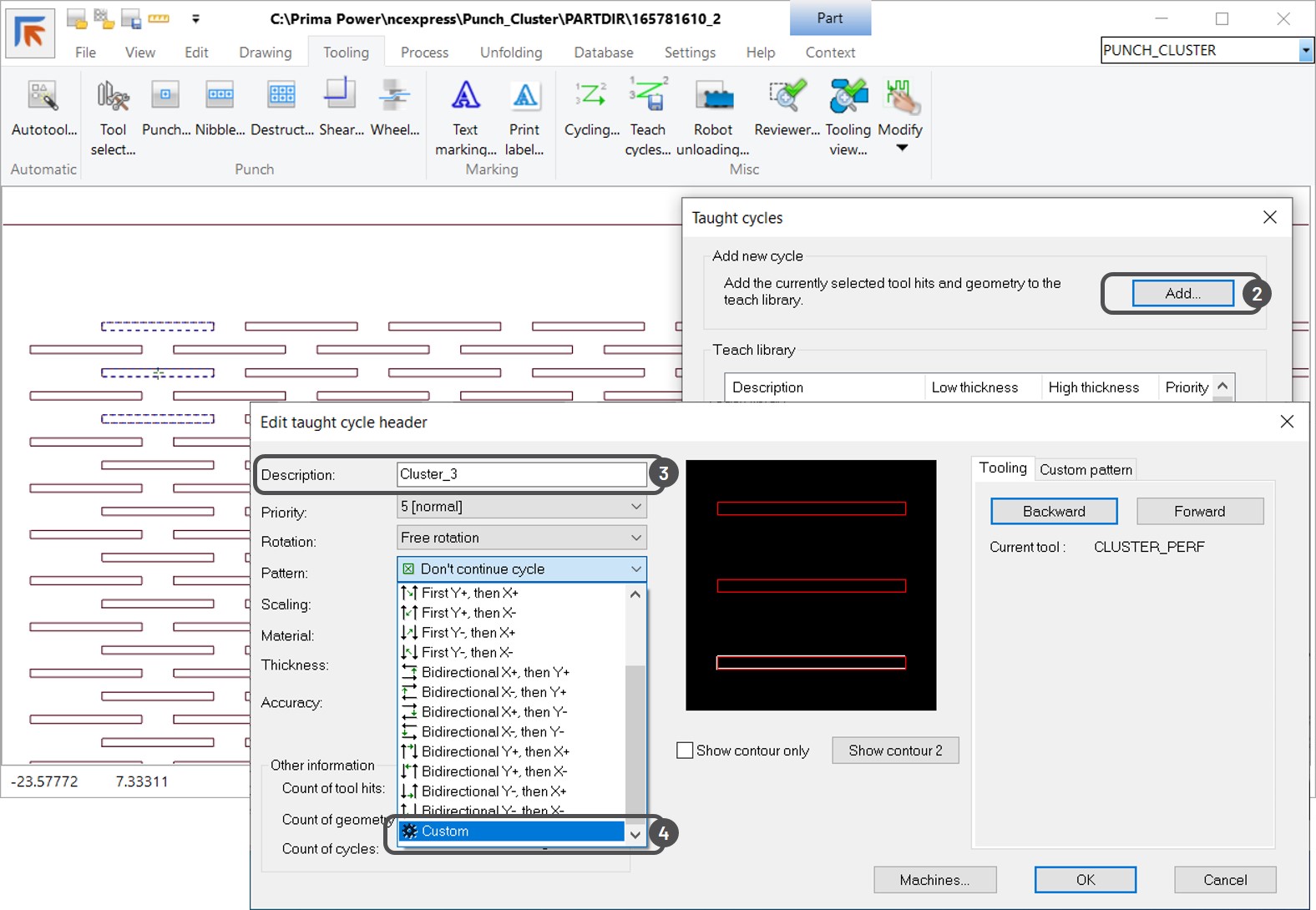
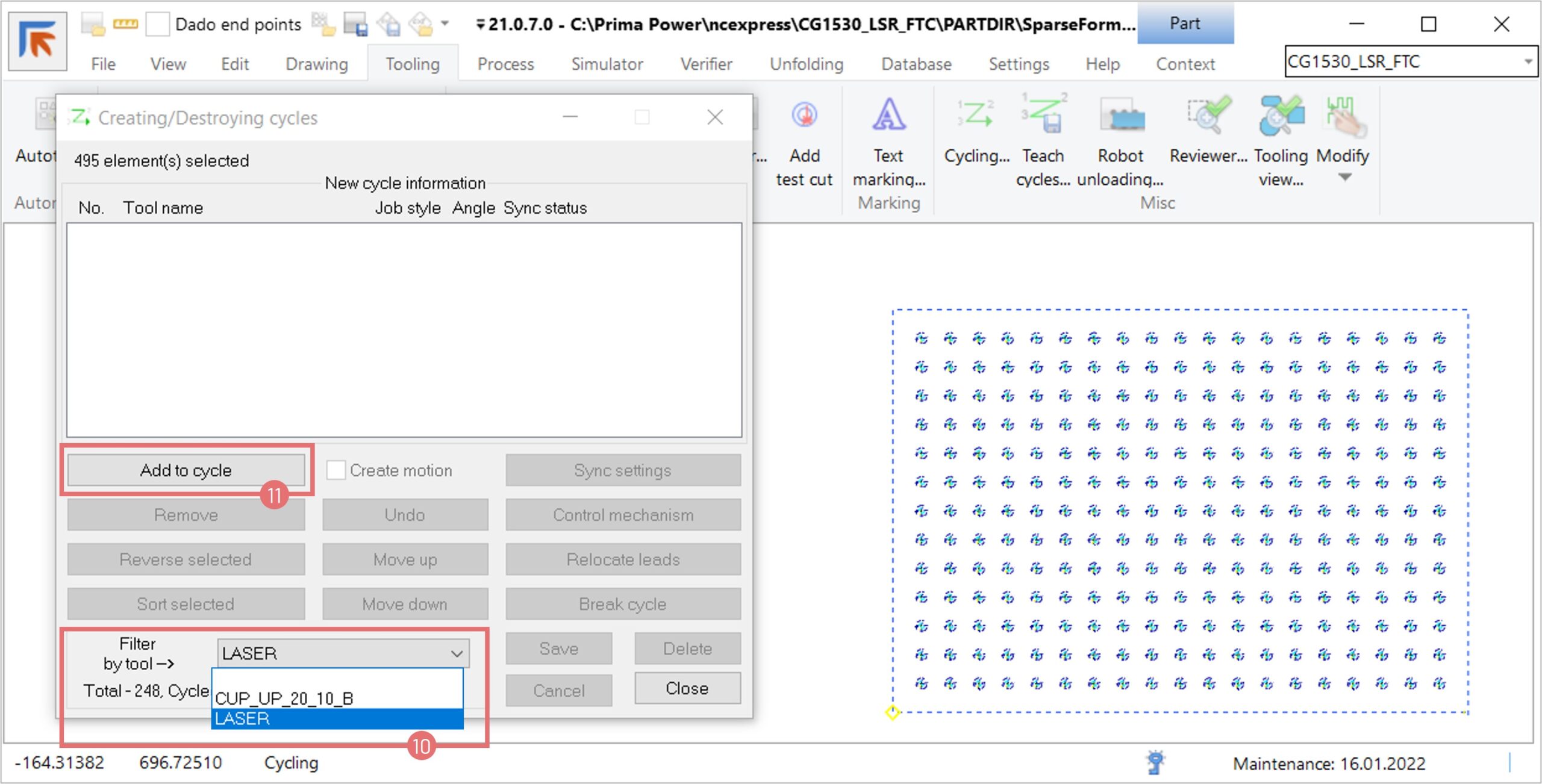
1. Open a part in NC Express. Use the Interactive punch function to apply the cluster tool to the corresponding geometry (1).

2. Next, create a teach cycle. Select the geometry and the tool hits, and press the Teach cycles button (2). Add a new cycle to the Teach library (3). Specify the name of the new teach cycle (3). NC Express provides a variety of ways for continuing a cycle. Open the Pattern drop-down menu to explore the available options. If you want to create your own pattern, select the Custom option (4).

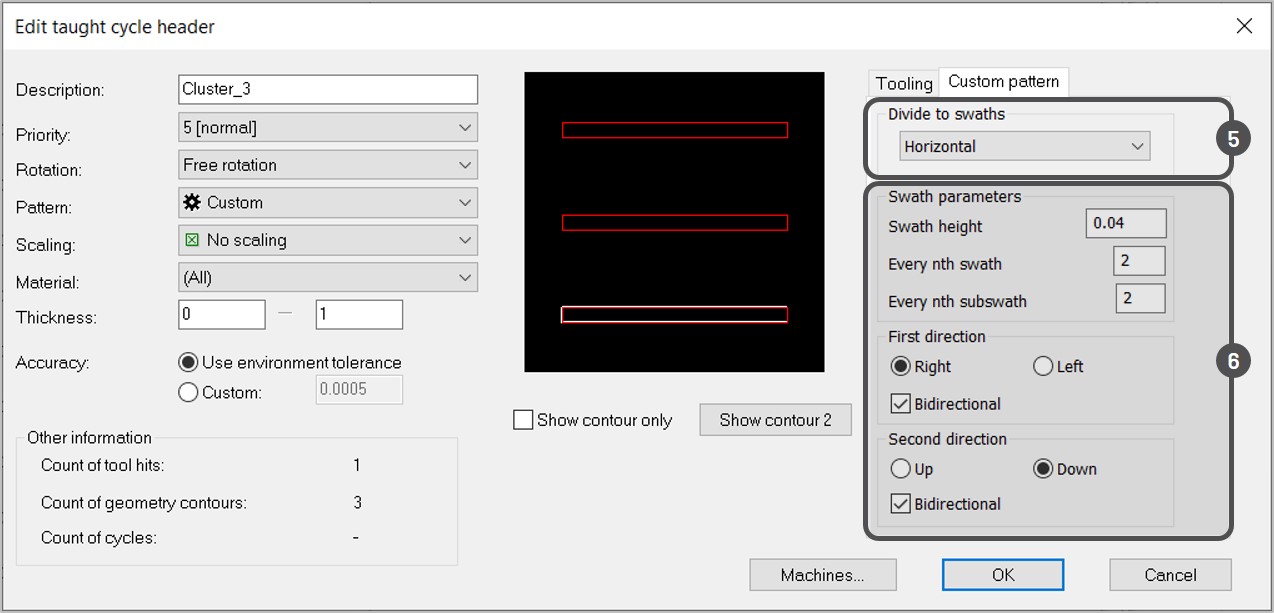
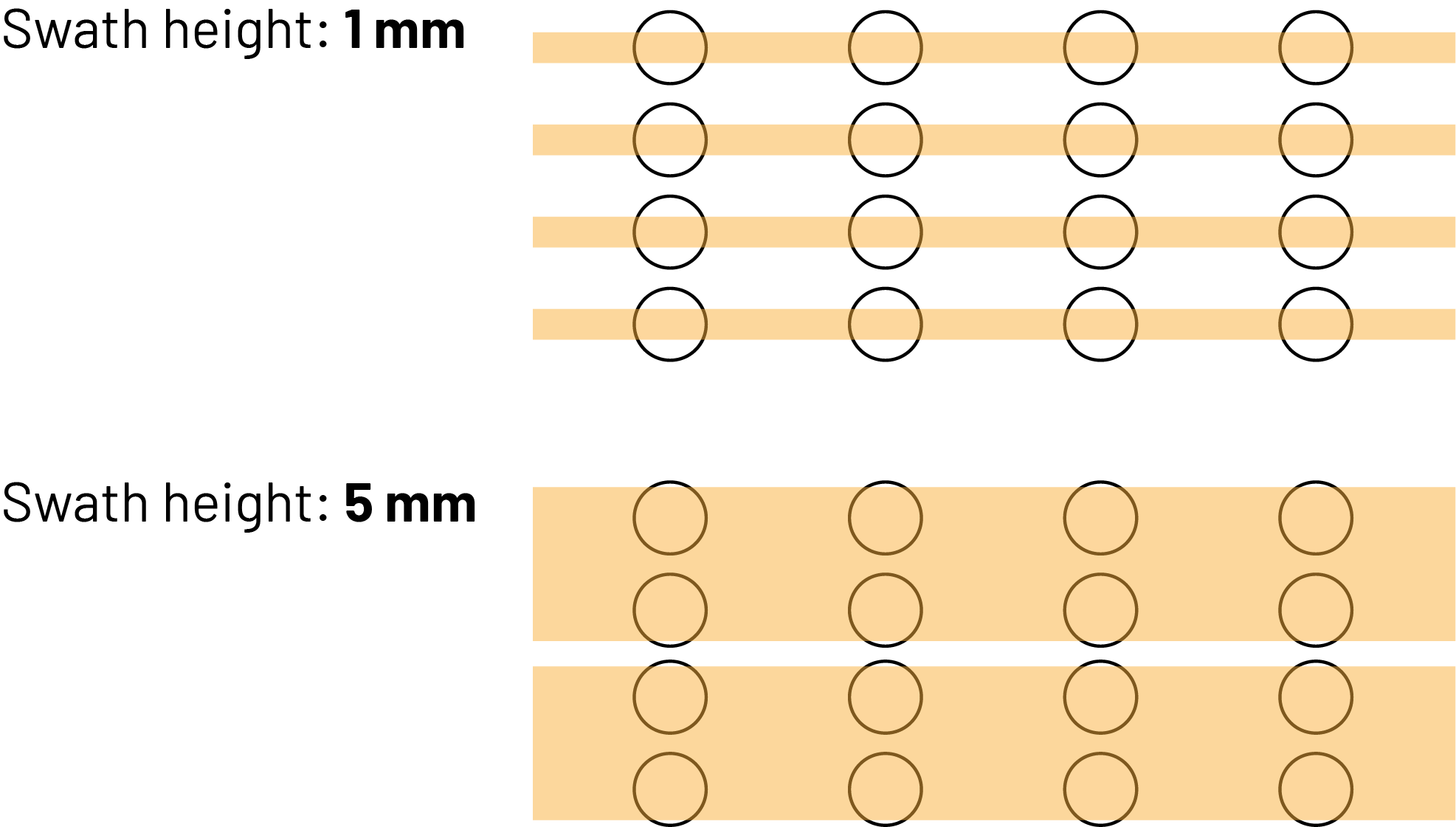
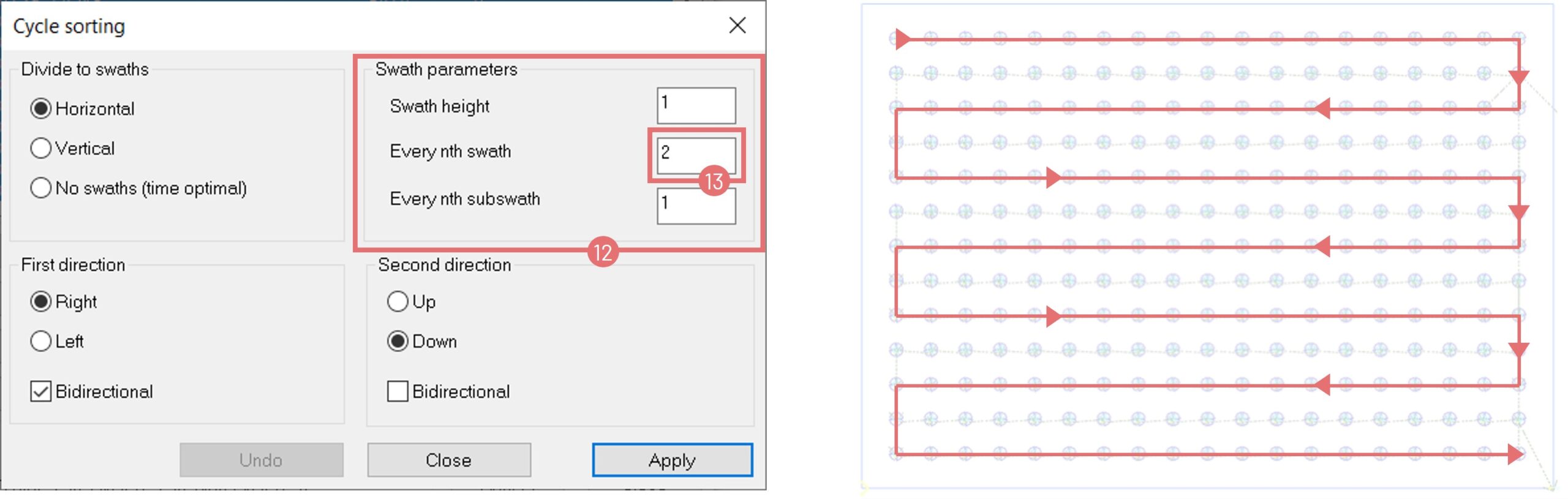
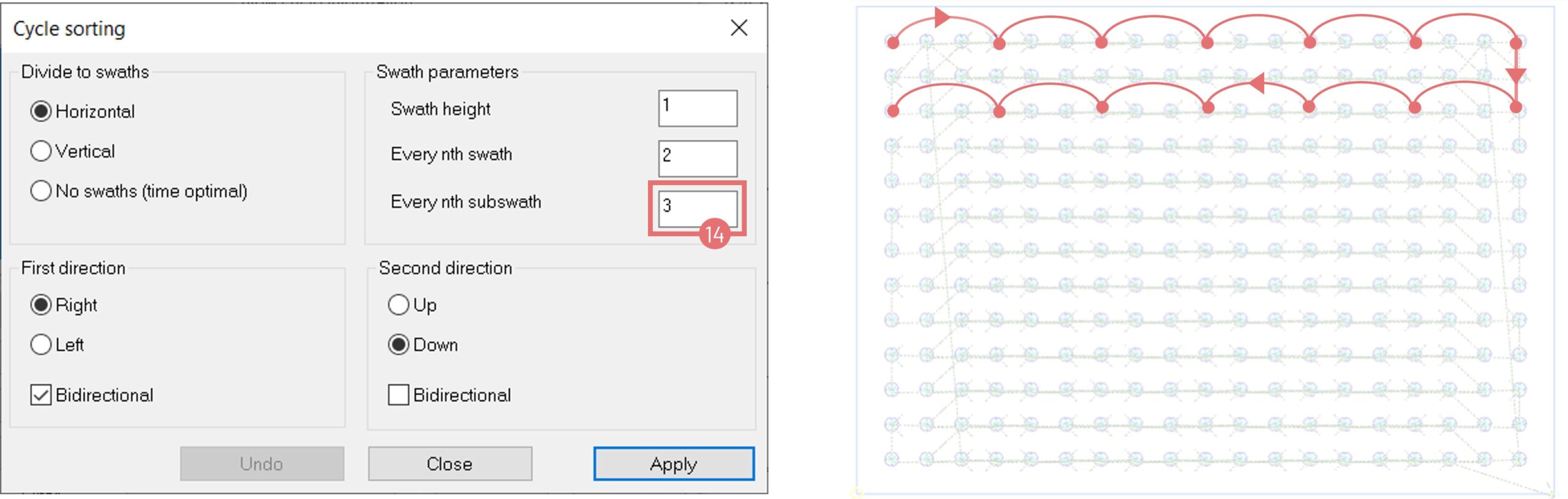
3. The Custom pattern tab will open on the right side of the dialog. Select whether the pattern is divided into swaths to process the elements row by row, or NC Express defines the order of processed elements automatically. In this case, the algorithm will try to build a sequence with the shortest processing time (5). If horizontal or vertical swath direction is selected, you can edit swath parameters, such as the size of the row to be processed at once, how much the swaths are sparsed, and in which direction the processing is made (6). Press OK to save the teach cycle.

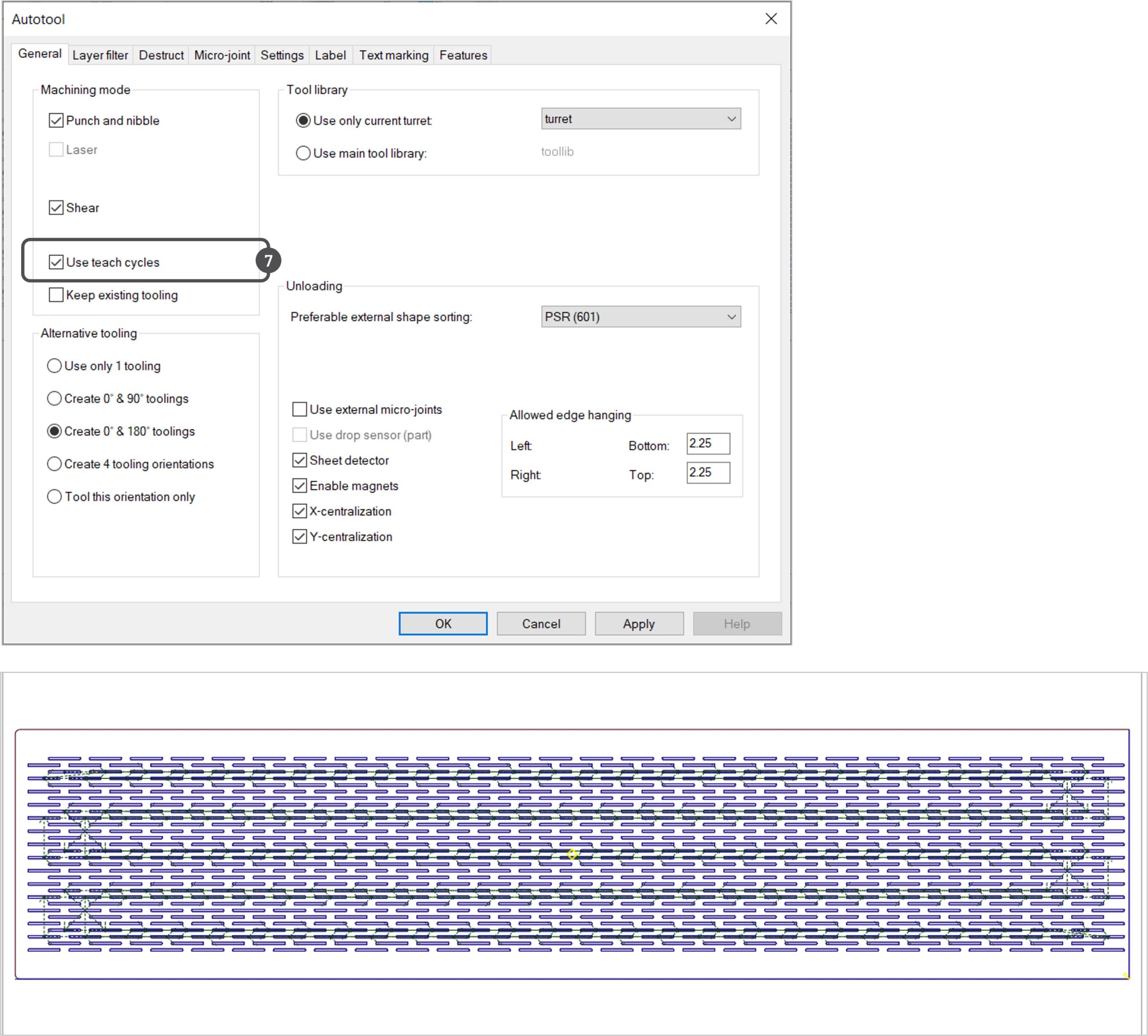
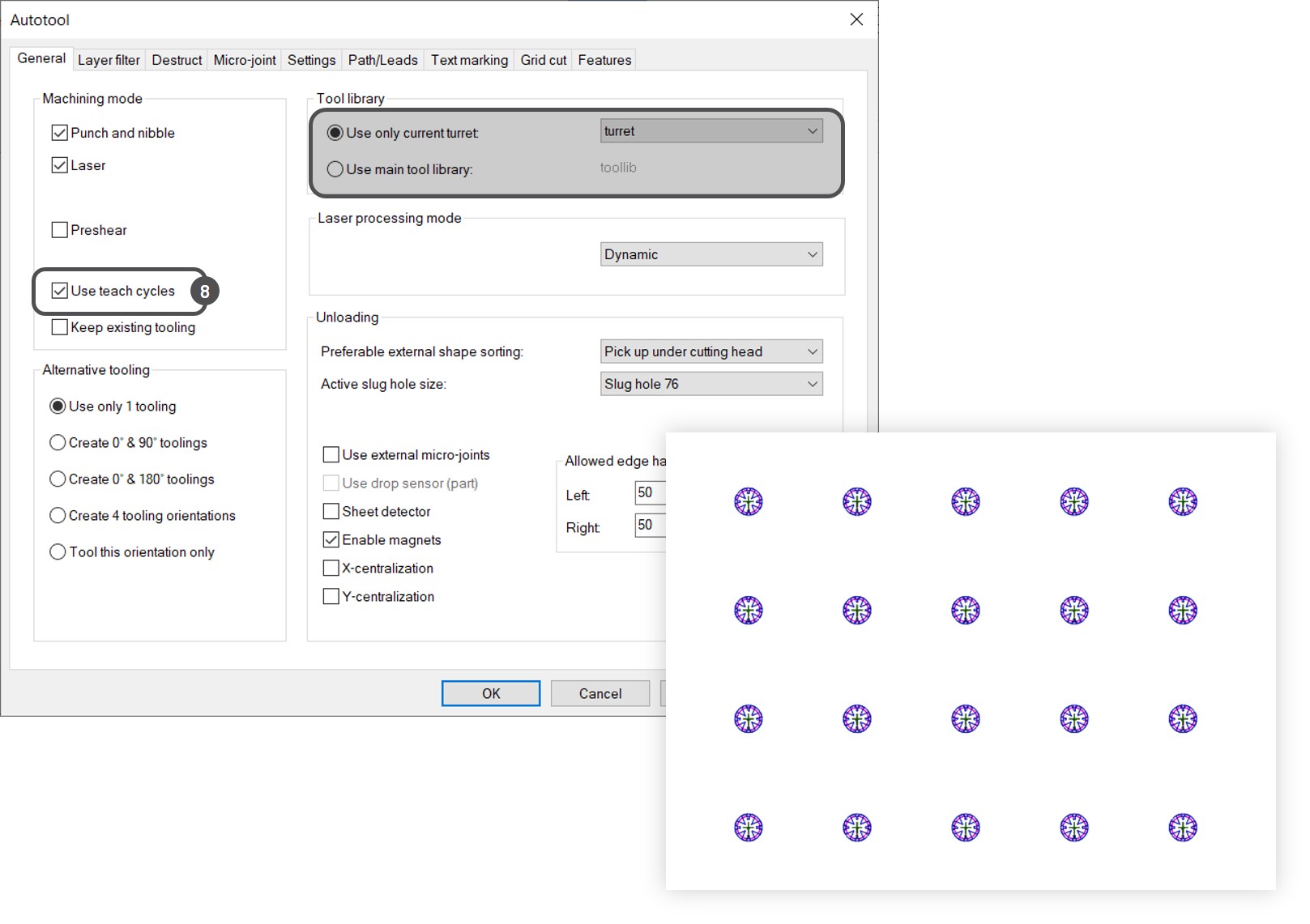
4. To apply the teach cycle to the rest of the geometry, open the Autotool dialog, select the Use teach cycles checkbox (7), and press OK.

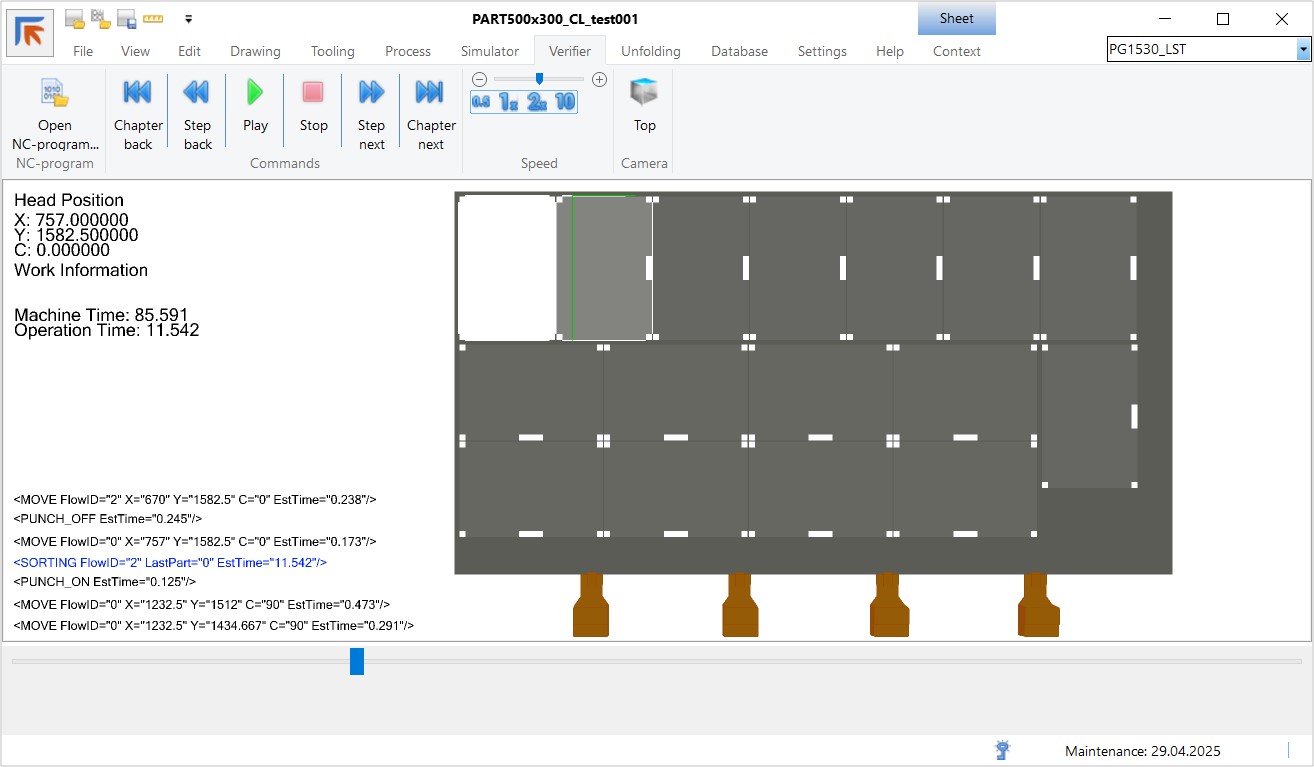
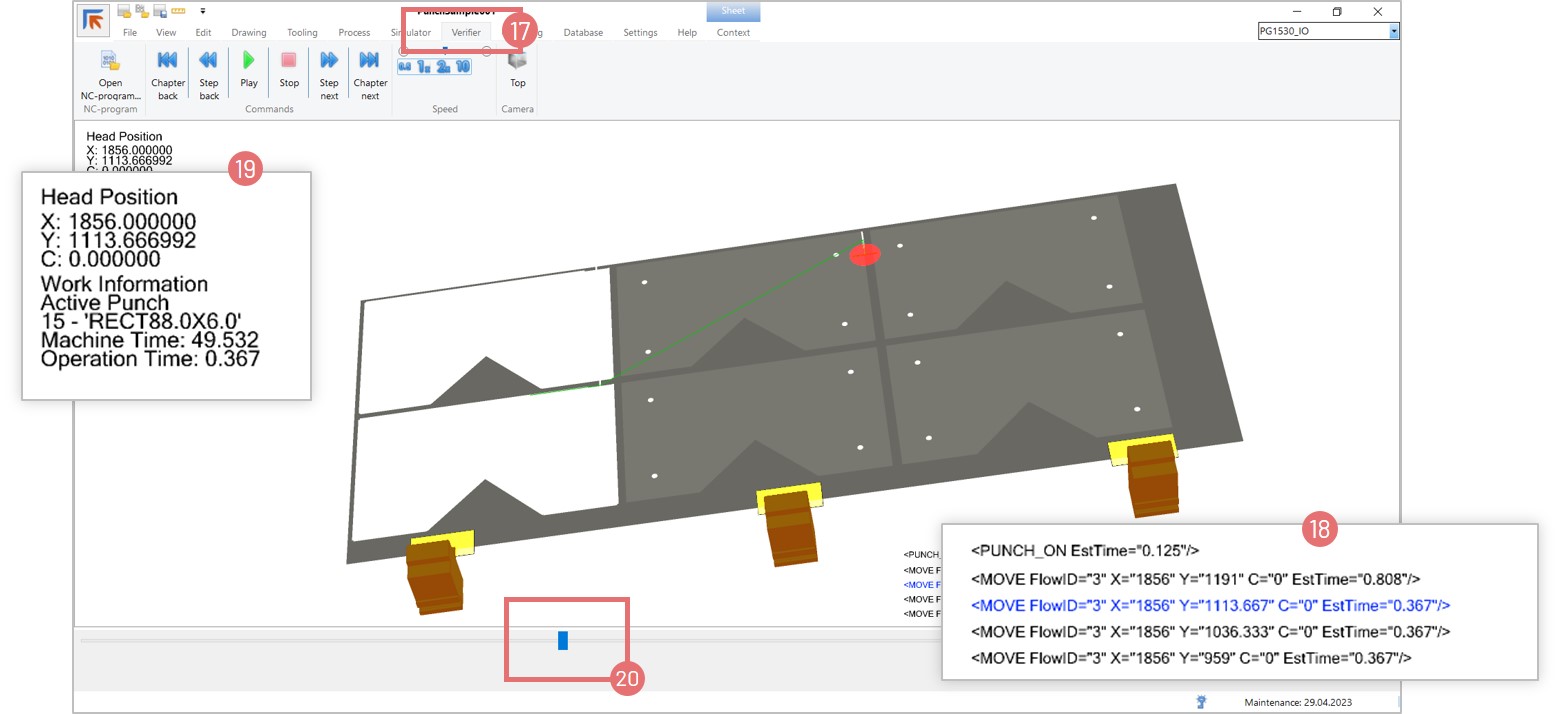
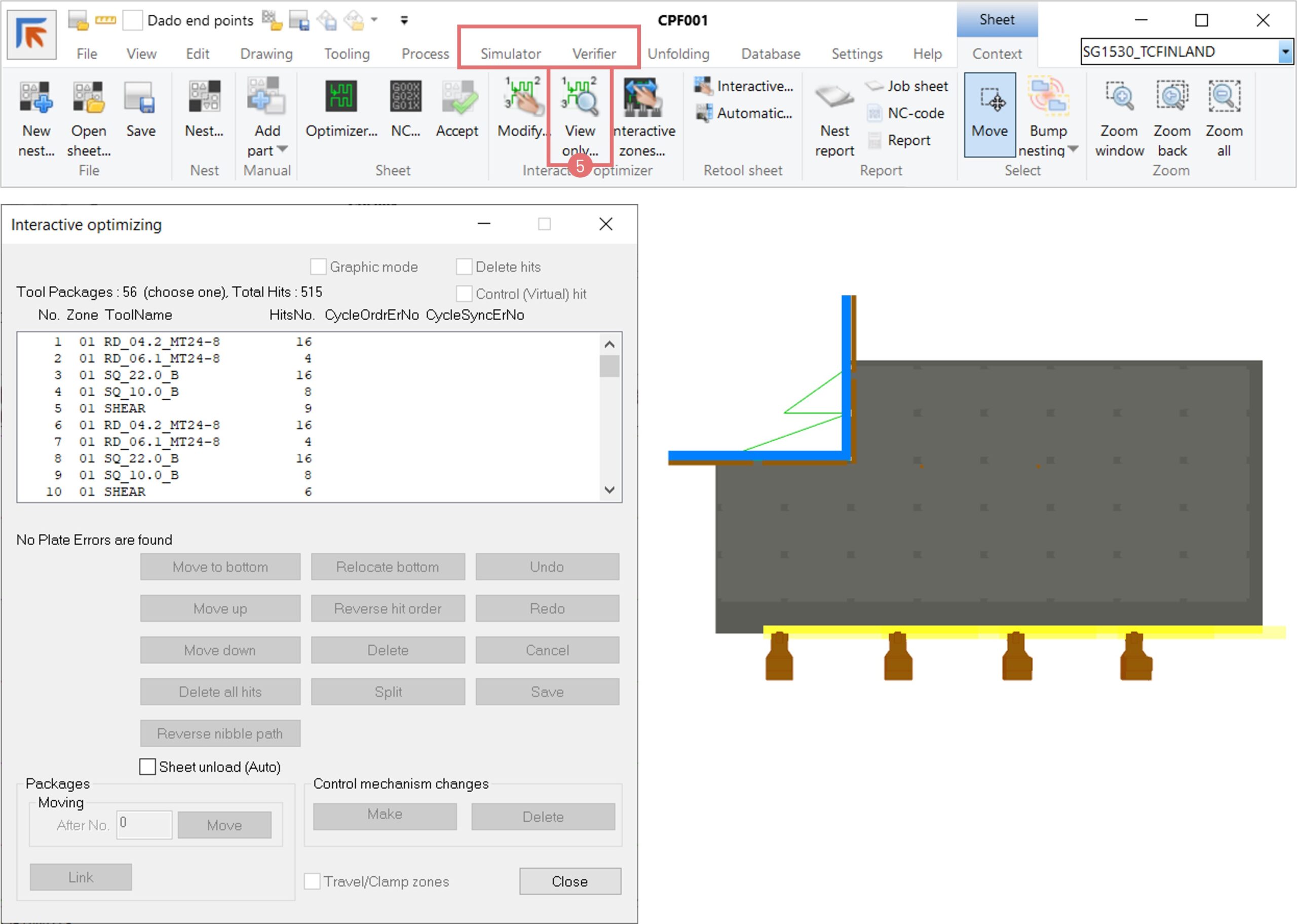
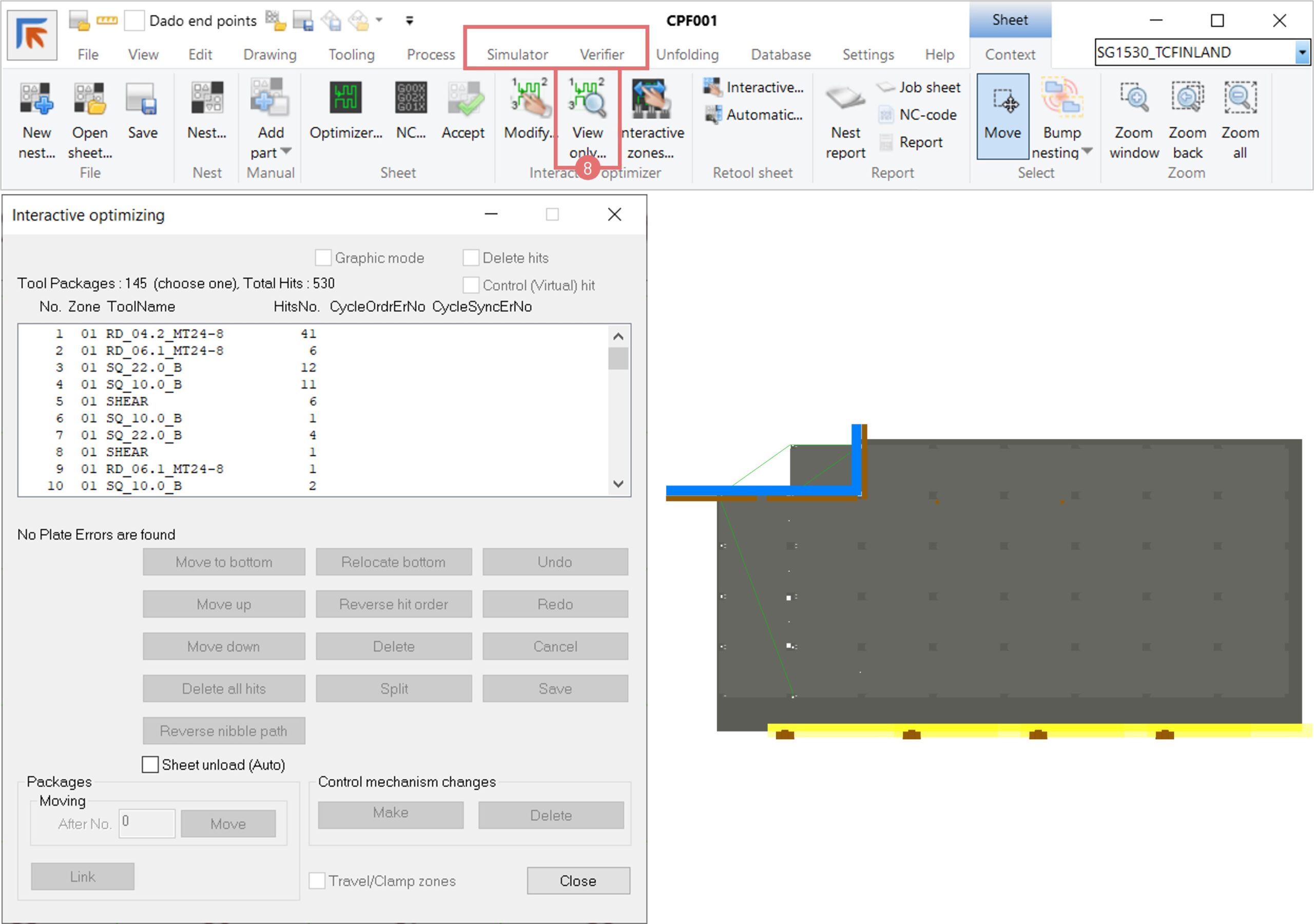
5. Test the pattern after nesting the part and optimizing the nest. Run the Simulator or Verifier function to view the machining order of the part.

NC Express BEND

NC Express is Prima Power’s CAD/CAM programming ecosystem for programming 2D Laser, Combi, Shear, Punch, Panel bender machines, Systems and automation. Its strength lies in its complete integration with Prima Power equipment, ensuring the best performance in terms of speed, precision, and overall production efficiency. The programming system, created by the same machine manufacturer, ensures high compatibility with all other Prima Power software. It also provides effective and flexible after-sales support.

NC Express BEND version 23.2 has all the needed features to program BCe and EBe machines:

• Manual programming

• 3D import and unfold

• Free Bend

• Simulation and collision check

• AUT management

• Advanced 3D view

• Automatic tooling

Programming workflow

1. Order import. The ERP connection module enables you to import production orders with a single click. NC Express is independent of the ERP system, thanks to an import file specification that the ERP system can easily adapt. NC Express supports the import of various 2D and 3D file formats, including SolidWorks, Solid Edge, Autodesk Inventor, Siemens NX & JT, Catia, PTC Creo, Parasolid 3D, Spatial Acis, Autocad DXF & DWG, STEP 3D, IGES 2D & 3D, Solid Edge, Autodesk Inventor, STEP.

2. Unfold. NC Express can automatically generate planar components from 3D-models and assemblies. The software can recognise the material, bend type, and necessary information to generate the program. It can prepare all parts for the next stage with just one click.

3. Program. NC Express version 23.2 provides CAM functions for manual programming:

• Simplified programming through pre-set bending processes

• Easy interactive and visual program editing

4. Simulate and optimize. Run and validate programs:

• Based on precise digital twin (with the actual machine configuration)

• Validation of the program with collision check

• Automatic calculation of bending cycle time

• Advanced and easy navigation

• Tree-view structure of the Bending Process

This is just the beginning. Stay tuned for updates and developments on NC Express BEND, including such features as geometry feasibility check, automatic bending sequence calculation, parametric bending programming and many more.

Using teach cycles to apply extrusion and tapping tools to laser cut holes 

The Teach cycles function is an effective method for creating custom tooling patterns on challenging geometry elements (such as complicated corners, forming features, etc.) and for applying them automatically to the recurring features. This article describes a use case where the Teach cycles function is used to apply extrusion and tapping tools to laser cut holes. First, the laser path is applied to all the holes, followed by the extrusion tool hits and the tapping tool hits.

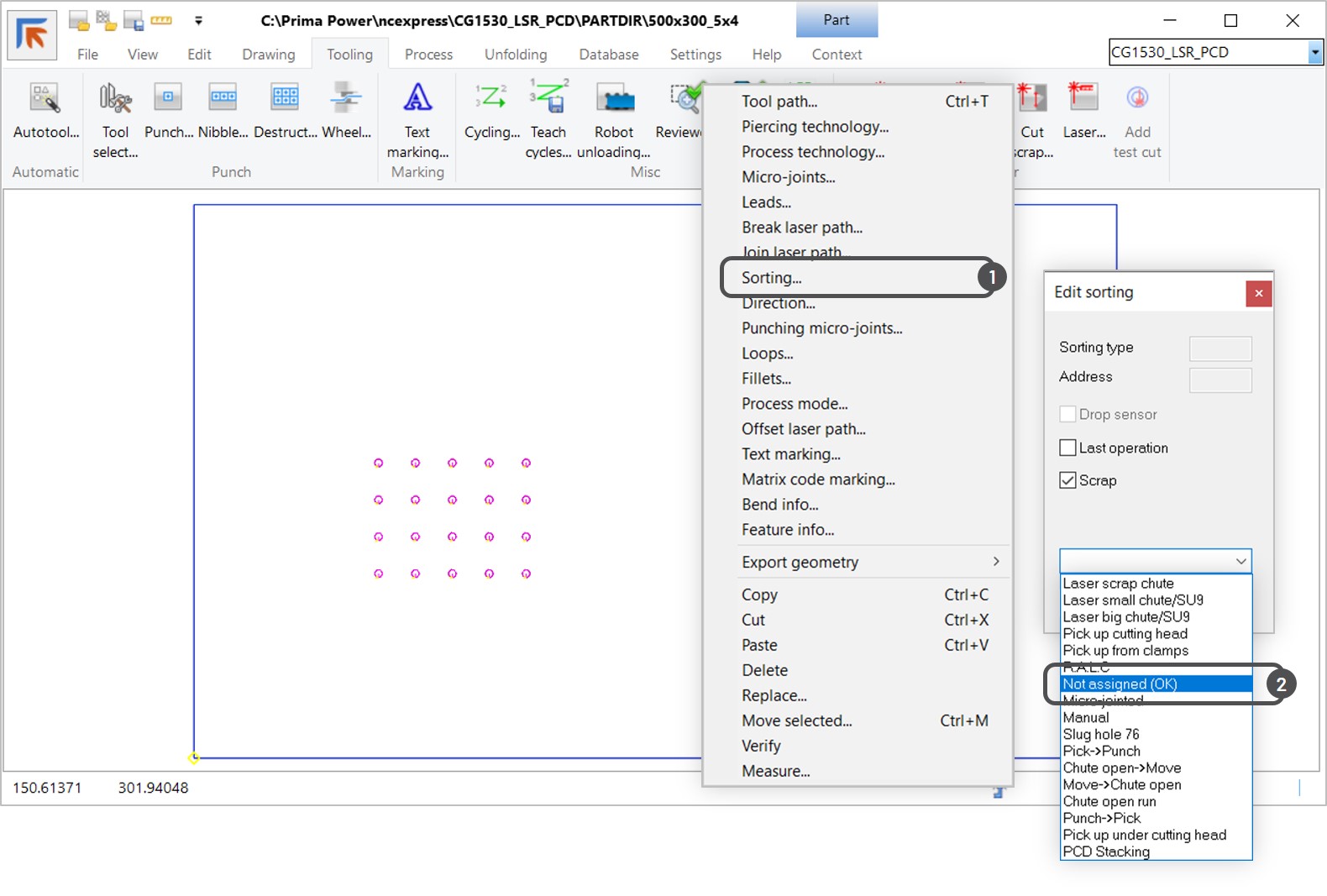
1. In the example below, laser cuts have been applied to the part. Typically, Optimizer applies laser cuts after all the punching tool hits on a contour. However, in this example, we want to add forming tools after the laser cuts on the internal part contours. To allow forming tool hits after the laser, select an internal geometry laser cut, open the right-click menu, and select the Sorting option (1). Select the Not assigned sorting from the drop-down menu, and exit the dialog (2).

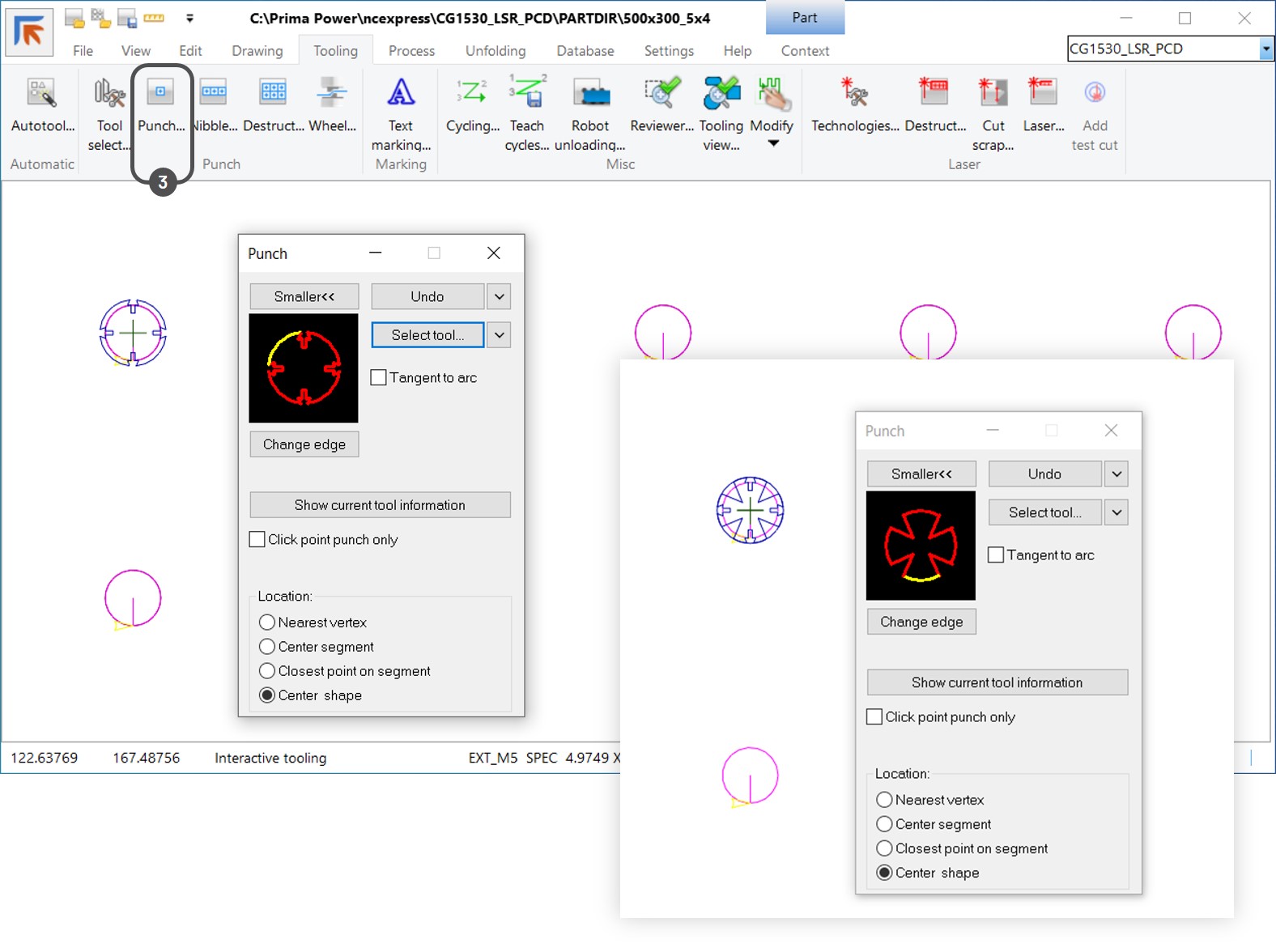
2. Next, apply the needed tool hits manually to one of the selected geometry elements using the Interactive punch function (3). 

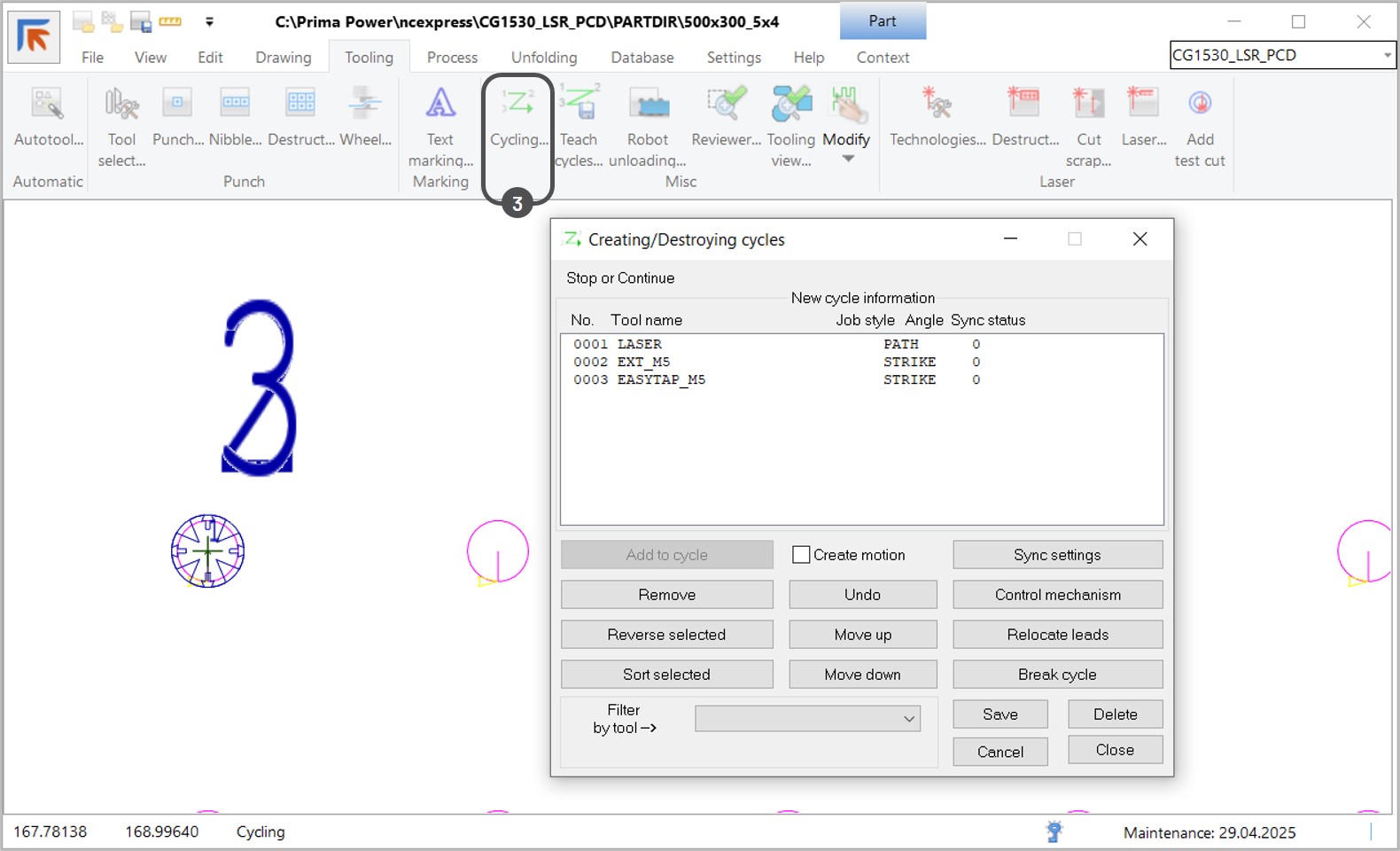
3. Open the Cycling dialog to define the correct order of the tool hits (3). Click on the desired tools from the graphical view to add them to the cycle. Press the Save button, and close the dialog.

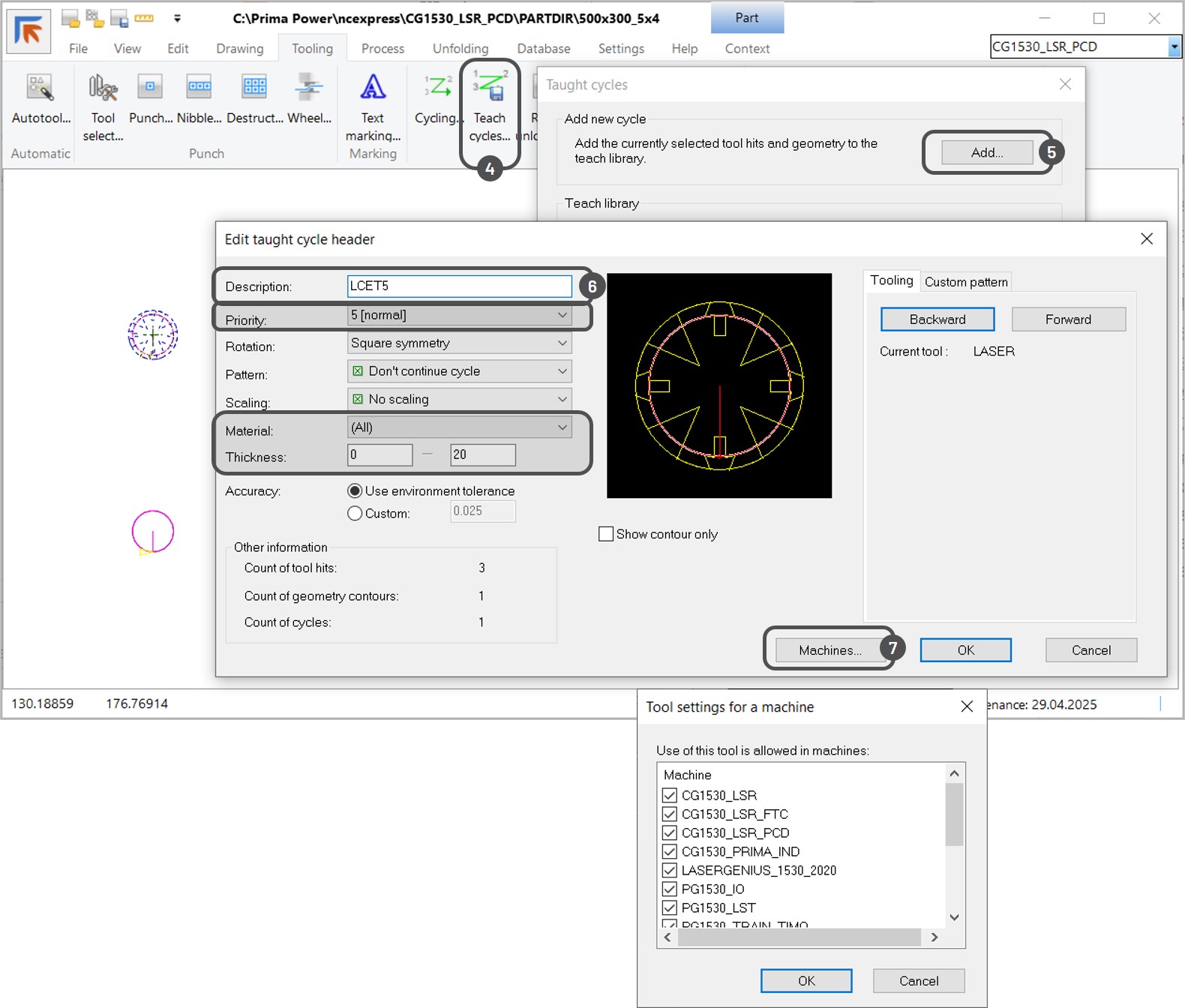
4. Next, create a teach cycle. Select the geometry and the tool hits, and press the Teach cycles button (4). Add a new cycle to the teach library (5). Specify the name of the new teach cycle and, if necessary, edit the teach cycle parameters. You can increase the priority of this cycle over other cycles in the teach library if more than one teach cycle is created for the same geometry. If necessary, limit the material type and thickness for which NC Express e3 can apply this teach cycle if threaded holes are product- or material-specific (6). Refer to the Other information section to verify that the number of applied tools and selected geometries is correct. Use the Backward and Forward buttons to show the graphical view of each tool hit in the cycle. If a common tool library is shared between multiple machines, you can choose which machines can use this teach cycle (7).

5. To apply the teach cycle to the rest of the geometry, open the Autotool dialog, select the Use teach cycles checkbox (8), and press OK.

NOTE! If the teach cycle is not applied to the rest of the geometry, verify that the tools used in the teach cycle are loaded to the selected turret. To test this, you can run Autotool using the main tool library. If you use a teach cycle with different materials, ensure that the die clearance is set correctly for the used material.

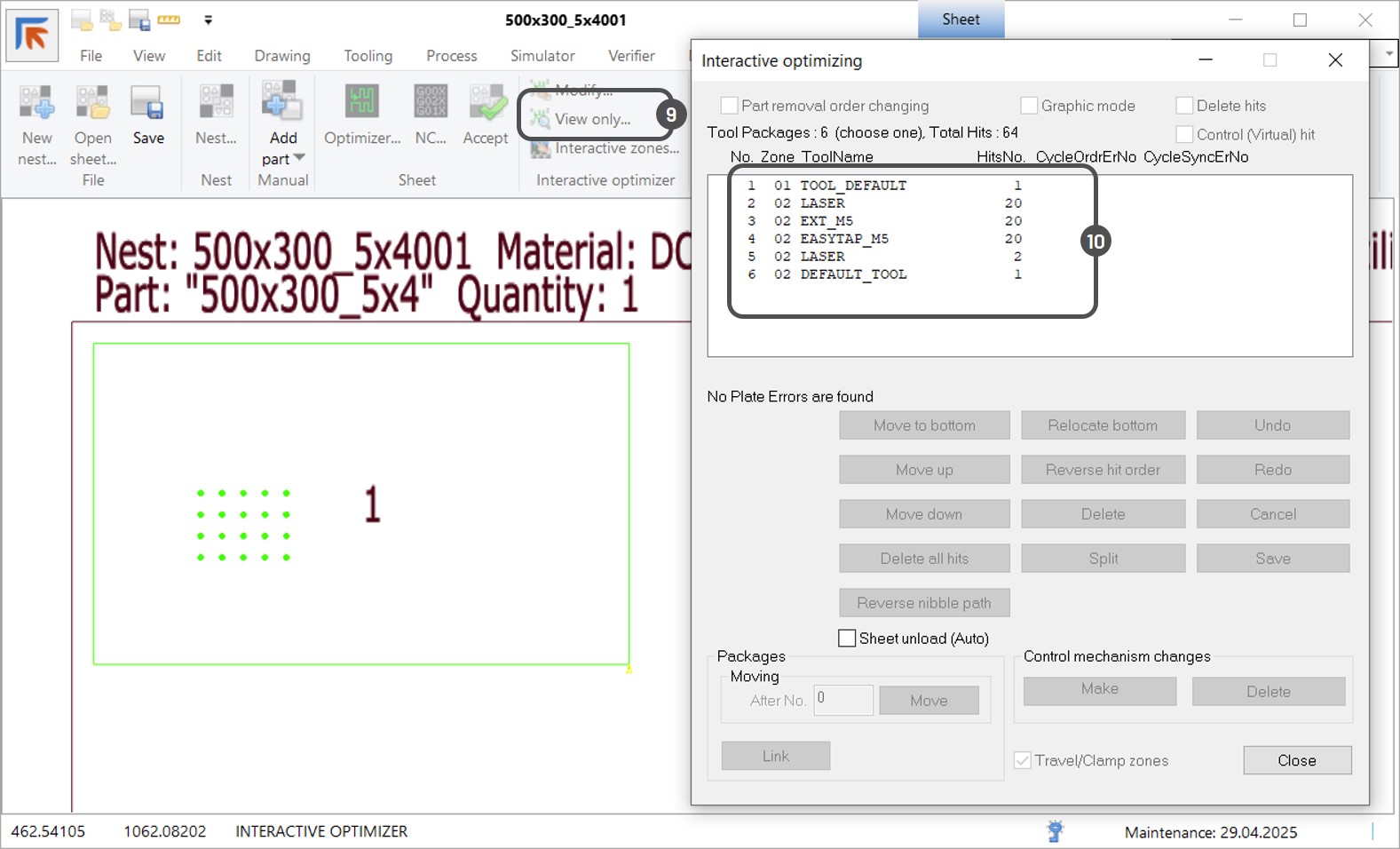
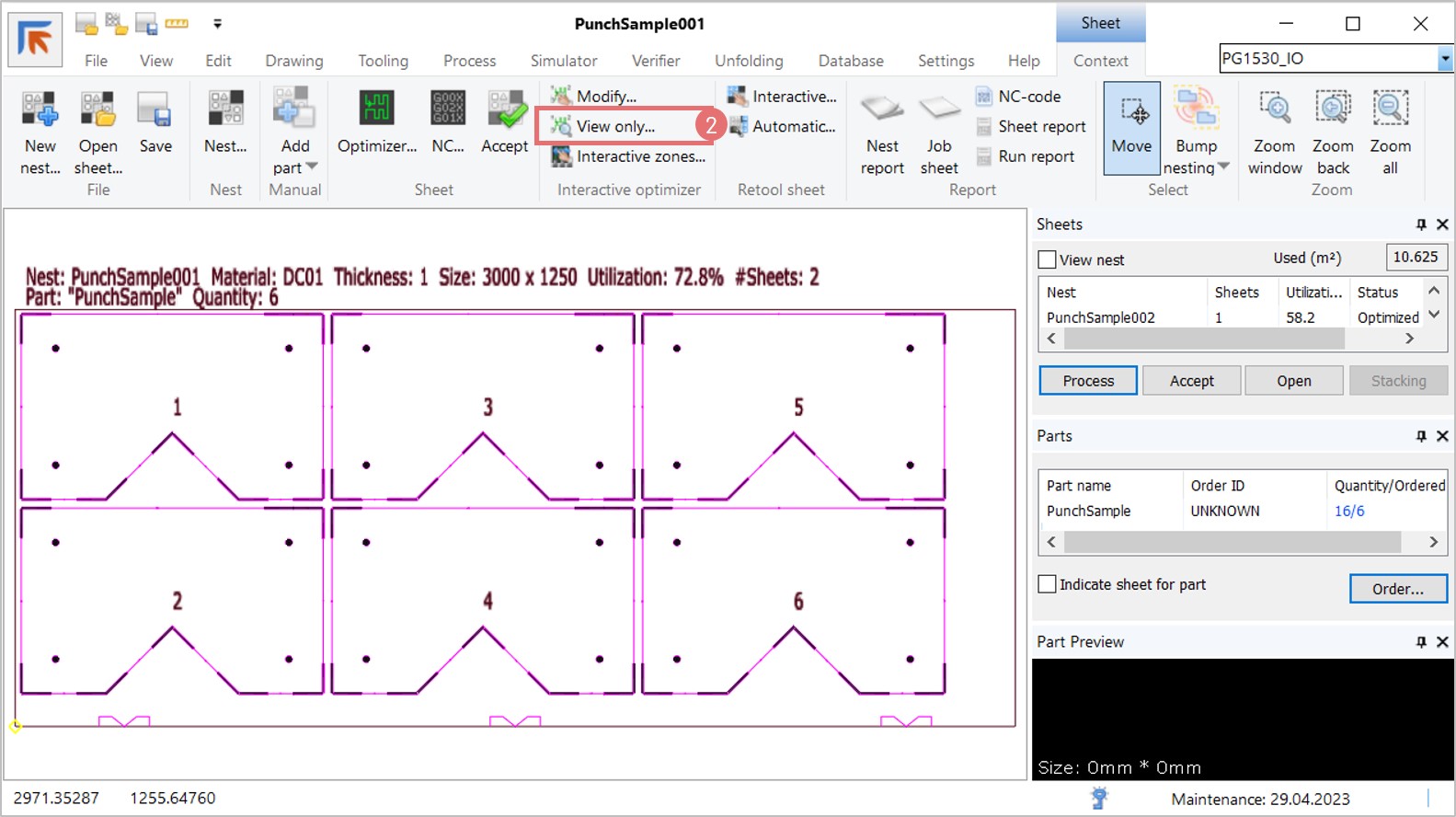
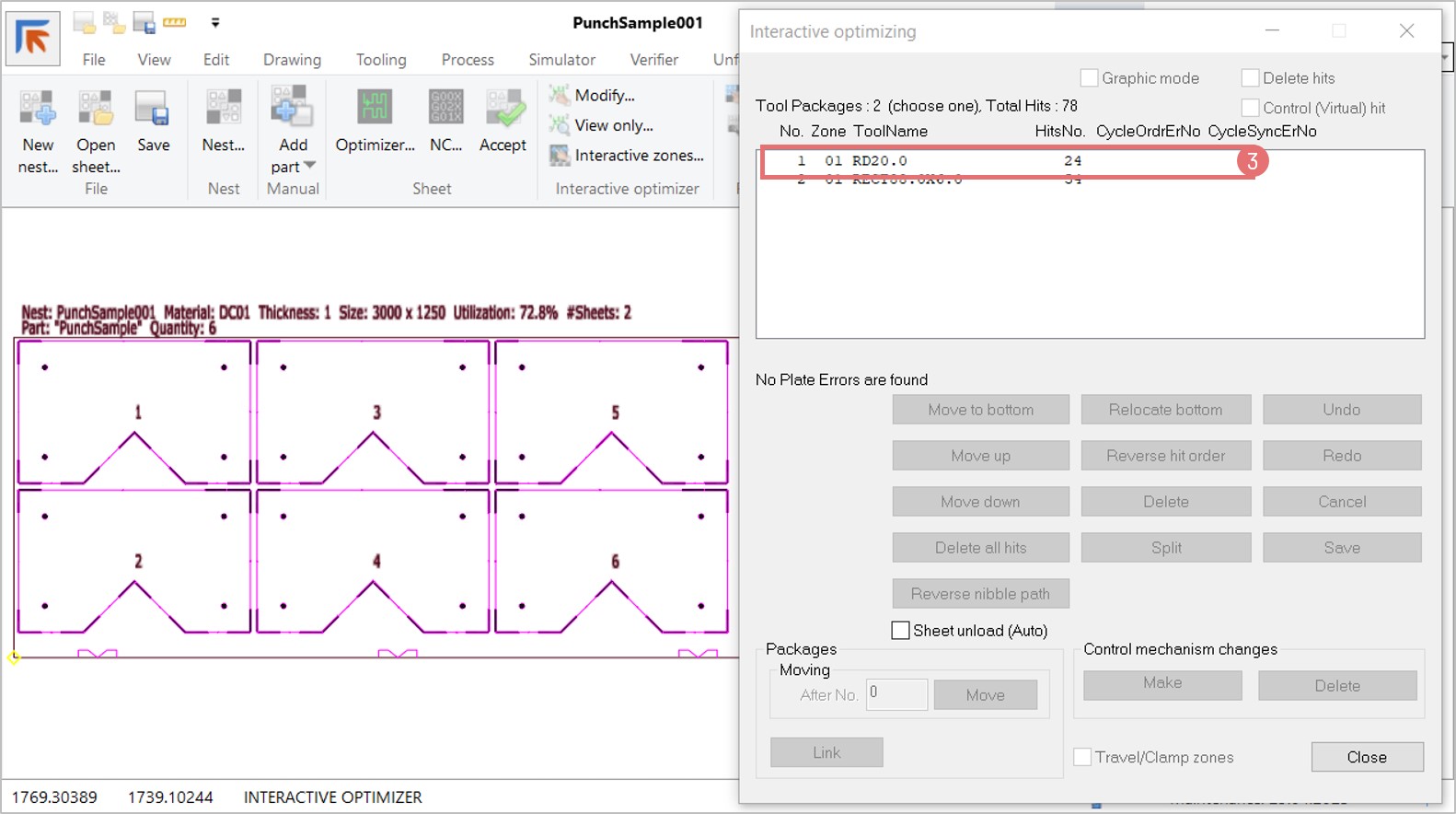
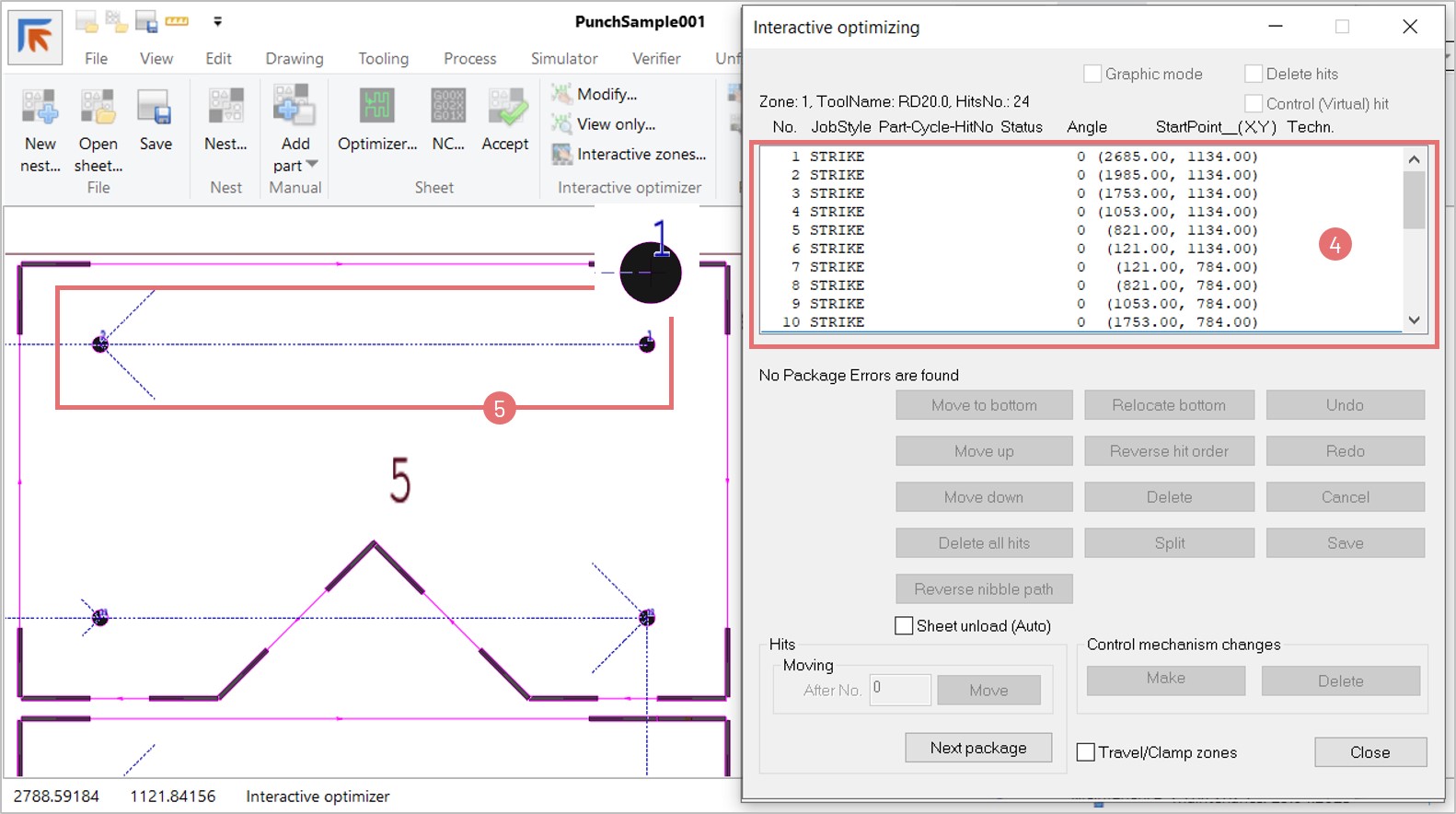
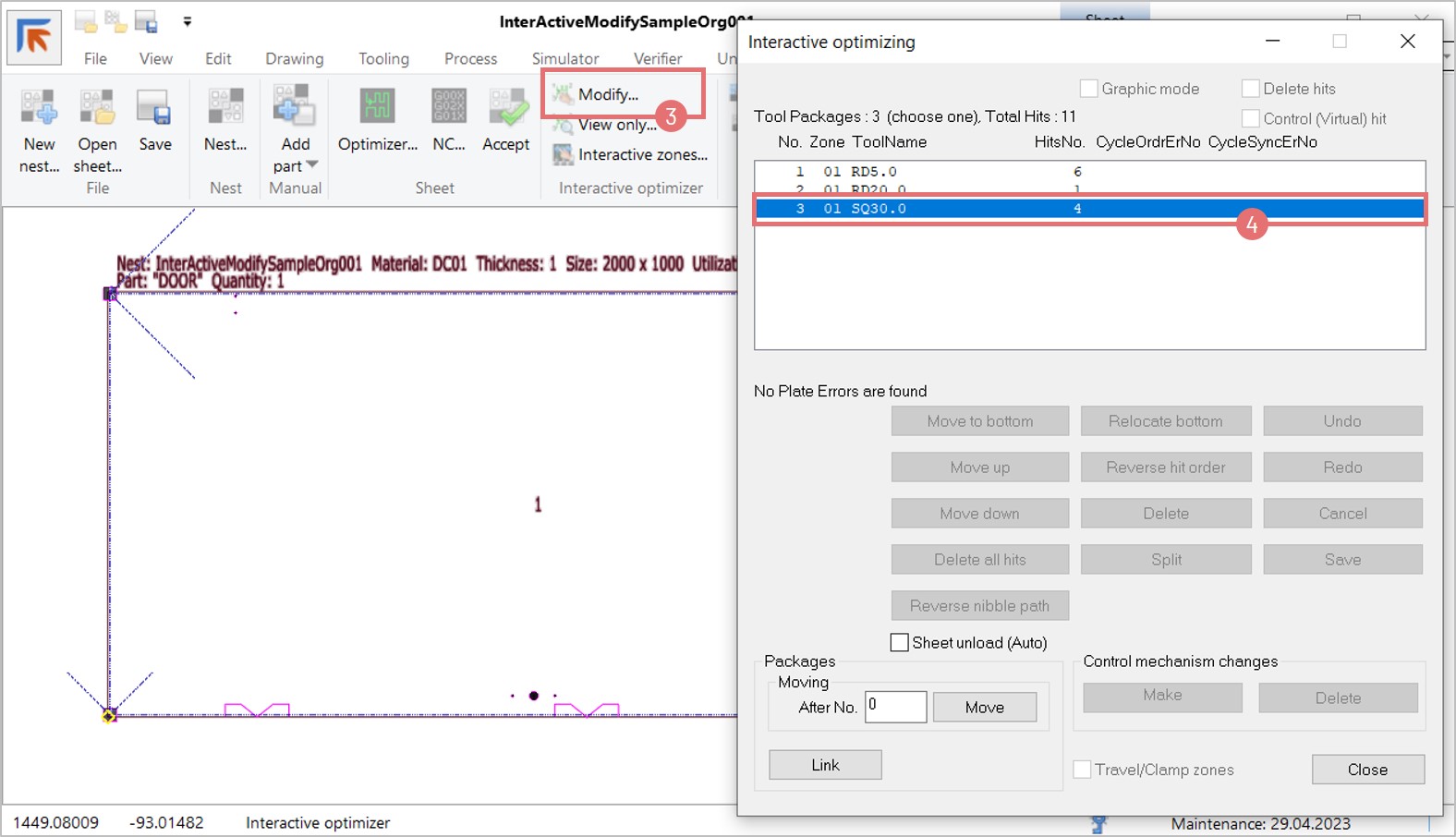
6. After nesting the part and optimizing the nest, you can open the View only Interactive optimizing dialog (9) to verify the tool hits sequence. In the example below, all the laser pre holes are made first. Then all the forming tool hits are applied, followed by all the tapping tool hits, and finishing with the outside laser cuts (10).

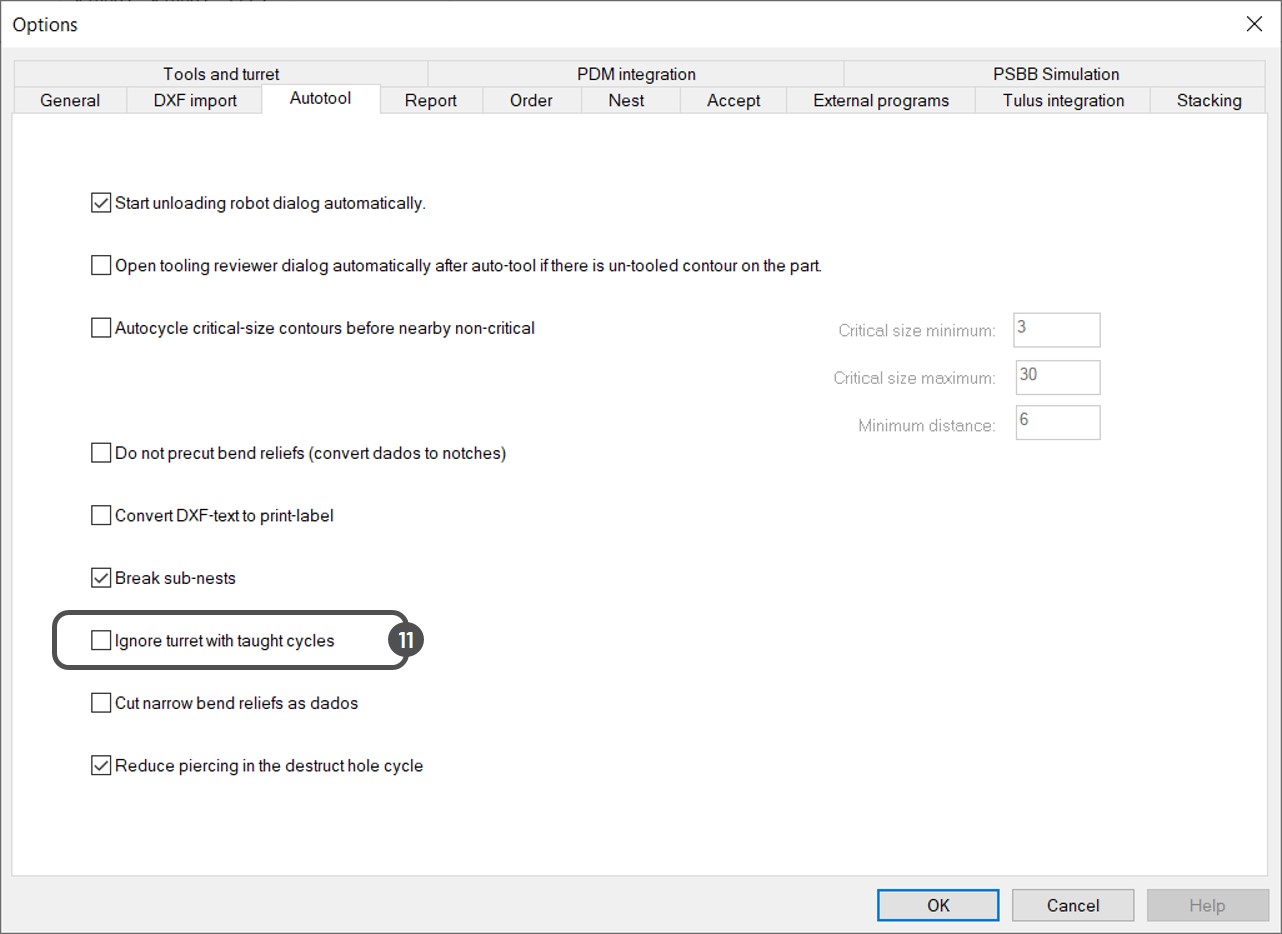
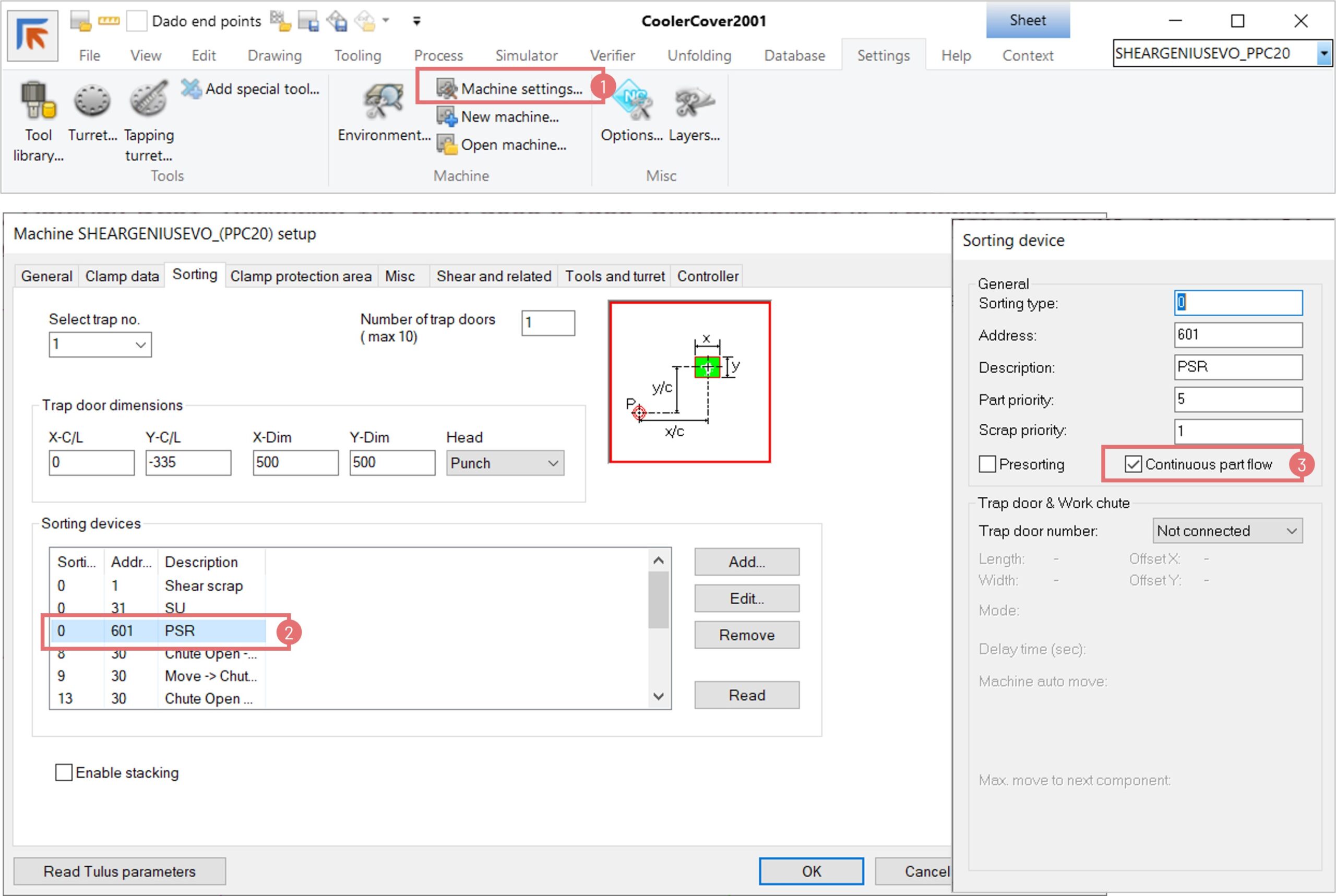
7. You can nest parts with teach cycles even if the used tools are not loaded to the selected turret. To bypass the turret rule, open the Settings -> Options -> Autotool dialog, and select the Ignore turret with taught cycles checkbox (11).


Flange profile tool

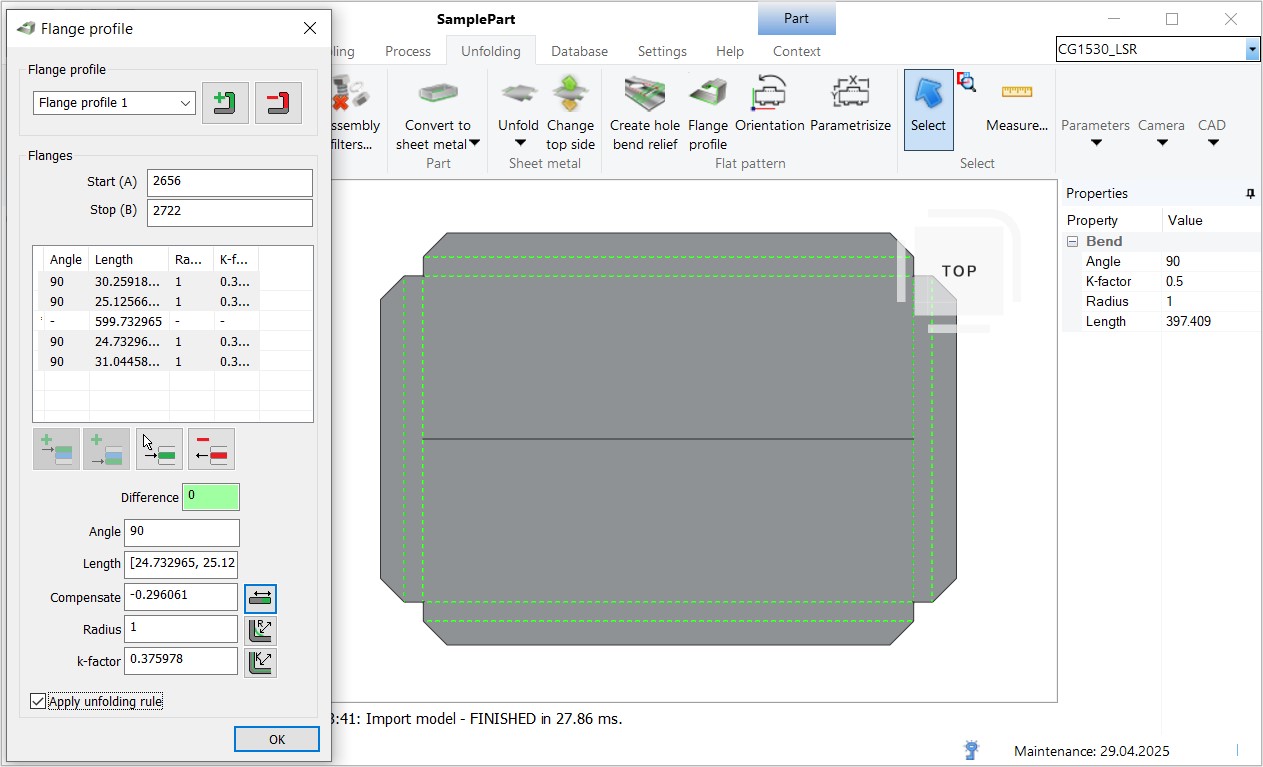
The Flange profile tool allows you to create and edit flanges on a 2D geometry. This function is used to add bend lines to existing .cp files. Alternatively, you can use the Flange profile tool to edit the parameters of existing bend lines.

Using the Flange profile tool without existing bend lines

1. Import a 2D geometry to NC Express e3. Save the drawing as a .cp file (1). 

2. Switch to the Unfolding tab and press the 2D Import button to bring the geometry to the Unfolding view (2). Open the Flange profile tool (3).

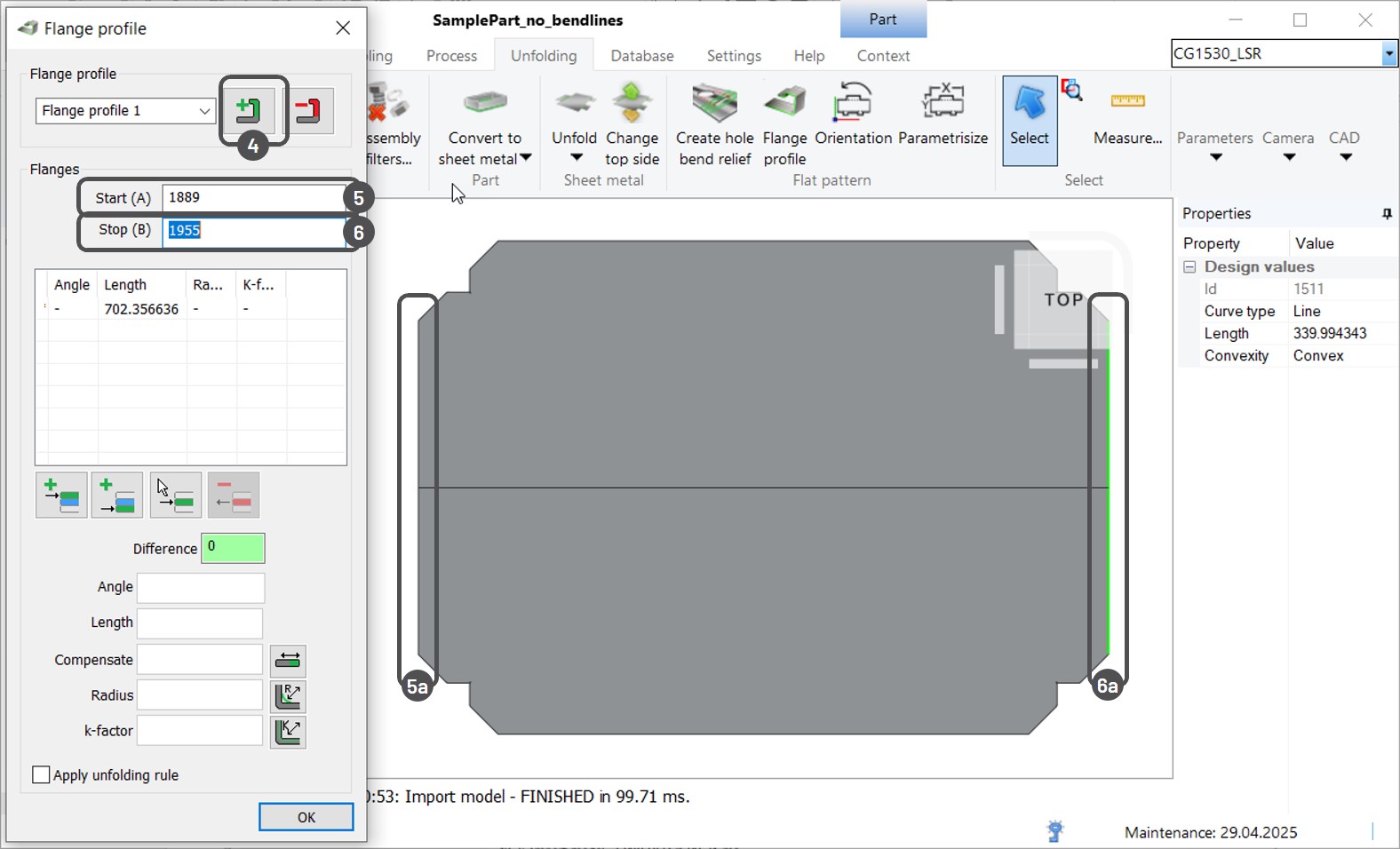
3. A part can have several flange profiles with one or multiple bend lines. Create a new flange profile by clicking the Plus button (4). Next, define the starting edge of the profile. Click on the Start A field (5) and select the preferred edge from the graphical view with a mouse click (5a). If needed, select the ending edge of the flange profile. Click on the Stop B field (6) and select the edge on the opposite side of edge A in the same direction (6a).

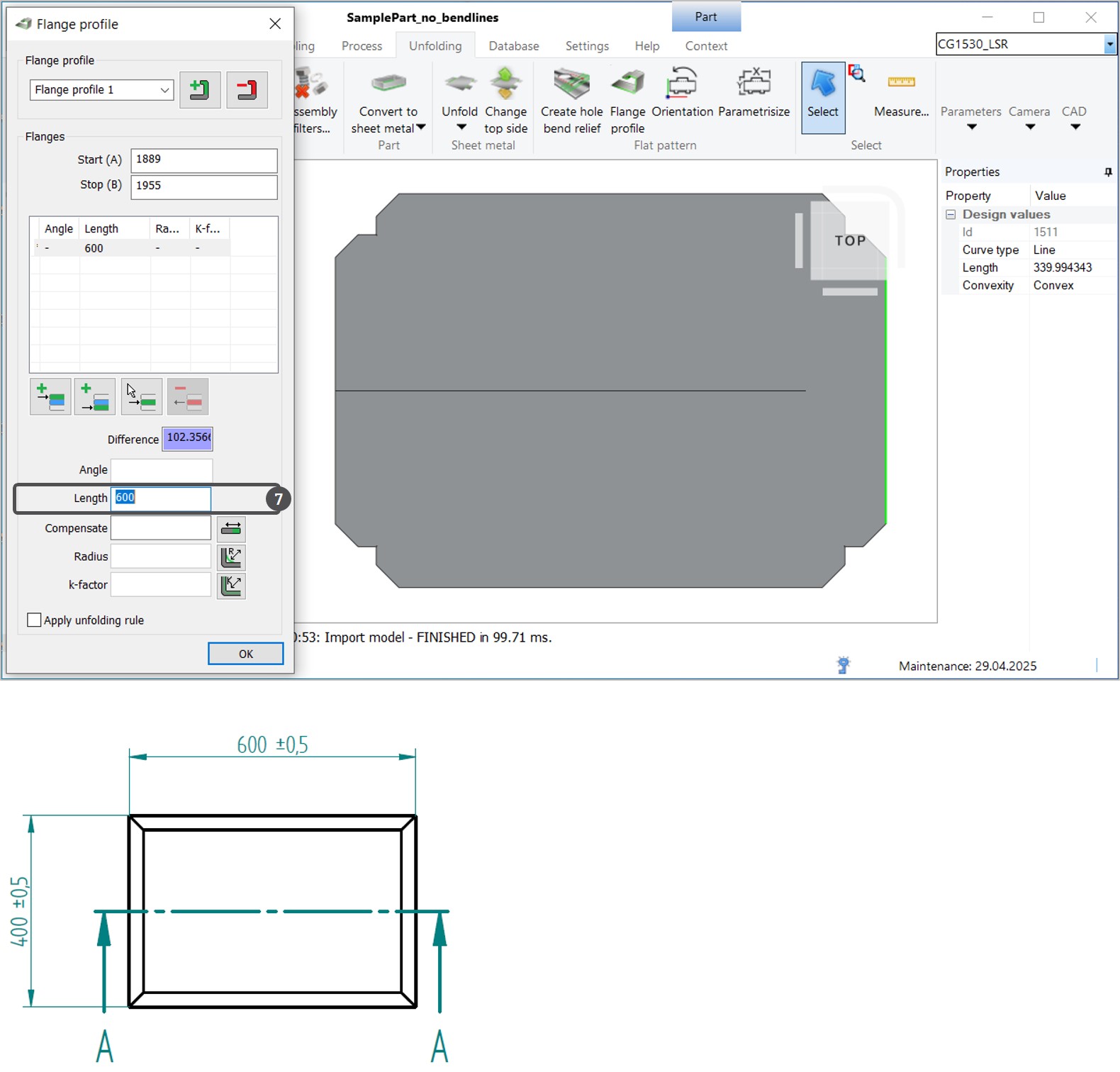
4. Specify the length of the base flange (7). Typically, an accompanying technical drawing includes the instructions.

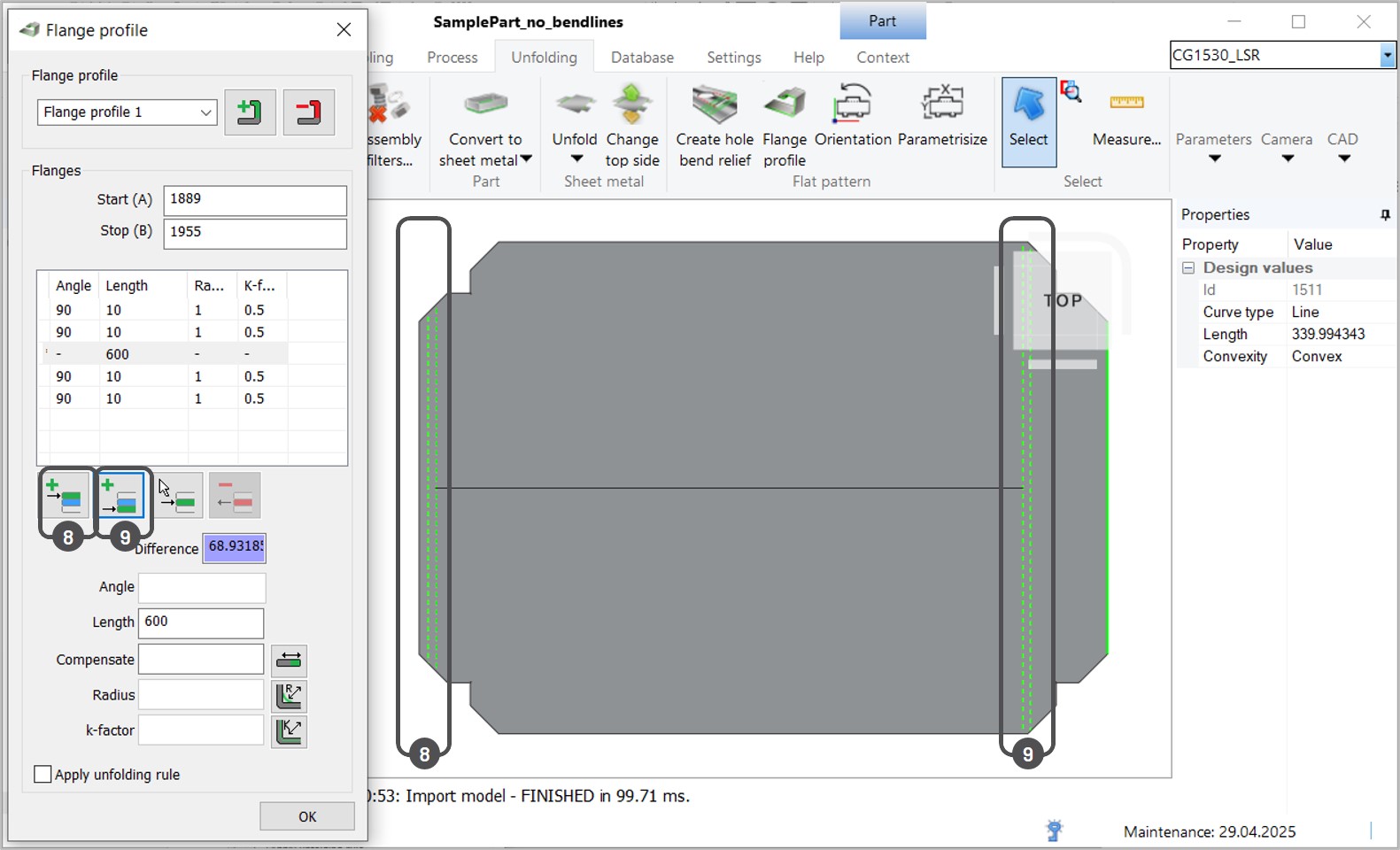
5. Insert new flanges (bend lines) using the Plus buttons: add new flange(s) on the starting flange edge (8) or insert new flange(s) on the ending flange edge (9).

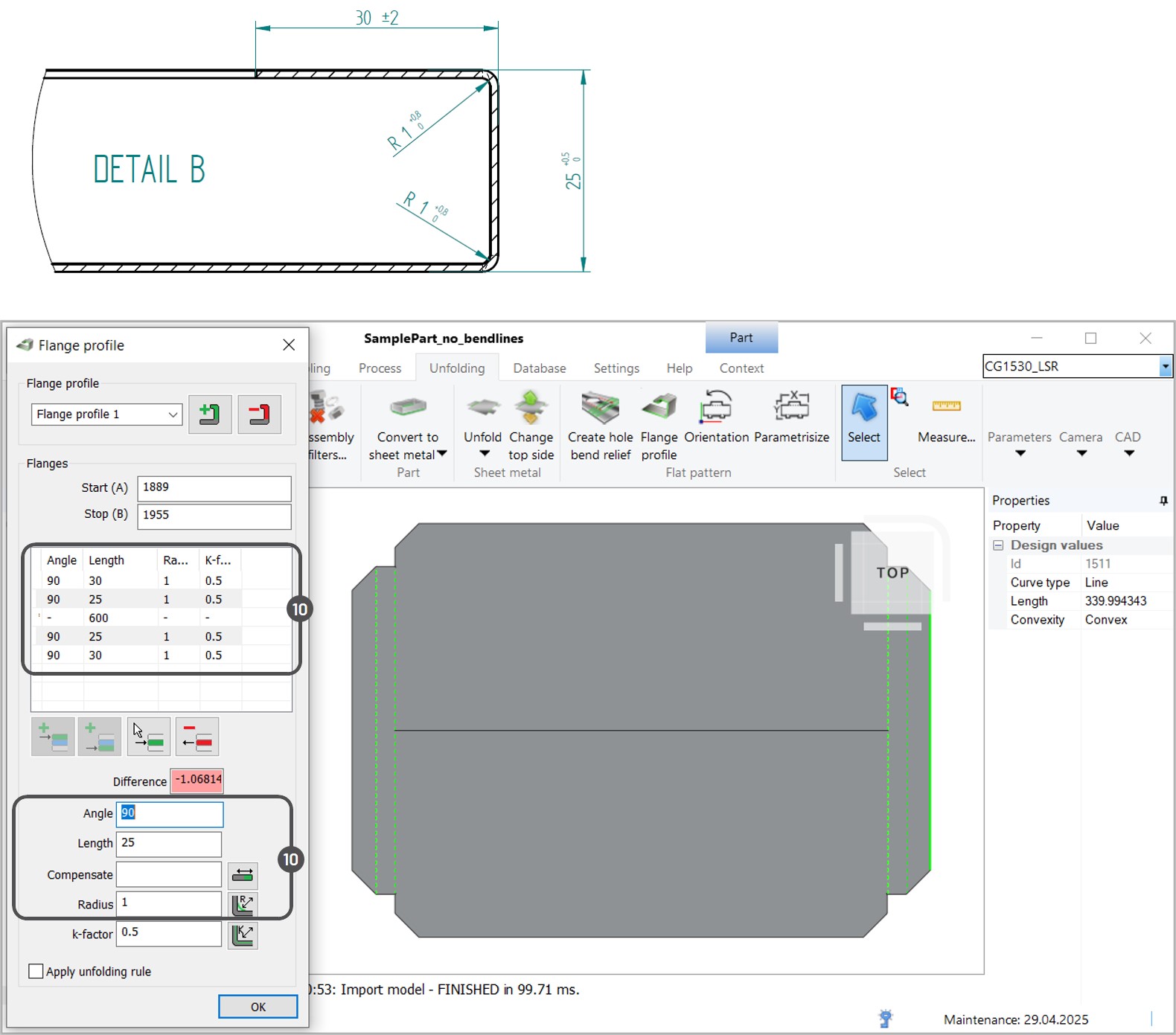
6. Select one or multiple flanges by holding down the CTRL key and edit the parameters, such as angle, length, and radius according to the instructions (10).

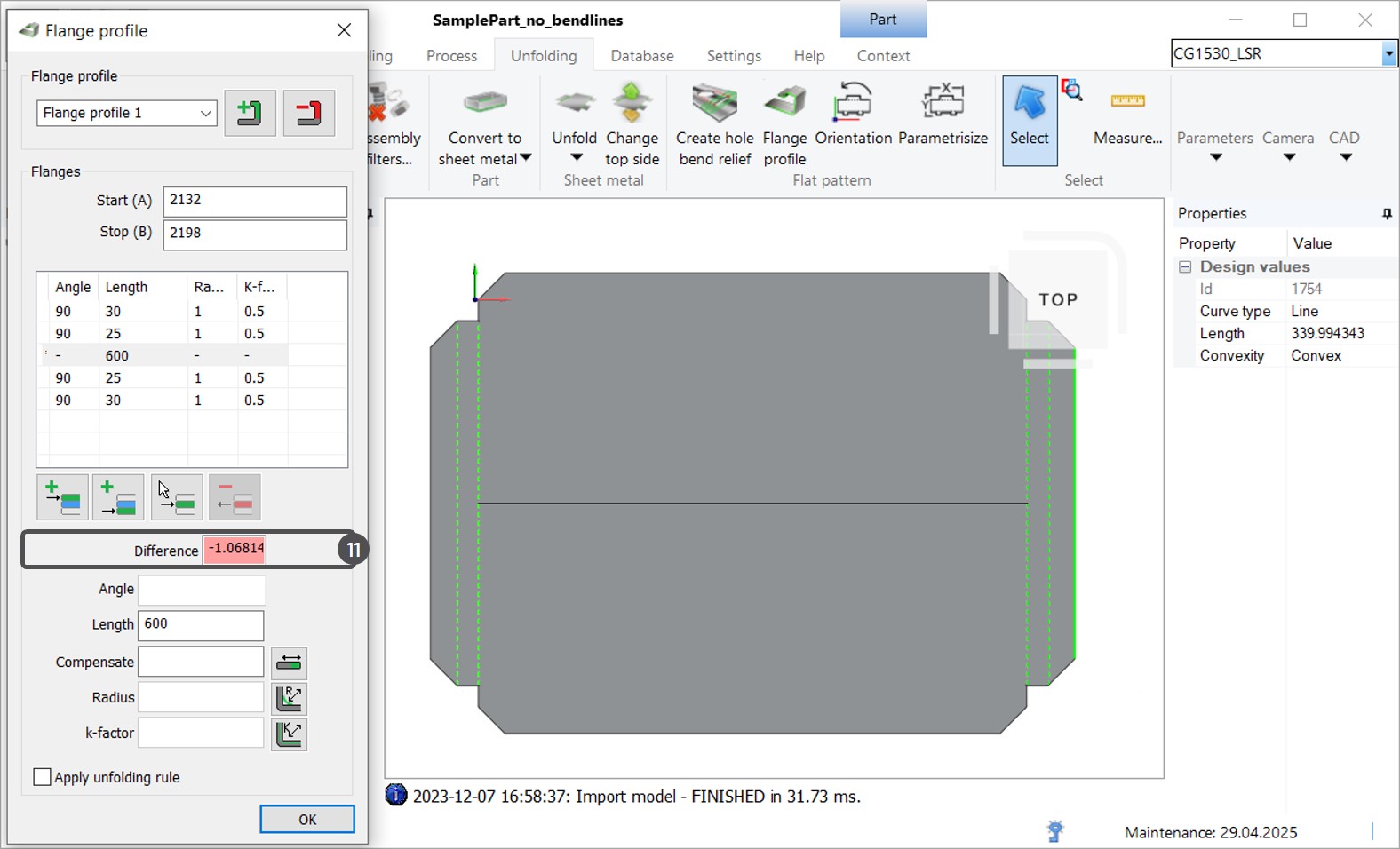
7. After specifying the flange parameters NC Express e3 will automatically calculate the difference between the original drawing and the part with bend lines applied (11). There are two options for compensating this difference.

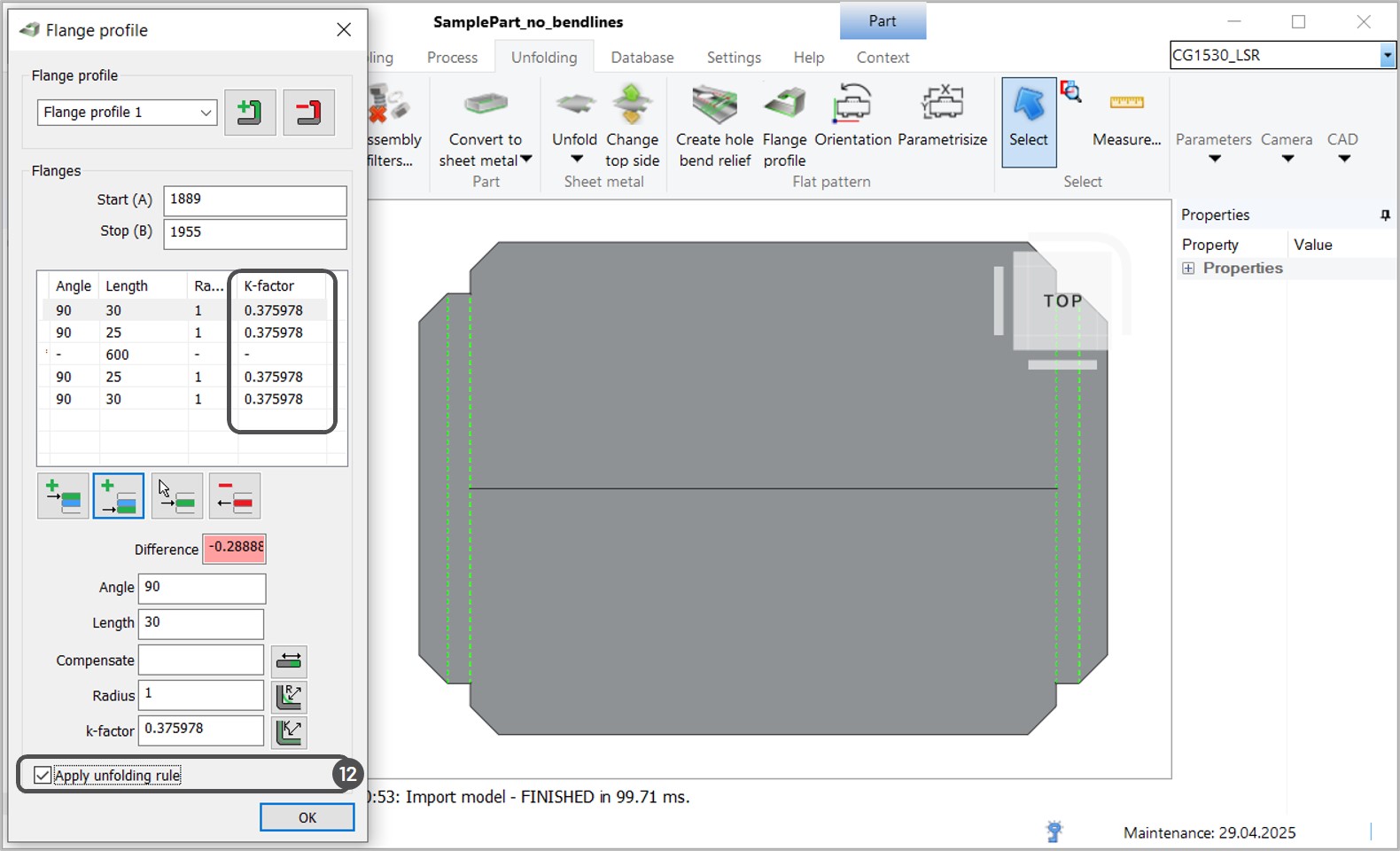
8. If you have material-specific unfolding rules, you can activate the Apply unfolding rule checkbox to calculate the k-factor (12). 

Compensating the difference to the flanges’ length

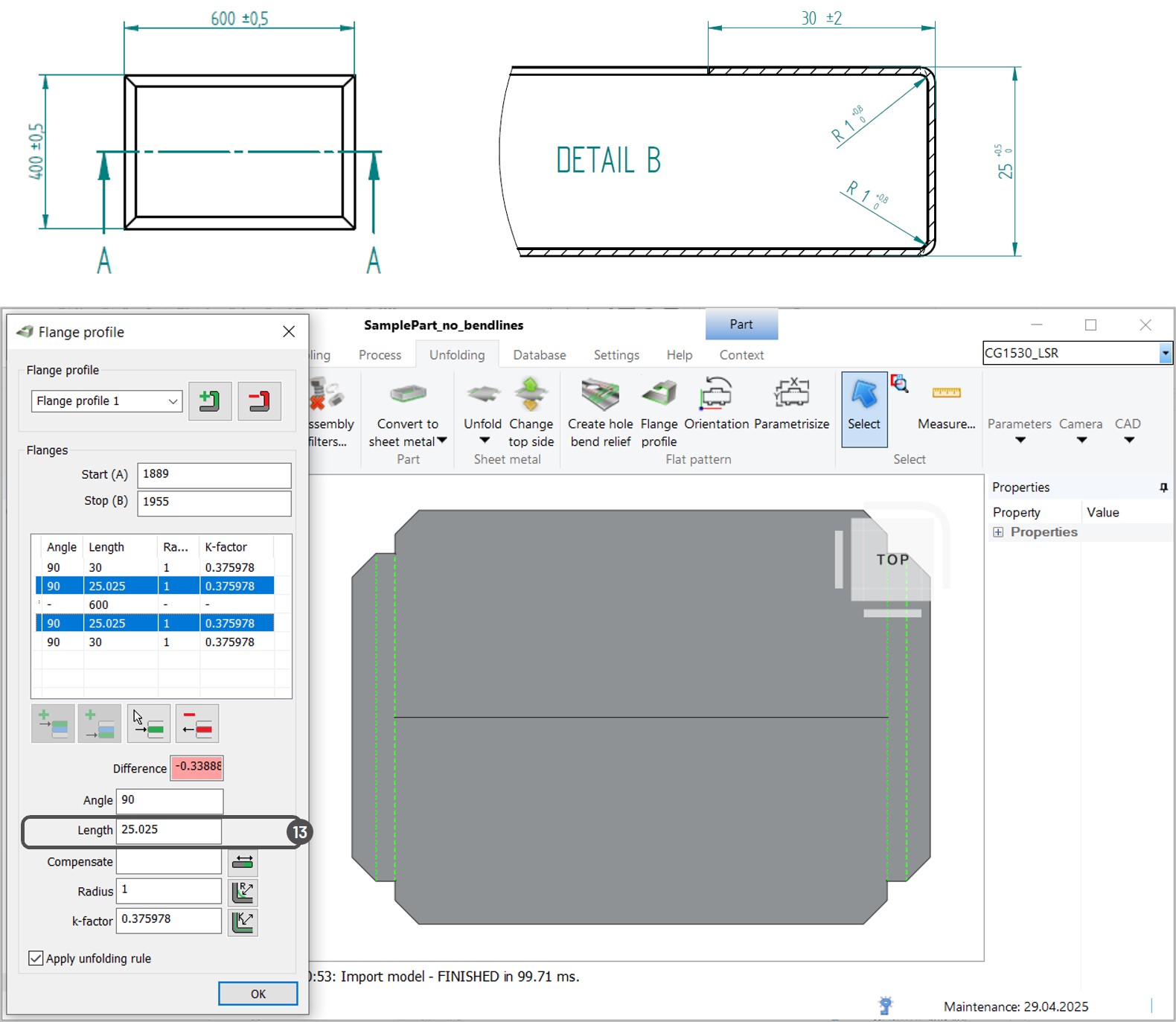
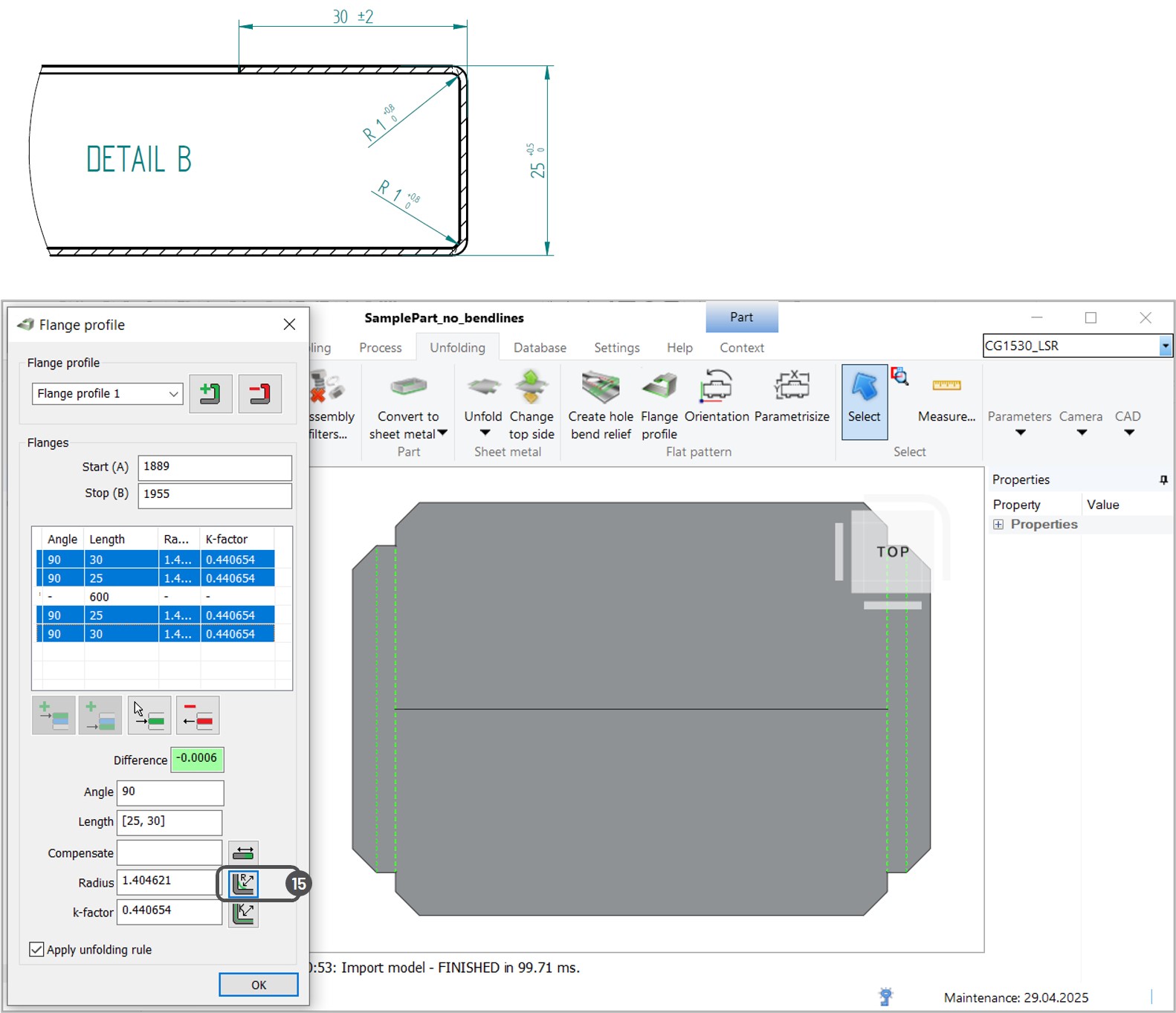
9. Refer to the technical drawing to see where error margins are permitted. In the example below, 25 mm flanges have a ± 0.5 mm margin and 30 mm flanges have a ± 2 mm margin. We will compensate the smaller margin manually by editing the flange length value (13). 

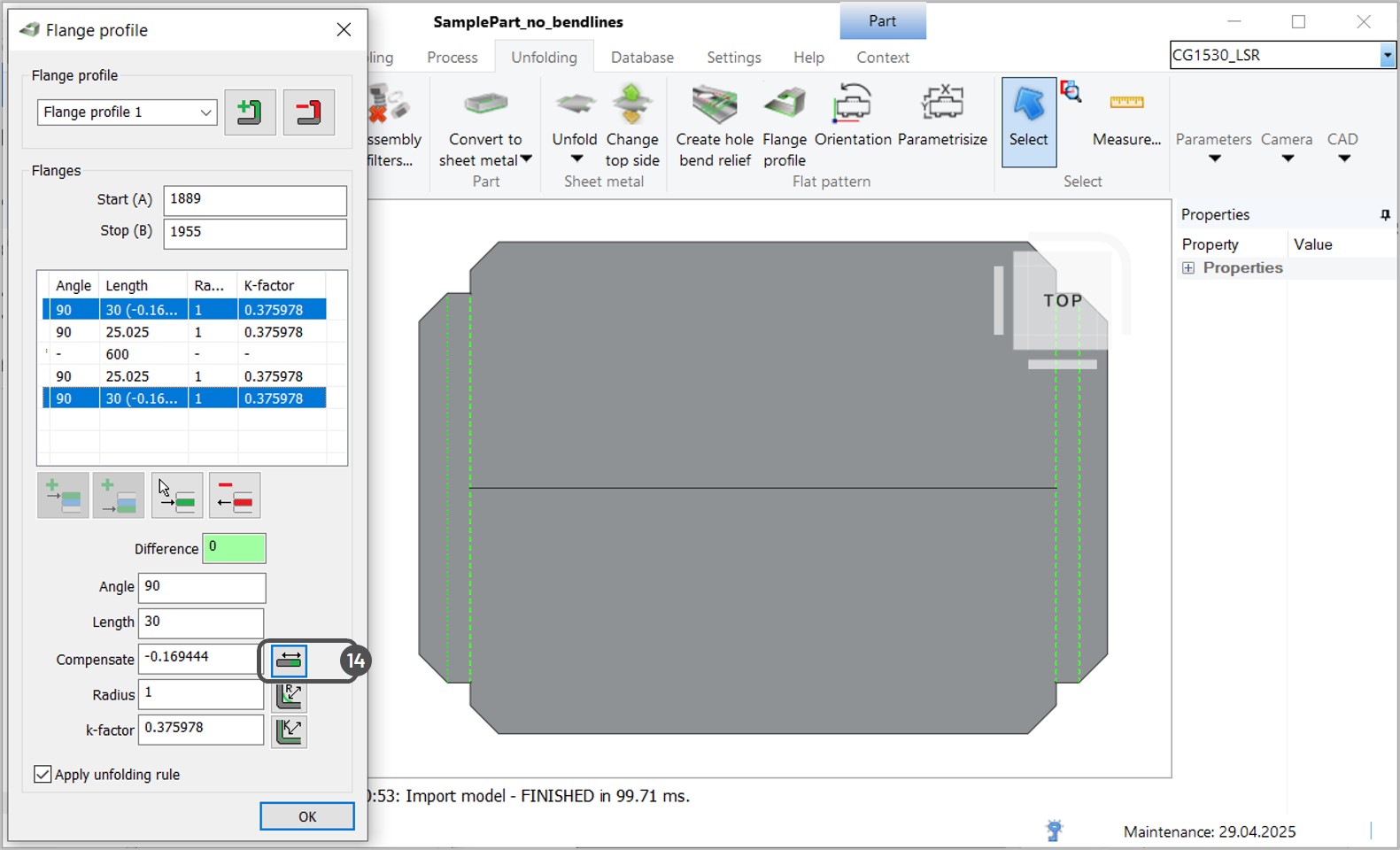
10. The remaining difference can be compensated automatically. Select the flanges from the list and press the Adjust length button to automatically compensate the difference to the starting and ending flange lengths (14).

Compensating the difference to the bend radius (for panel benders)

11. Given that your bending machine can perform precise angles, you can compensate the difference to the bend radius. In the example below, the error margin is 0.8 mm and equal for each flange. This way, we will evenly distribute the difference to all flanges’ radius. Select the flanges from the list and press the Adjust radius button (15). Verify that the new radius difference does not exceed the error margins.

Creating new flange profiles

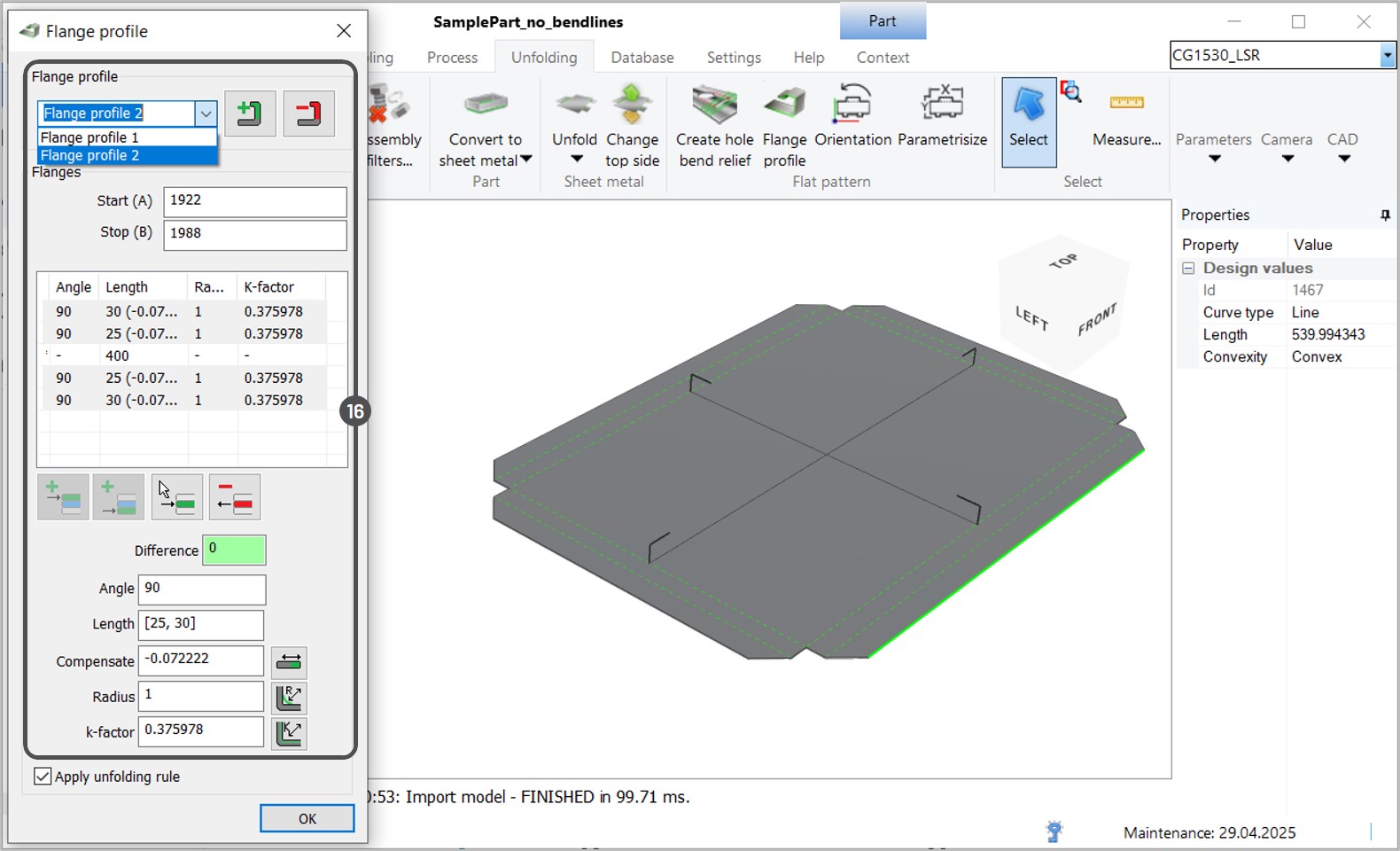
12. Create a new flange profile to add bend lines on the other side of the part. Repeat the previous steps to define the flange values of the new profile (16).

Using the Flange profile tool with existing bend lines

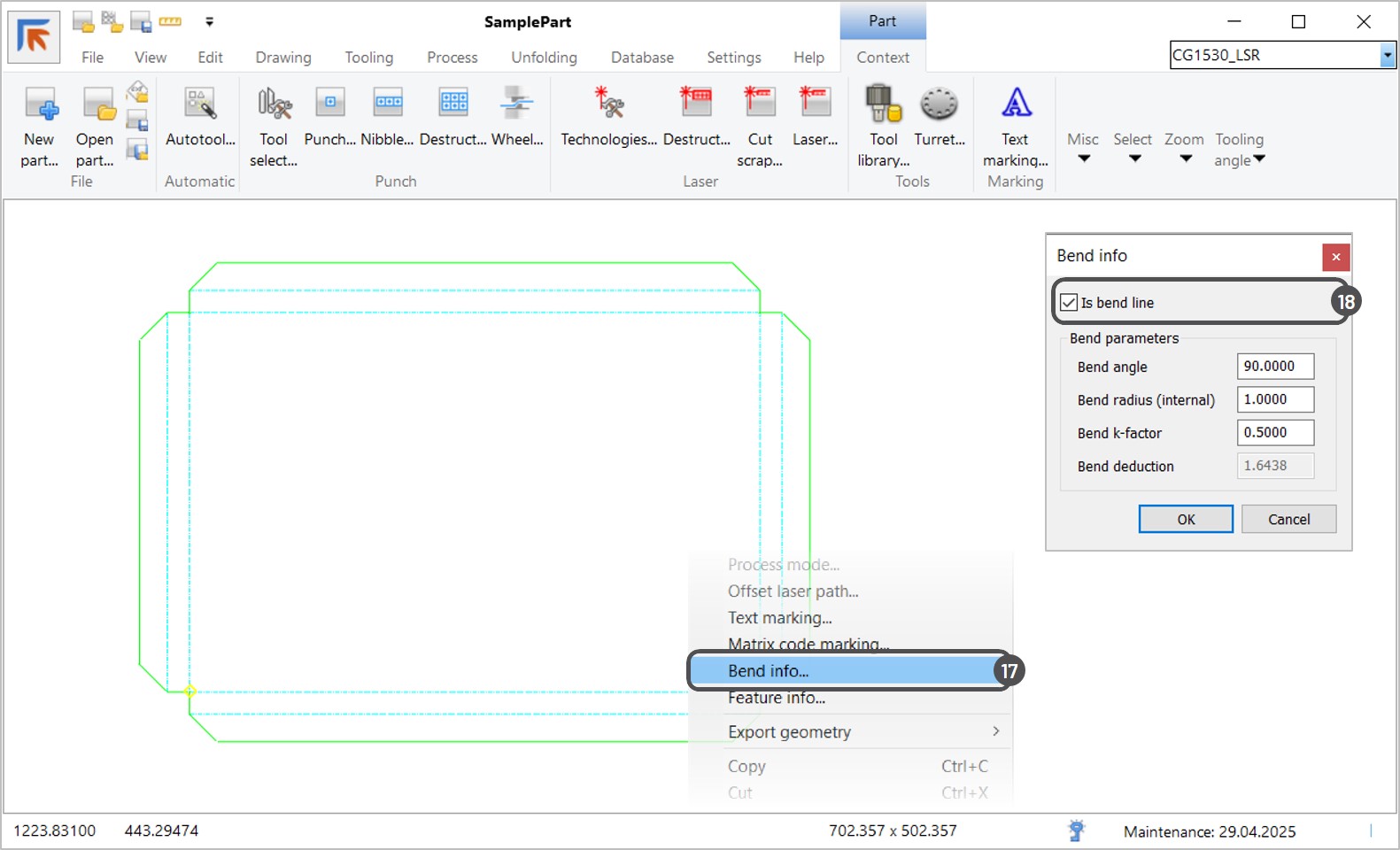
13. After the DXF file is imported to NC Express e3, add the bending data of the bend lines. Select bend lines from the drawing, open the right-click menu, and select the Bend info option (17). Activate the checkbox Is bend line (18). Click OK to apply changes and save the part. To highlight bend lines in a drawing, refer to the Settings -> Layers dialog. To learn more about layers and line types filtering, refer to the article How to set layer and linetype filters in Prima Power Connect.

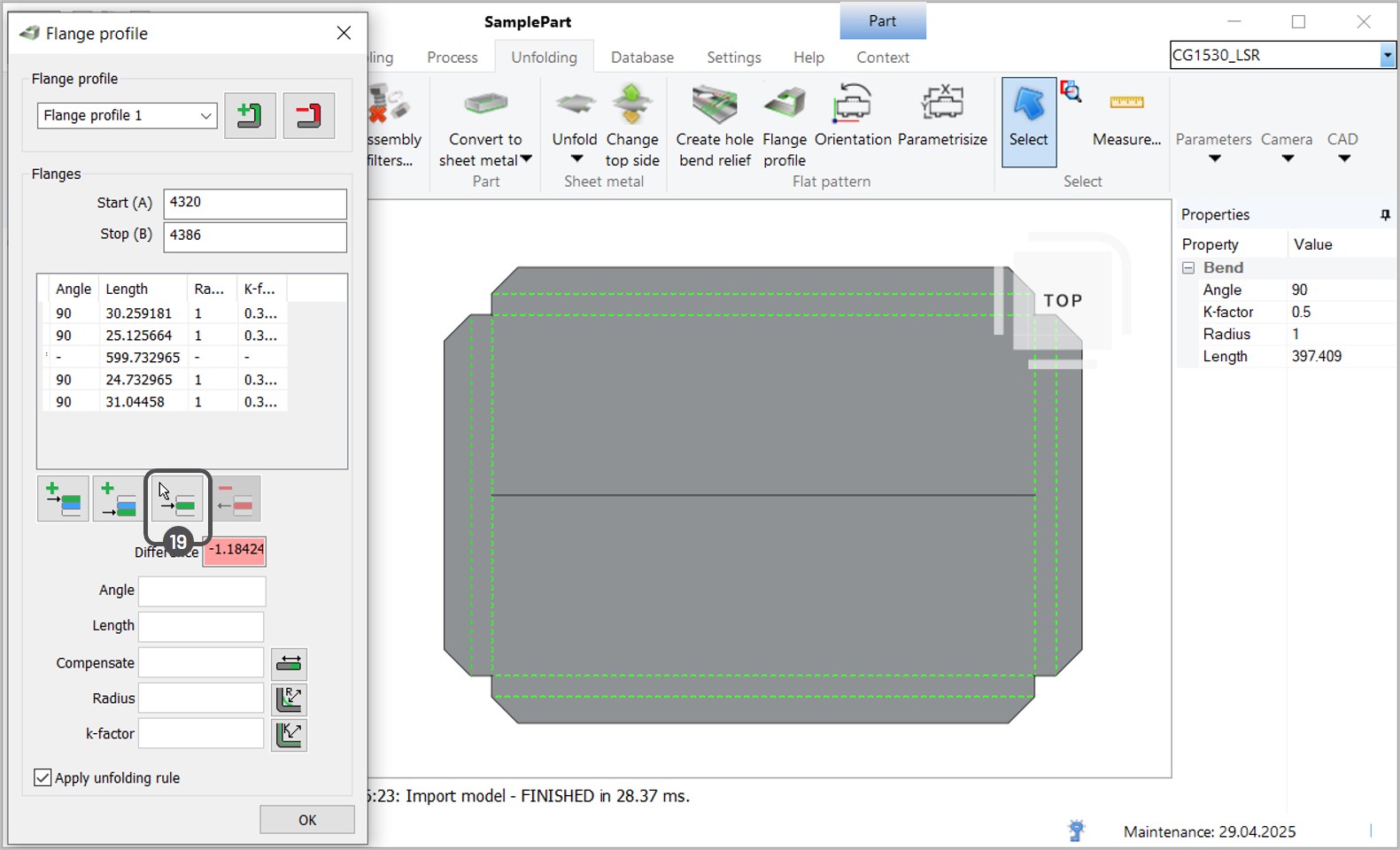
14. Open the Flange profile tool. Create a new flange profile and define the starting and ending edges of the profile. To add a new flange, press the Pick flange button and select the bend line from the graphical view (19). Repeat the process for preferred bend lines in the drawing. The flange parameters are the same as specified earlier in the Bend info window.

15. Compensate the difference to the preferred flanges. In this case, use the Flange profile tool to minimize the amount of test parts during the bending process.

Using the Export geometry function

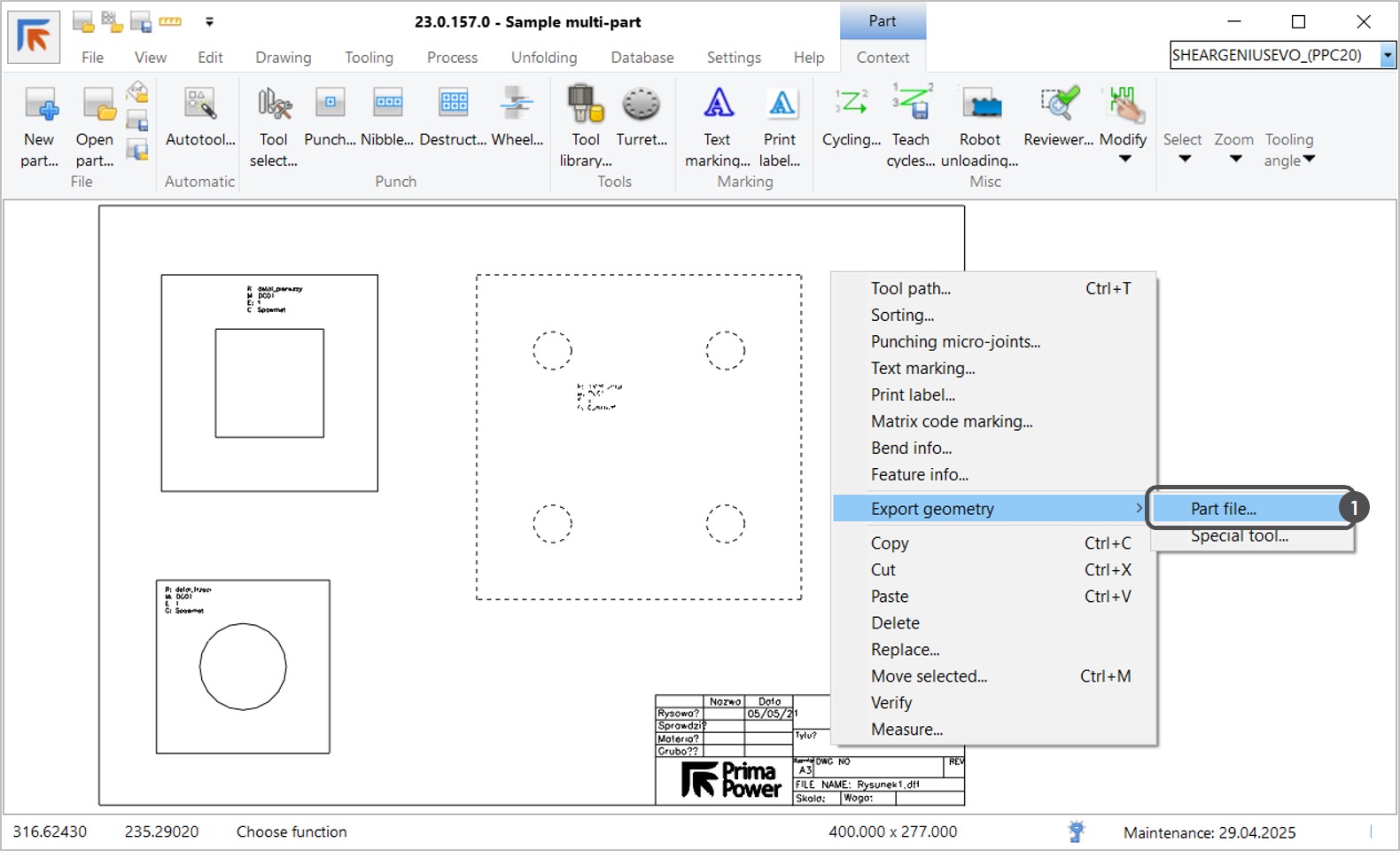
Using the Export geometry function, you can create separate .cp part files with individual settings from a multi-part drawing. You can also autotool the parts and add them to the Order database in the same window.

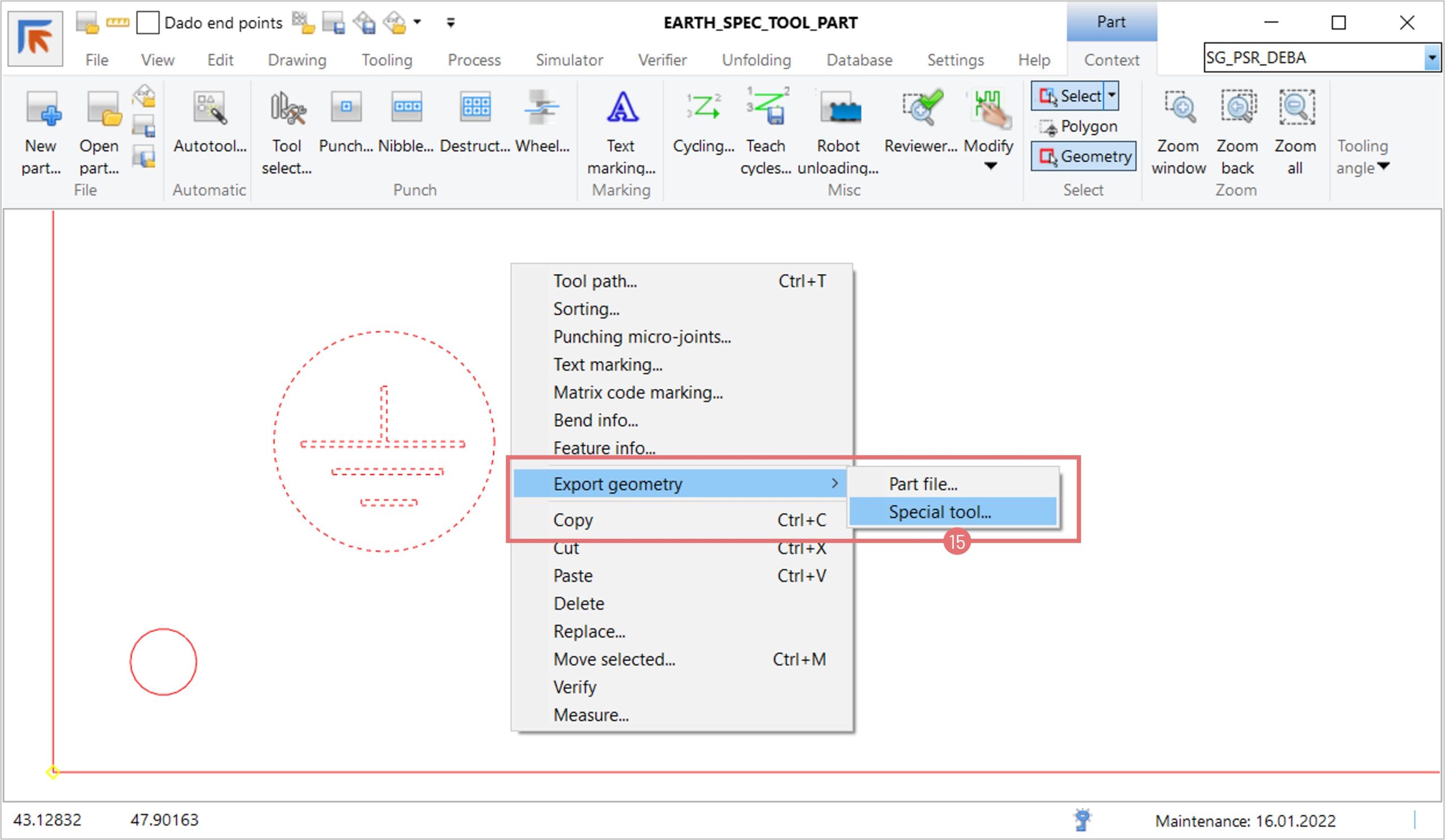
1. Open a multi-part DXF/DWG drawing in NC Express e3. Select the desired drawing, and open the right-click menu. Select the Export geometry -> Part file option (1).

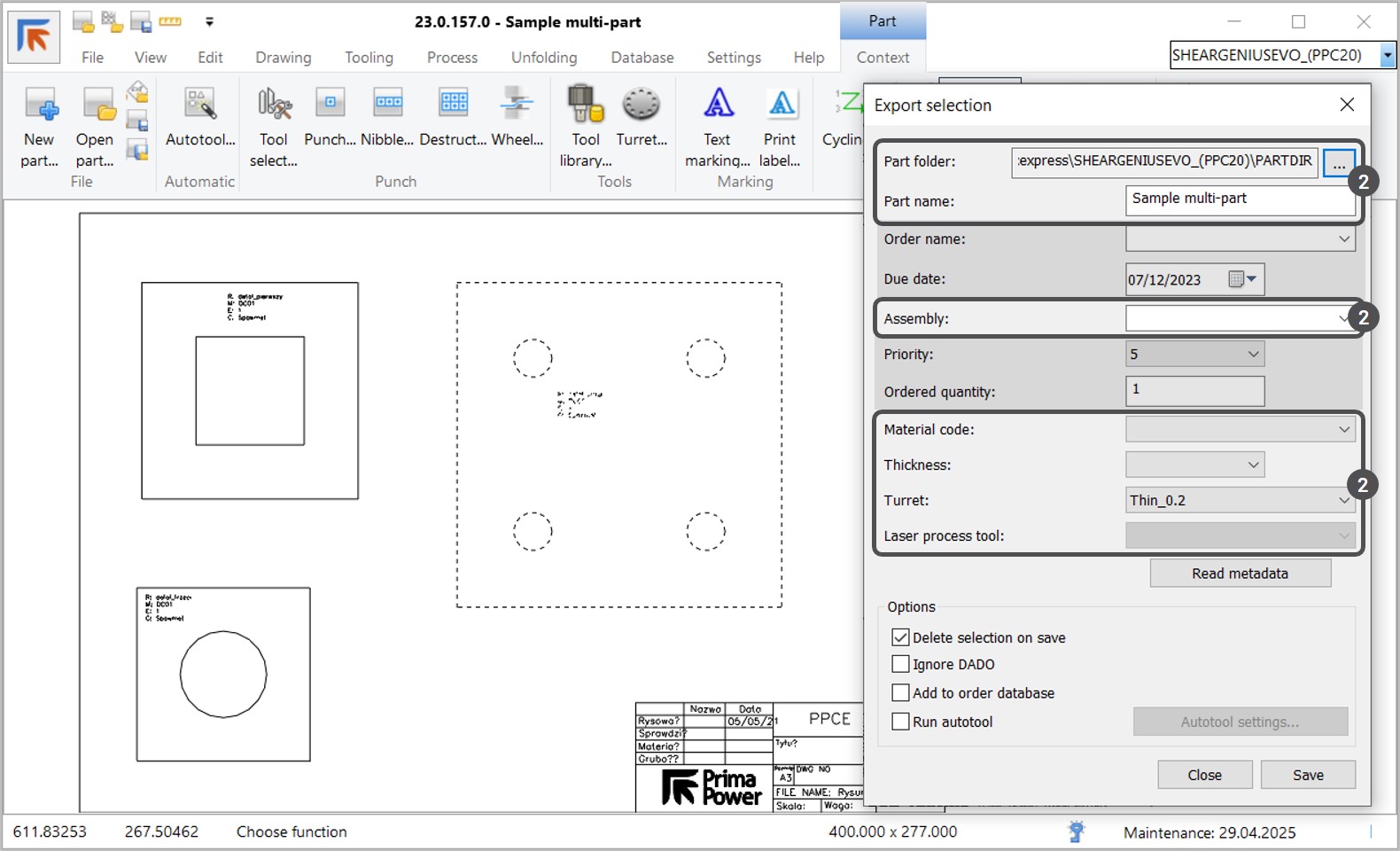
Saving the part

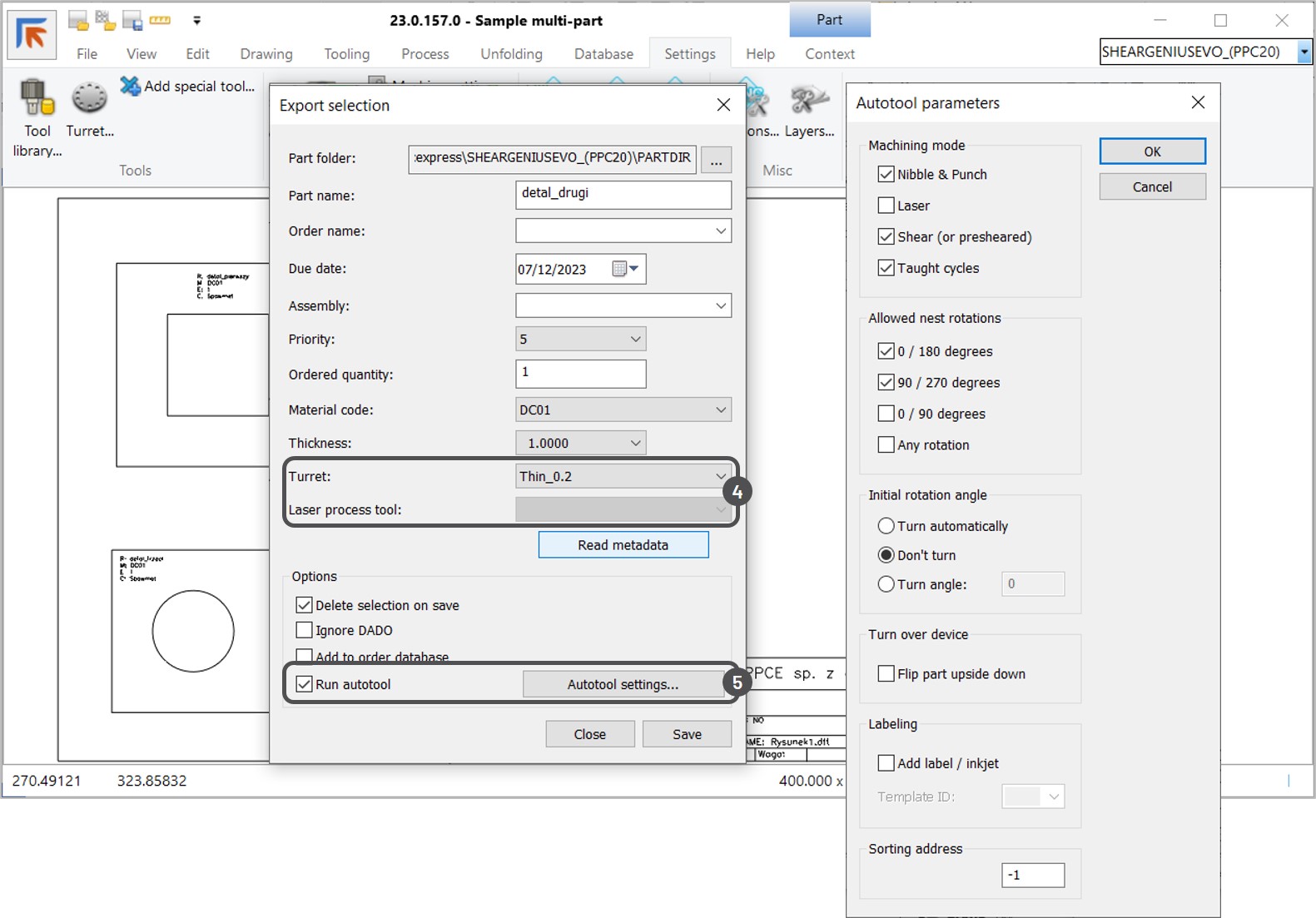
2. Before saving the part, define the relevant part–related properties in the Export selection window (2). The required fields include Part folder, Part name, Material code, and Thickness

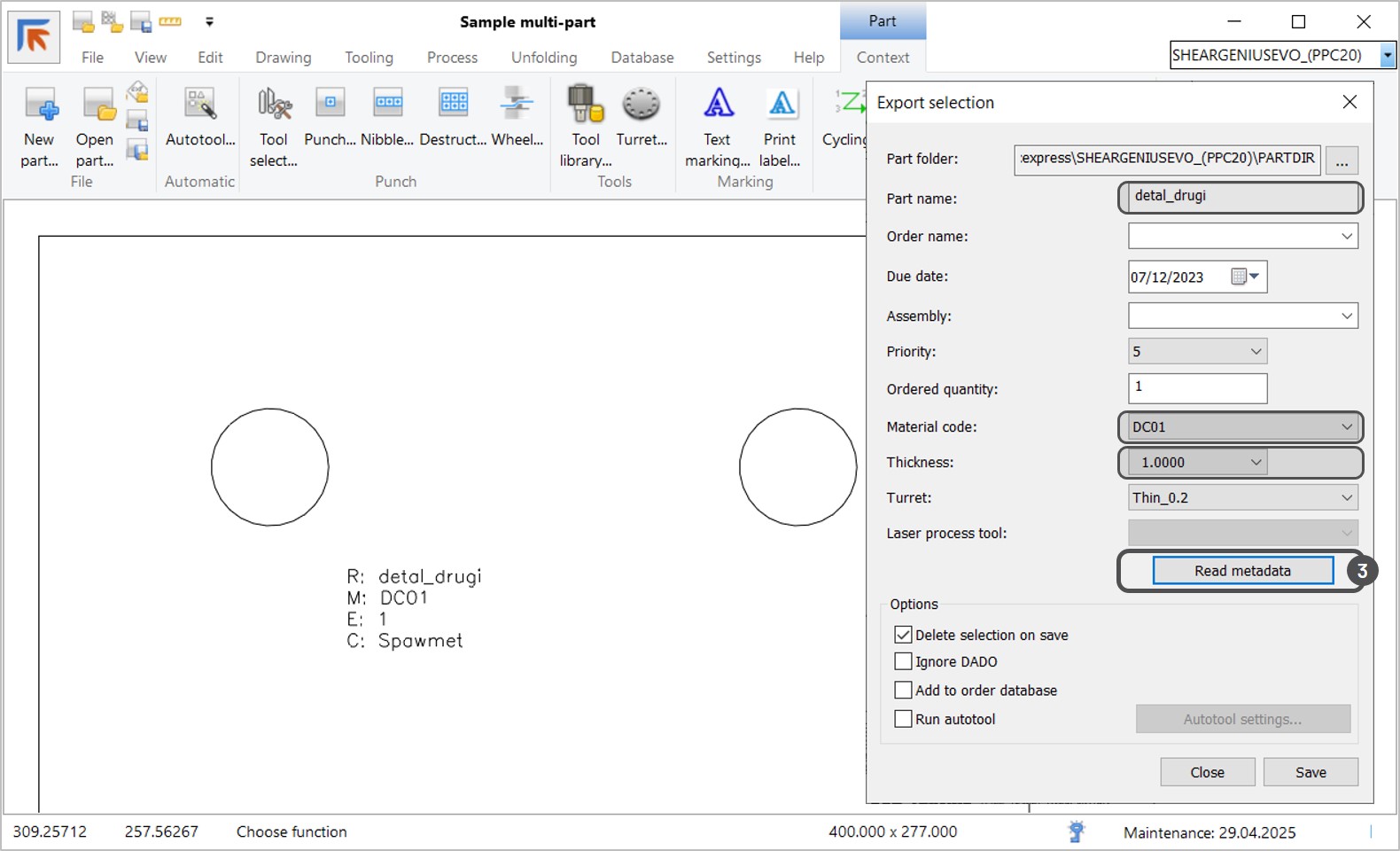
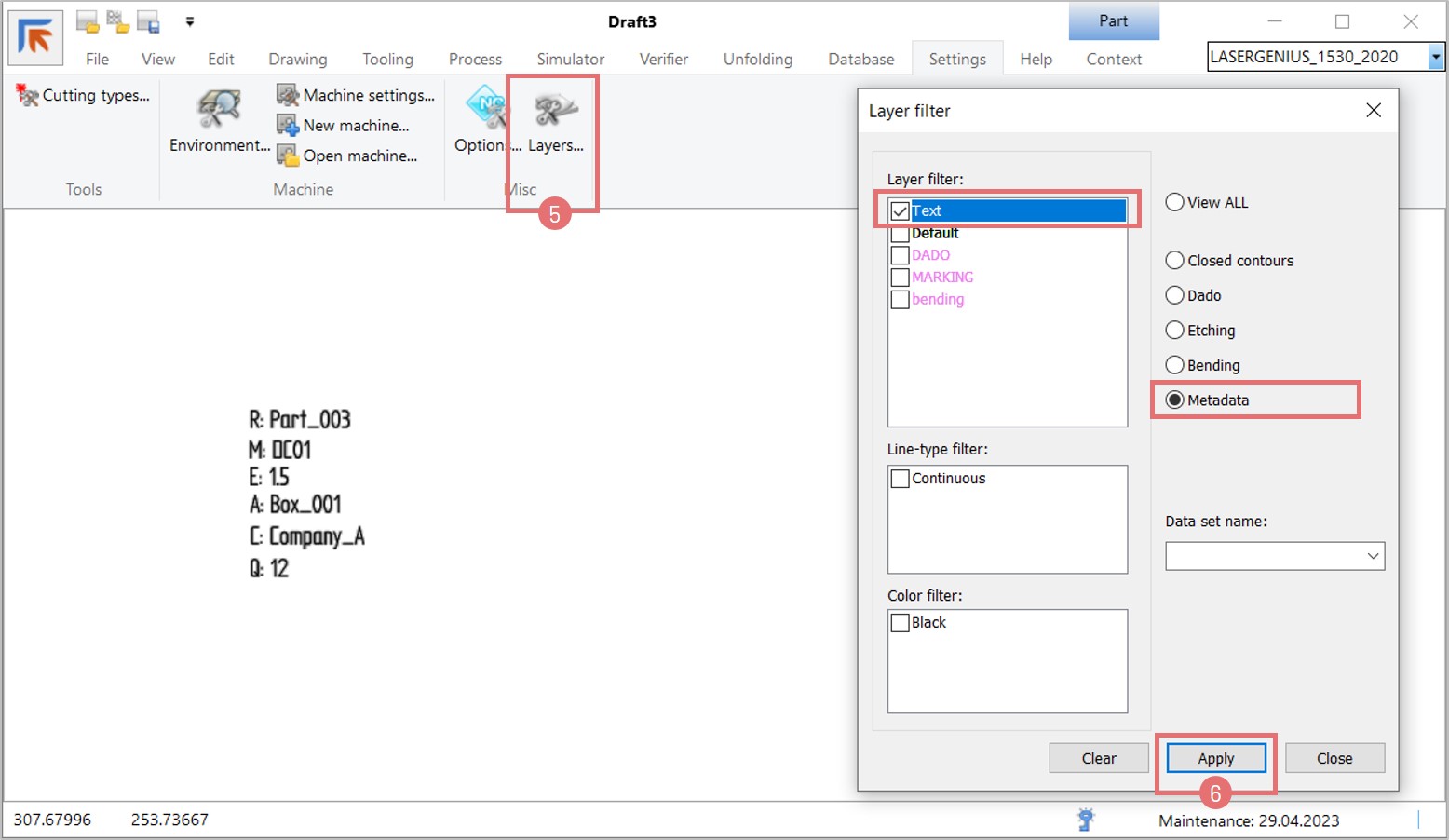
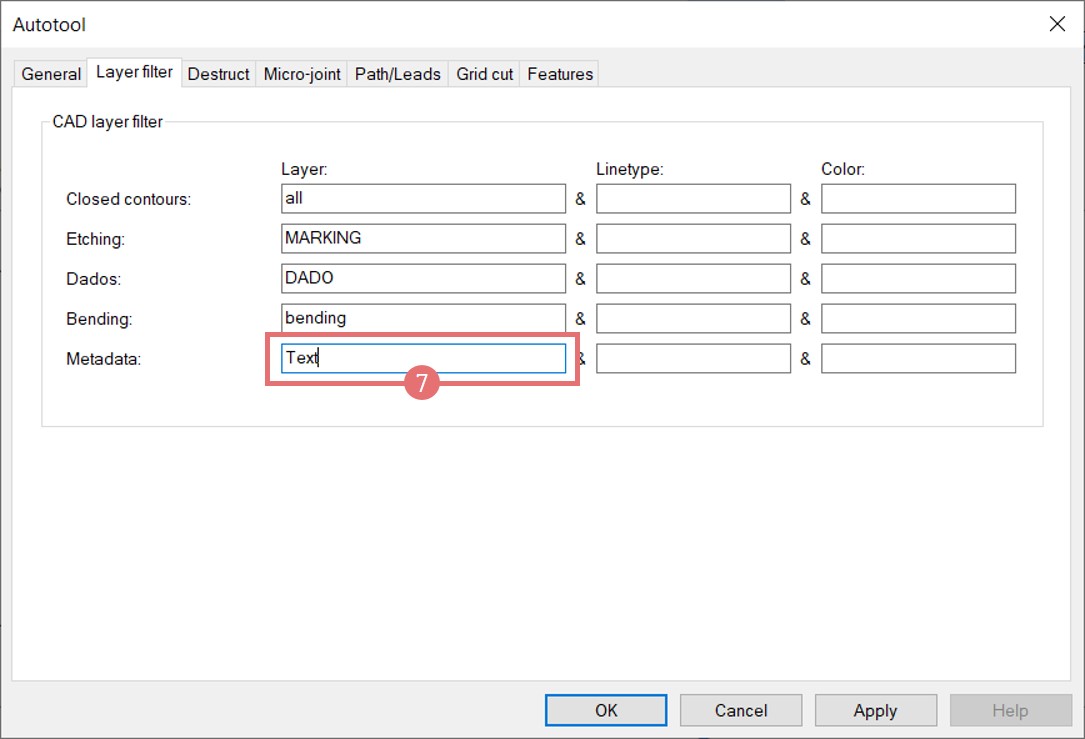
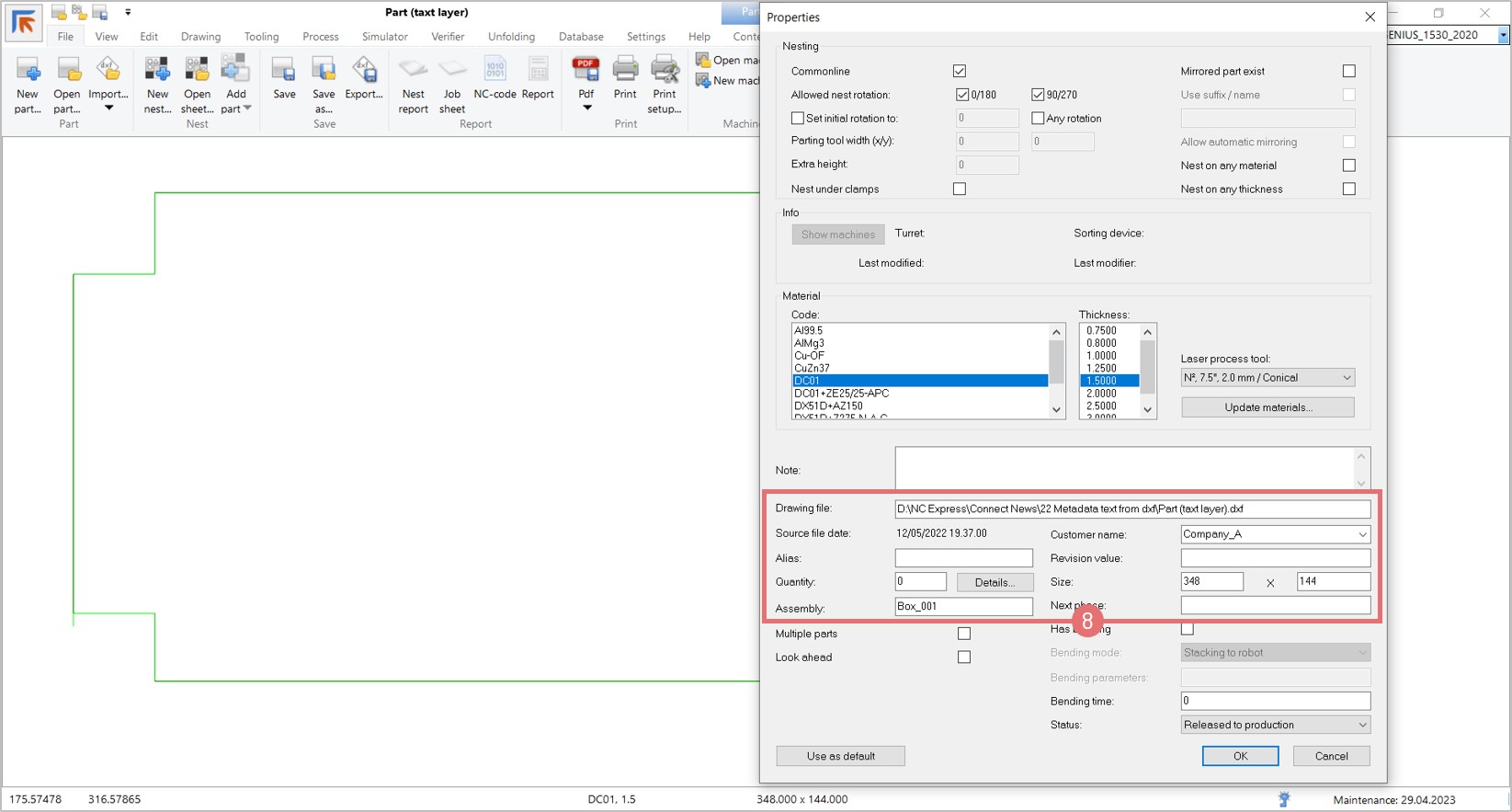
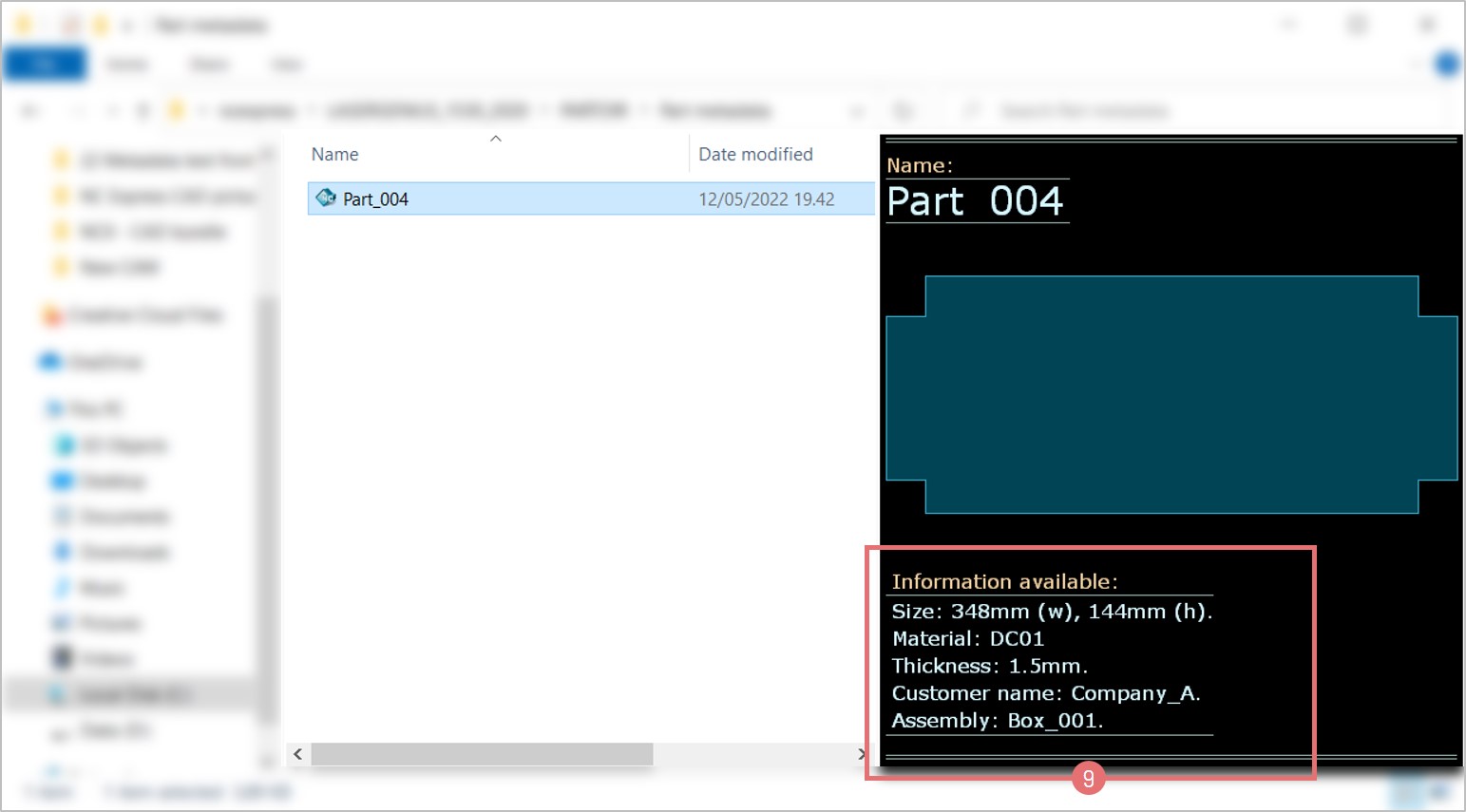
3. If the drawing contains a text layer with metadata, you can fill in part properties automatically. Press the Read metadata button (3). Now, the Part name, Material code, and Thickness values have changed.

If you want to learn more about reading metadata from a drawing, read the article Reading part metadata from a DXF drawing in Prima Power Connect.

Autotool the part before saving

4. Before running Autotool, make sure that the Turret and/or Laser process tool properties are specified (4). Select the Run autotool checkbox. If necessary, press the Autotool settings button to customize the most common Autotool functions (5).

Create an order

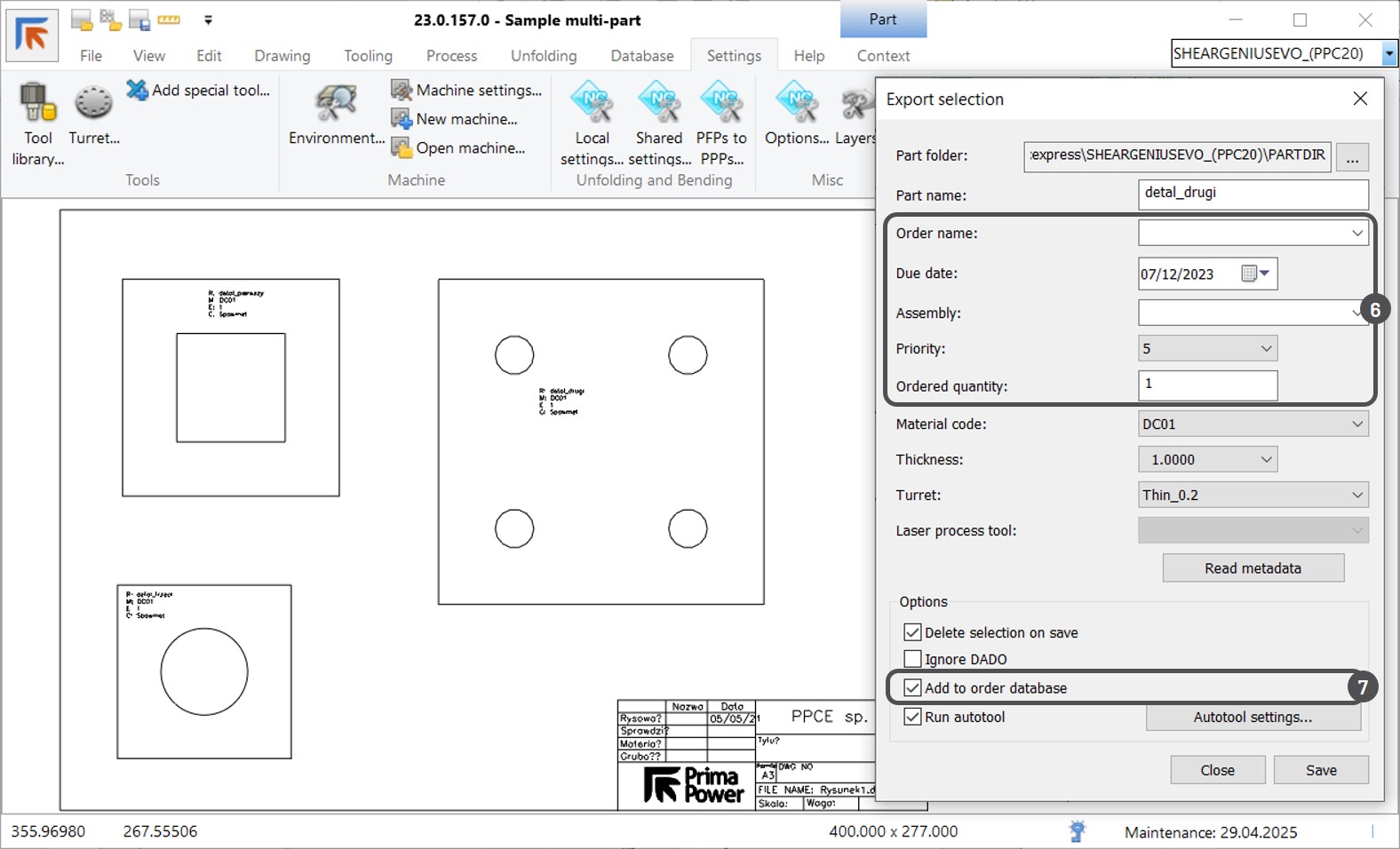
5. If order information is available, you can add the part to the Order database after exporting. Edit the order-related fields:  Order name, Due date, Assembly (if the part belongs to an assembly), Priority, and Ordered quantity (6). Select the Add to order database checkbox (7), and save the part. If the Delete selection on save checkbox is selected, the part will disappear from the multi-part drawing.

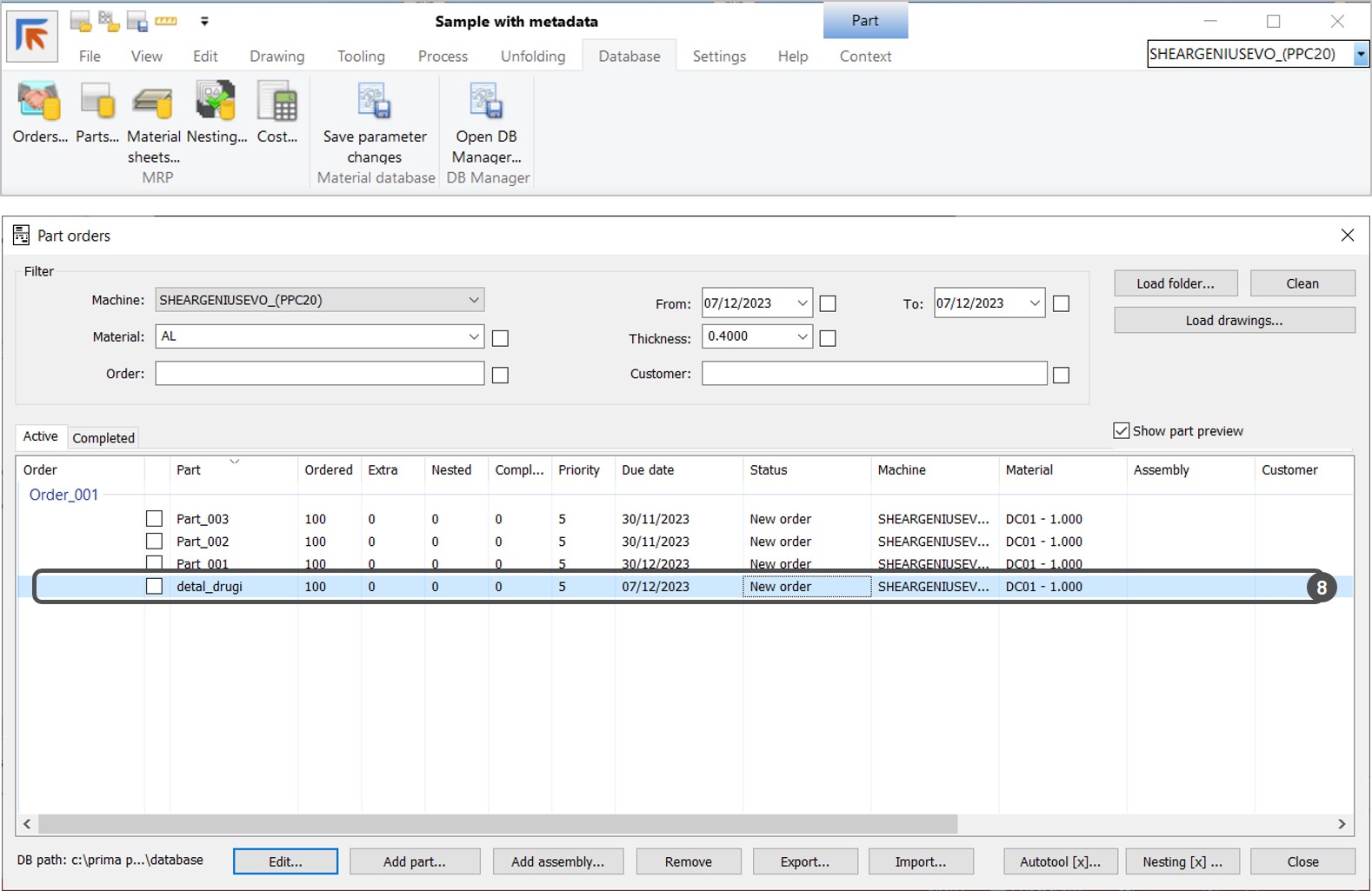
6. Switch to the Database tab and open the Orders database. The part has been added to the Part list of the selected order ID (8).

NC Express 23.2 is released

Look the release video here below: 

You are entitled to this update when your license maintenance is valid.

The 64-bit build is recommended to be installed for new customers.

The 32-bit build is backwards compatible with older versions. We recommend this for updates.

Note 1: If you have installed an earlier NC Express 23.2 build, it’s highly recommended to update latest 23.2 version.

Note 2: The 64-bit build cannot use old customized 32-bit report templates. They must be made again on new syntax when moving from a 32-bit build to a 64-bit build.

Note 3: If you have software integrated to NC Express using ParaNCX-interface, please contact Prima Power before updating to 64-bit build. This concerns applications such as Tulus Office Premium, Tulus Office Power Processing, Batch Processing and PowerPlan, among others. The integrated software needs to compiled in 64-bit too.

NC Express 23.2 technical release notes document about new features.

Common line functionality on Punching machines

Common line functionality on punching machines allows nesting parts in such a way that the distance between the parts equals the width of the slitting tool. Thus, one nibbling line punches the outside contours of two parts simultaneously. Common line nesting allows creating tighter nests, reducing punching time, and minimizing scrap.

This article demonstrates three examples how to program parts for common line nesting on punching machines:

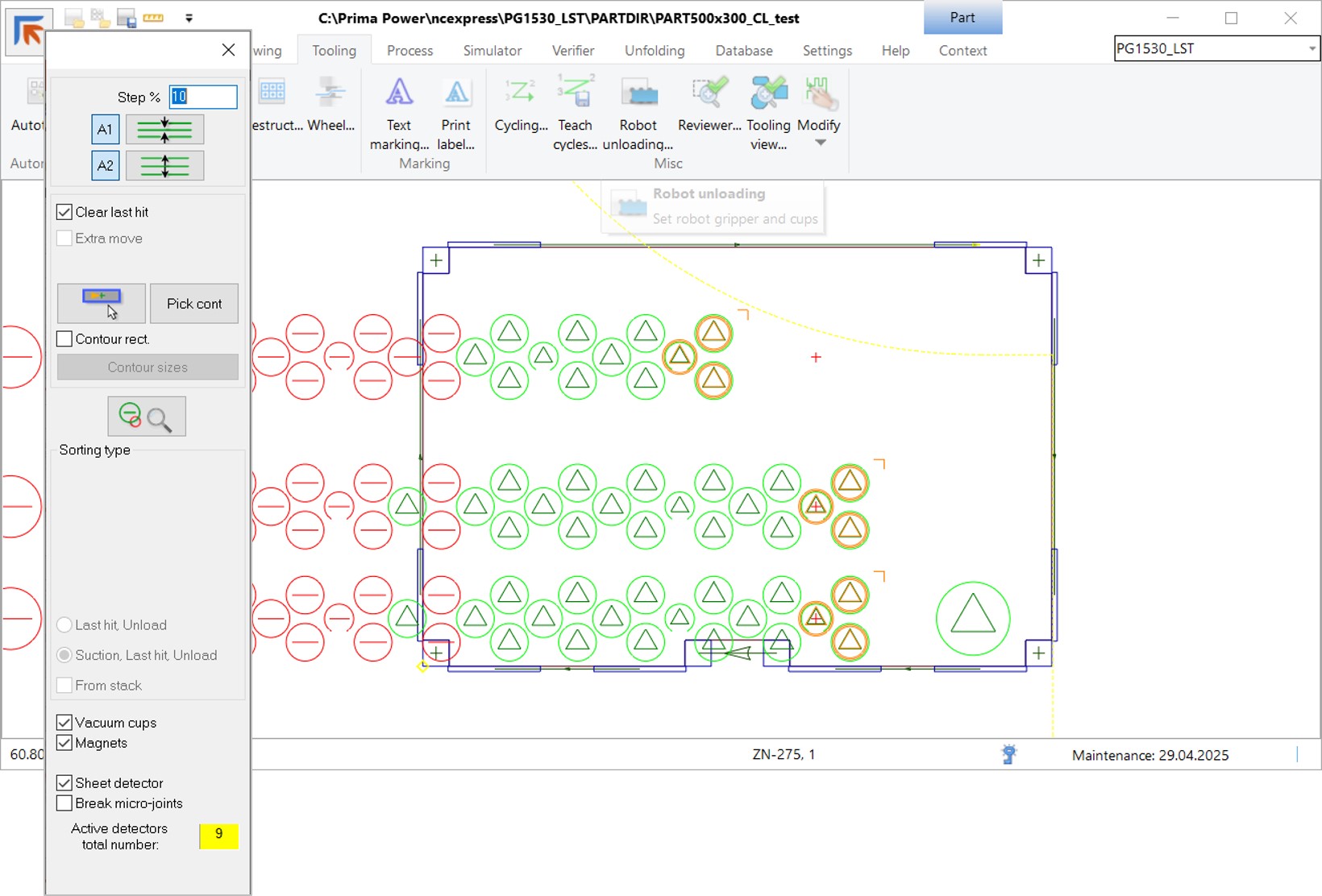
  1. Common line micro jointed parts without robot pickup

  2. Common line parts with LST robot pickup

  3. Common line parts with robot-assisted last tool hit.
Allow common line functionality on a part level

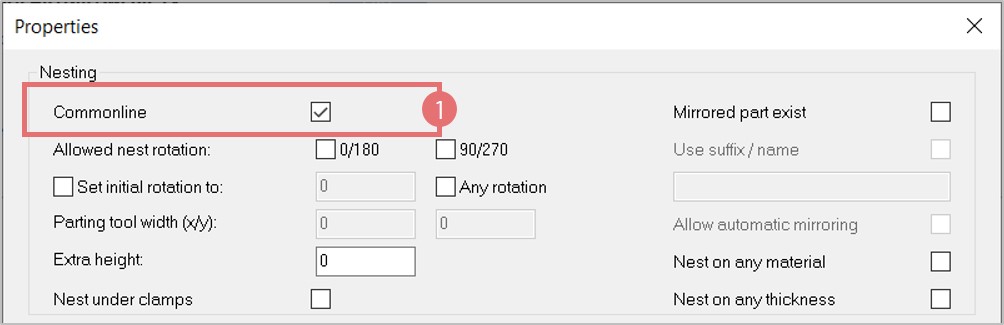
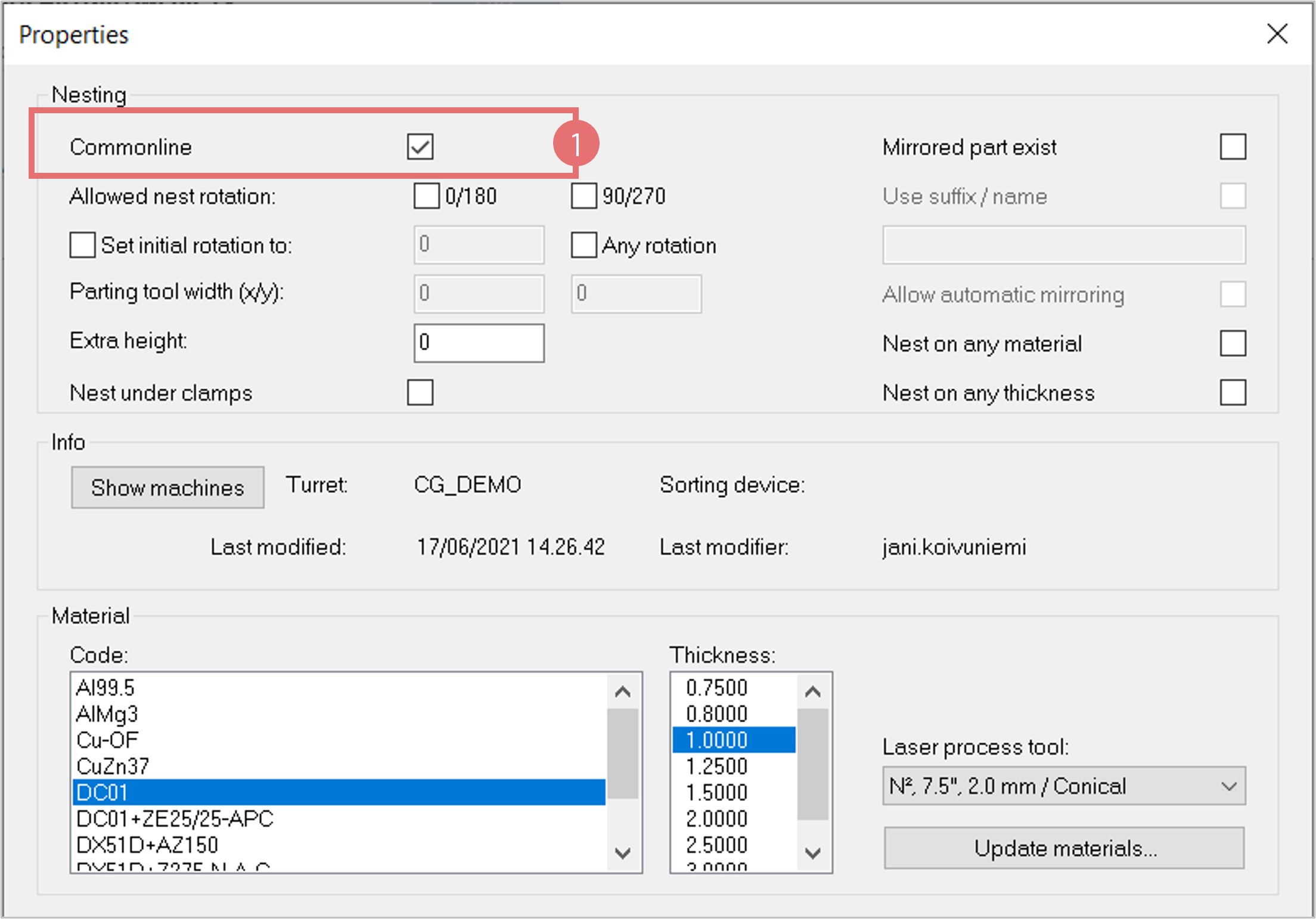
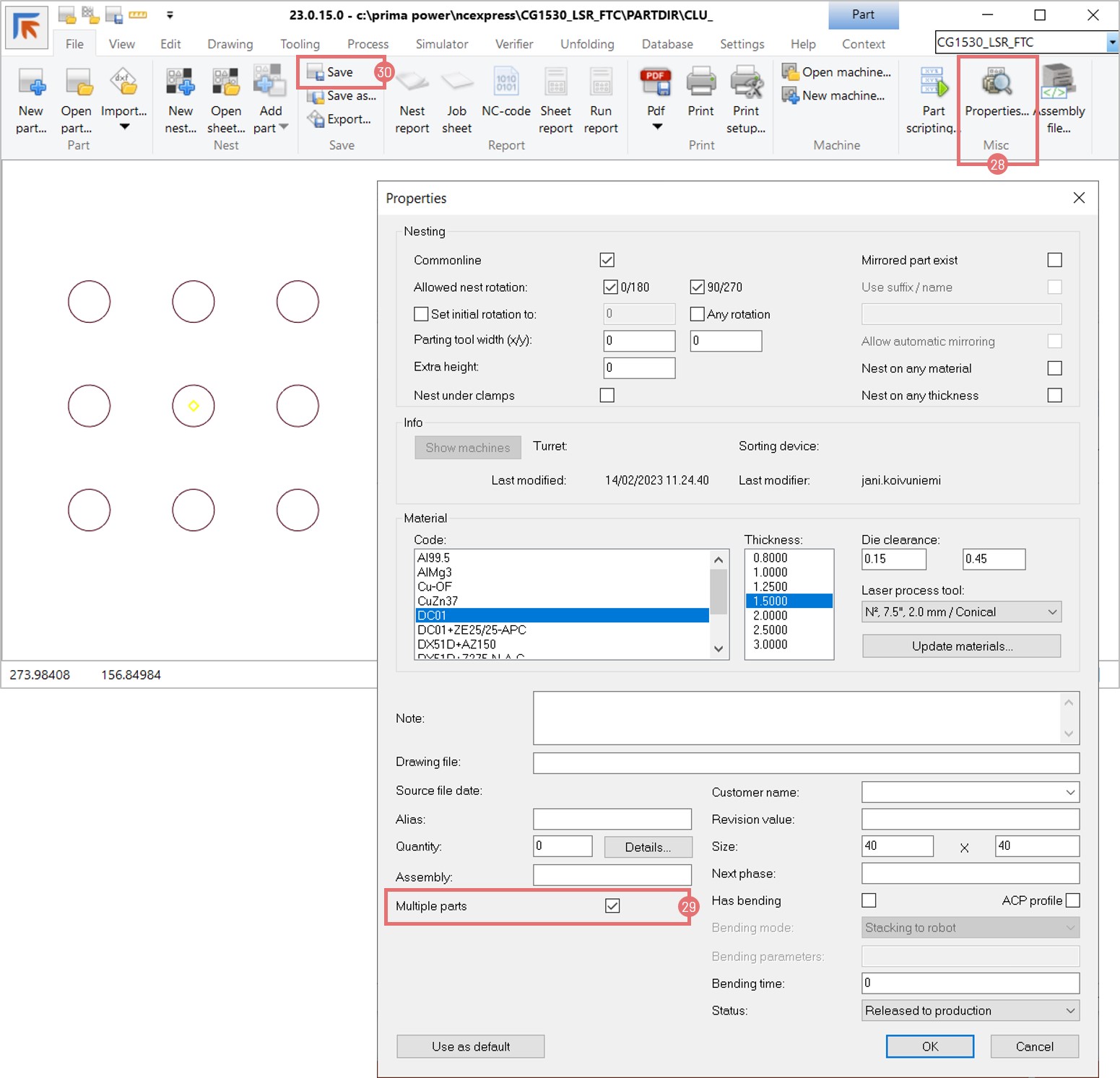
1. First, common line punching should be permitted on part level. Consider that part’s geometry and tooling is appropriate for the common line logic. Open the File -> Properties dialog and select the Common line checkbox (1). 

Common line micro jointed parts without robot pickup

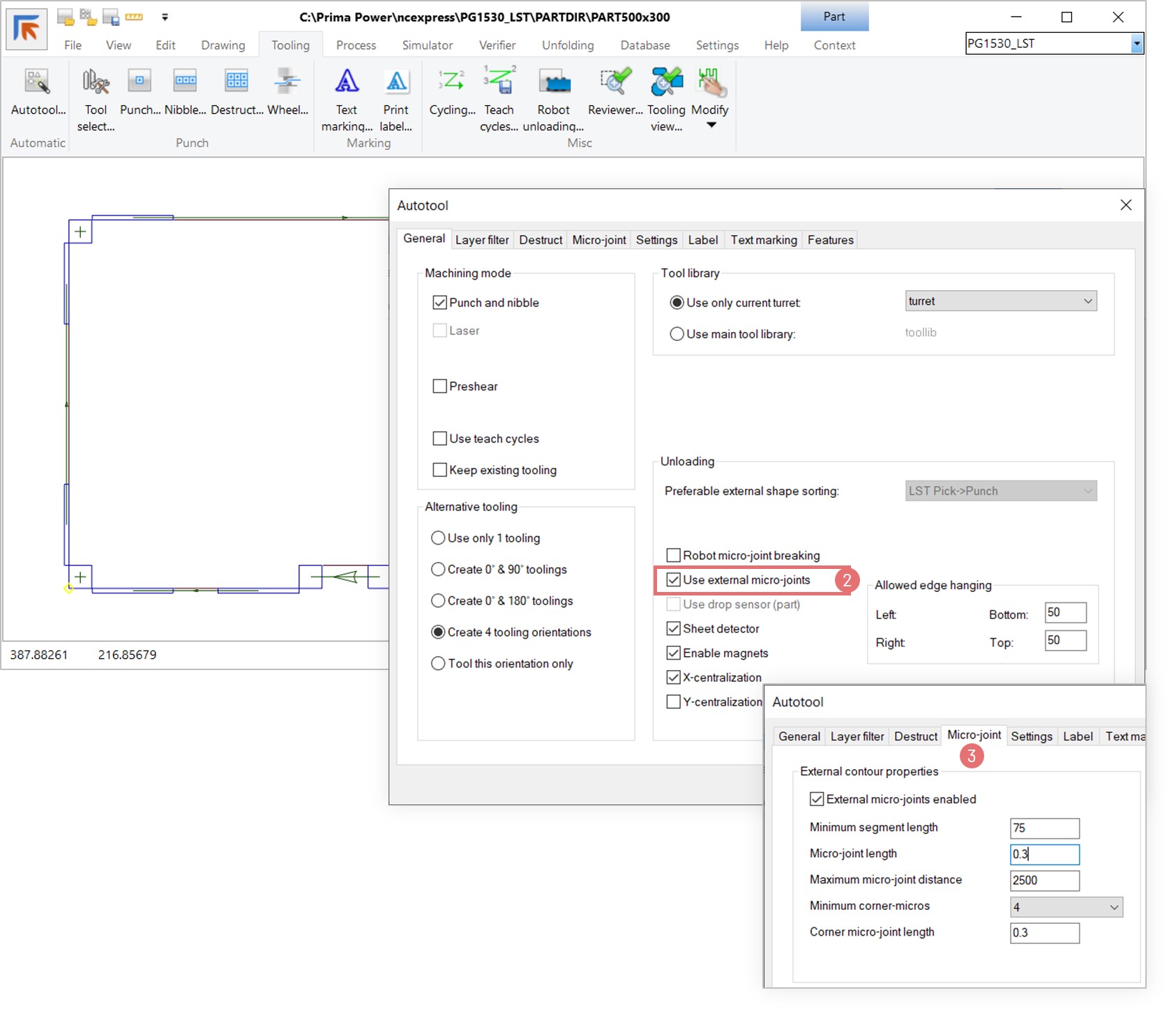
1. Open a part in NC Express e3 and go to the Autotool dialog. Activate the Use external micro-joints checkbox to disable part pickup with robot (2). After pressing the OK button, micro joints will be added according to the settings given in the Micro-joint tab (3).

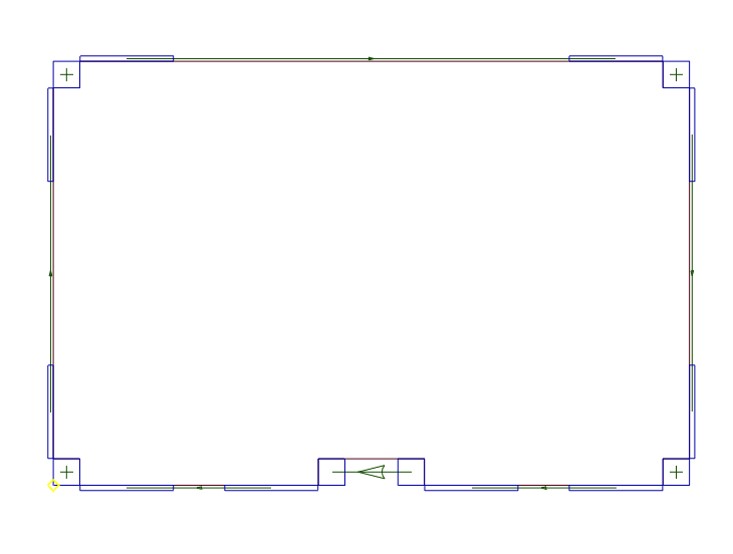
2. The Autotool has placed four micro joints in the top and bottom corners of the part. To ensure that the part stays in place, additional micro joints can be added manually. Right-click on the part and select the Tool path option (4).
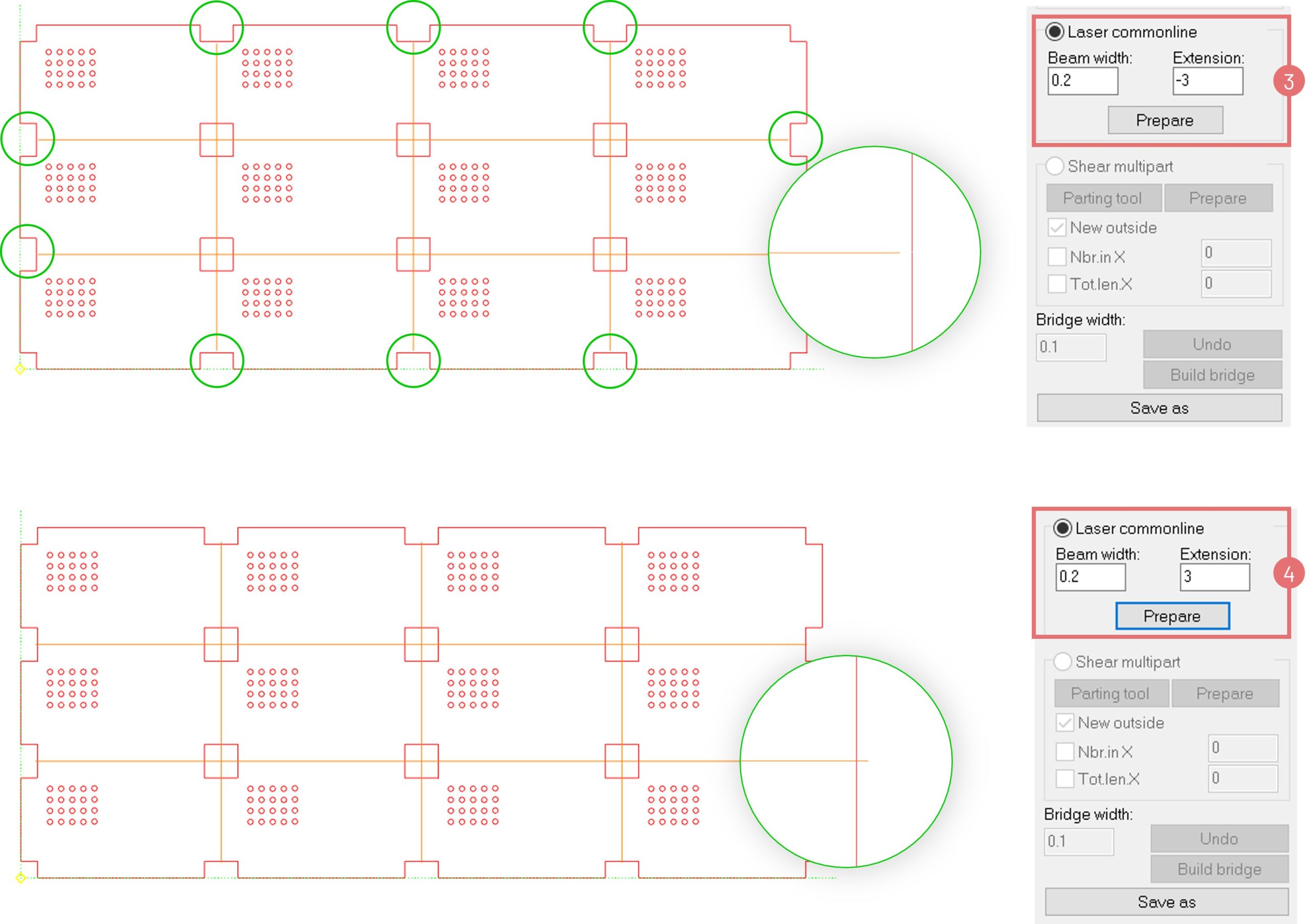
3. Zoom into the desired corner. Activate the Enable step checkbox and specify the length of the micro joint in the Modify tool path window (5). Select the tool path with a left mouse click, then drag it in the needed direction. The tool path will snap to the specified step distance. 

4. Repeat the procedure on all desired corners and save the part.

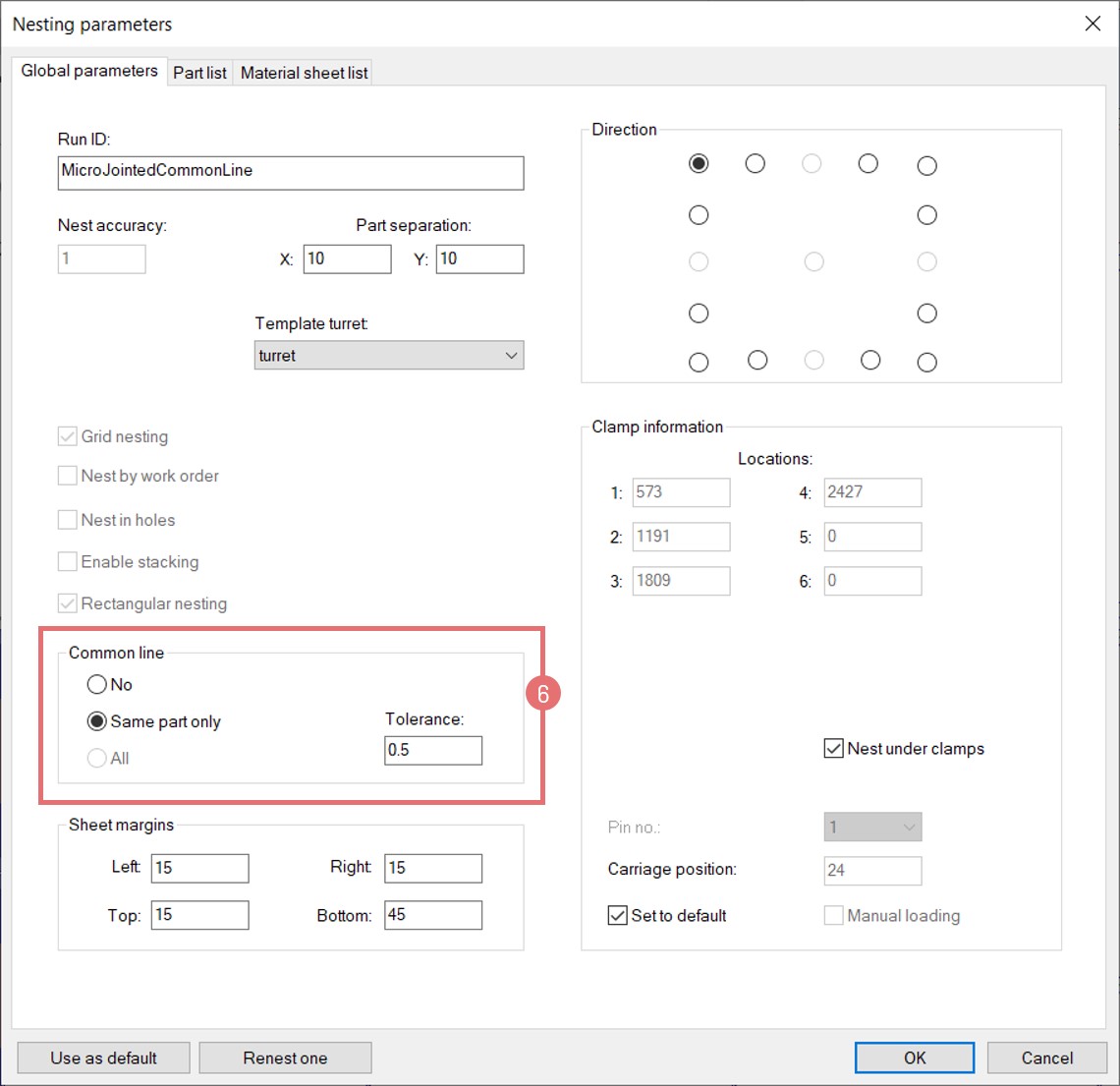
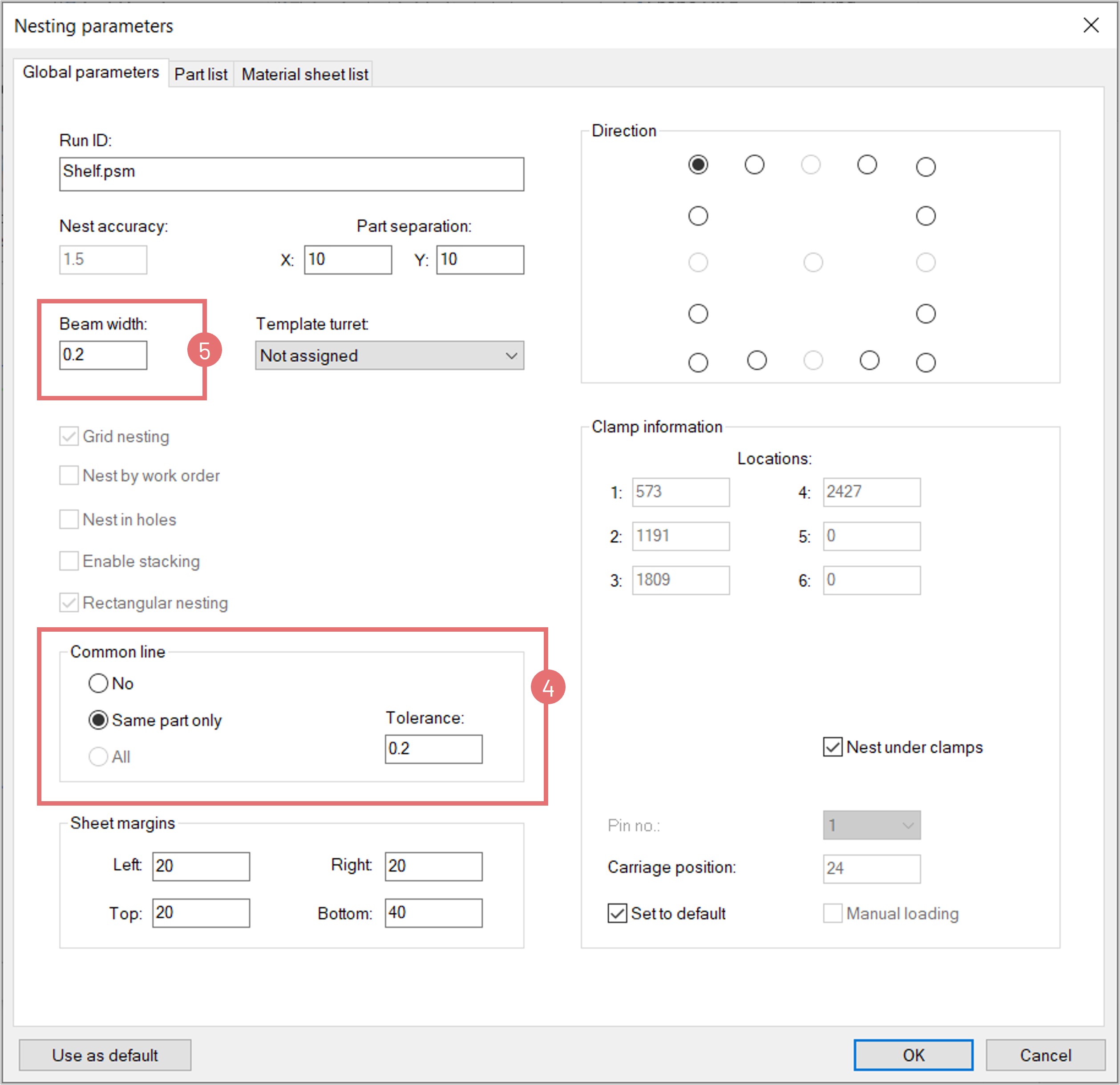
5. Create a new nest, activate the Common line functionality for the same parts in the Nesting parameters window (6).

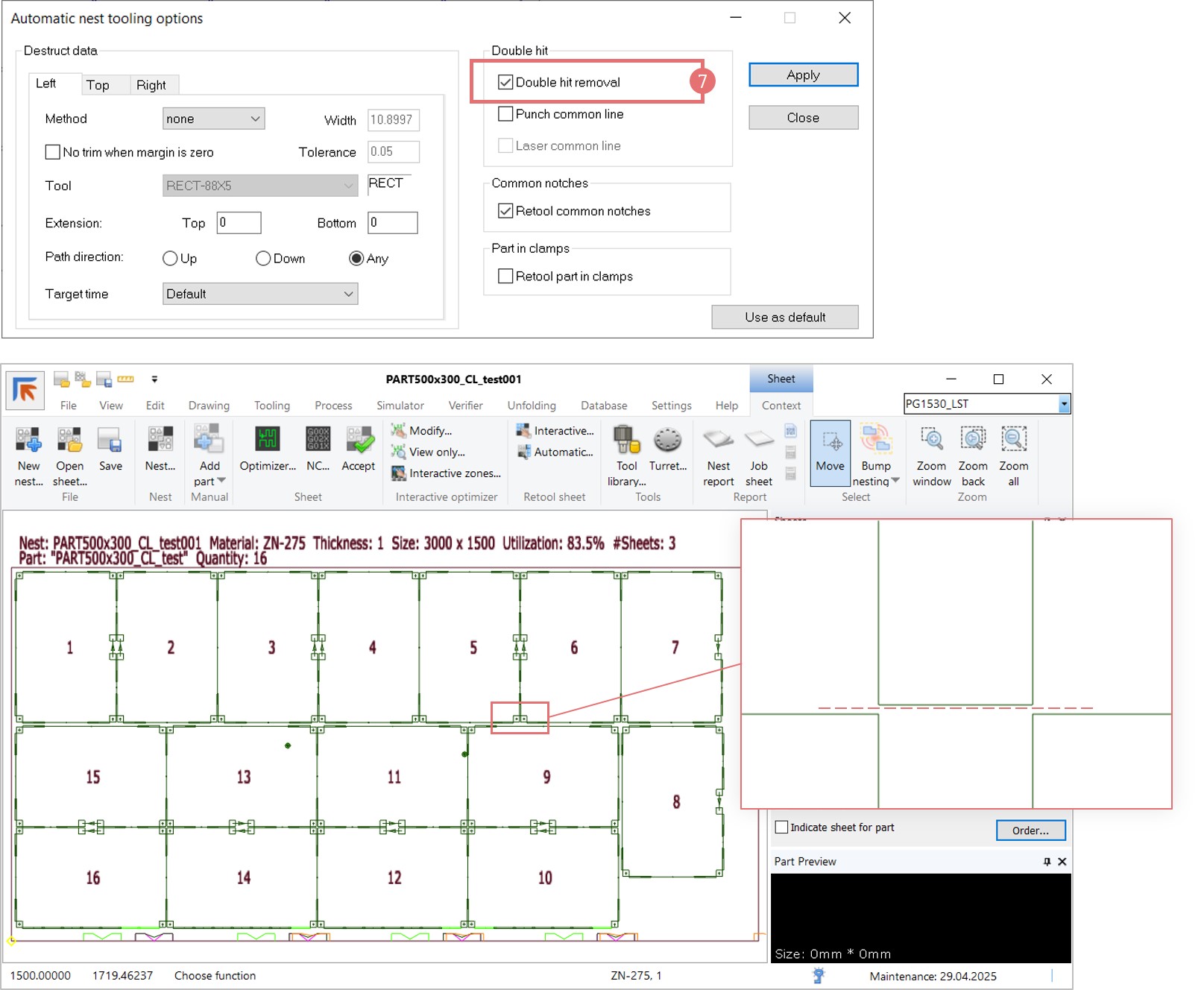
6. When parts are nested in common line, tool hits applied on a part level may overlap. To optimize the tooling on a nest level, open the Automatic nest tooling dialog.

The Double hit removal option removes exactly the same tool hits (the same orientation, position and tool ID), while the Punch common line option removes overlapping tool hits along the longer edge.

In the example with micro jointed parts, removal of the overlapping tool hits may destroy the micro joints. In this case, the Double hit removal option is  more reliable (7). However, if you prefer to remove overlapping hits as well, ensure that left side nibble and right side nibble lines are perfectly aligned. 

Common line parts with LST robot pickup

In this example, a part is picked by a robot after it is punched out. An additional movement is added to move the sheet out of the turret and allow the LST gripper to pick the part. We will add micro joints to keep the part attached during the sheet pull-out movement. After part picking the micro joint joints are broken by the robot shake feature.

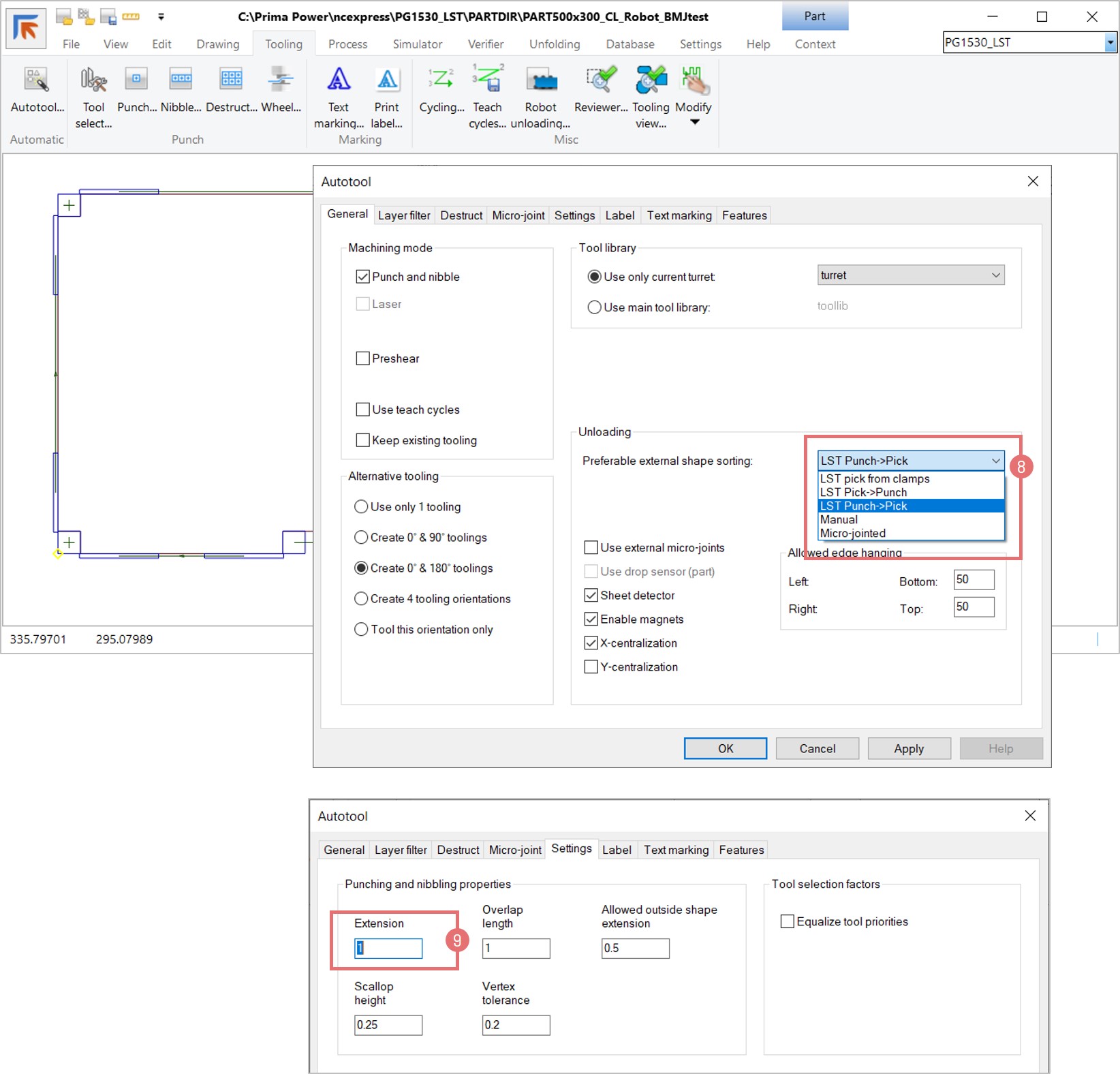
1. Open a part in NC Express e3 and go to the Autotool dialog. Select the LST Punch -> Pick mode from the sorting drop-down menu (8). Switch to the Settings tab and edit the Extensions field to 1 mm to ensure that the part is punched out (9).

2. Add two micro joints manually at the bottom corners of the part to enable the pull-out motion.

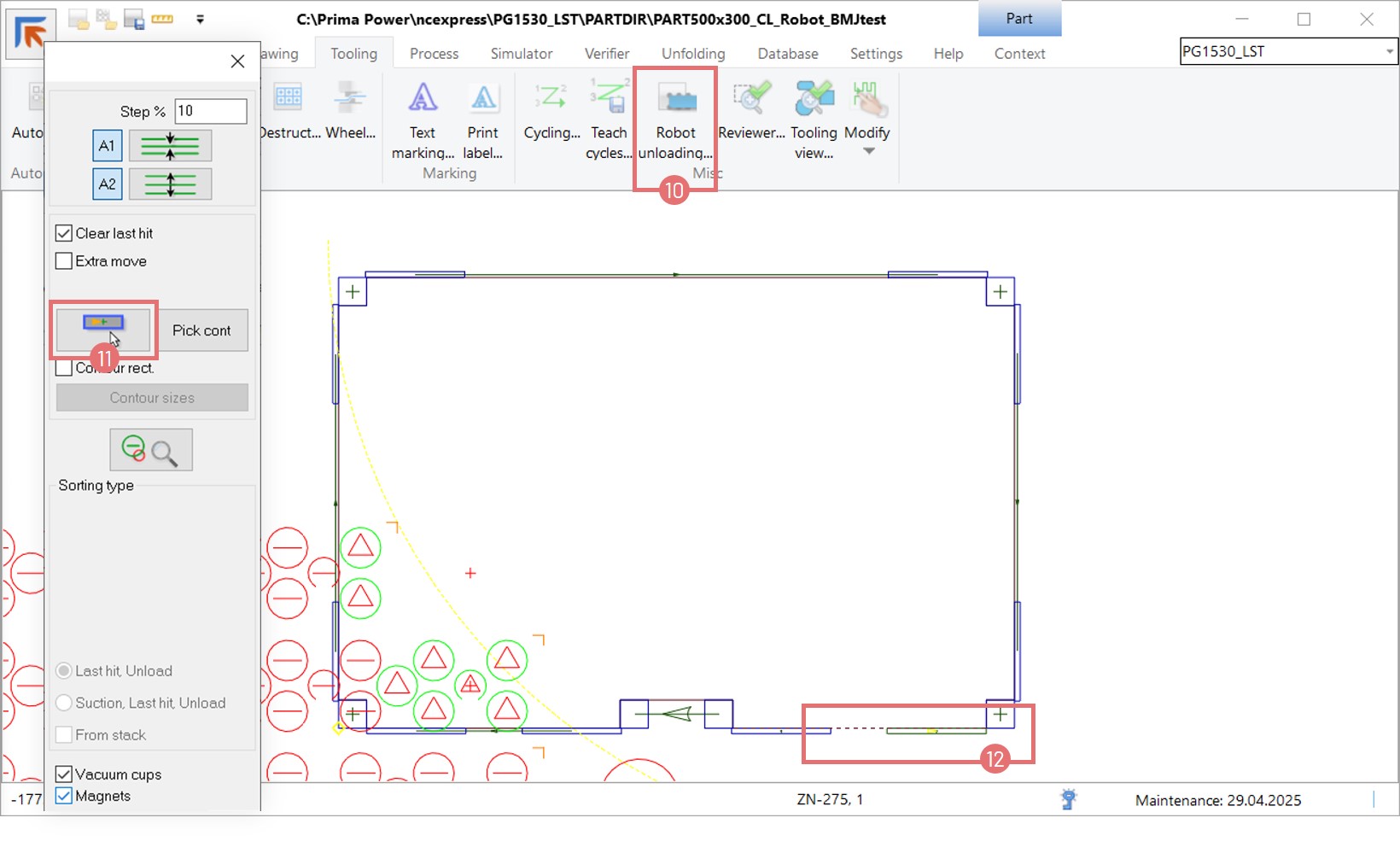
3. Open the Robot unloading dialog (10). Activate the Relocate the robot sorting position with mouse function (11) and click on the bottom right nibble line of the part (12).

4. Activate the Extra move checkbox and, optionally, lower the federate value (13). Activate the Relocate the robot sorting position with mouse function again and click outside of the part contour to add the pull-out movement. Finally, select the Break micro-joints checkbox to shake the part free by the robot gripper (14). Press OK and Exit the robot placement dialog.

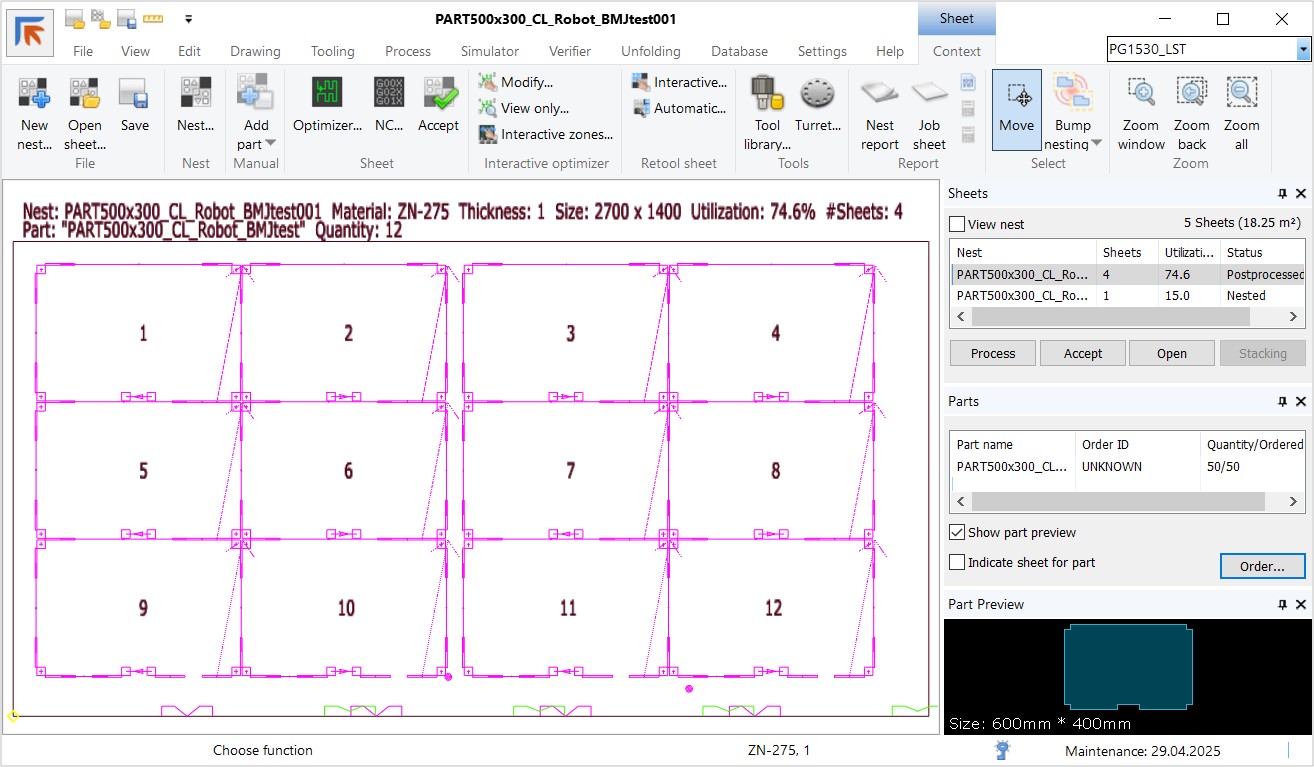
5. Create a new nest, activate the Common line functionality for same parts in the Nesting parameters window (15). Open the Modify part record dialog and deselect the allowed part rotations to preserve the pull-out movement (16). If you want to rotate part on the nest, prepare the part tooling in different angles.

Common line parts with robot-assisted last tool hit

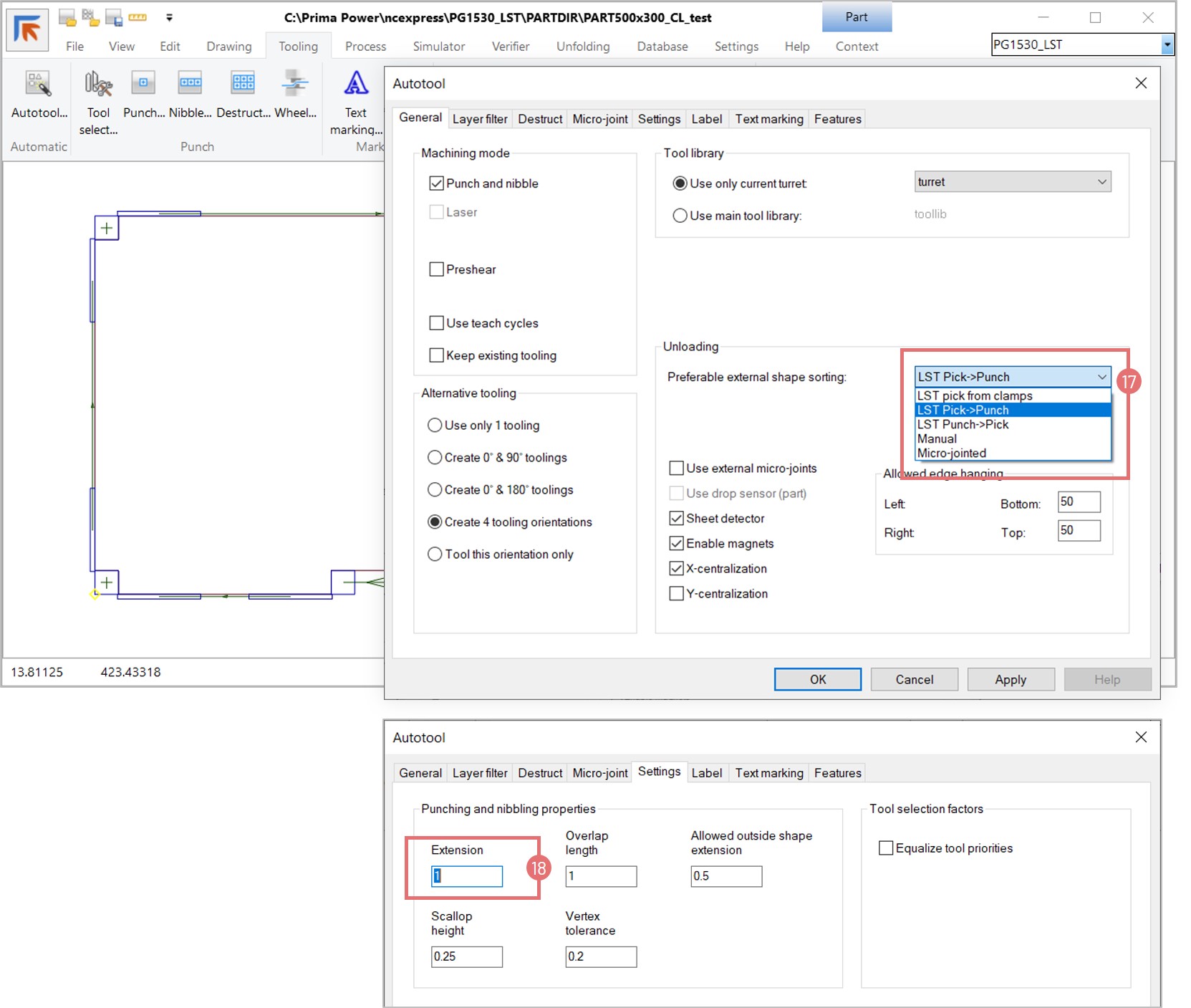
1. Open a part in NC Express e3 and go to the Autotool dialog. Select the LST Pick -> Punch mode from the sorting drop-down menu (8). Switch to the Settings tab and edit the Extensions field to 1 mm to ensure that the part is punched out (18).

2. The Autotool has added robot placement in such a way that the robot gripper is holding the part before the last punch hit. This move maximizes part picking reliability.

Common line nesting on Combi Laser machines

Common line functionality allows nesting parts in such a way that the cutting paths for adjacent parts are merged together. Common line cutting allows creating tighter nests, reducing cutting time and gas consumption, as well as minimizing scrap. Depending on the material thickness used, the skeleton can be automatically destructed to smaller pieces to be dropped in trap door or slug hole.

1. Before nesting, ensure that common line cutting is permitted on the part level. Open the File -> Properties dialog and select the Common line checkbox (1). It is recommended to activate this feature only if a part has long straight contours. This allows NC Express e3 to apply the common line logic for the appropriate parts when different kinds of parts are nested together.

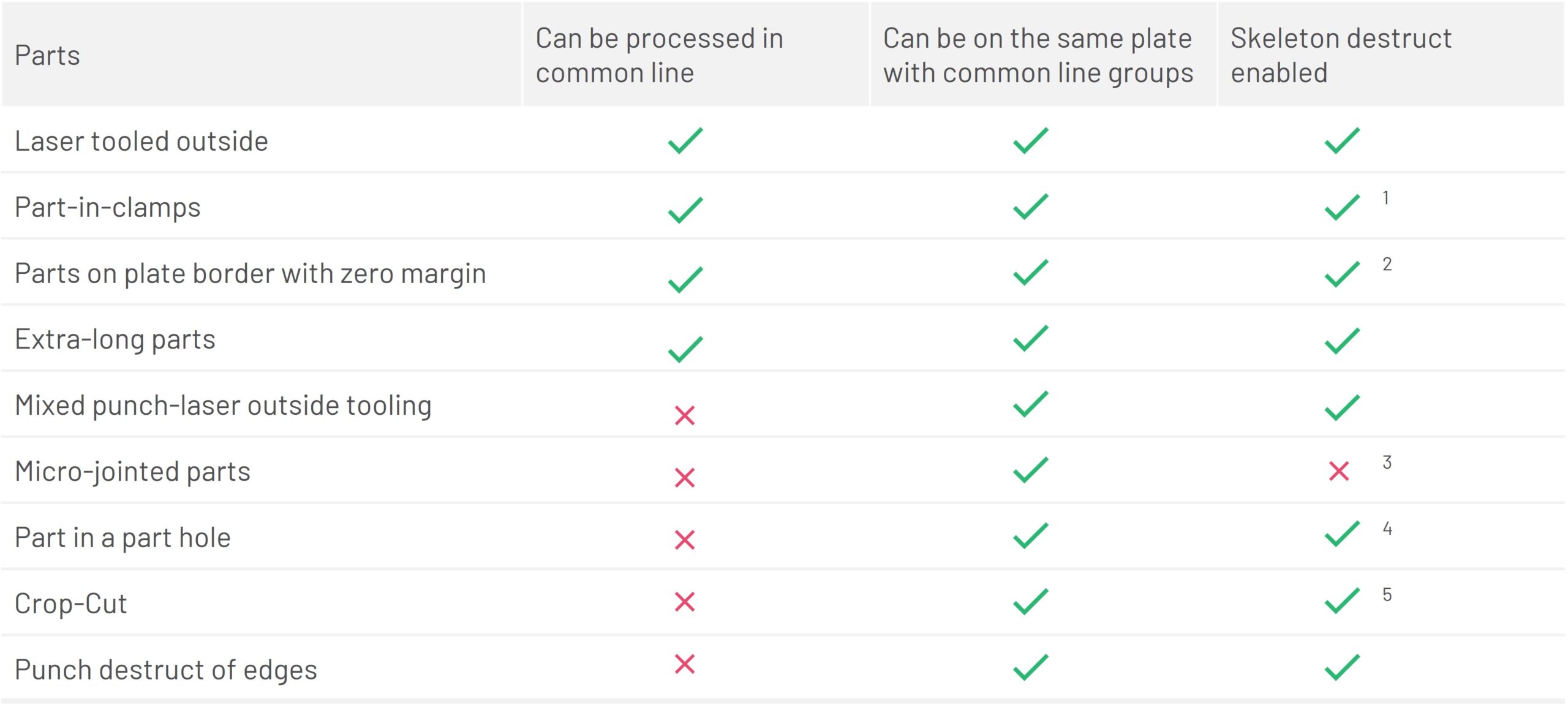
NOTE: Micro-jointed parts should not be nested in common line, but using the part separation rule. When parts are micro-jointed, the skeleton cannot be destructed.

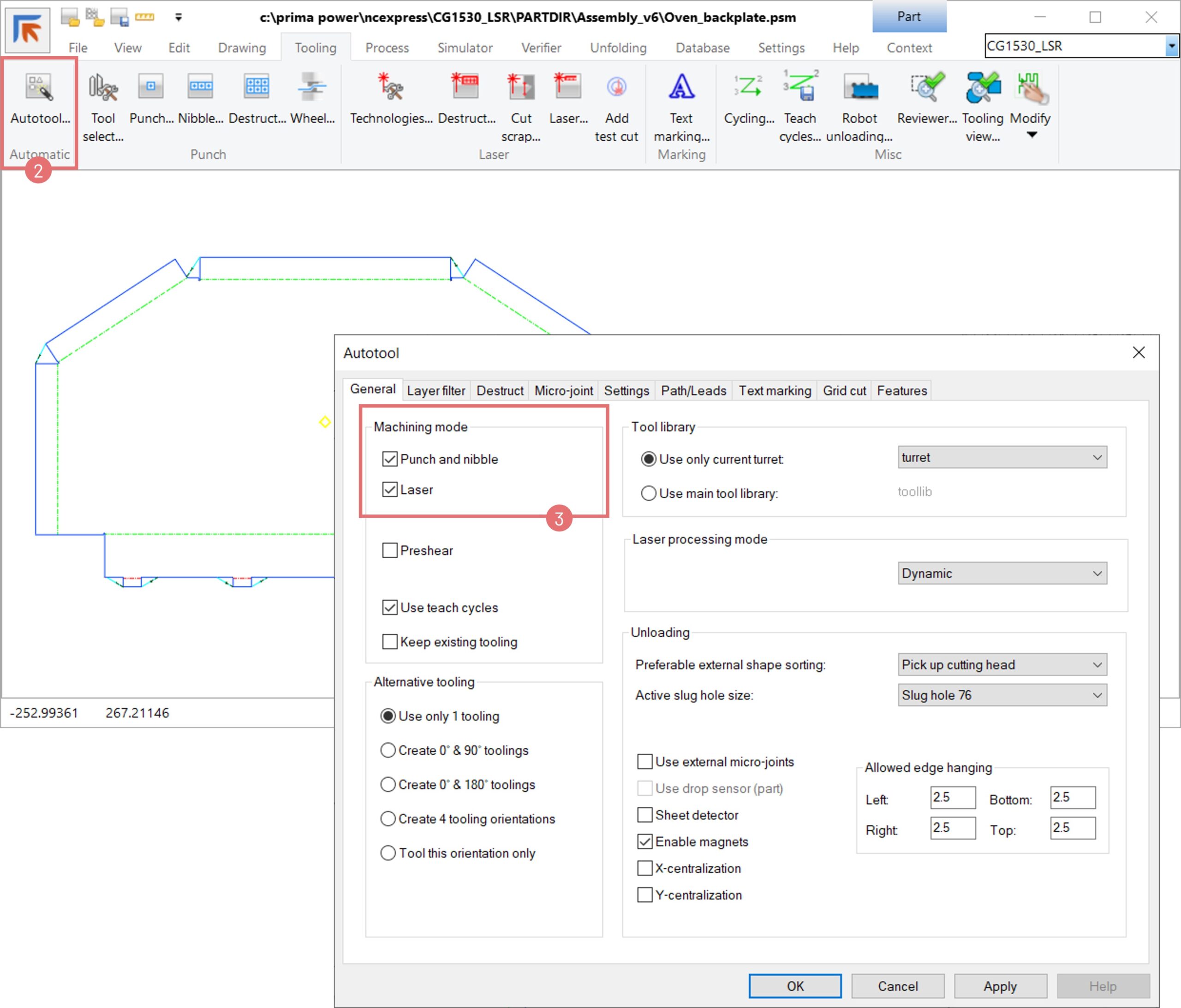
2. To enable the common line nesting, outside part contours must be tooled using laser technology. Open a part in NC Express e3 and go to the Autotool dialog (2). Activate the Laser checkbox in the Machining mode section (3) and press OK.

3. Create a new nest. Activate the Common line nesting option in the Nesting parameters window (4). If necessary, edit the laser beam width value, which will be the separation distance between the parts nested in common line (5). Press OK to generate the nest.

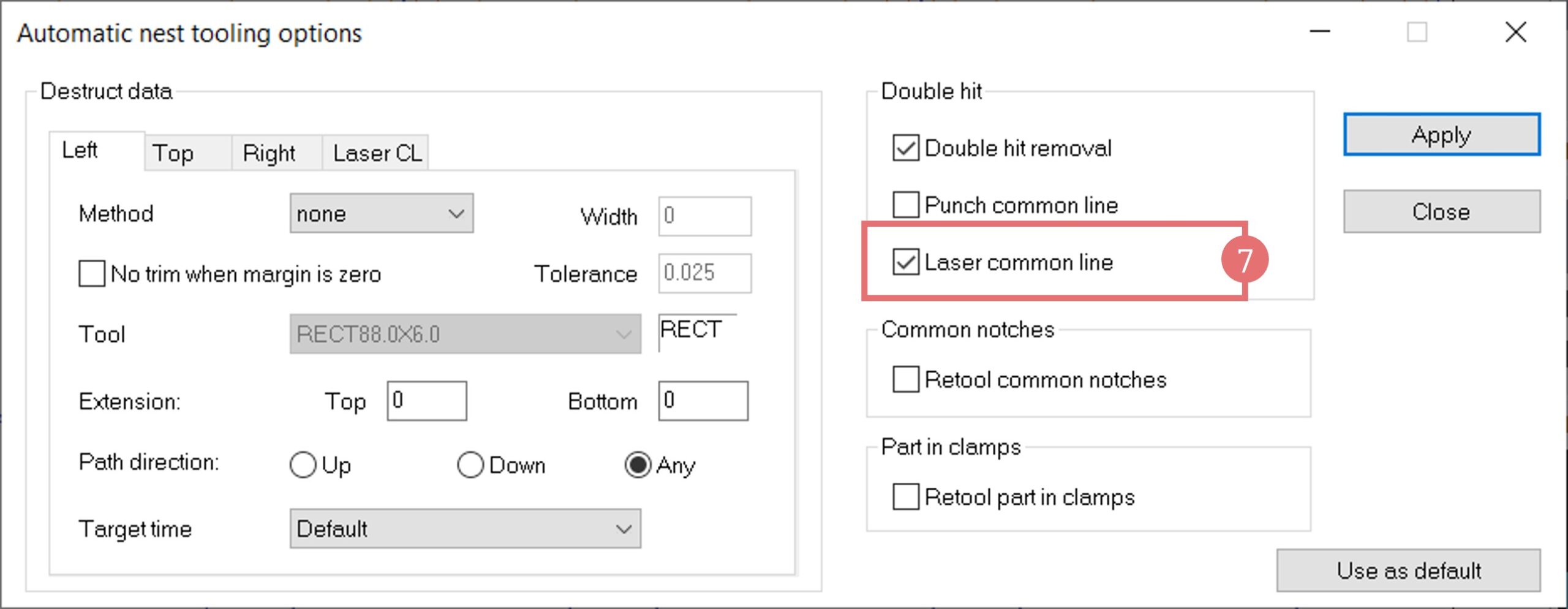
4. After the nest has been created, open the Automatic nest tooling window (6). Activate the Laser common line checkbox and press the Apply button (7). 

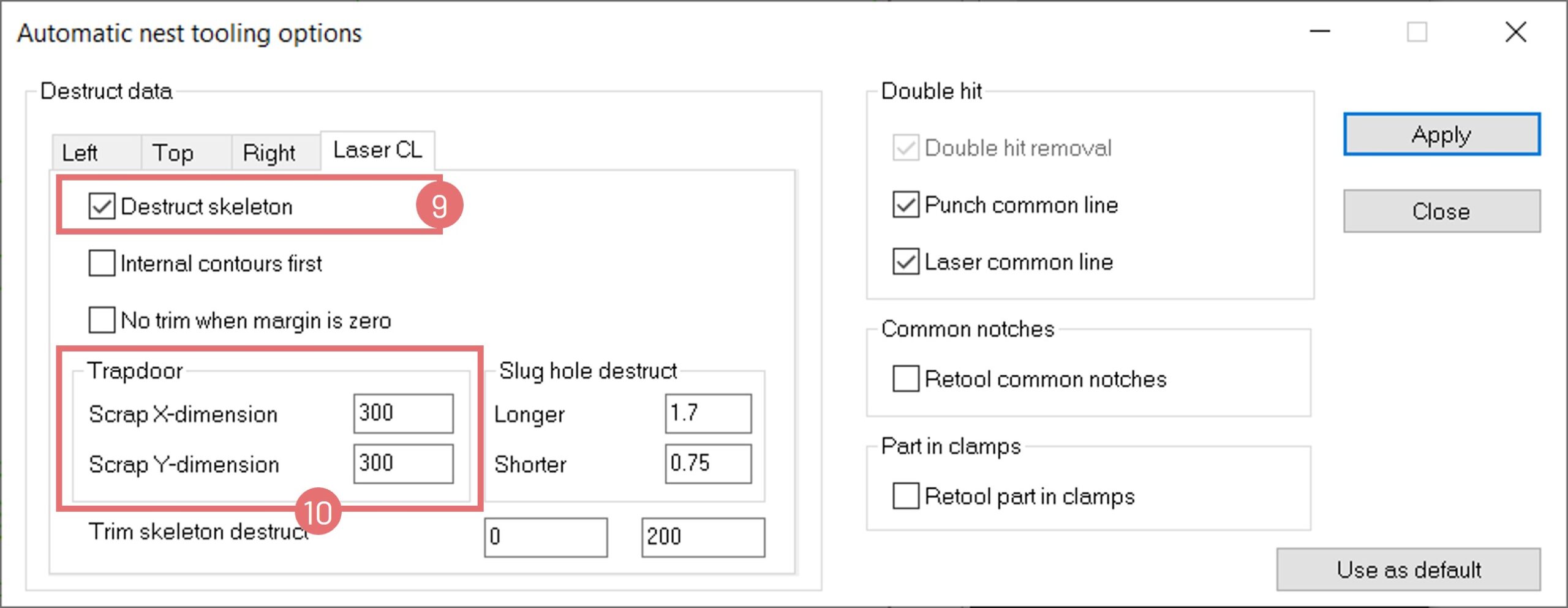
5. When very thin material is used ( 0.5 – 0.8 mm), it might be necessary to destruct the skeleton to avoid it getting stuck or distorted. Switch to the Laser CL tab in the Automatic nest tooling dialog and activate the Destruct skeleton checkbox (9). Specify the scrap piece size and press the Apply button (10).

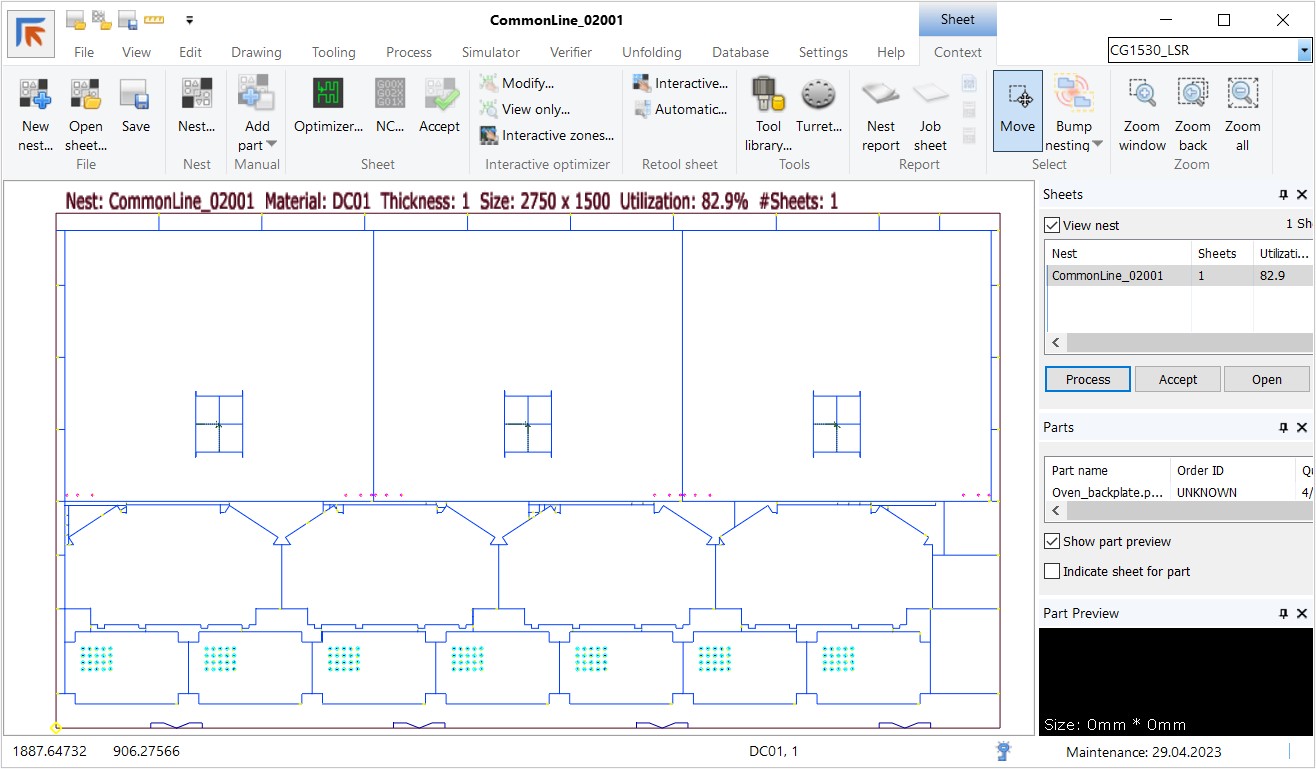
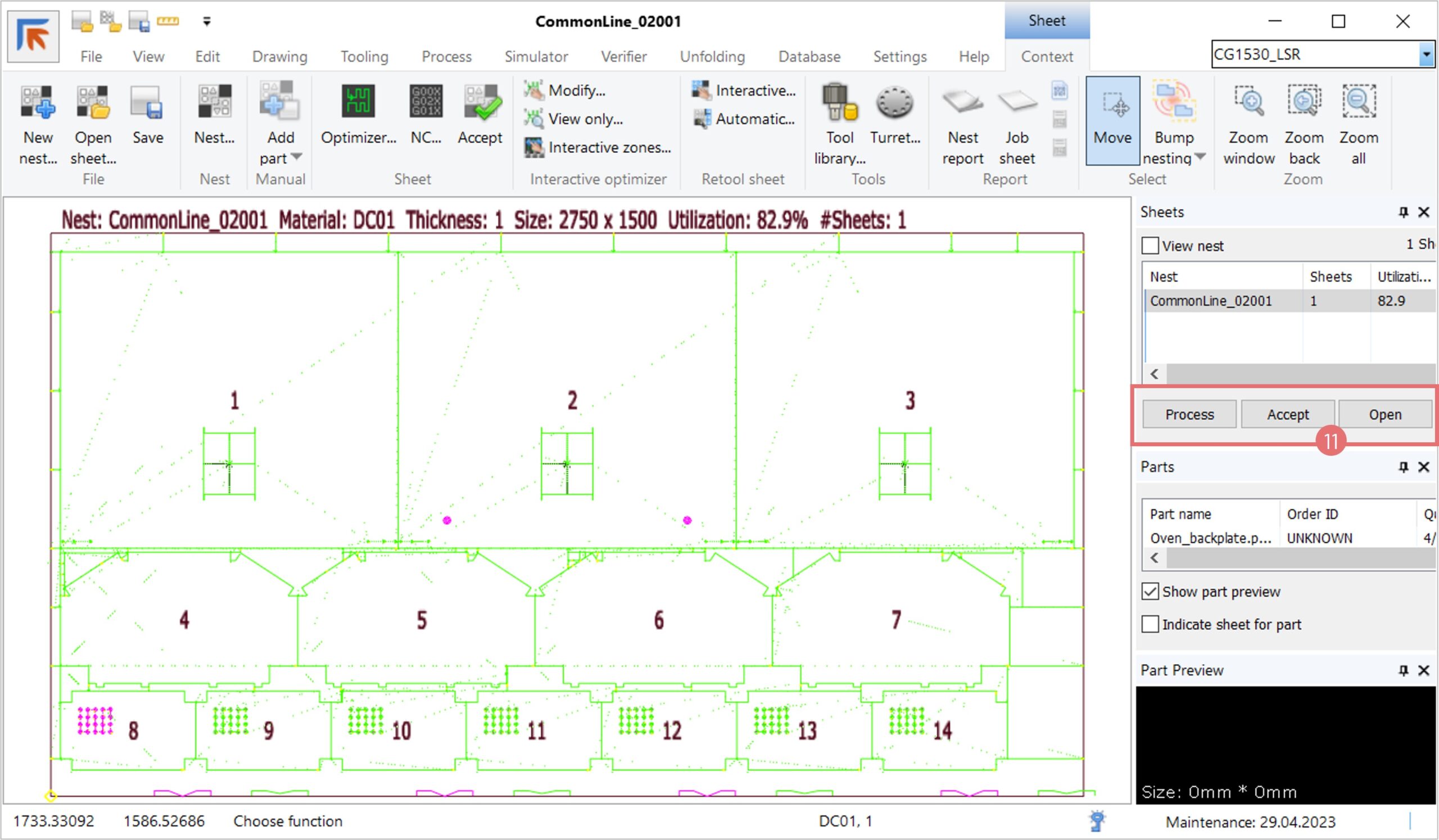
6. Press the Process button to postprocess the sheet, and then Accept to generate the NC code (11).  Notice, that due to the new zone logic, all the laser cuts are on the same zone (marked with green), allowing to increase stability and maintain the correct cutting sequence.

7. Summary

1  “Spread clamps” – automatic clamp positioning recommended in Laser Optimizer –dialog

2  Without skeleton destruct can easily leave slugs on the table

3  If a micro-jointed part is inside of a part hole, skeleton destruct is possible

4  Part in the hole should have “Common line” disabled

5  Using a “Trim skeleton destruct” a horizontal crop cut can be created

NC Express e³ 23.1 is released

This version is the 1st major release this year. See the release video here below: 

You are entitled to this update when your license maintenance is valid.

The 32-bit build is backwards compatible with older versions. We recommend this for updates.

The 64-bit build has the advantage of being able to handle large 3D-assemblies and it has the new DevExpress reporting module.

Note 1: If you have installed an earlier NC Express 23.1 build, it’s highly recommended to update to 23.1.23 (or later).

Note 2: The 64-bit build cannot use old customized 32-bit report templates. They must be made again on new syntax when moving from a 32-bit build to a 64-bit build.

Note 3: If you have software integrated to NC Express using ParaNCX-interface, please contact Prima Power before updating to 64-bit build. This concerns applications such as Tulus Office Premium, Tulus Office Power Processing, Batch Processing and PowerPlan, among others. The integrated software needs to compiled in 64-bit too.

NC Express 23.1 technical release notes

Common line super-parts for 2D laser machines

Besides the sheet-saving benefit, common line super-parts are useful when you want to nest small parts in groups or when a certain amount of parts should be nested together. Furthermore, if a Laser machine is equipped with a robot, a super-part of a reasonable size can be picked and stacked at once.

Creating a common line super-part

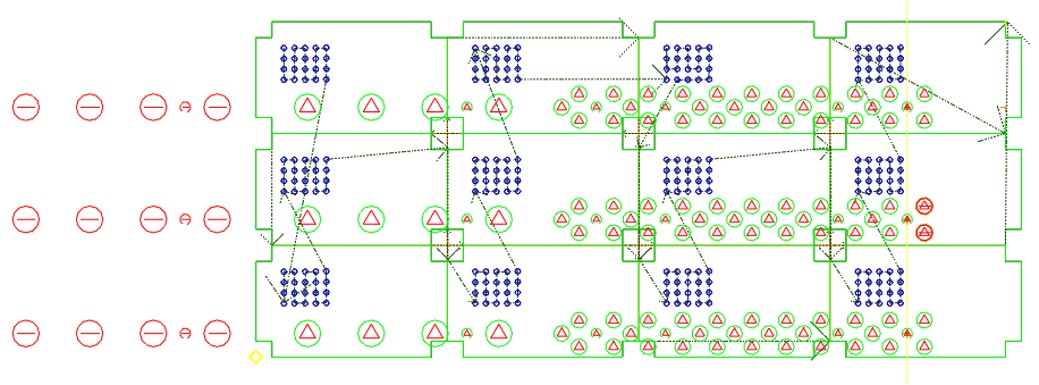
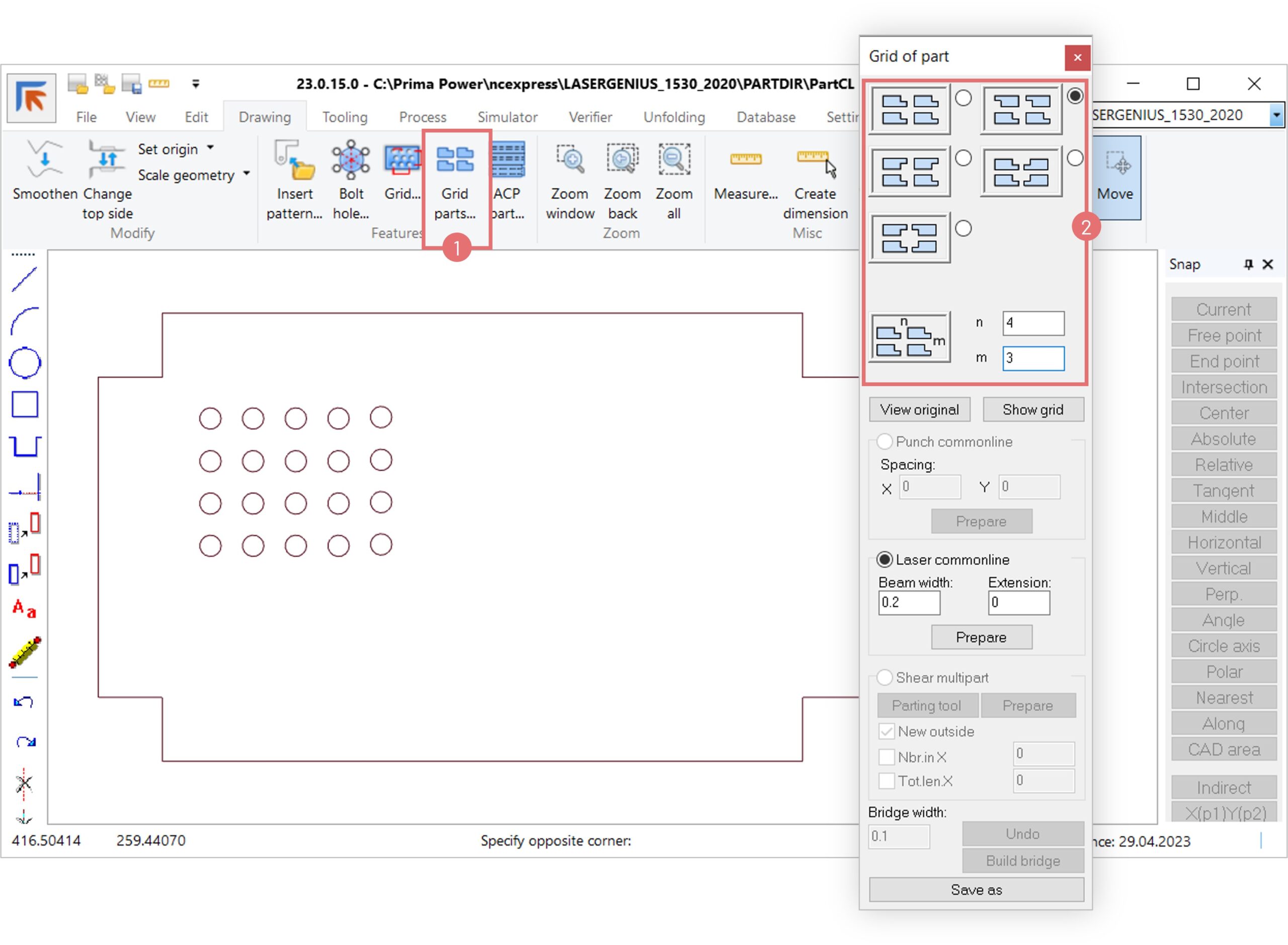
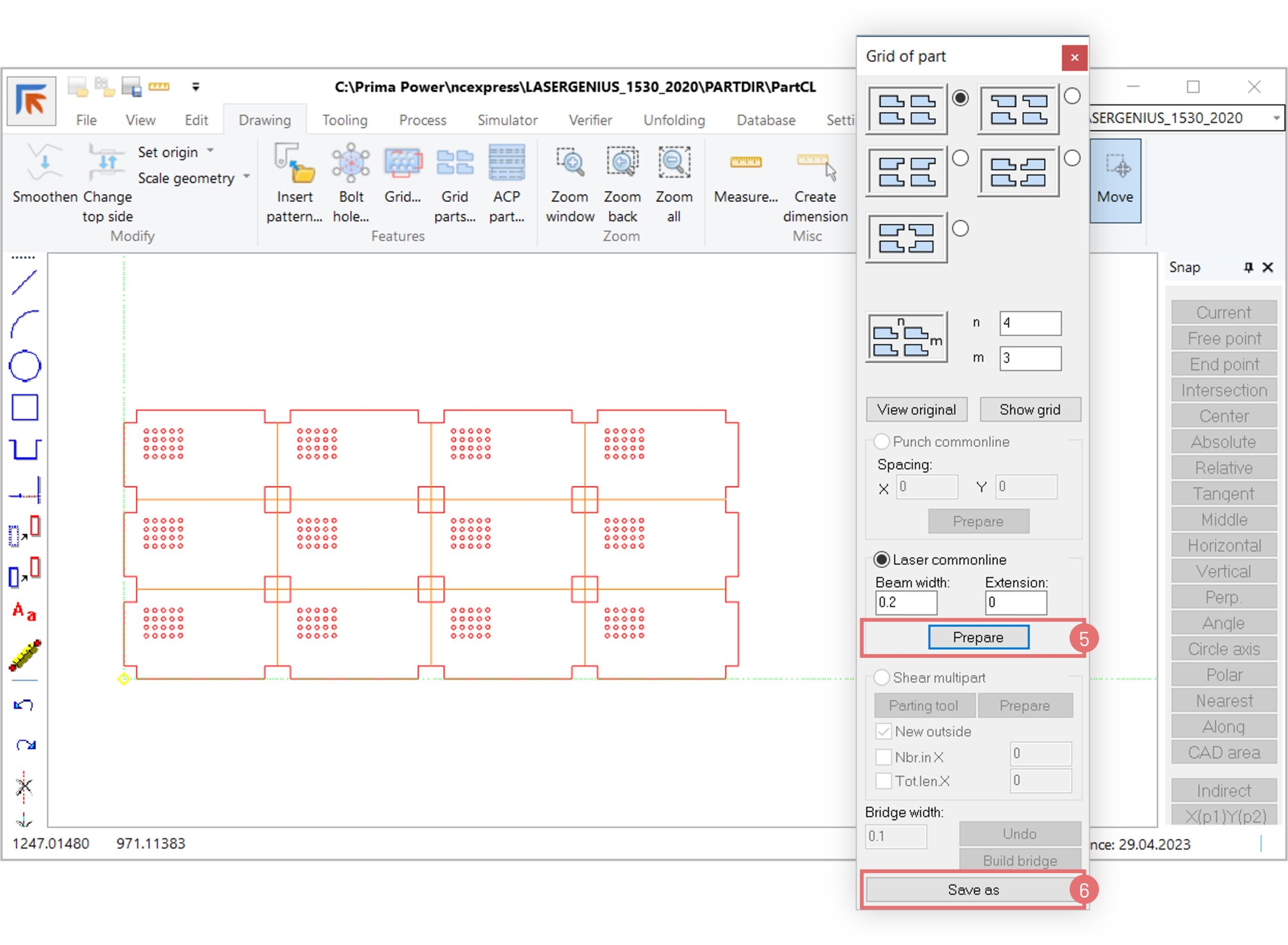
1. Open a part in NC Express e3. Switch to the Drawing tab and open the Grid parts dialog to create a common line part. Depending on the part’s design, select a preferred style of part orientation and specify the number of rows and columns for the grid pattern (2).

2. If necessary, edit the laser beam width according to the material type and thickness used. Edit the Extension field if you want to shorten/extend the laser cut beyond the geometry of the super-part. Use the negative number to make micro joints on the outside contour of the super-part (3). Use the positive number to ensure that the super-part is cut out (4).

3. Click the Prepare button to generate the common line super-part (5). Save the super-part using a corresponding name by clicking the Save as button (6). NOTE: Once the part is saved, you cannot edit it in the Grid of part dialog; if you need to change settings, create a new super-part.

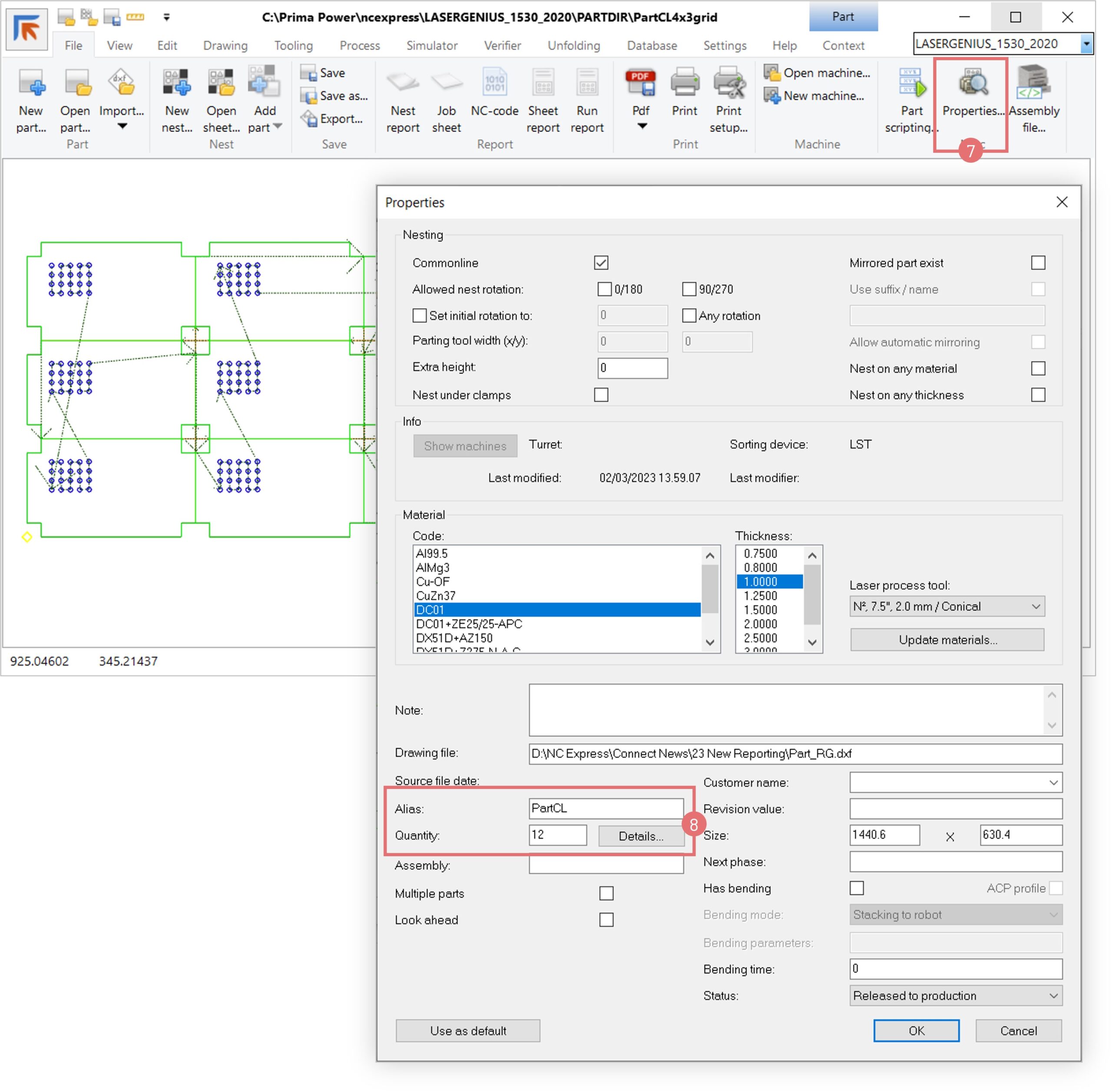
4. When a super-part is created by NC Express e3, the Part properties dialog (7) carries information about the Alias part: the name of the .cp file that was multiplied to create a super-part, and the Quantity of the alias part in the super-part grid (8).

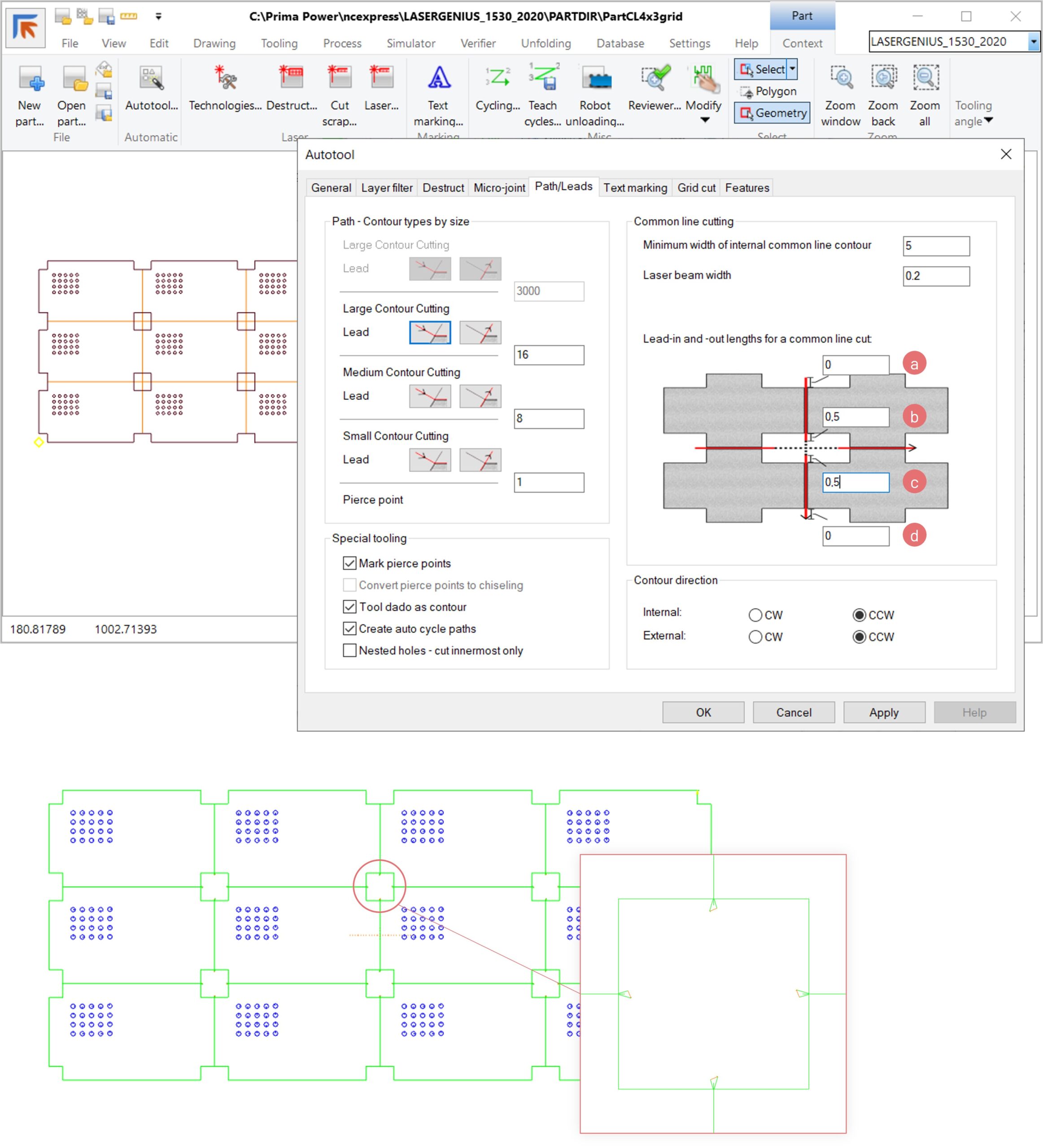
5. Open the Autotool dialog and switch to the Path/Leads tab to adjust the common line cutting parameters. Define the lead-in and lead-out length used on common lines. If a super-part contains small parts, you can leave micro joints on common lines by giving the negative lead-in and -out numbers.

a. Lead-in length when starting from the outer side of the common line part

b. Lead-out length when finishing on the inner side of the common line part

c. Lead-in length when starting from the inner side of the common line part

d. Lead-out length when finishing on the outer side of the common line part.

6. A super-part can be picked by a robot. This can be useful when a super-part consists of small parts, allowing the robot to pick and stack multiple parts at once.

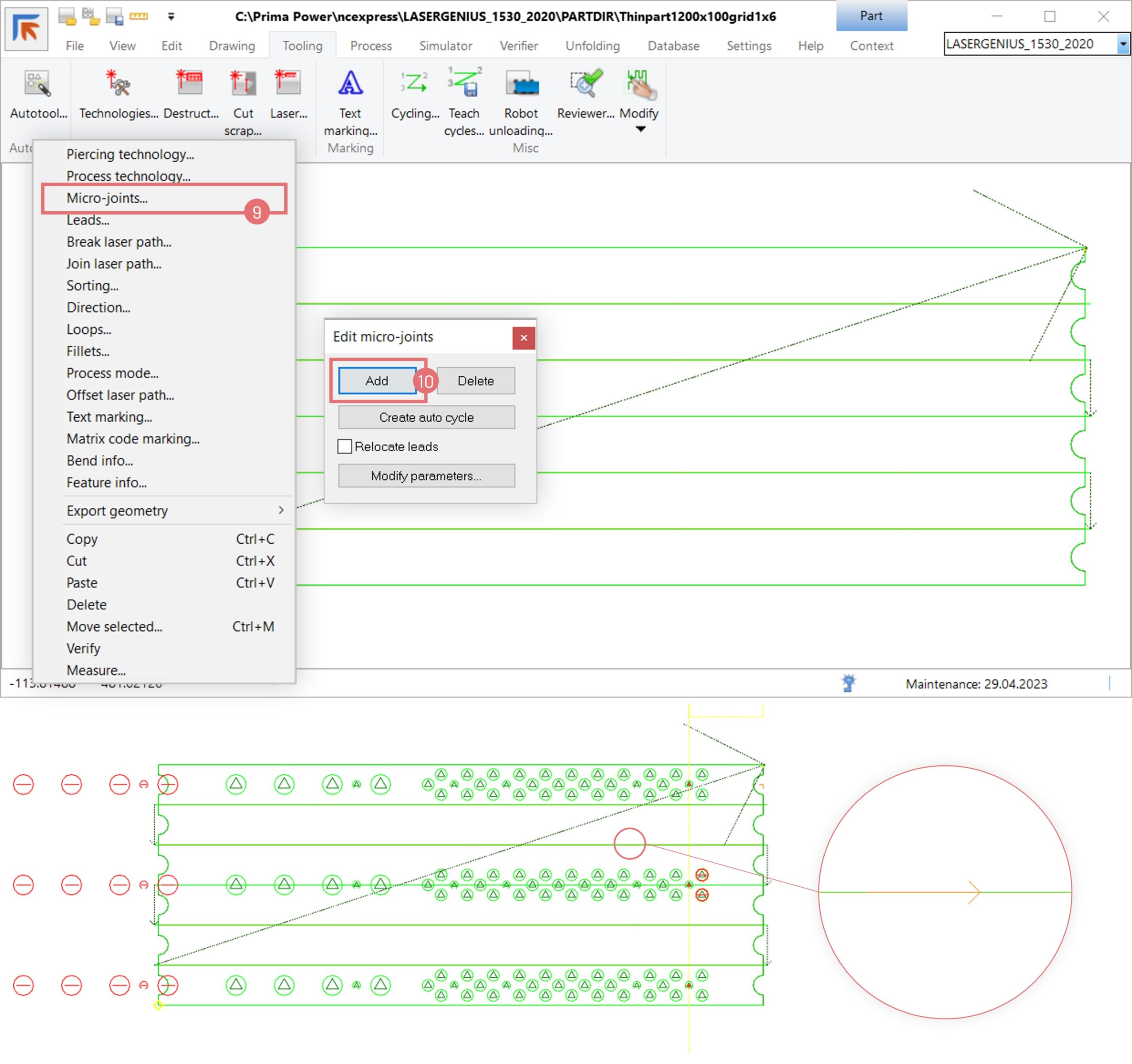
7. If a super-part consists of very small parts or thin parts, it is possible to add micro joints manually to prevent the parts from falling through slats or to ensure part picking reliability with a robot.  Open a super part and run the Autotool. Right-click on the part and select the Micro joints option (9). Select the Add function and click on a desired contour where the laser path should be broken to create a micro joint (10).

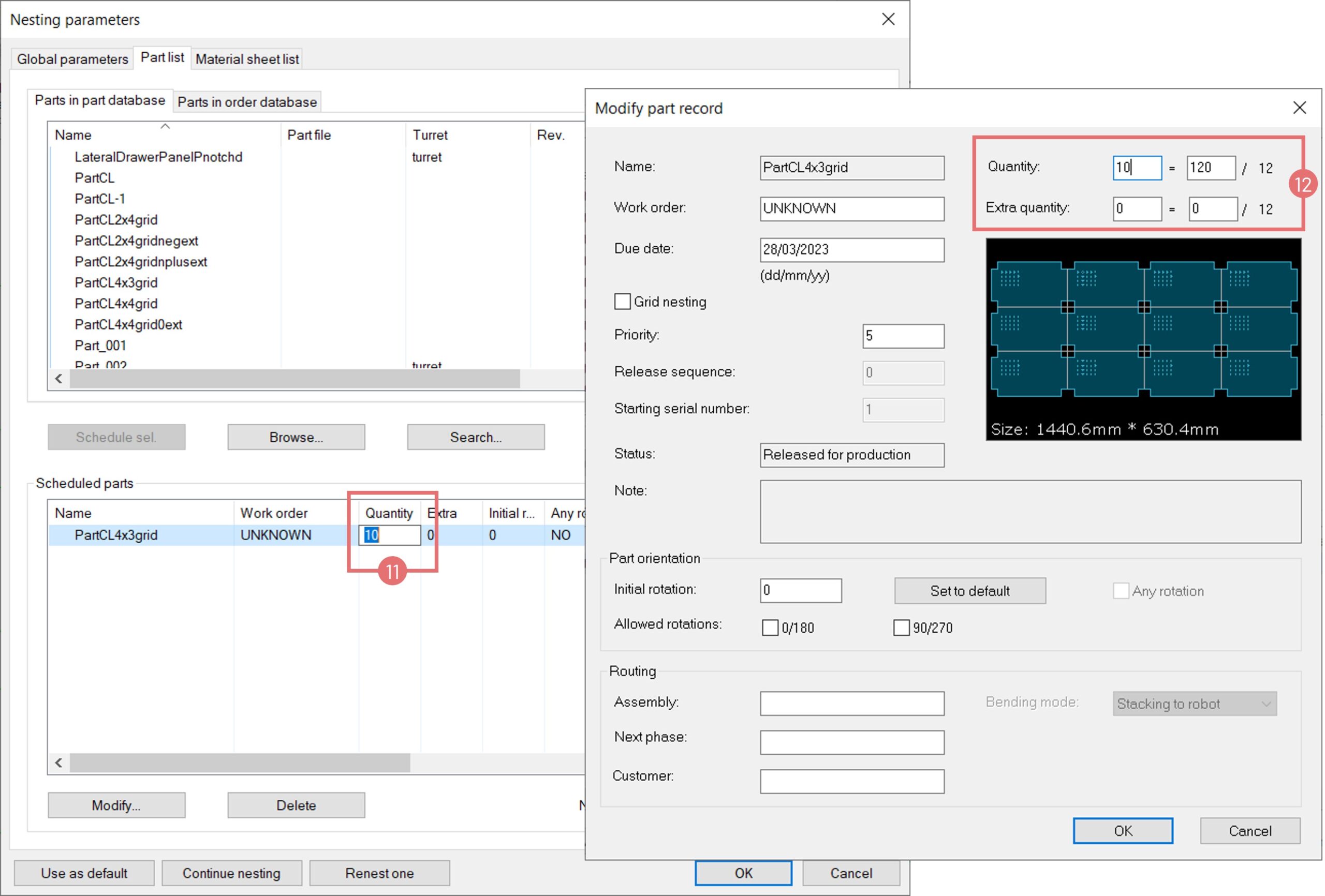
8. Create a new nest using the common line super-part. Specify the quantity of super-parts to be nested (11). Open the Modify part record dialog to see the quantity of single parts to be nested (12).   

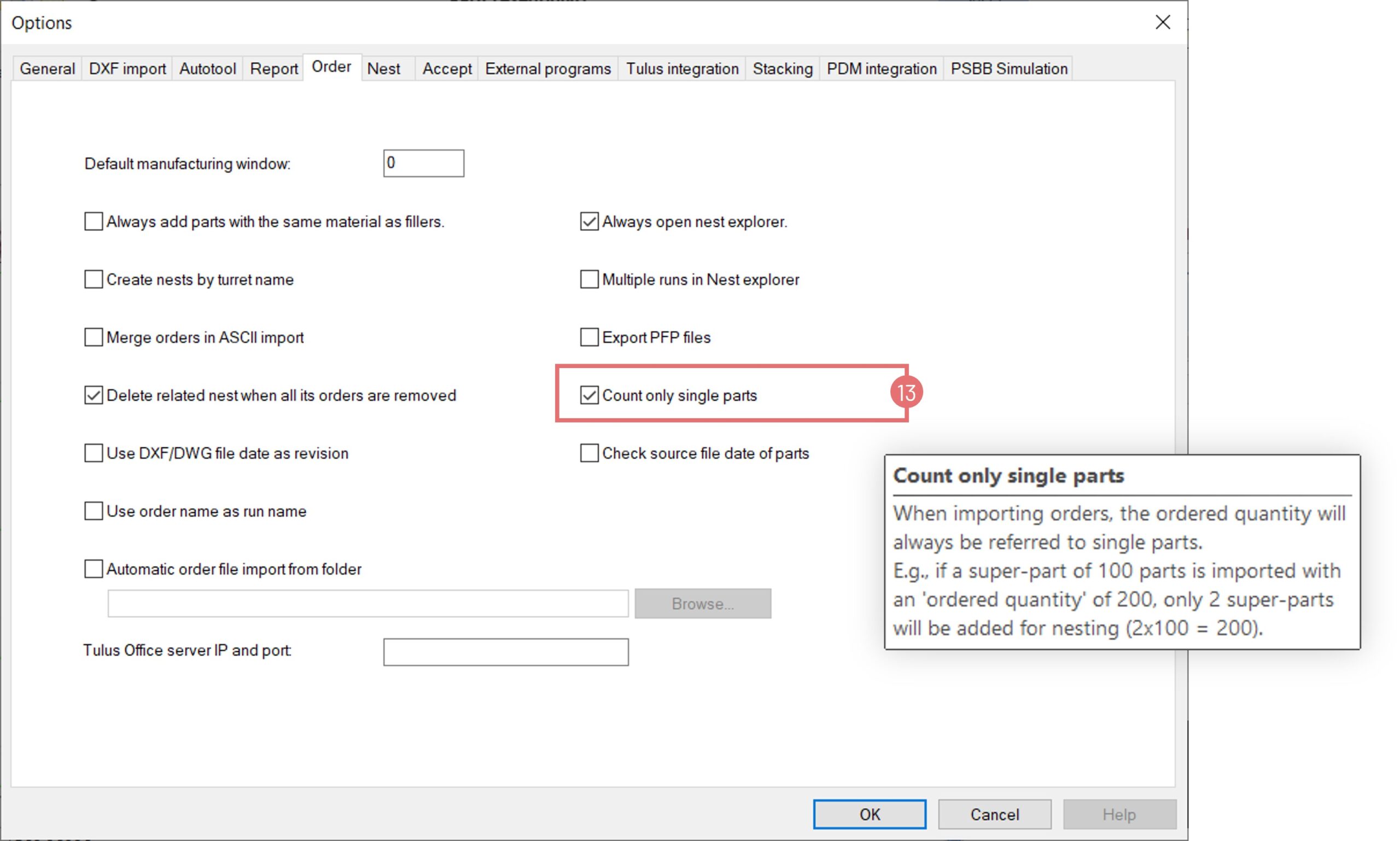
9. When importing an order file containing super-parts, you can change the Ordered quantity field to refer to the quantity of a single part. Open the Settings -> Options dialog, navigate to the Order tab, and select the Count only single parts checkbox (13).

10. The Part explorer section will show the quantity of single parts on the nest (14).

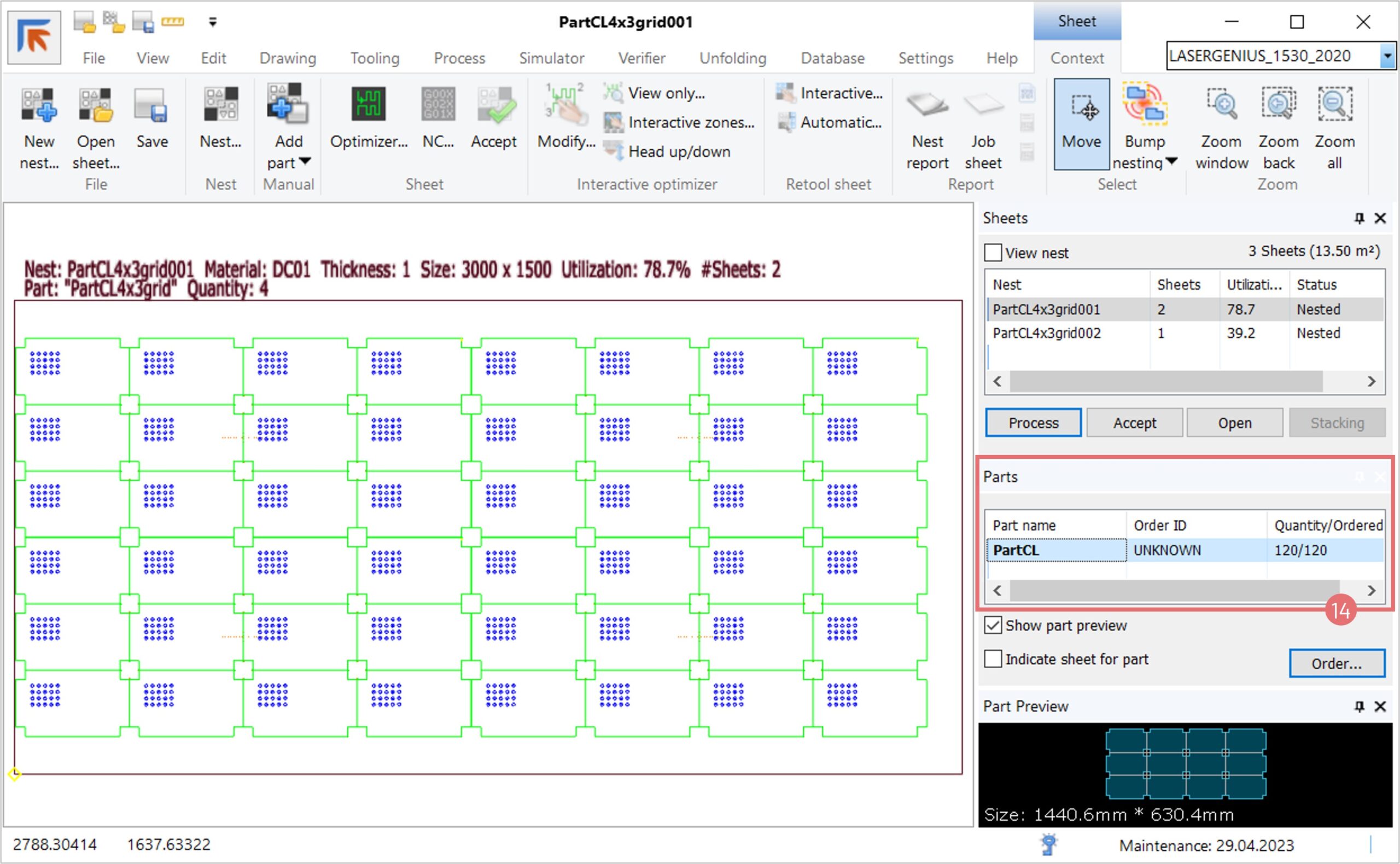
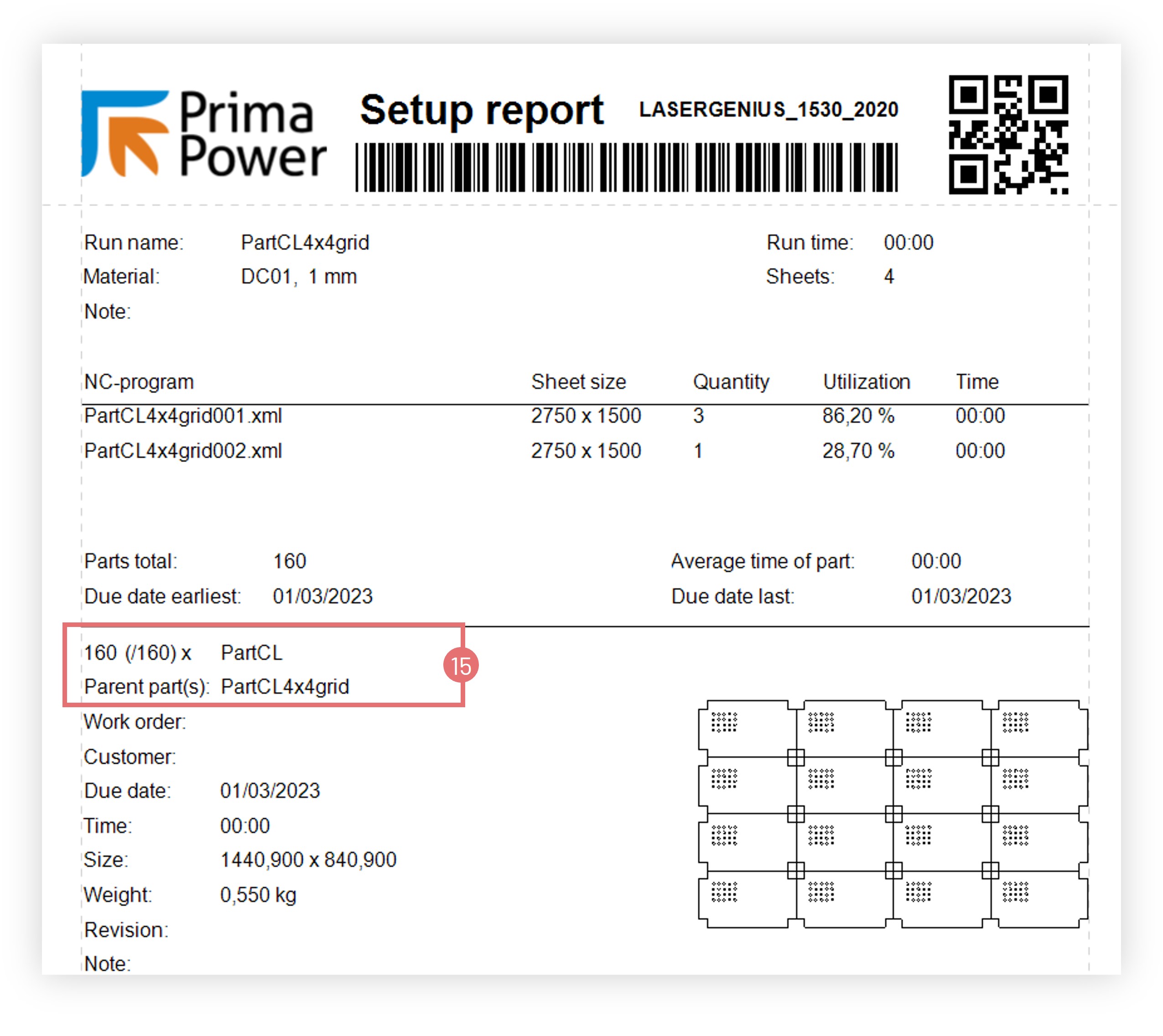
11. The report file will also show the quantity of single parts produced (15).

Common line nesting on 2D laser machines

Common line functionality allows nesting parts in such a way that the cutting paths for adjacent parts are merged together. Common line cutting allows creating tighter nests, reducing cutting time and gas consumption, and minimizing scrap.

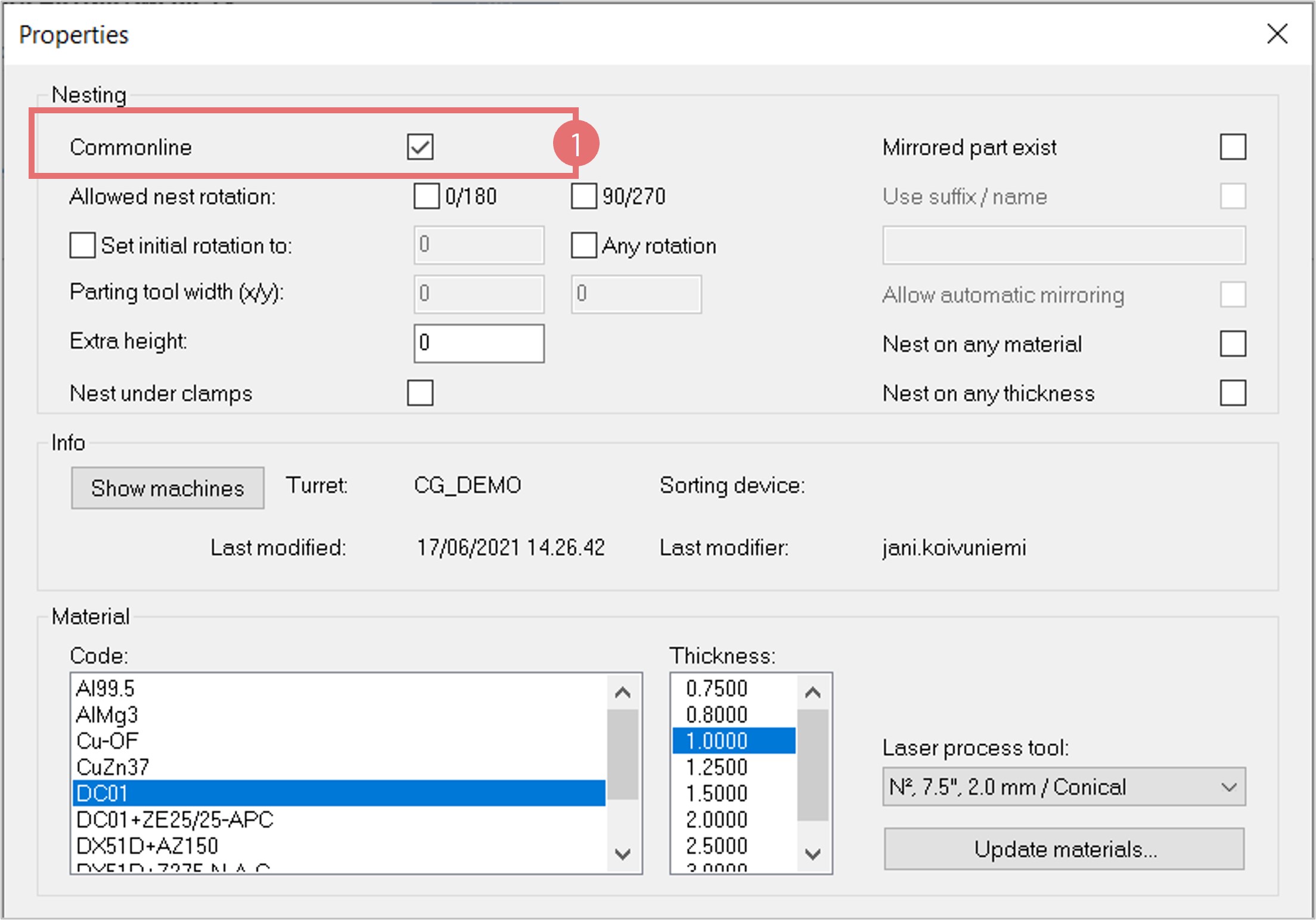
1. Before nesting, ensure that common line cutting is permitted on the part level. Open the File -> Properties dialog and select the Common line checkbox (1). This allows NC Express e3 to apply the common line logic only for parts with long straight contours when different kinds of parts are nested together.

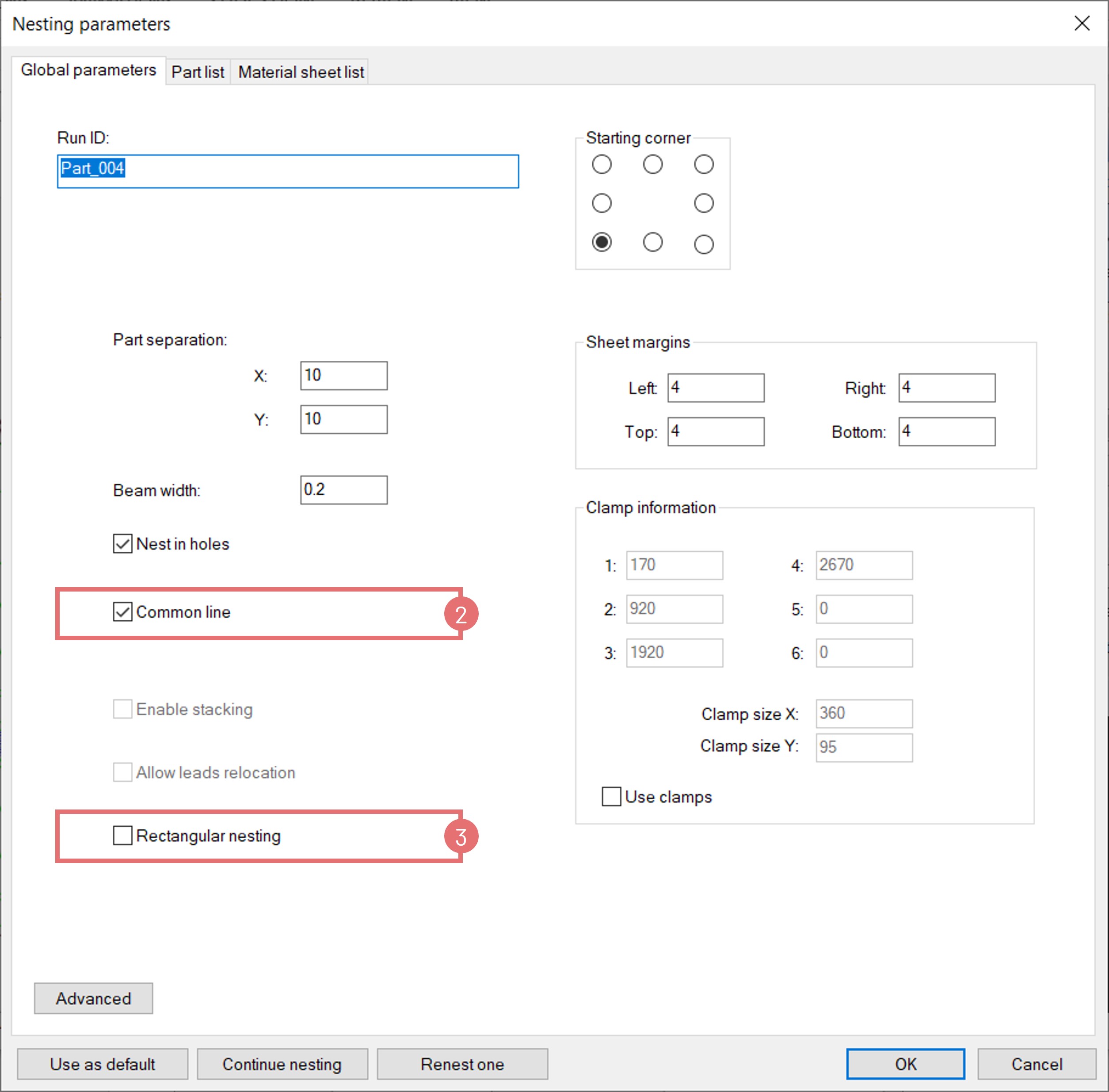
2. Create a new nest. Activate the Common line functionality in the Global parameters tab (2). If parts in the Scheduled parts list are rectangular, you can select the Rectangular nesting feature for a grid–style nesting layout. If parts are of various shapes, do not select rectangular nesting. This allows NC Express e3 to look for part segments that can be nested in common line instead of a bounding rectangle (3). This feature allows nesting, for example, triangular parts in common-line.

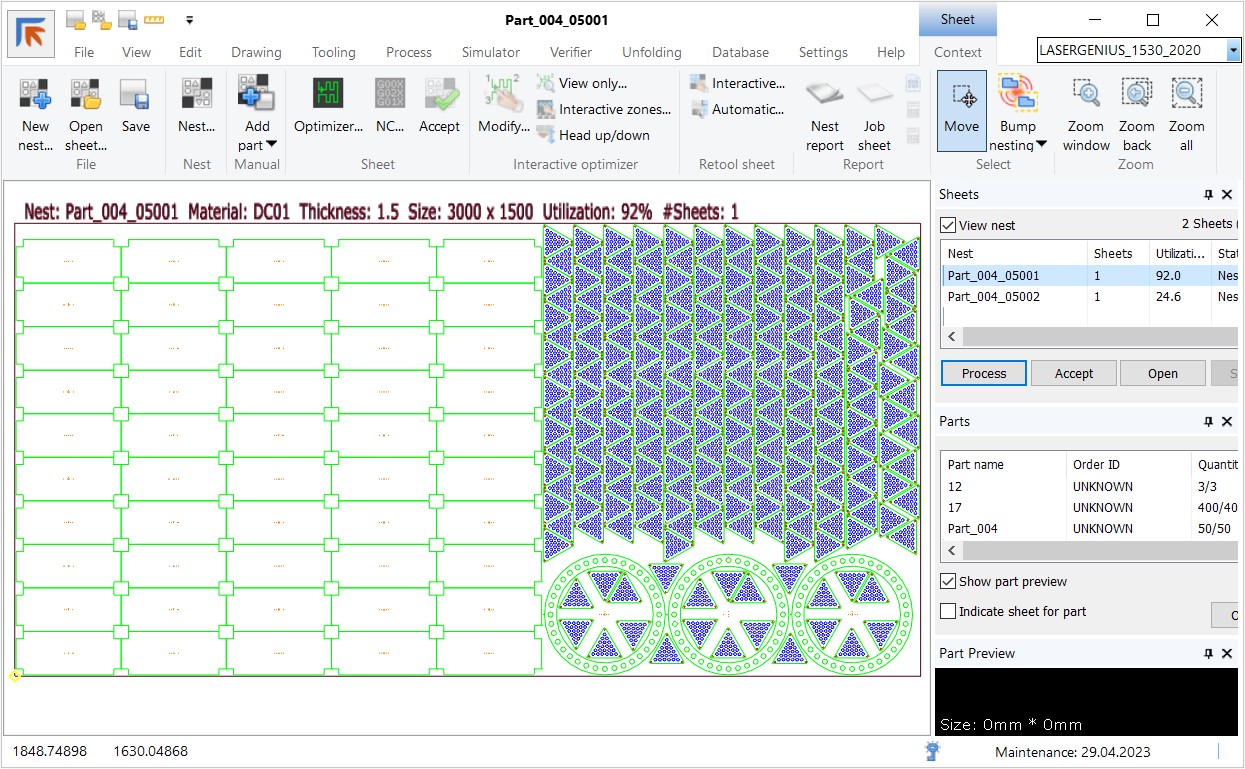
3. In the example below, the rectangular and triangular parts are nested using common line functionality.

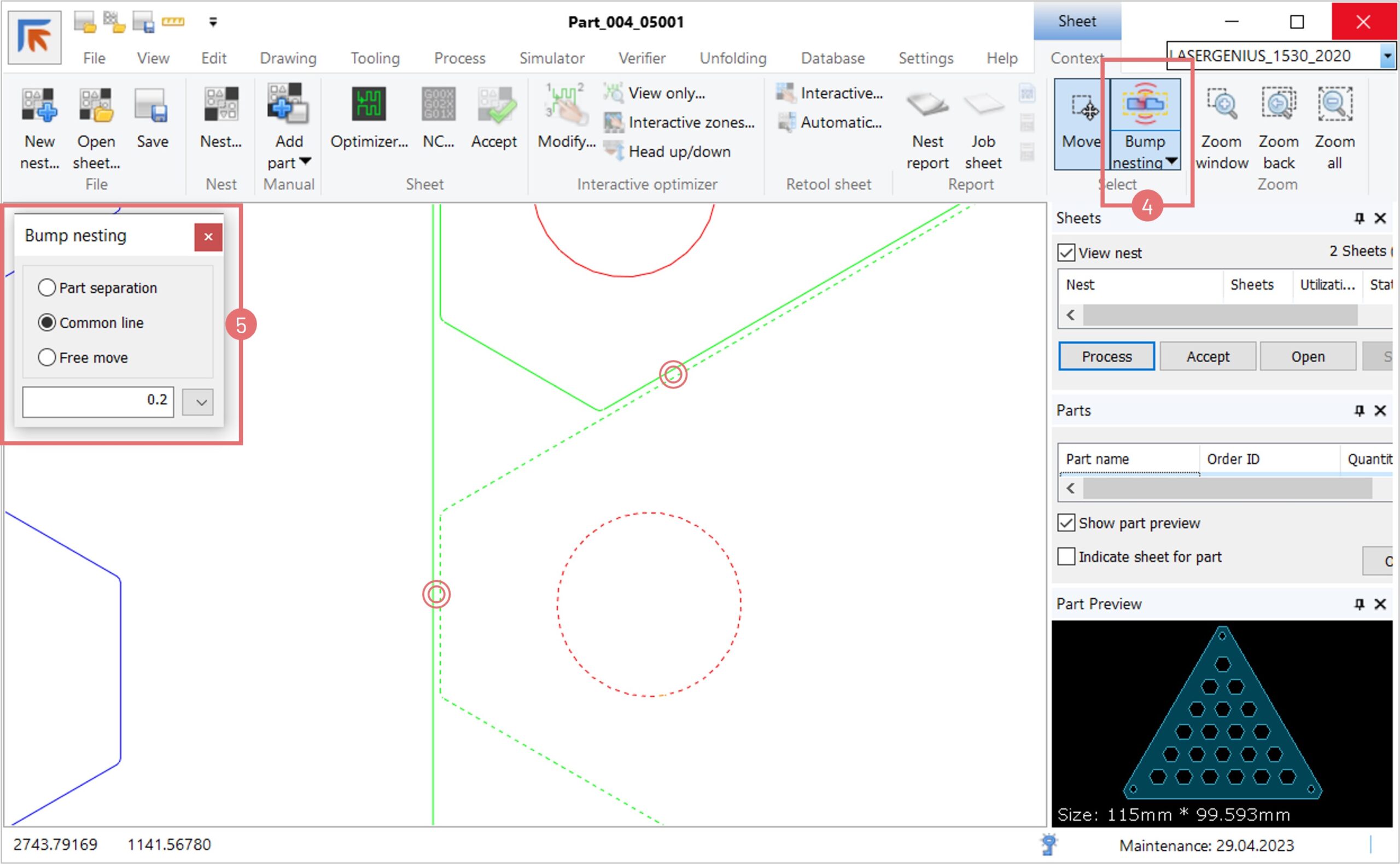
4. If necessary, move the parts on the nest manually. Open the Bump nesting dialog (4) and select the Common line option. Specify the laser beam width and move the parts (5). Notice that a part will stop moving once it touches another part (keeping the laser beam width between them). To ensure reliable cutting of manually moved parts, look for places where a part bumps to another part or sheet edge in both X- and Y-directions.

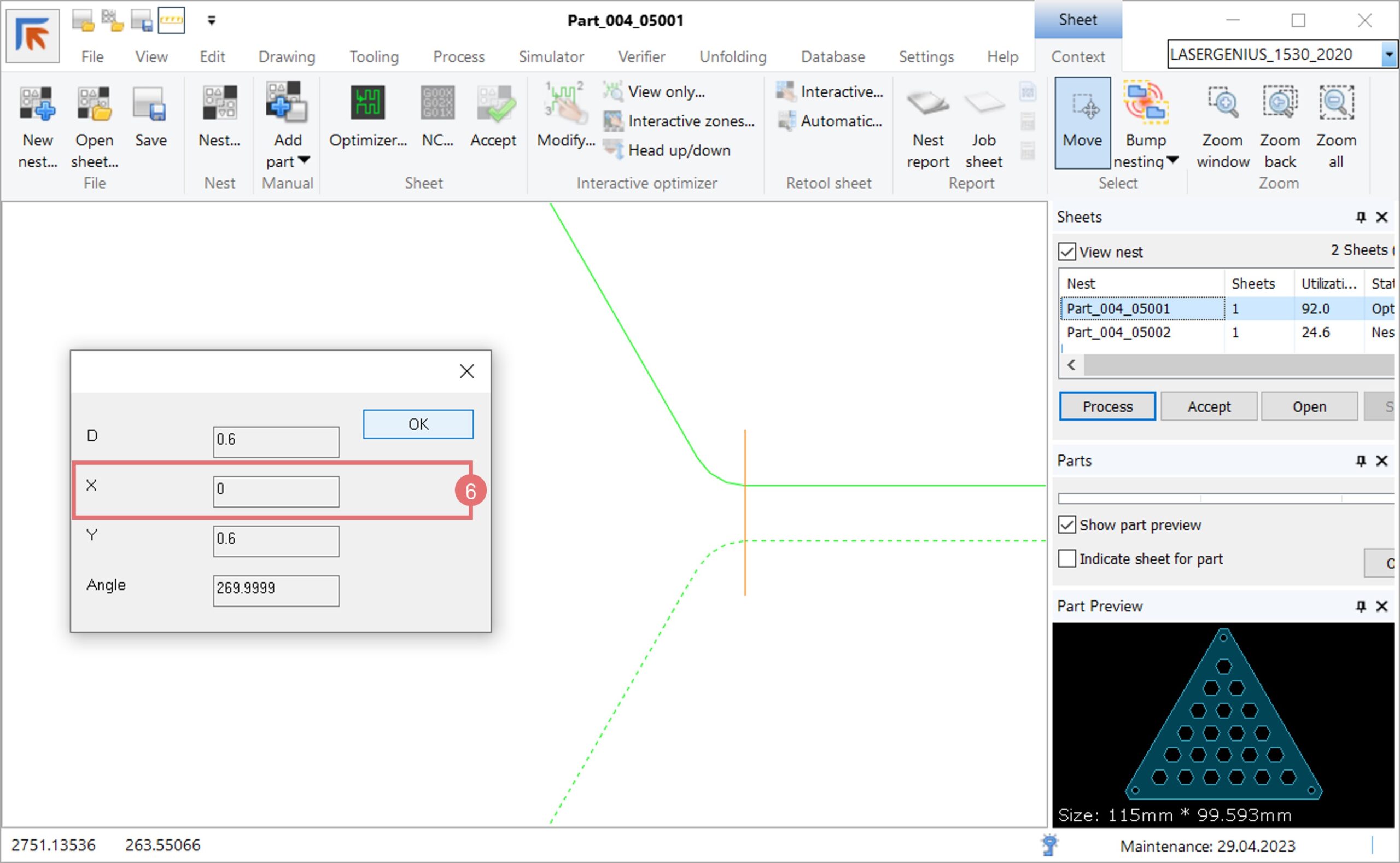
5. If a part bumps another part only in one direction, make sure that the corners are aligned along the free-moving axis (6).

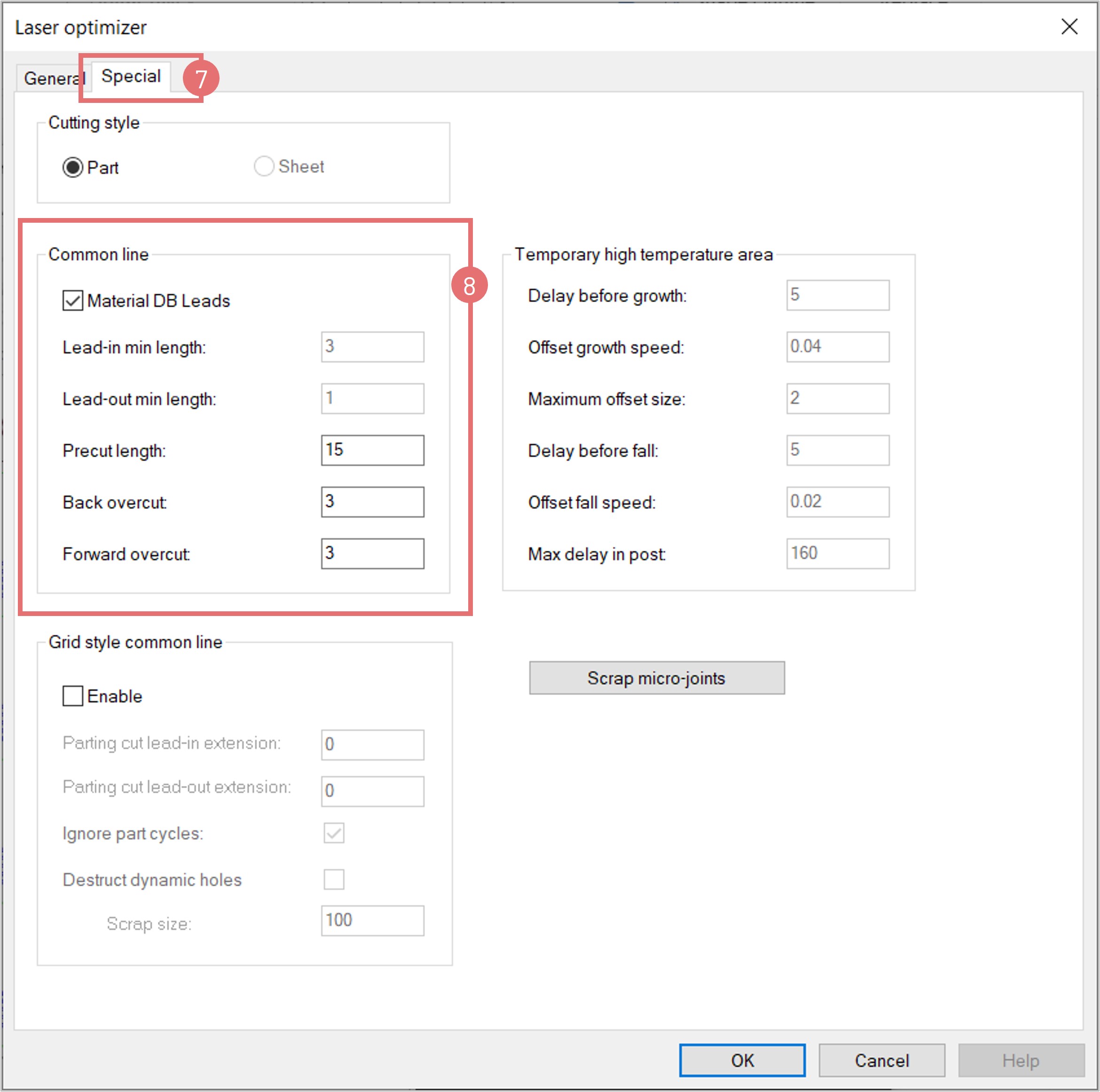
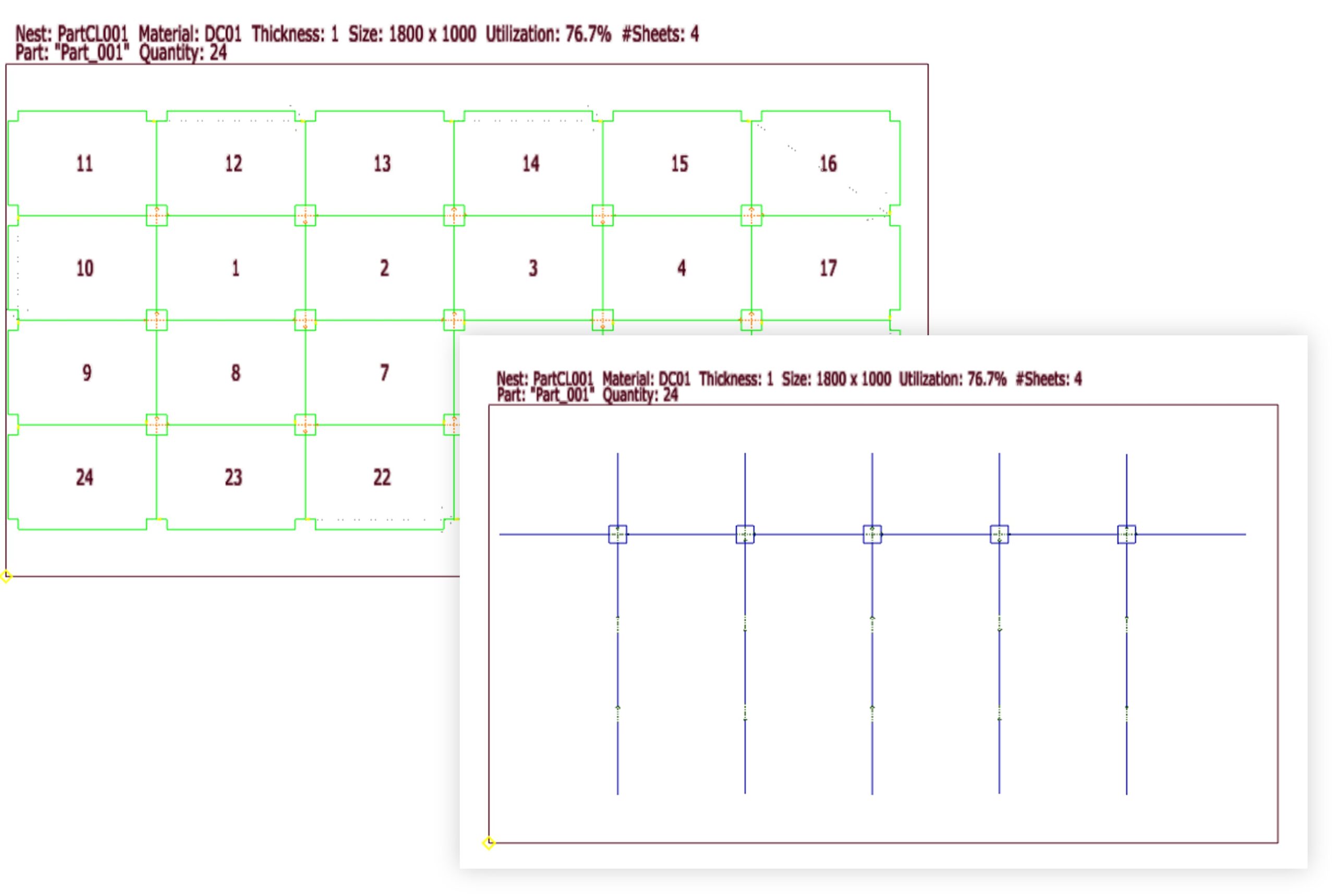
6. Open the Optimizer dialog. When the Common line checkbox is activated in the Laser Optimizer window, a new tab Special for common line settings appears (7). This dialog allows modifying how parts are cut out. By default, part-by-part common line mode is selected. In this mode, all contours of one part are cut before starting a new part (8).

7.  Using the precut and overcut features, the cutting sequence applied by the Optimizer ensures reliable cutting avoiding part tilting. 

8. Alternatively, select the Grid style common line cutting (9). This mode is recommended when rectangular parts are nested in full grids, allowing NC Express e3 to apply long cuts throughout the sheet. If the nesting layout does not allow applying grid style cutting, it will automatically switch to the part-by-part mode.

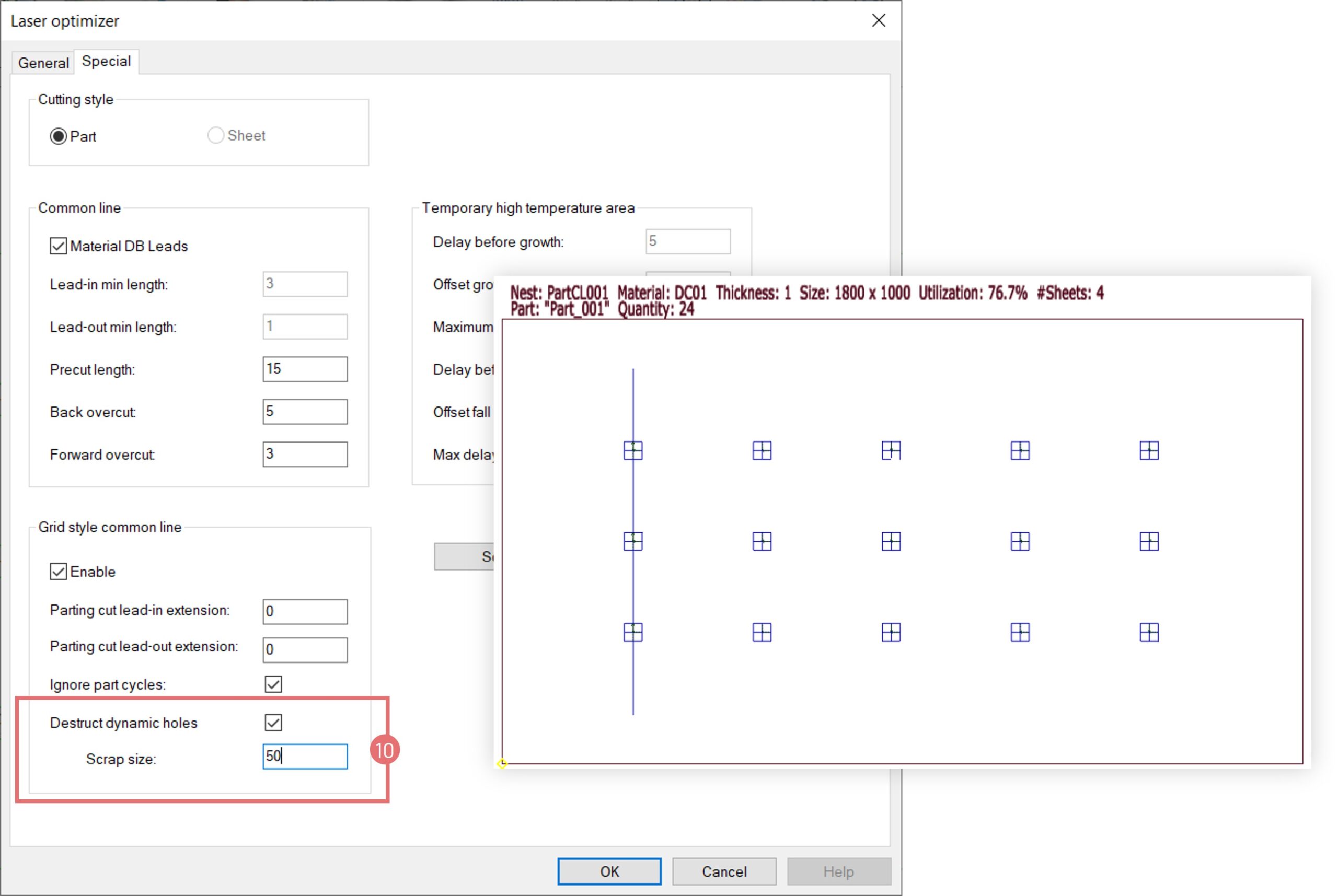
9. It is possible to destruct notches between the parts, leaving only parts on the cutting table. Activate the Destruct dynamic holes checkbox and set the minimum scrap size (10). In this scenario, dynamic holes are cut first, and then long cuts through the sheet. 

Close to clamp slitting tool

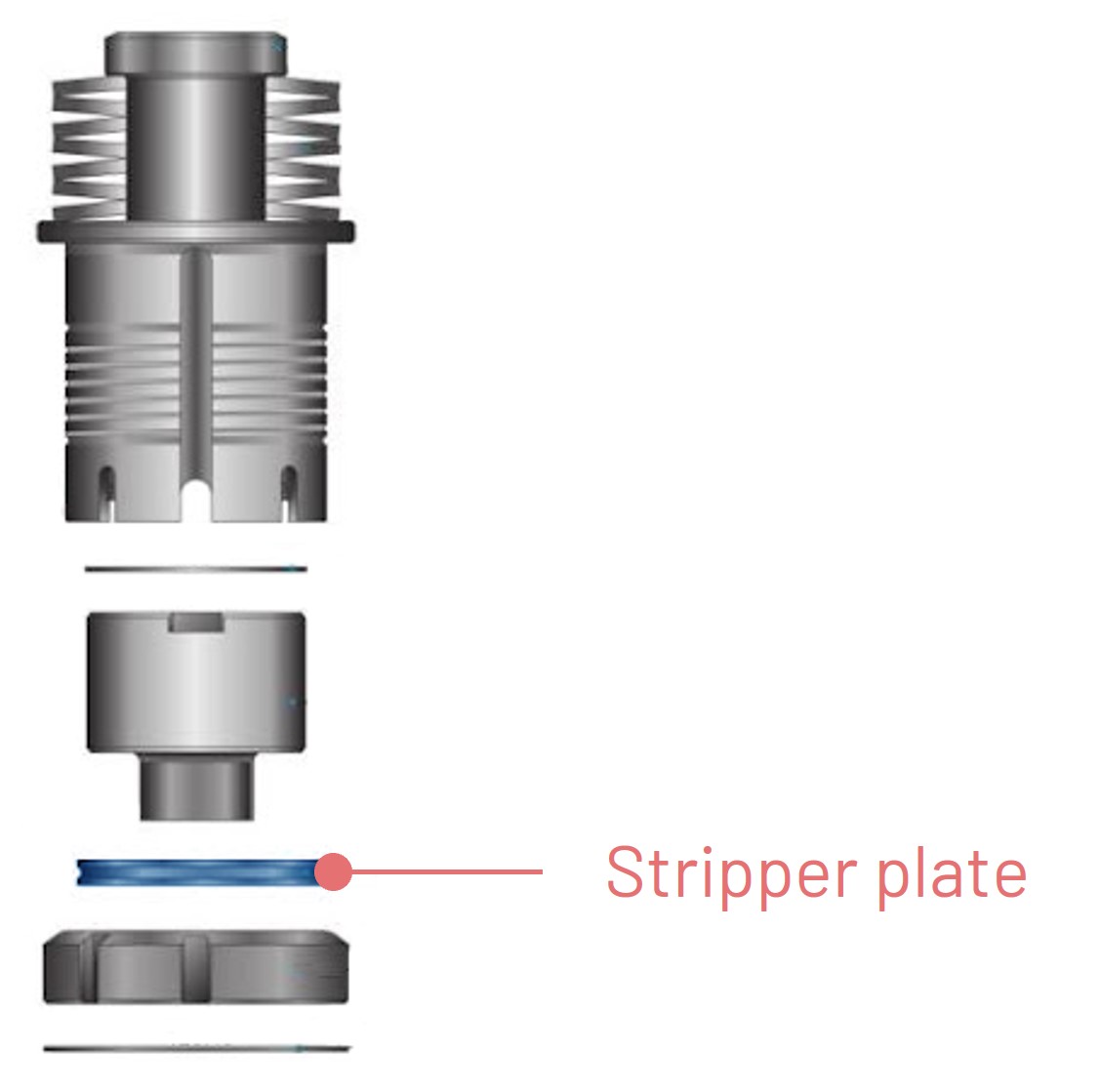
Close to clamp slitting tools have interchangeable stripper plates and die/die inserts with one or two-sided relief, enabling close to clamps operation. This means that more of the sheet surface is available for punching and thus, less material is wasted.

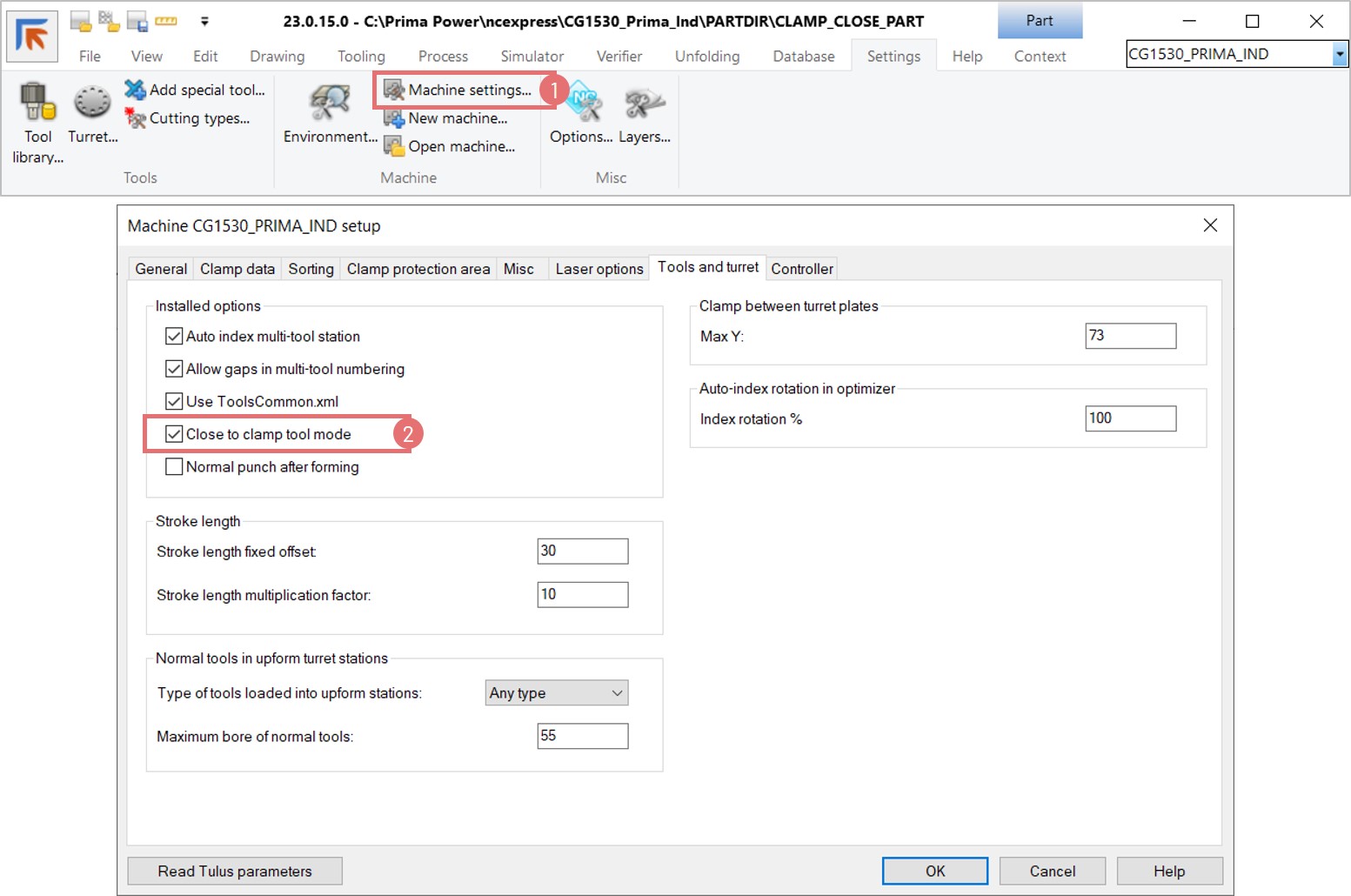
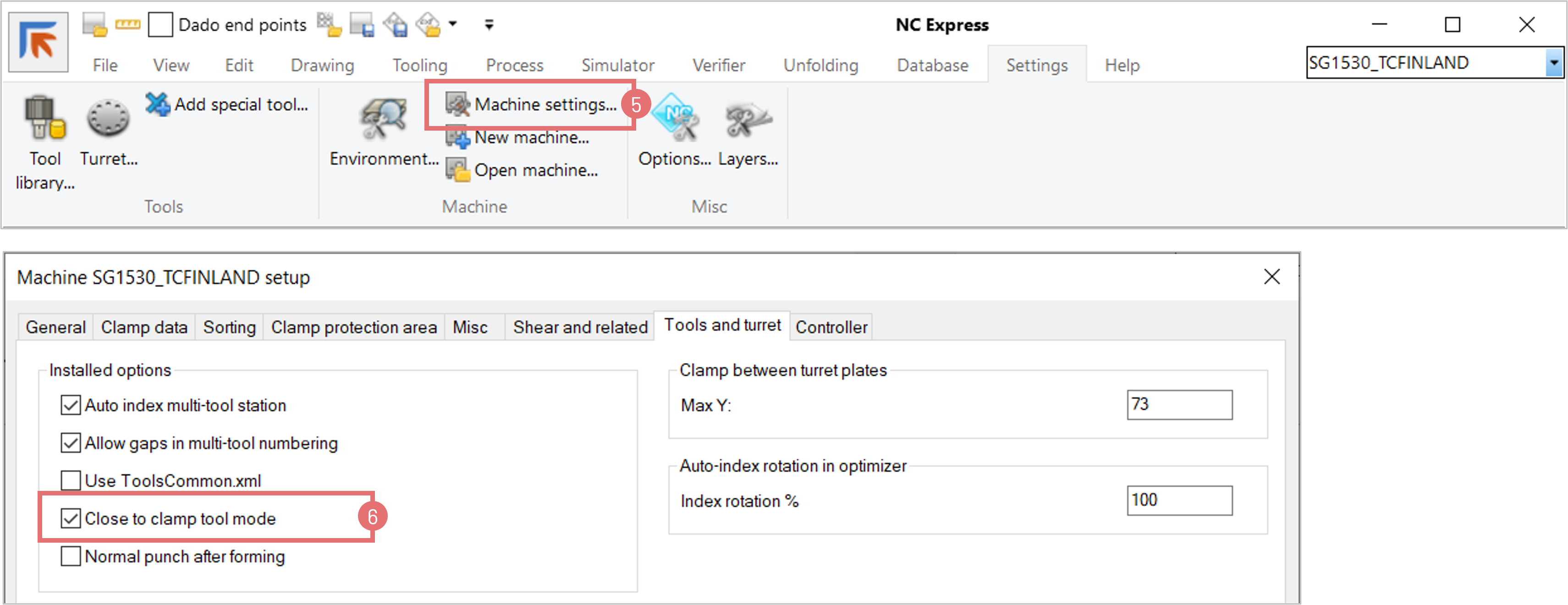
1. If close to clamp tools are used, the corresponding tool mode needs to be activated in machine settings in NC Express e3. Navigate to the Setting tab and open the Machine settings dialog (1). Select the Close to clamp tool mode checkbox under the Tools and Turret tab (2).

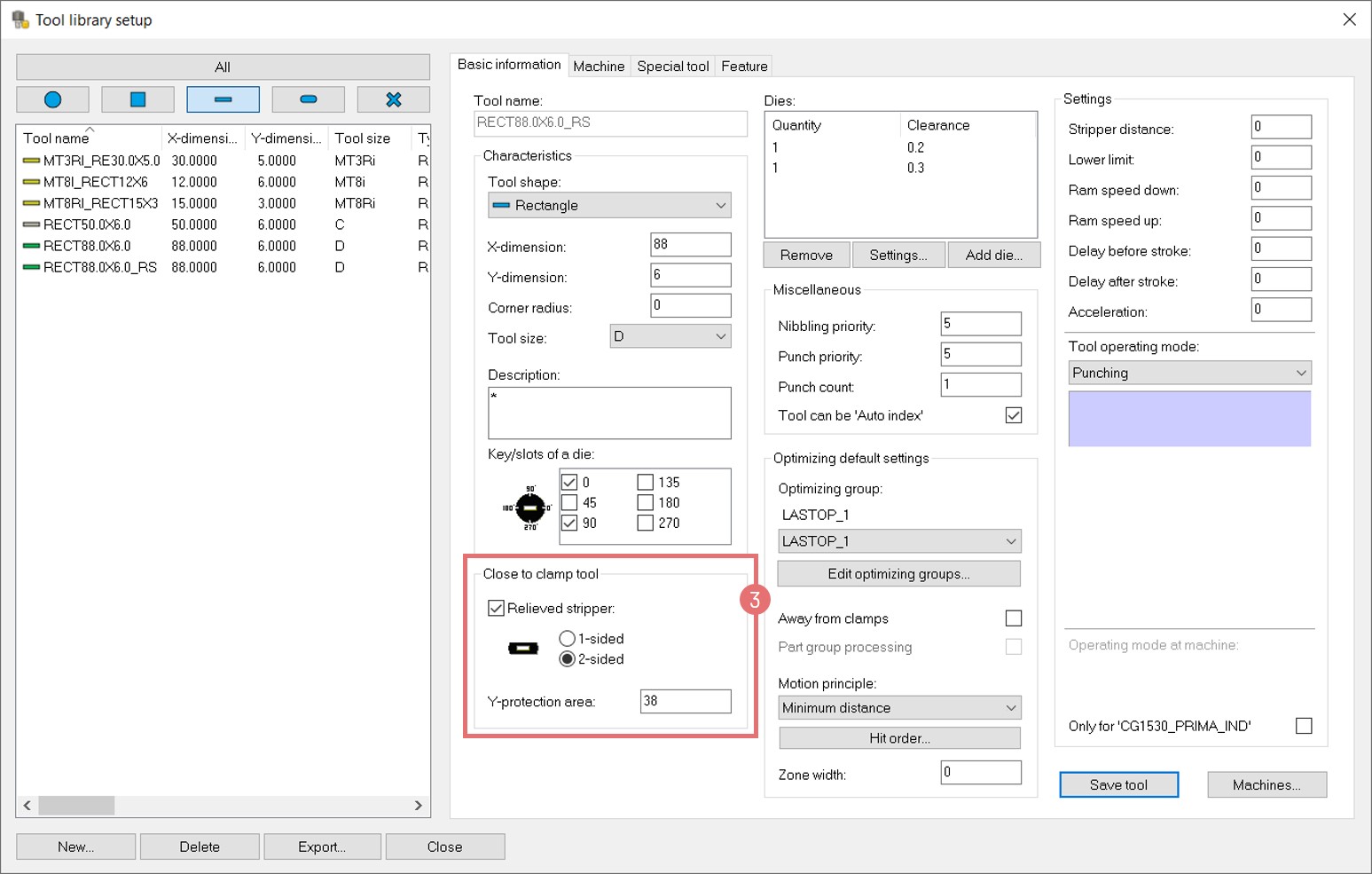
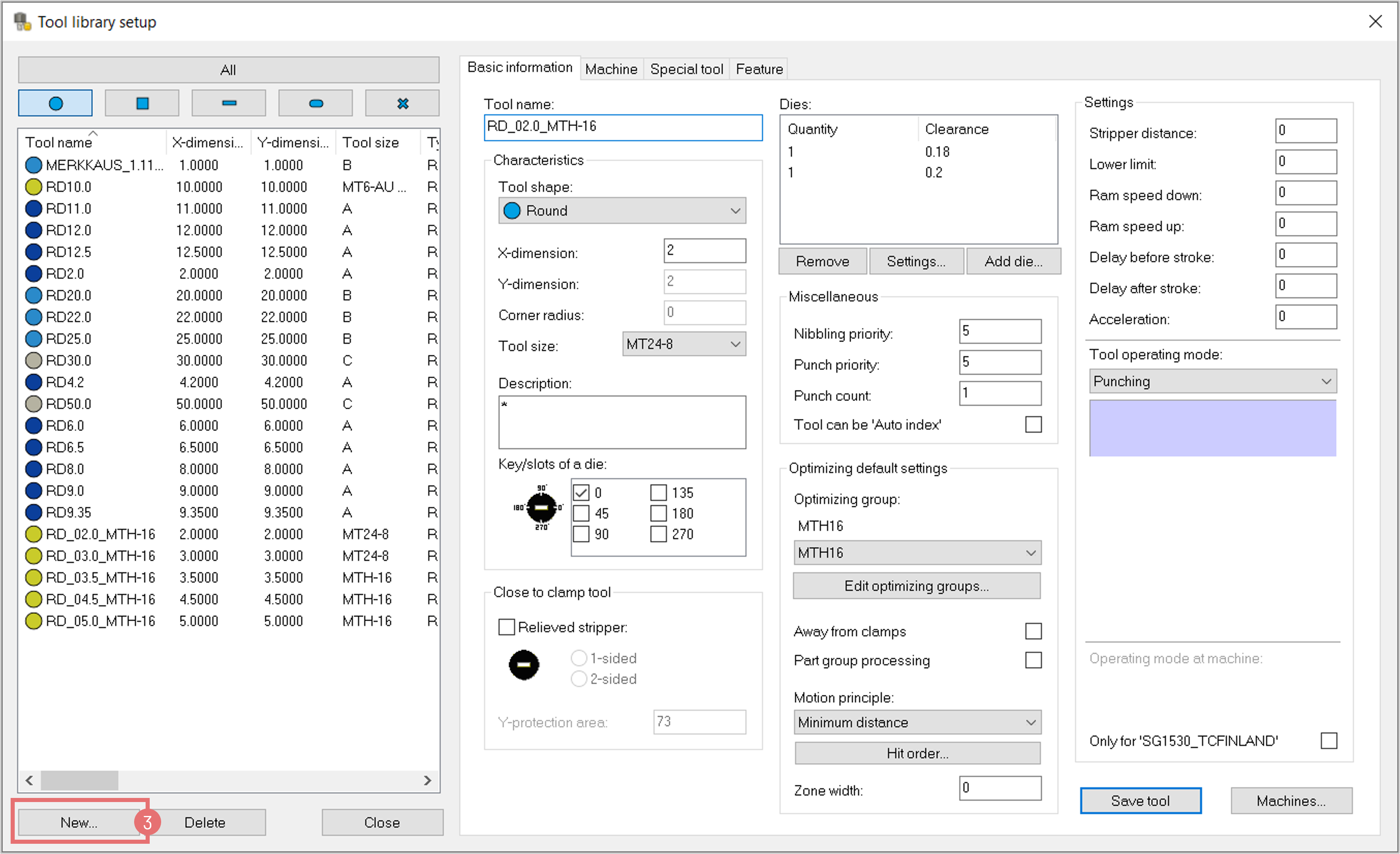
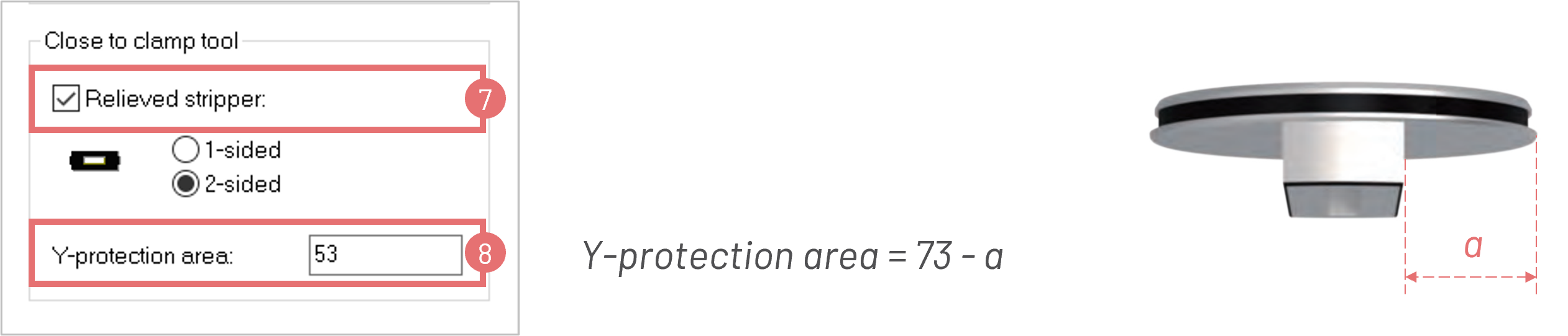
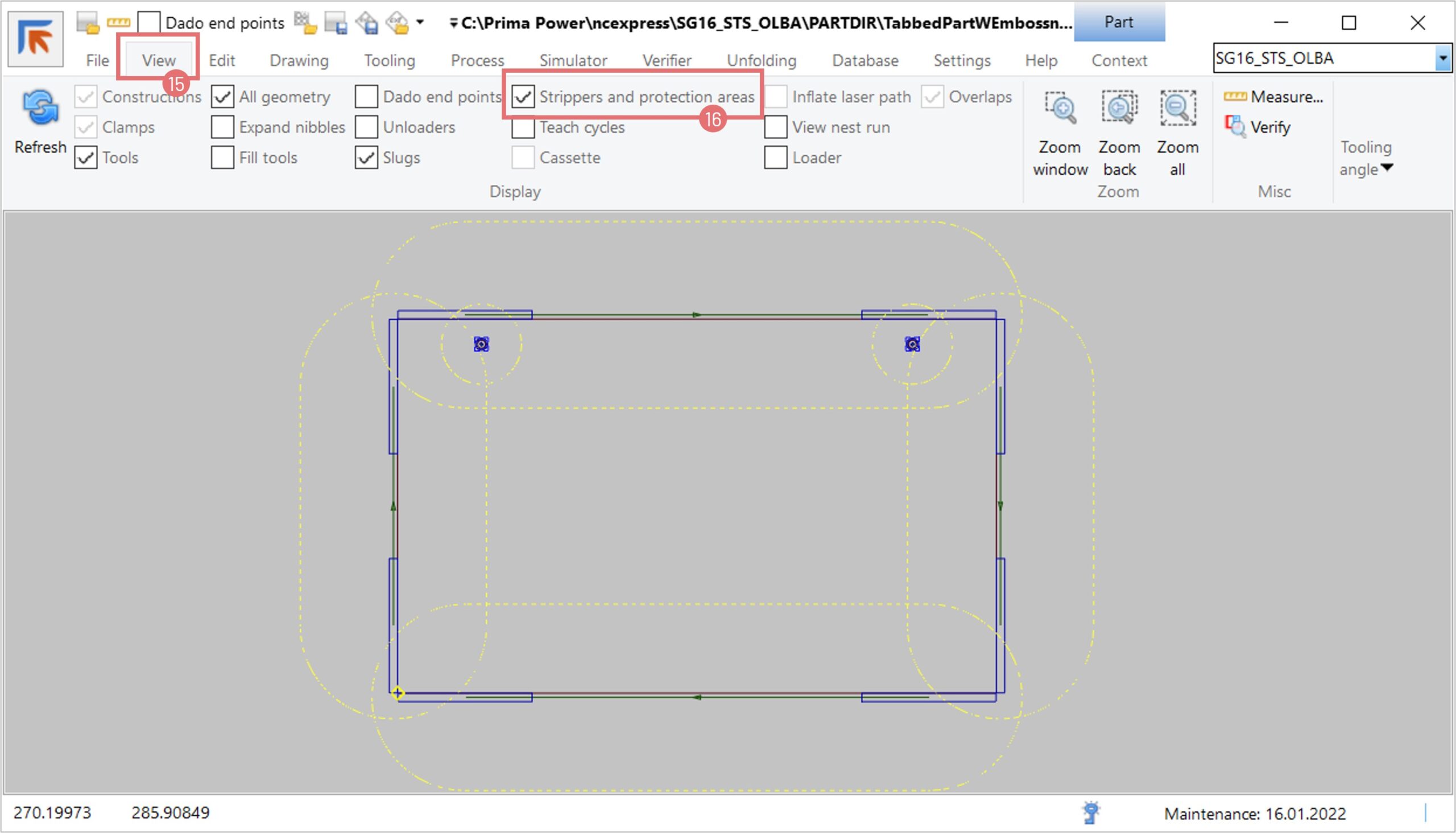
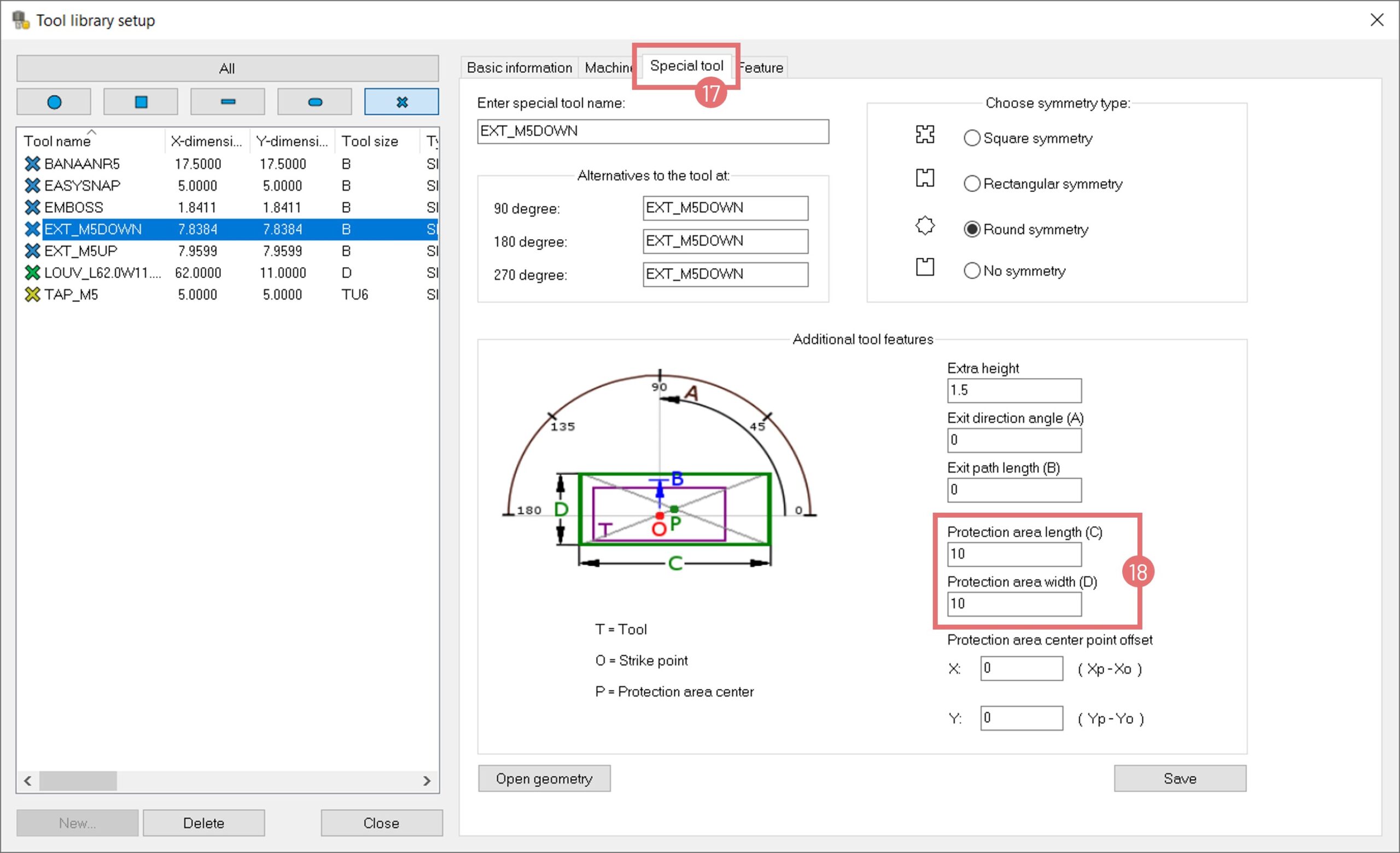
2. This mode enables the Close to clamp tool settings in the Tool library. Select the Relieved stripper checkbox and the 1- or 2-sided option. To calculate the size of the protection area, measure the stripper with the caliper and divide the value by two. Add 13 mm (clamp upper jaw length) and a safety margin of 5 mm to the given number.

For example, if the stripper width is 40 mm, Y = 40/2 + 13 +5 = 38.

Specify the result in the Y-protection area field (3).

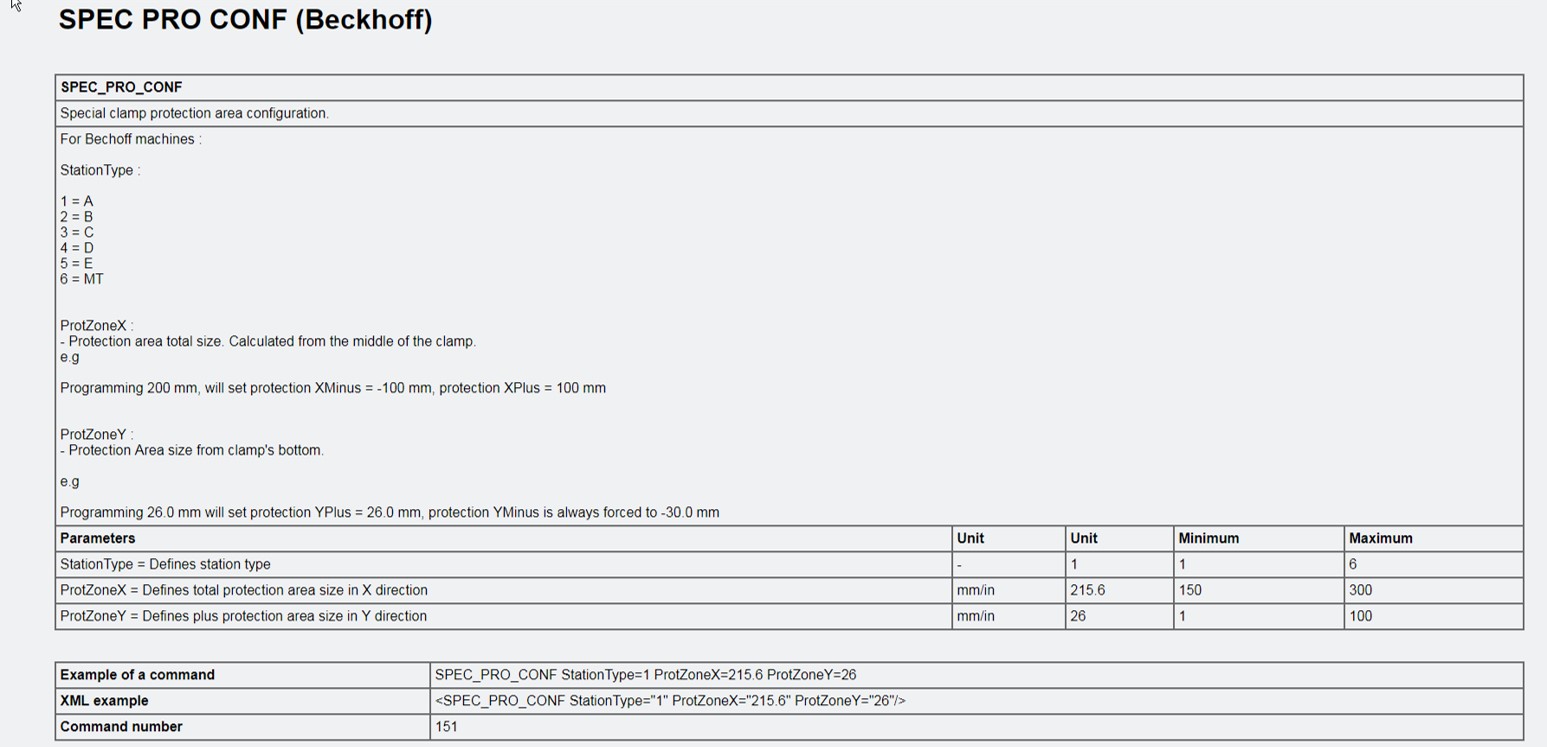
3. The Close to clamp tool mode needs to be activated also in Tulus. Run the SPEC_PRO_CONF command in Tulus when a machine is in MDA mode. The machine clamp protection in the Y-direction should be set 0.2 mm smaller than in NC Express e3 to allow tool offset compensation tolerance.

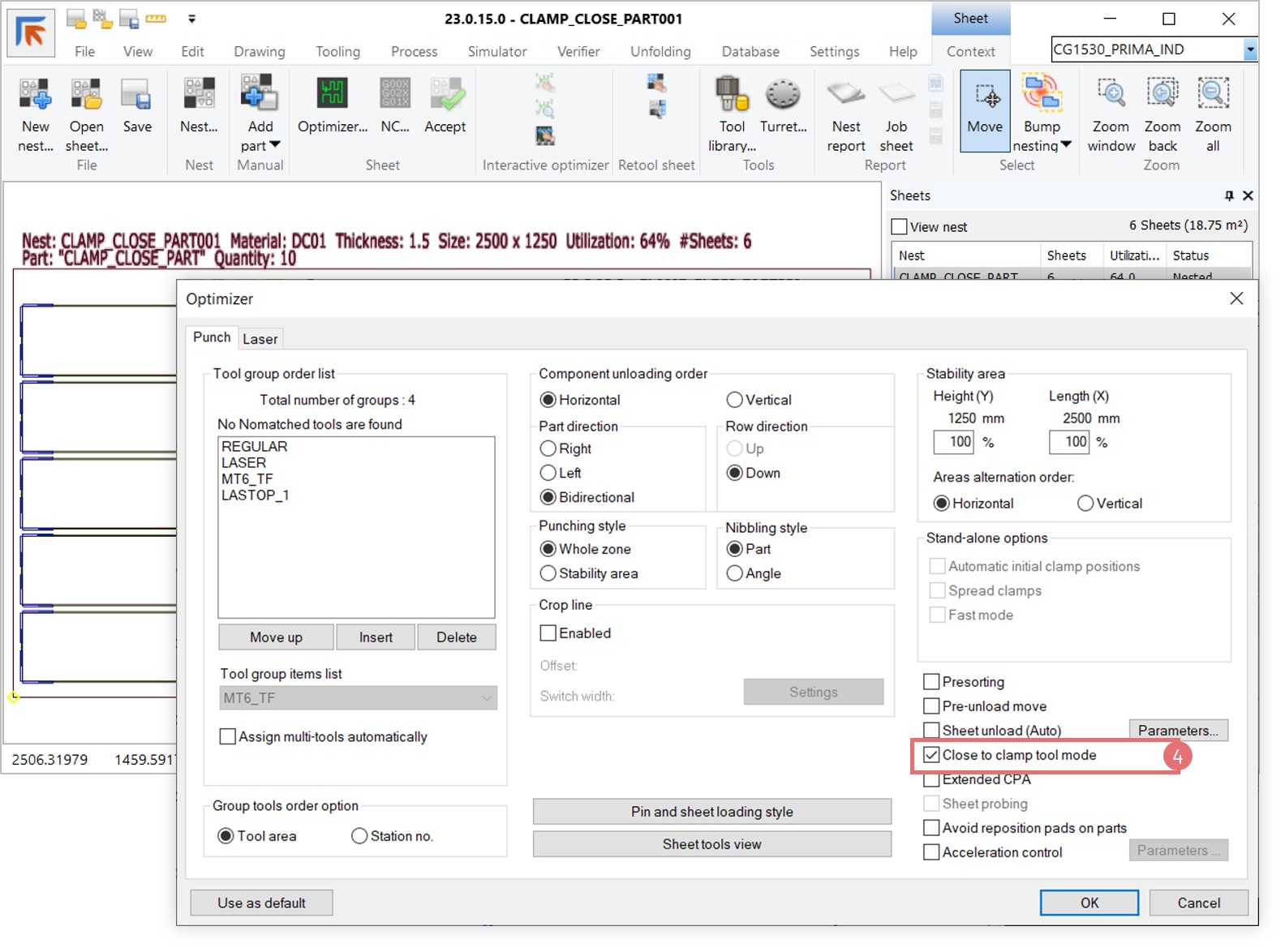
4. When nesting the parts, open the Optimizer dialog, switch to the Punch tab and select the Close to clamp tool mode checkbox, and press OK (4).

5. In the NC-code, the SPEC_PRO command is activated when hits are lower than 73 mm in the Y direction  (normal clamp protection area for D-size stations).

NC Express databases in SQL Server

Besides a standard connectivity to MC Access to manage databases, NC Express e3 also supports connectivity to SQL Server database. Given a higher performance, the SQL Server might be beneficial for companies that have a large numbers of parts, nests, material sheets and orders on NC Express e3 installation, and the databases are shared between multiple computers. SQL Server can be downloaded from:

http://www.microsoft.com/sqlserver/en/us/editions/express.aspx

Configuration for SQL Server in NC Express e3

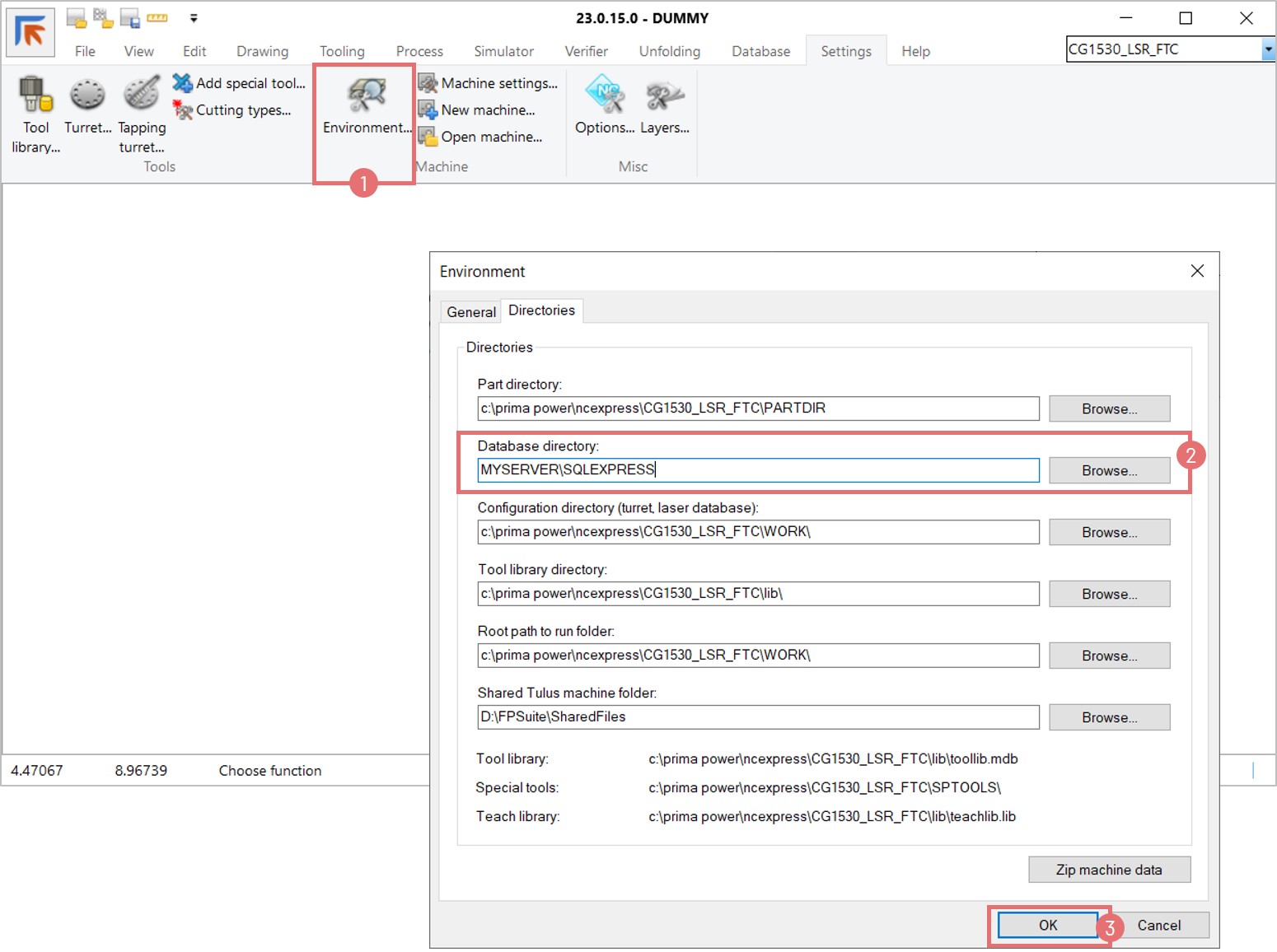
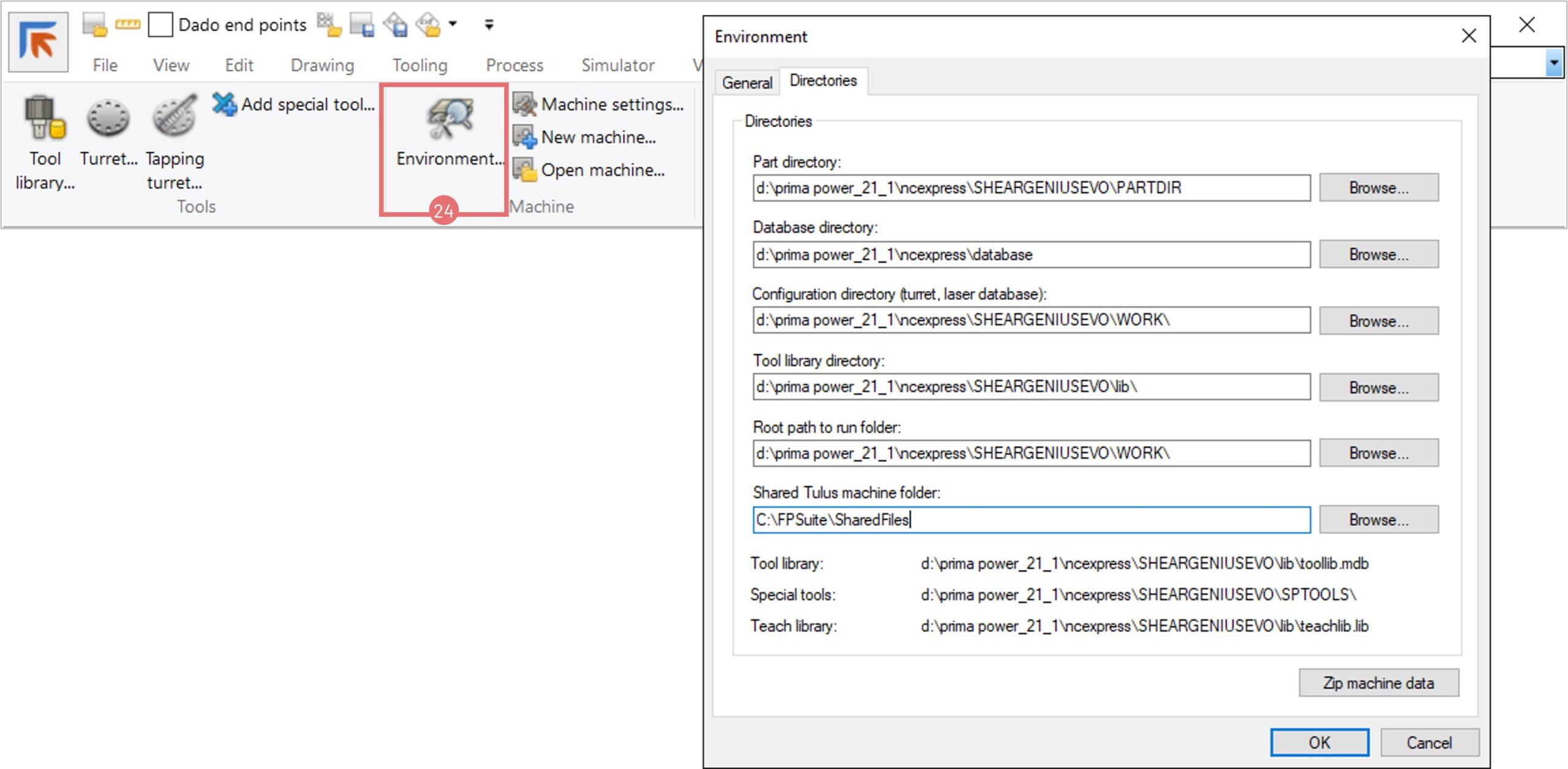
1. SQL server is activated when the Server name\Instance name are specified in the database directory field. Navigate to the Settings tab, open the Environment dialog and switch to the Directories tab (1). Type [YOUR SERVER NAME]\SQLEXPRESS in the database directory field (2). Press the OK button to confirm the change (3). Once confirmed, empty tables will be created in the NCXDB database on this server. The current Windows user needs to have rights to access SQL server and rights to create tables.

NOTE:  if any error message appears after pressing the OK button, the connection to the server has not been established. Make sure that the names are specified correctly and no messages pop up on this stage.

2. It is also possible to give a full connection string in the Database directory field. This makes it possible to use different security configurations. The default connection string uses integrated security (Windows user credentials):

Provider=SQLOLEDB;Data Source=MYSERVER\SQLEXPRESS;Database=NCXDB;Integrated Security=SSPI;

OR specify user name in the connection string:

Provider=SQLOLEDB;Data Source=MYSERVER\SQLEXPRESS;Database=NCXDB;User Id=XXX;Password=YYY;

Browsing SQL Server instances

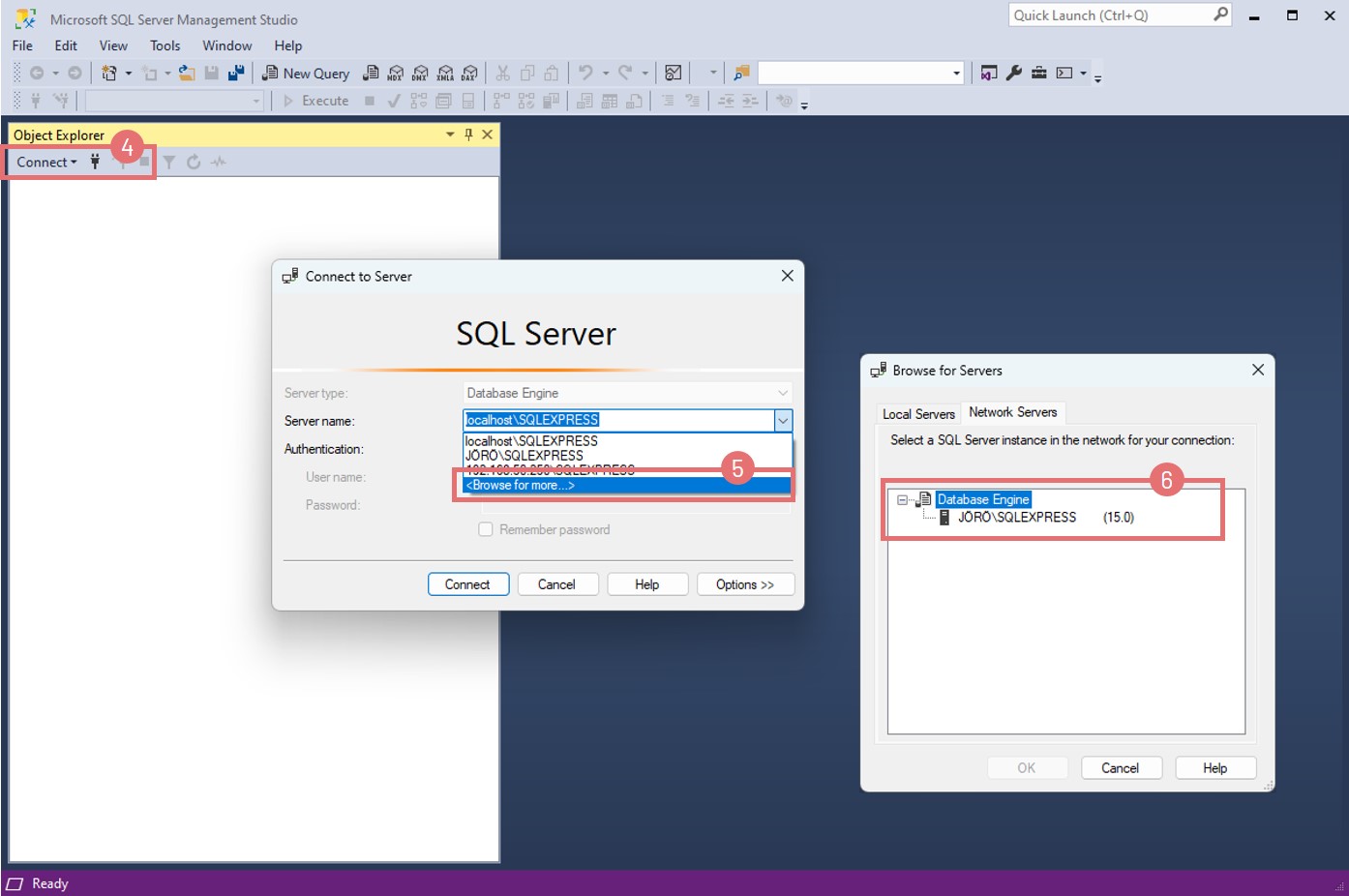
1. Open the SQL Management Studio application. Press the Connect button in the Object explorer section (4). The Connect to server window opens. In the Server name line open the drop-down menu and select the Browse for more option (5). Switch to the Network servers tab in the new window to see the list of available servers (6).

Setting up a remote SQL Server to work with NC Express e3

NOTE: The content of this chapter is relevant only when the SQL Server is located on a different computer than where NC Express e3 is running.

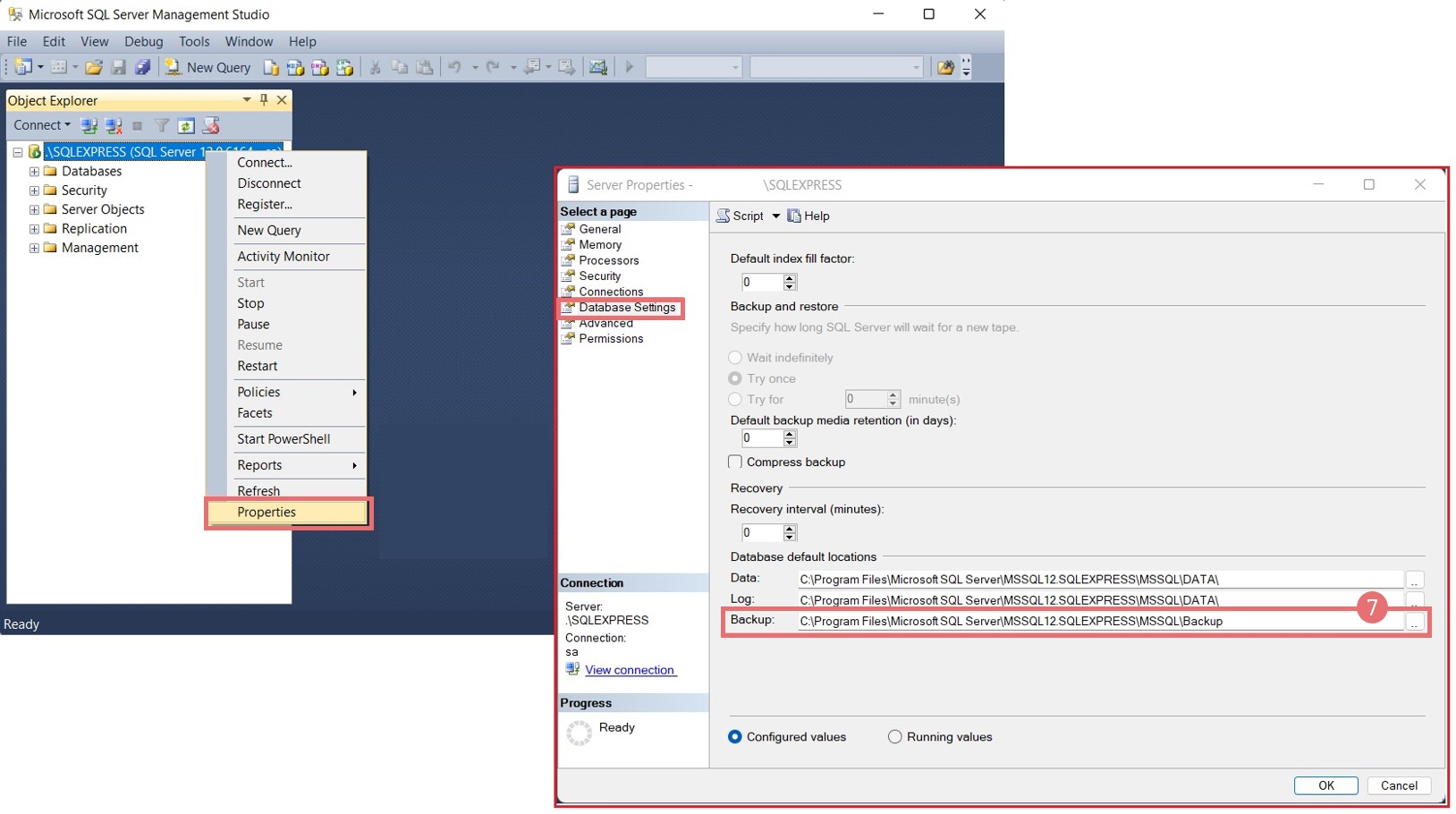
1. To ensure that the Zip machine data functionality works correctly, it is necessary to configure Windows file share for the SQL Server’s backup folder (7). By default, the SQL Server’s backup folder is in the server’s installation folder. The location of this folder can be found in the server’s properties, accessed using MS SQL Server Management Studio. The SQL Server user account(s) used by NC Express e3 users need to have permission to create database backups.

2. Once the backup folder has been located, it needs to be shared to NC Express e3 users that have read permission. To give permission, navigate to the backup folder location on the SQL server PC. Right-click on the folder and select Properties from the context menu. Navigate to the Sharing tab and click the Advanced sharing button (8) (Access to the Advanced sharing requires Admin rights).

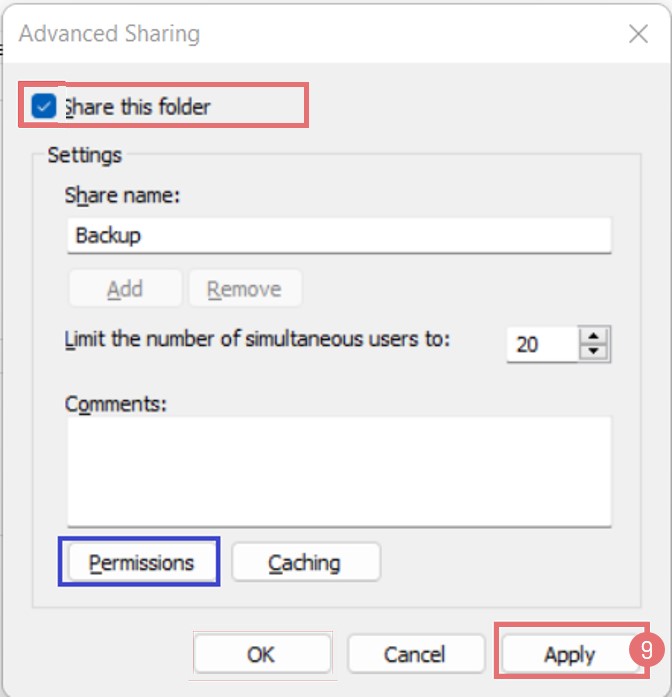
3. Select the Share this folder checkbox and press the Apply button (9). Click OK to confirm and close the window.

4. The folder is now shared. By default, any user account recognized by the server PC has read access to the folder. However, it is possible to adjust the permissions individually in the Share permissions window, which is opened by clicking the Permissions button (10).

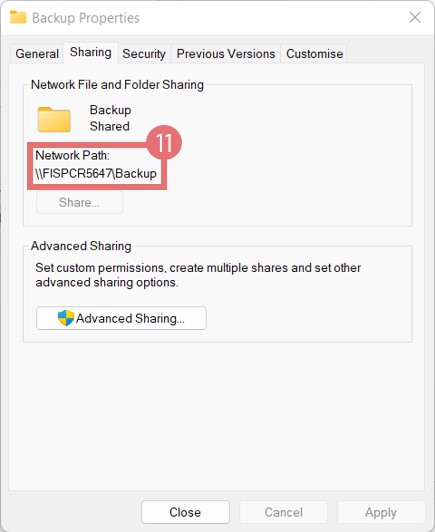
5. Navigate to the Security tab of the properties window. Modify the permissions so that the specific user account(s) set in the previous step have read permissions to this folder. Now information is updated in the Sharing tab of the properties window (11).

6. NOTE: If the SQL server’s default backup location has been changed from the default value, the following lines must be added to NCeXpress.ini file:

[Database]

Shared backup folder path=<network path>

where <network path> is substituted with the network path (see previous image) of the shared backup folder.

After setting up the Windows folder on the SQL server PC, database backups can be retrieved from there when creating a problem zip file. When doing so, NC Express e3 users must enter the server PC account’s credentials. Alternatively, users can enter their own credentials if domain user accounts are used.

Using the Mirrored part functionality on shearing machines

The Mirrored part functionality allows NC Express e3 to flip parts during nesting to achieve better efficiency. This article describes two cases when the Mirrored part functionality can be used.

Using designed mirrored parts

When a product contains mirrored parts as a design feature, it is possible to tag them in NC Express e3 to indicate that they are mirrored copies of the same part. This  allows NC Express e3 to nest them more efficiently using the common line function. When nesting, both the original and the mirrored parts should be added to the Scheduled parts list.

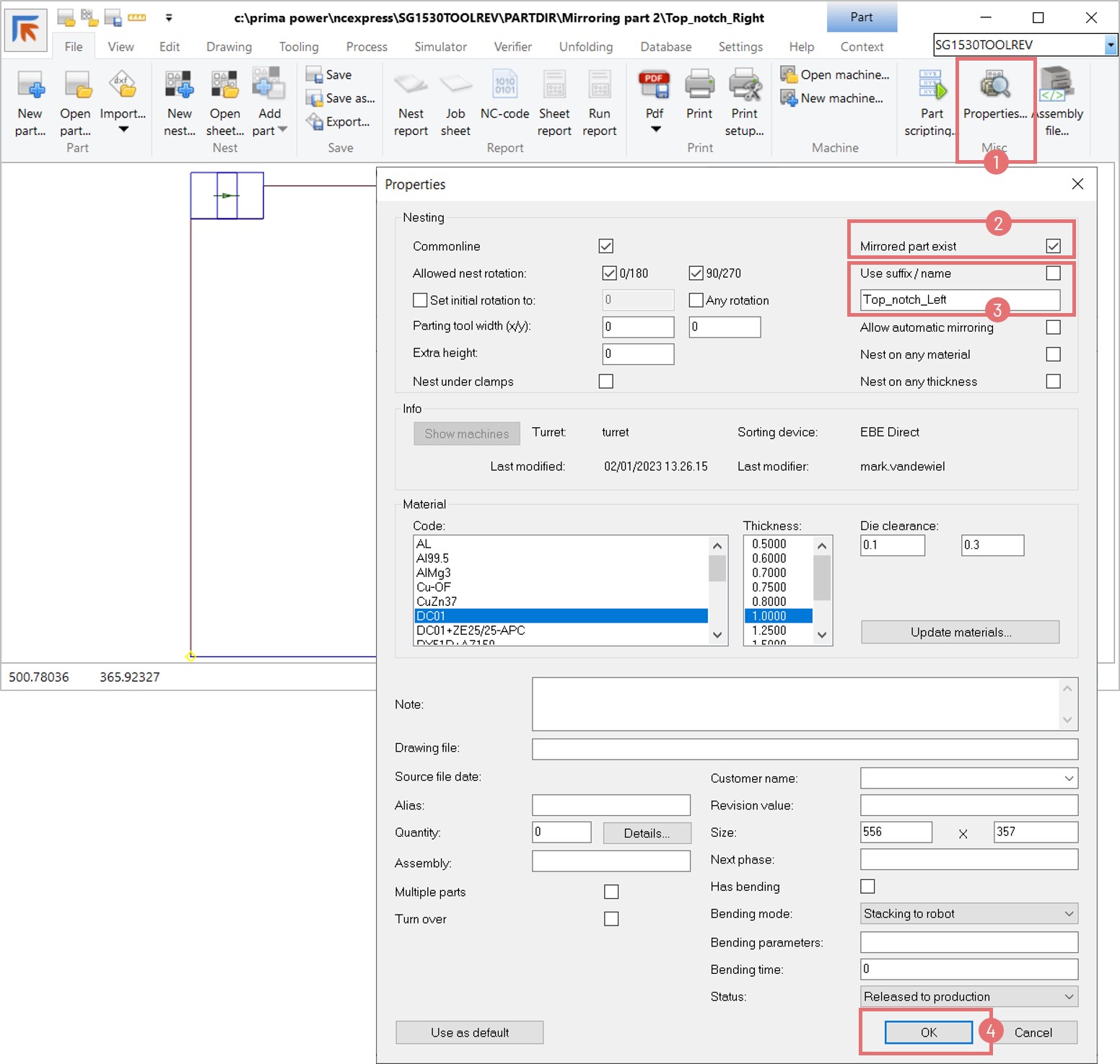
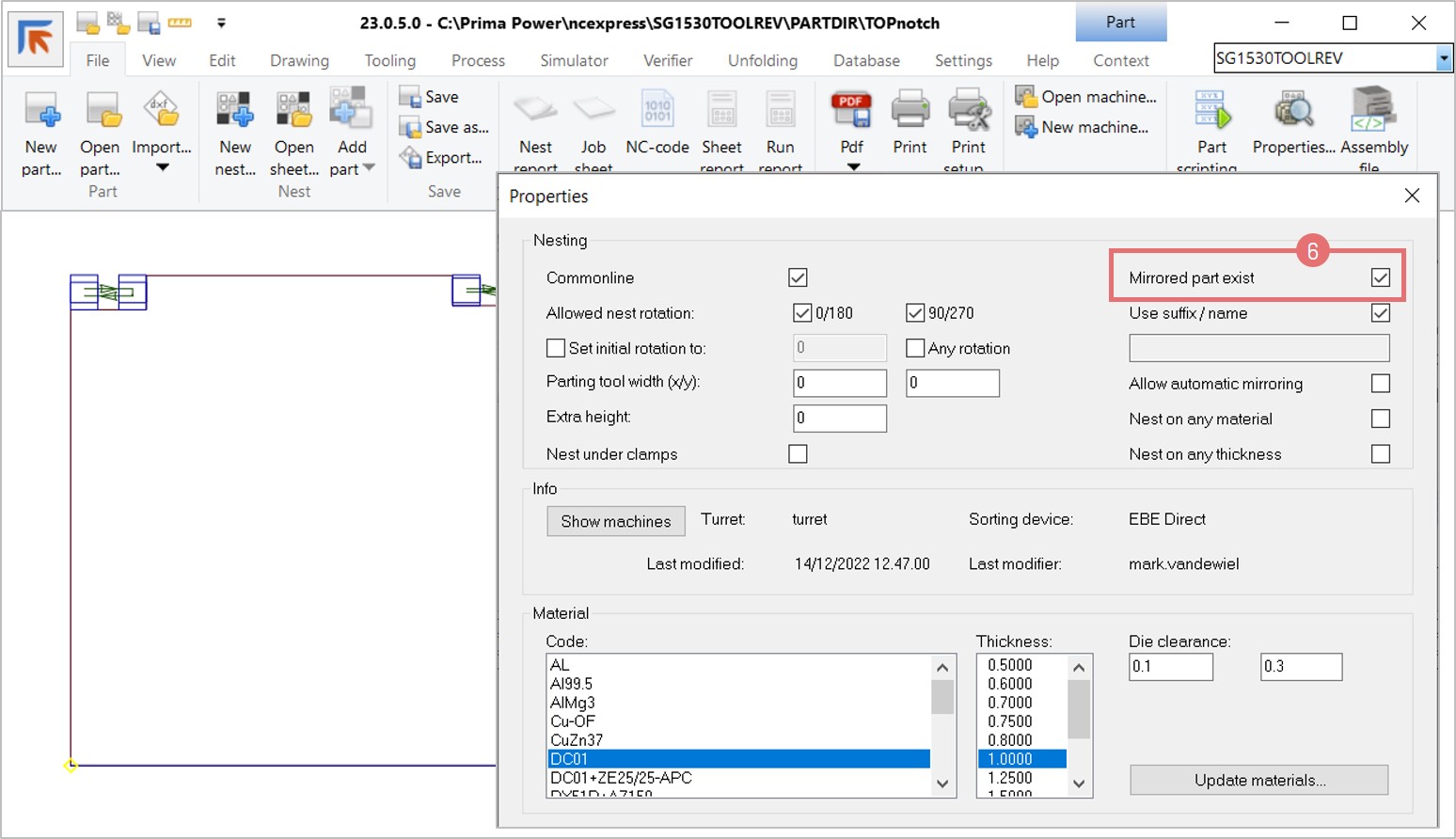
1. Open a .cp part file and go to the Part properties dialog (1). Select the Mirrored part exists checkbox (2) to activate the mirrored parts logic in NC Express e3. Specify the name of the mirrored part below. Press the OK button to apply the changes (4).

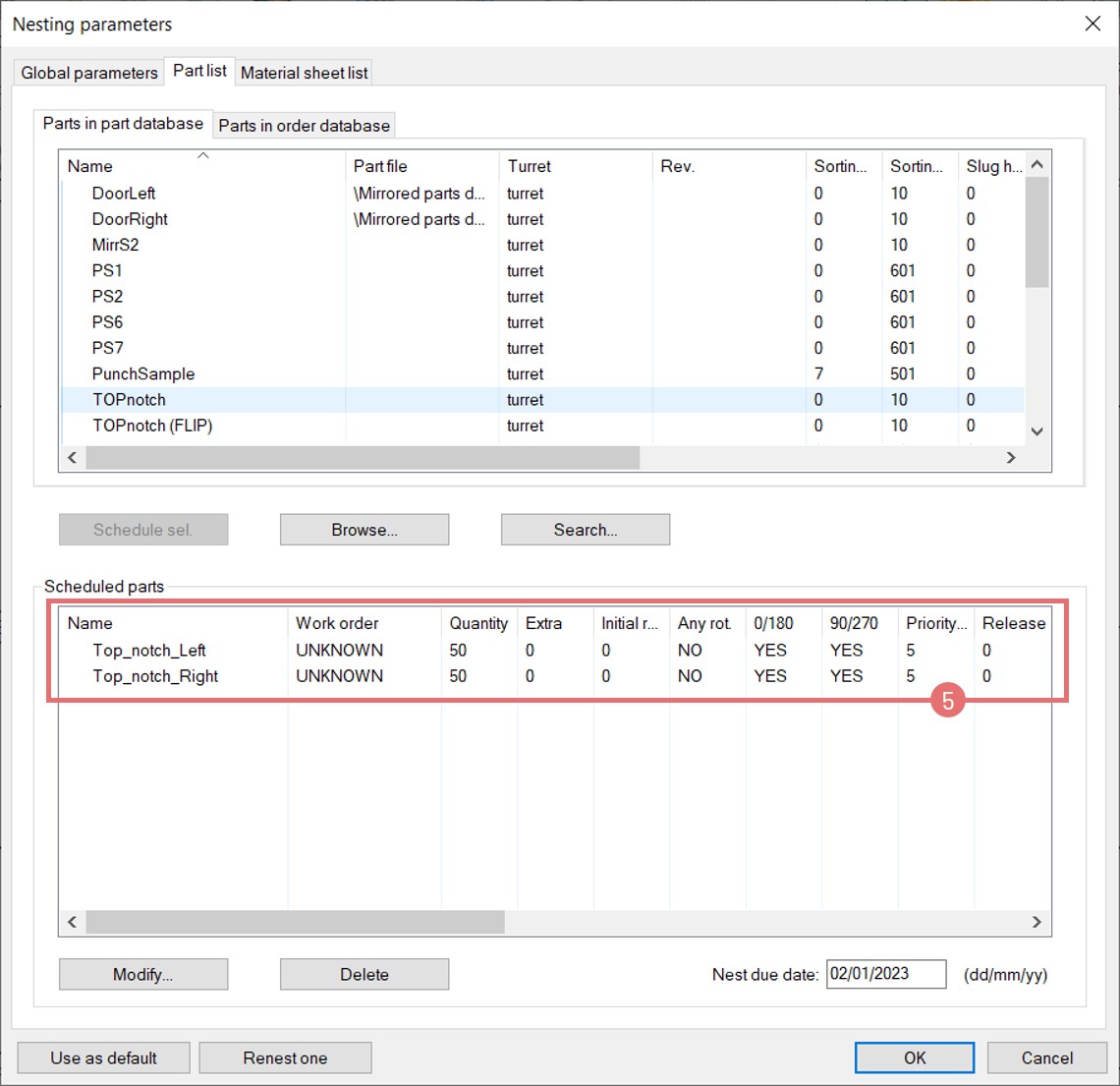
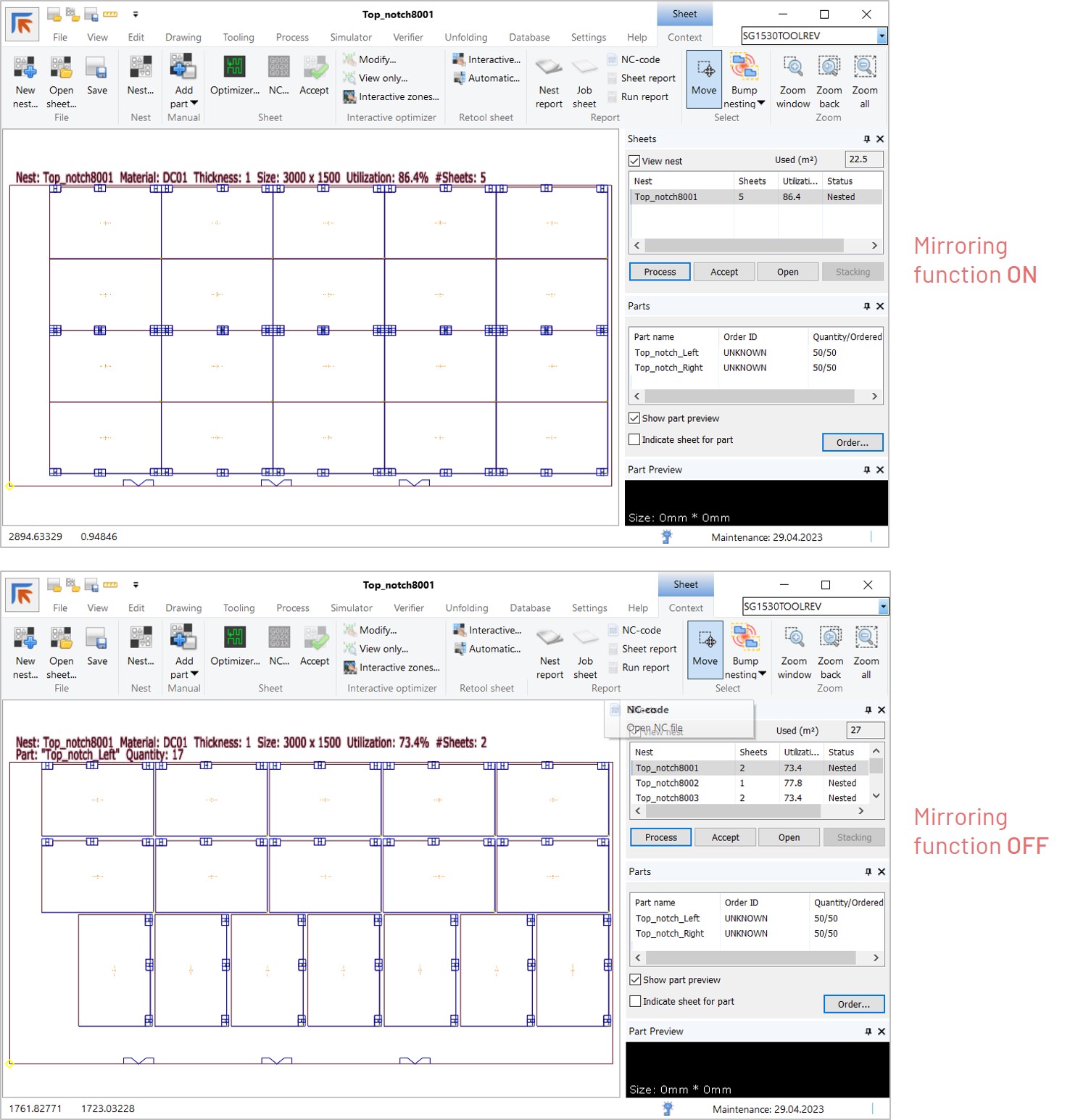
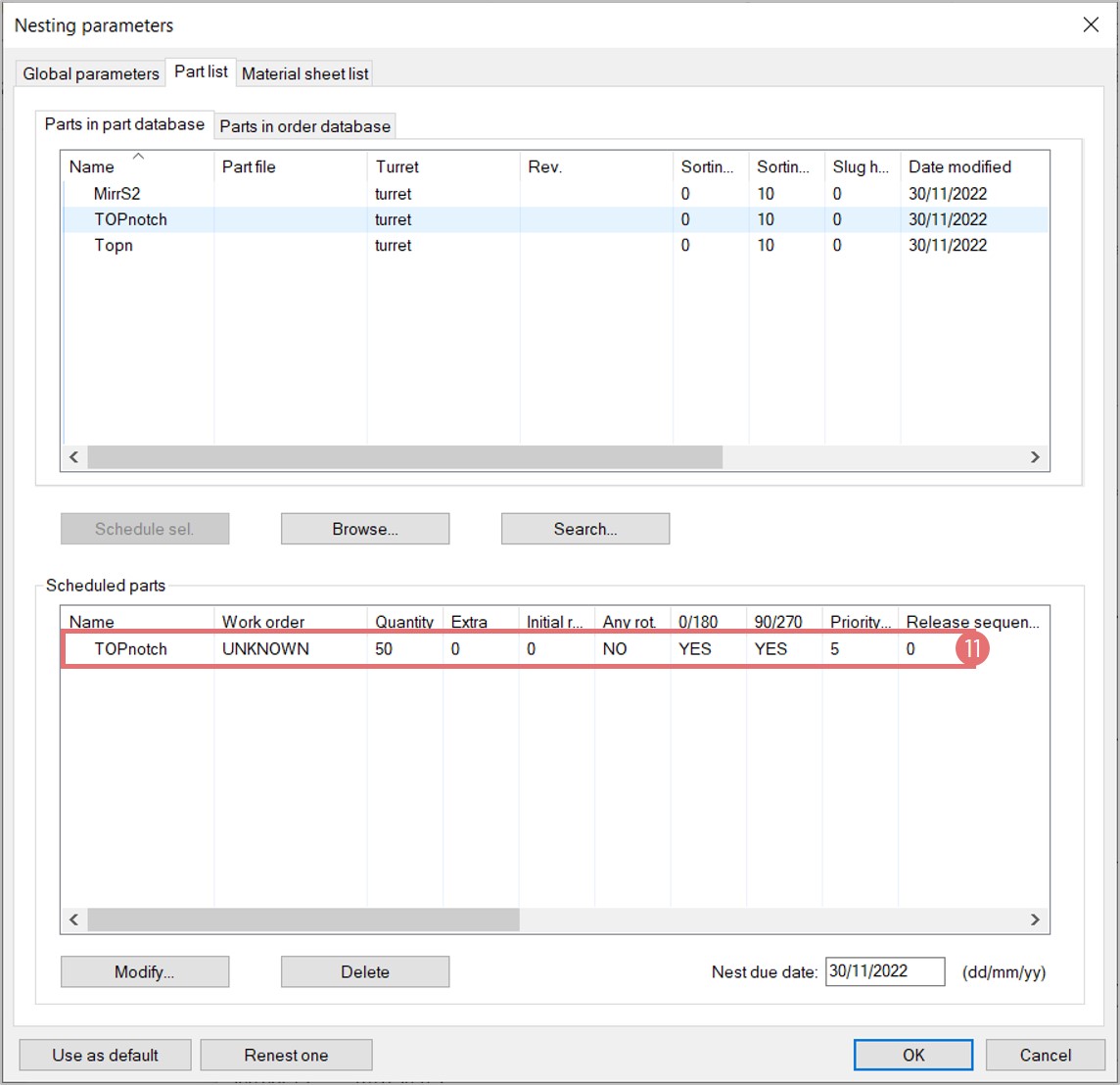
2. Create a new nest. Add both the original and the mirrored parts to the Scheduled parts list (5). This procedure ensures that the ordered quantity of each part will be nested.

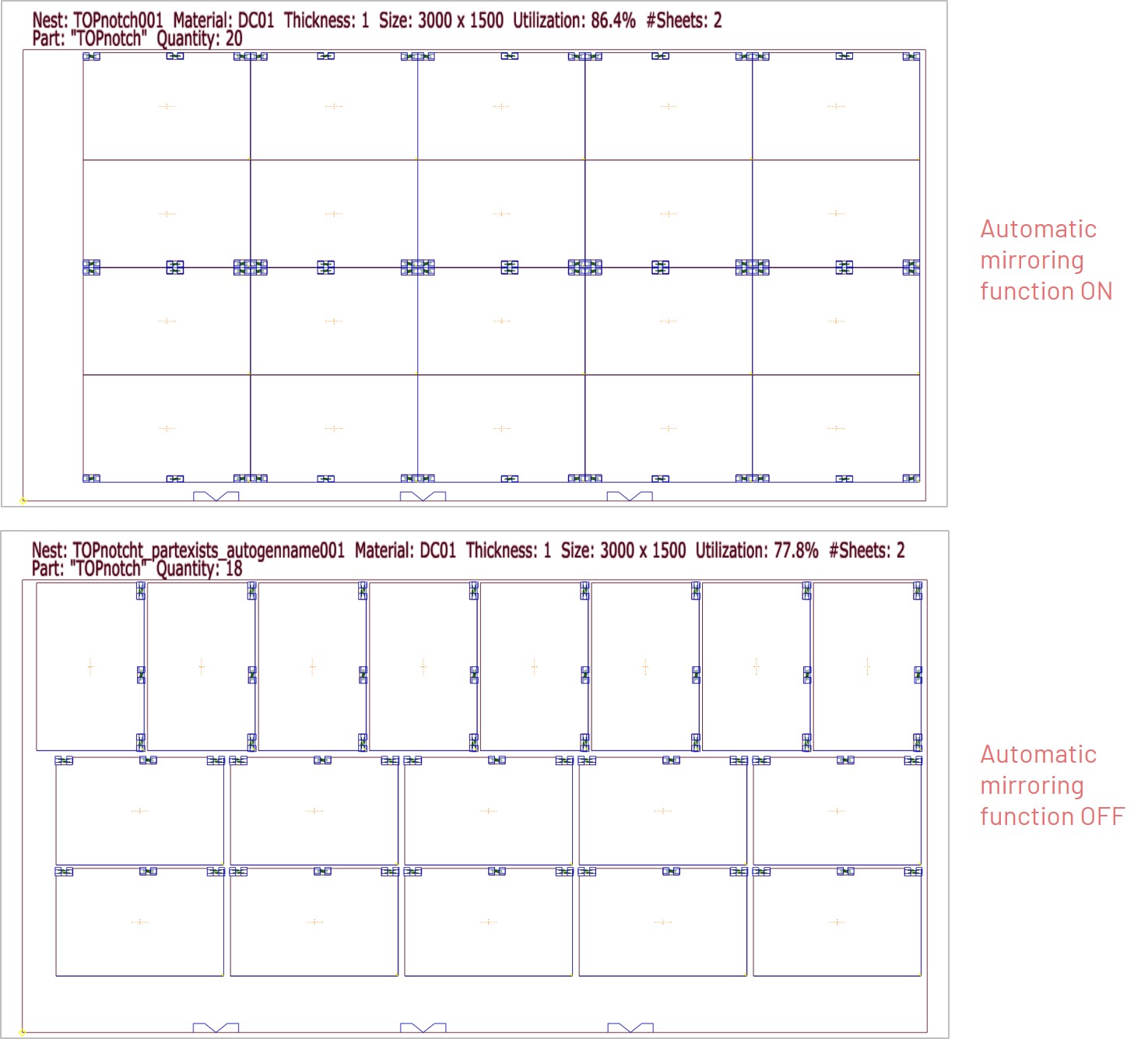
3. Compare the nesting results with the Automatic mirroring function ON and OFF.

Using the Automatic part mirroring function to increase nesting efficiency

It is possible to activate the Automatic part mirroring in NC Express e3 to increase nesting efficiency where possible. Use this function when it does not matter if the part is mirrored or not (and consequently, how many mirrored parts will be produced).  Do not add the mirrored part to the Scheduled parts list to allow NC Express e3 to use as many mirrored parts as needed to maximize efficiency.

1. Open a .cp part file and go to the Part properties dialog. Select the Mirrored part exists checkbox to activate the mirrored parts logic in NC Express e3 (6). It is recommended to create a .cp file of the mirrored part in advance to ensure reliability. However, if the part does not exist, NC Express e3 will automatically create a .cp file for the mirrored part. In this case, mirroring will be applied around the longer axis of the part geometry.

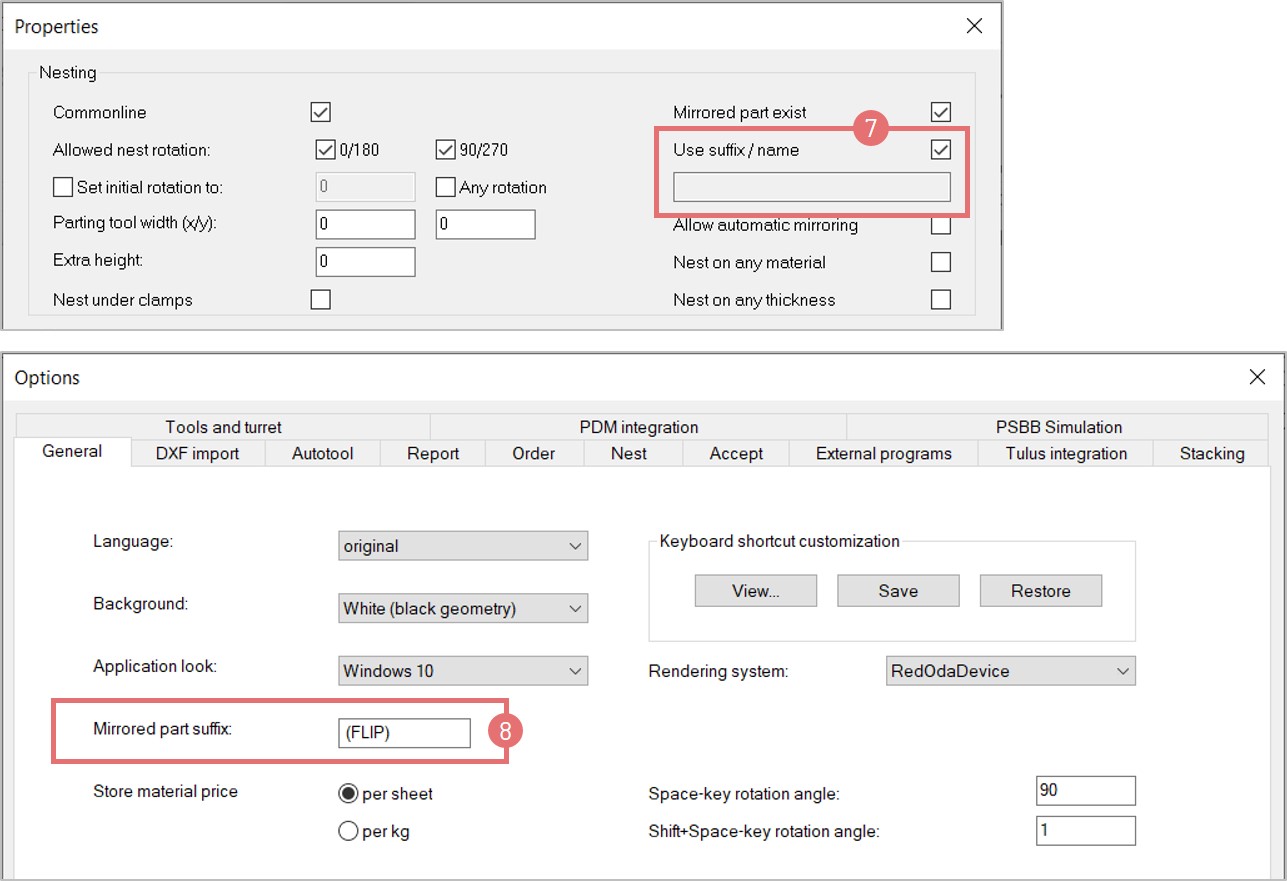
2.  If the mirrored part file does not exist, and you want it to be created automatically, specify the future part name in the field below. Alternatively, select the Use suffix/name checkbox to add a suffix to the original part name (7). Customize the suffix of the mirrored part name in the Setting-> Options dialog (8).

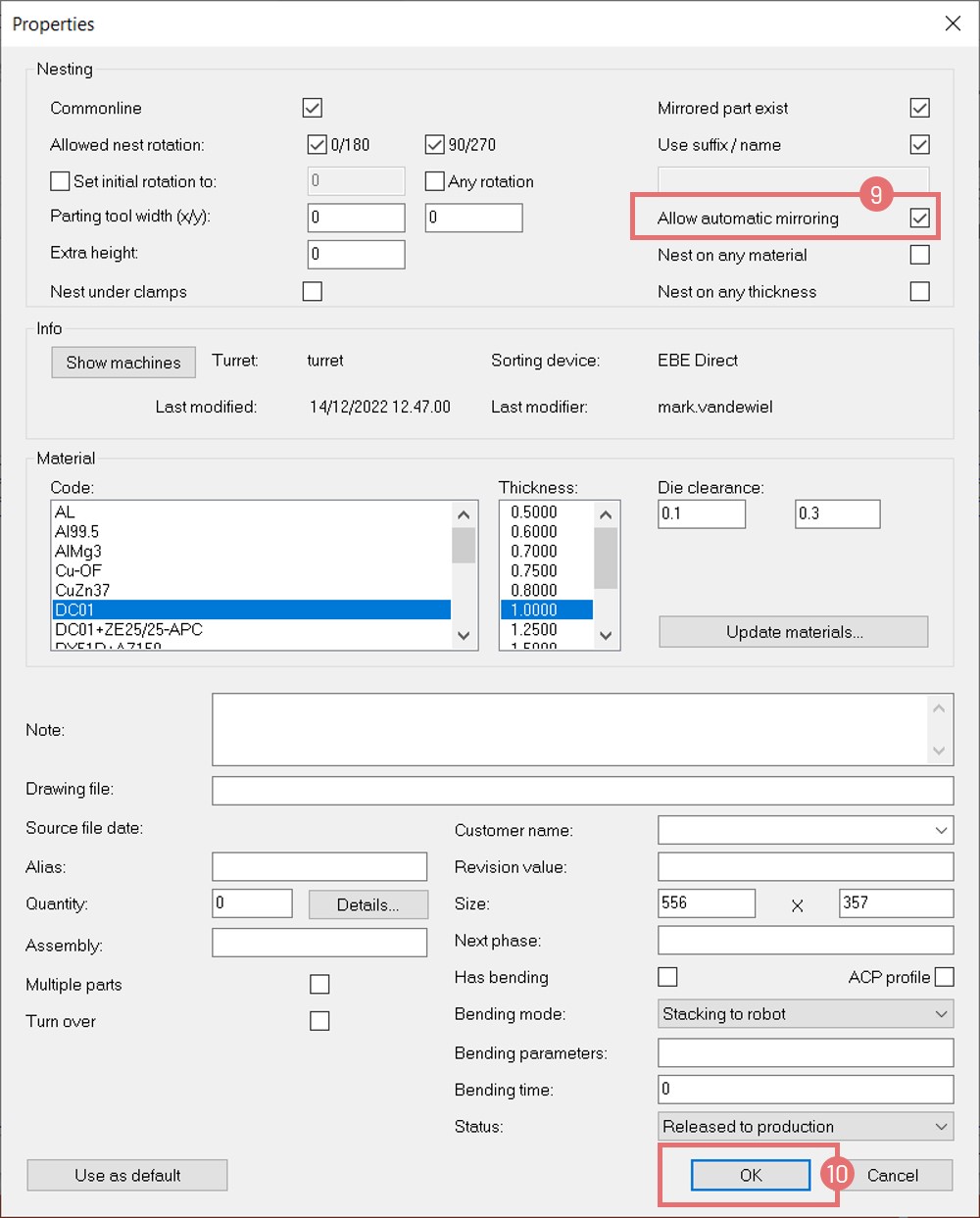
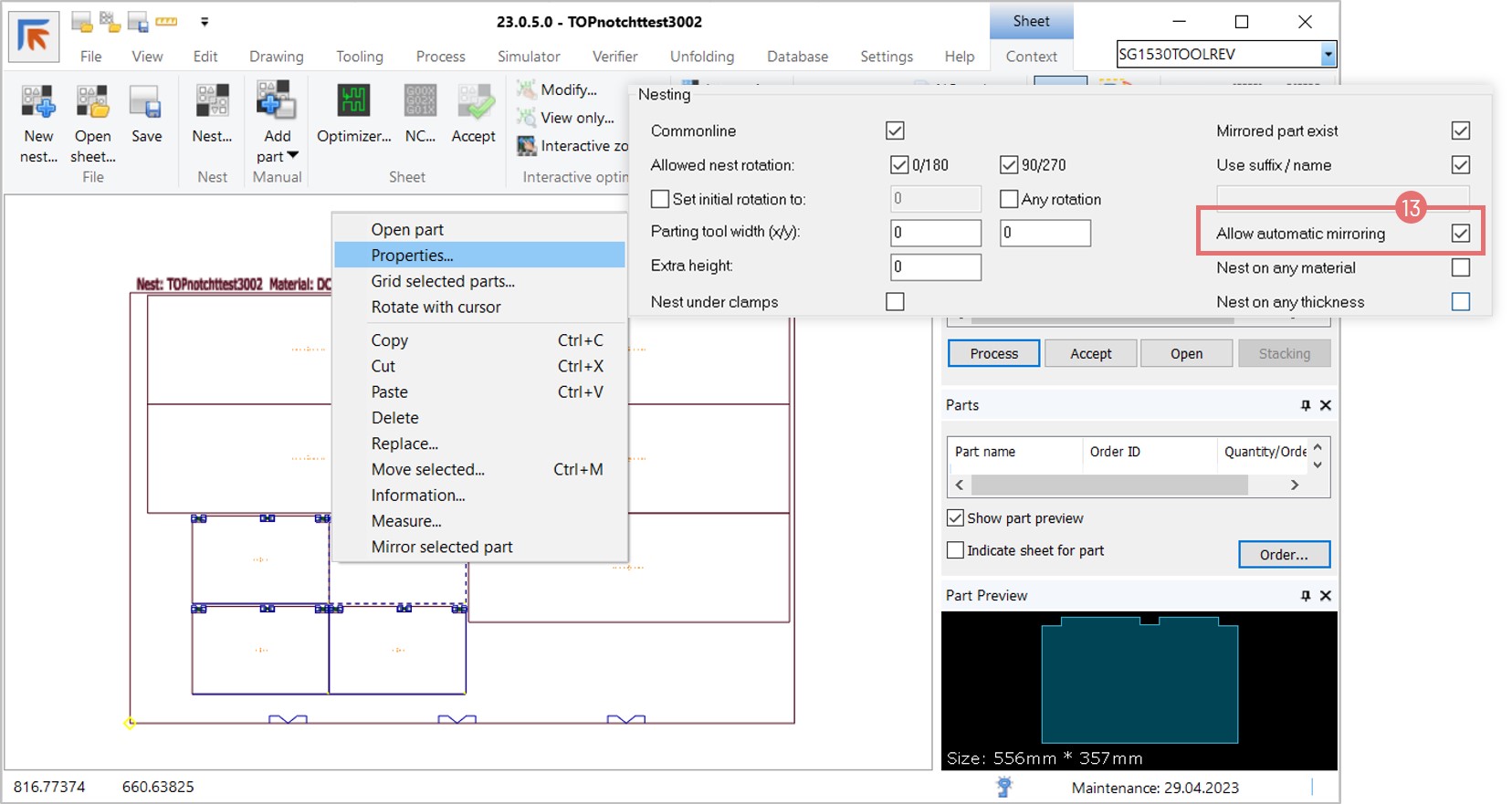
3. Select the Allow automatic mirroring checkbox to allow NC Express e3 to use mirrored parts freely while nesting (9). Press the OK button to apply the changes (10).

4. Create a new nest using part(s) with the automatic mirroring option on. Do not add the mirrored part to the Scheduled parts list (11). 

5. If the mirrored part file exists, it will be used in the nest. If the file doesn’t exist, NC Express e3 will notify that the mirrored part file will be created automatically in the same directory (12).

6. Compare the nesting results with the Automatic mirroring function ON and OFF.

7. It is possible to mirror parts in a nest interactively. First, ensure that the Allow automatic mirroring option is active in the Part properties (13).

8. Right click on a part and select the Mirror selected part option to flip the wanted parts (14).

Laser destruct for 2D Laser and Combi laser machines

NC express e3 provides flexible settings for how to destroy internal part contours. The given variable include the size of the area to be destroyed and scrap pieces with custom X and Y values.

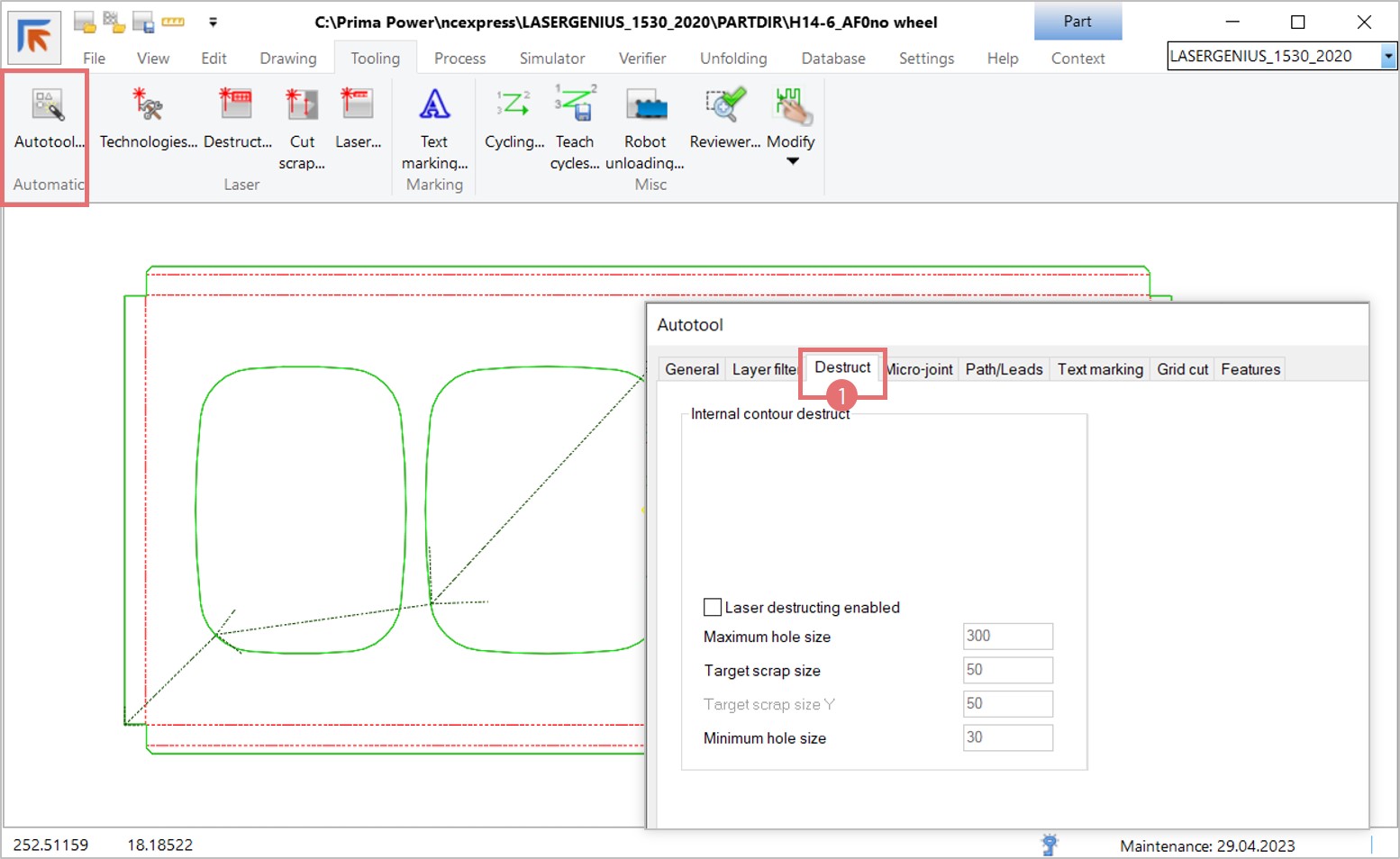
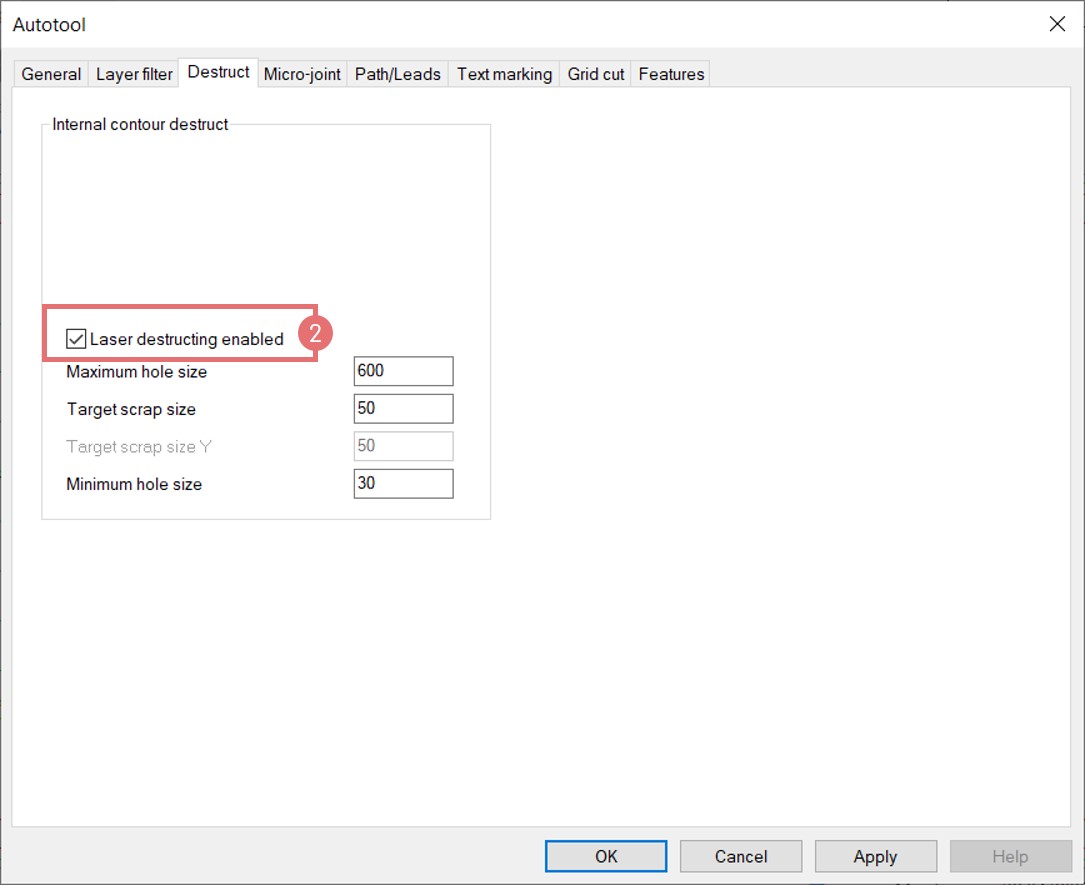
1. Open a part in NC Express e3. If the part contains internal contours to be destroyed, the user can choose between automatic and interactive laser destruct options. To recognize the contours automatically, open the Autotool dialog and switch to the Destruct tab (1).

2. Enable the Laser destruct function with the checkbox (2). Input the minimum and maximum values to define the area that will be destroyed. Then, set the size of scrap pieces.

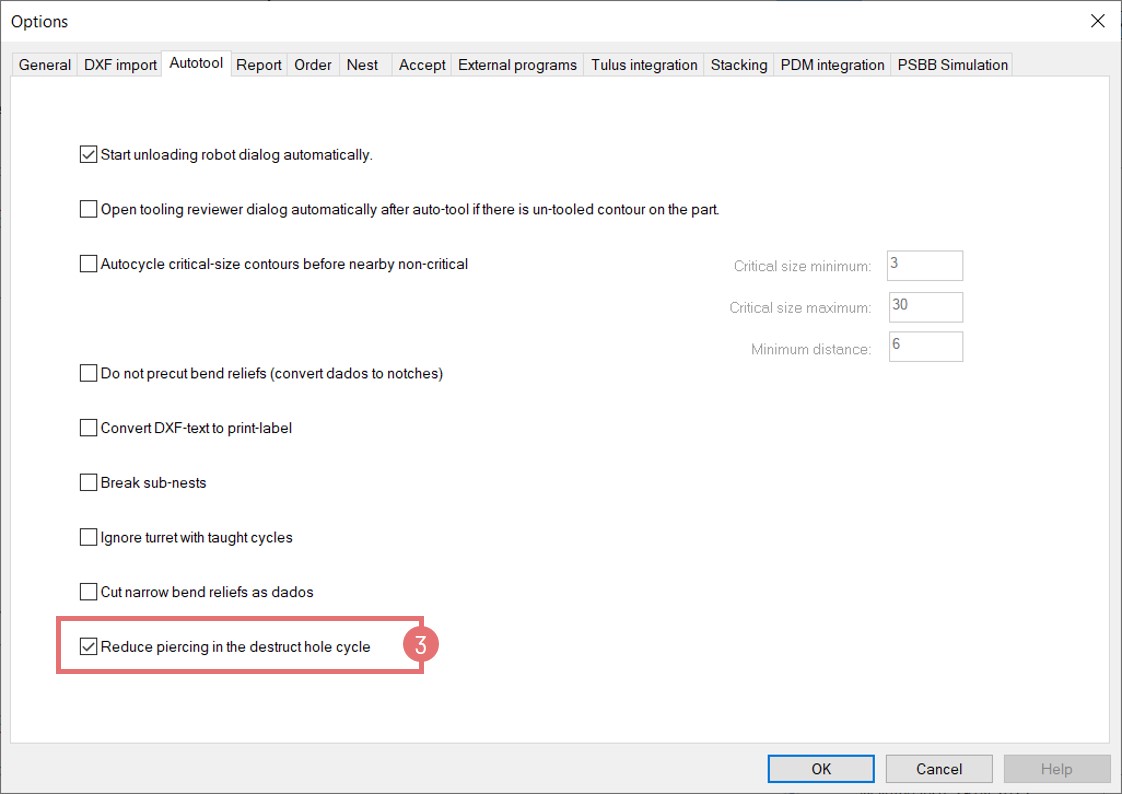
3. If you want to give separate values for scrap size in X and Y directions, activate the Reduce piercing in the destruct hole cycle option in the Settings -> Options dialog under the Autotool tab (3).

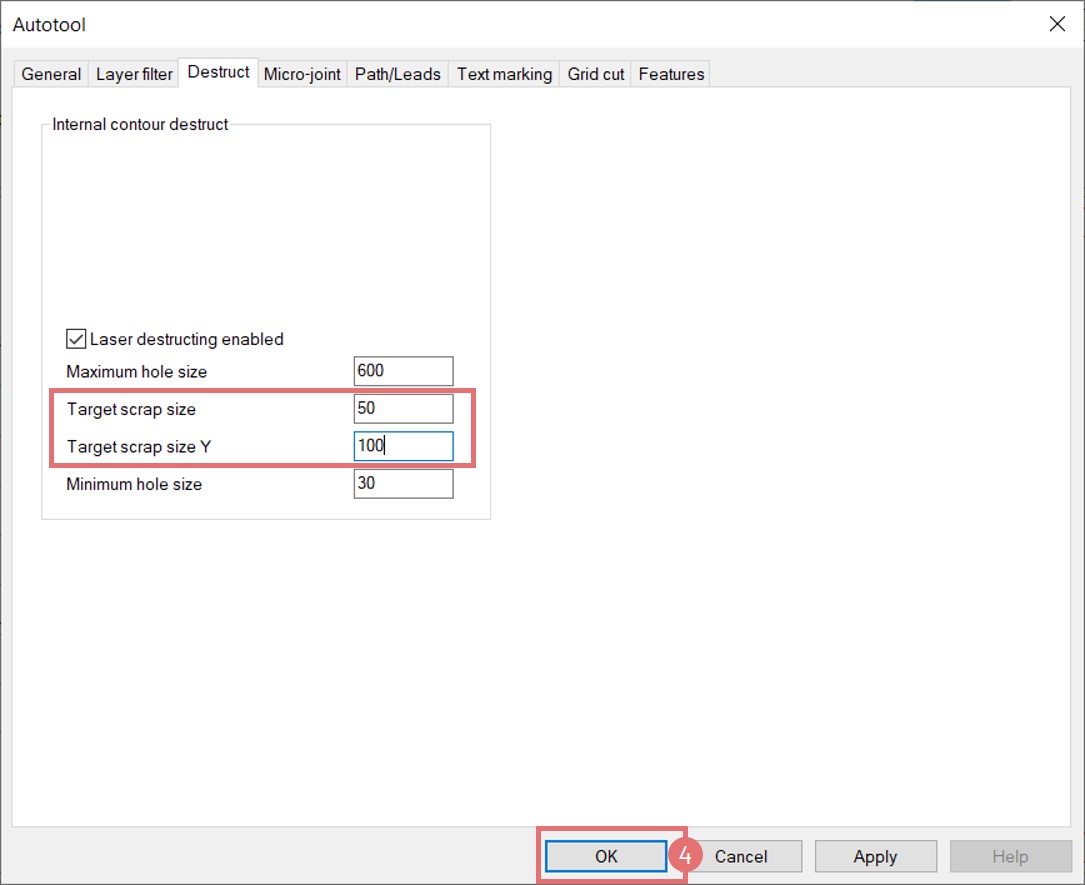
4. Edit the target scrap pieces in the Autotool dialog and press OK to apply the settings (4).

5. The laser path is applied to the part contours and the area inside of the part is destroyed to 50×100 mm pieces.

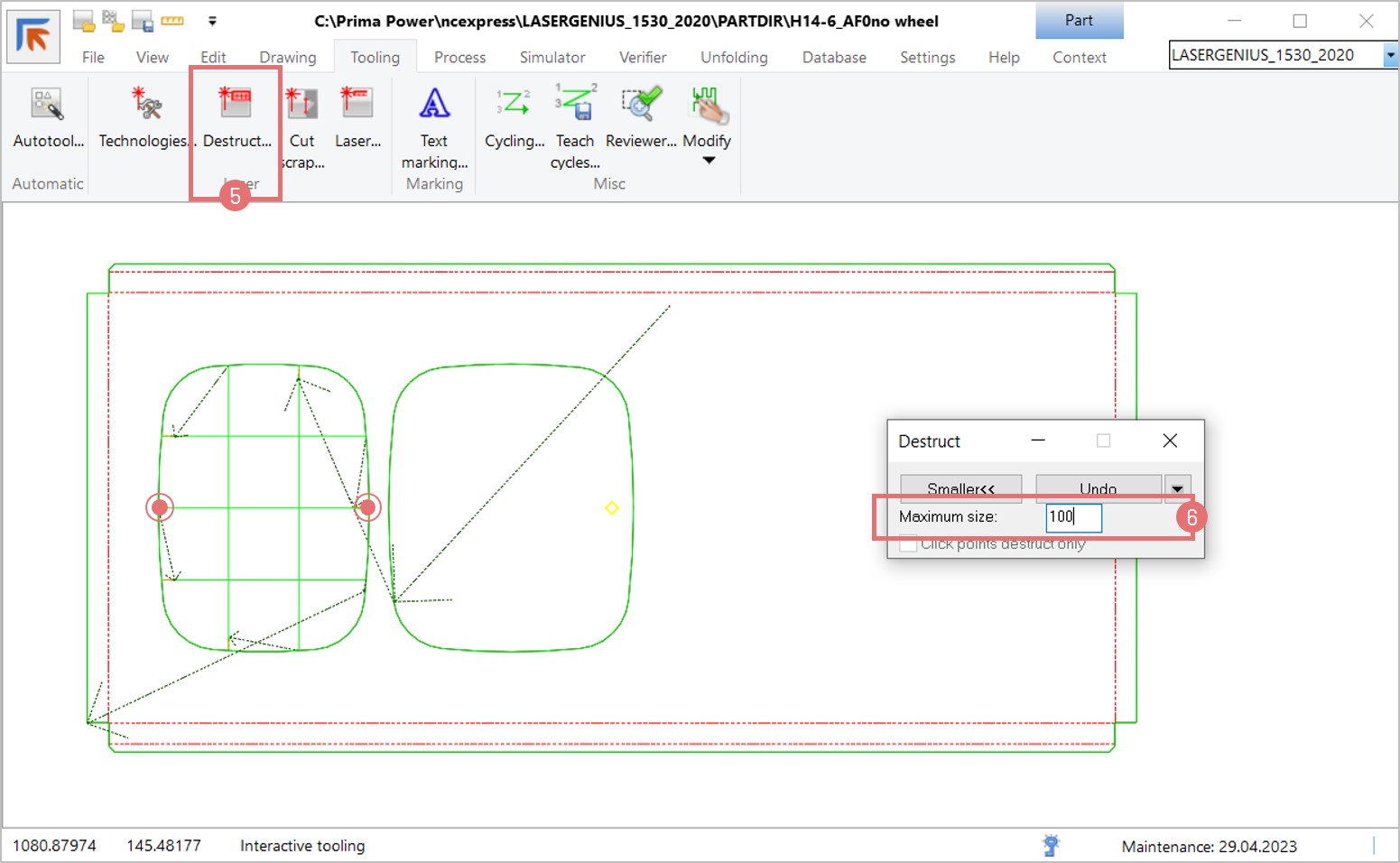
6. If you want to destroy internal part contours selectively, open the Interactive laser destruct window (5), set the size of the scrap pieces (6), and left mouse click on the edges of a wanted contour. 

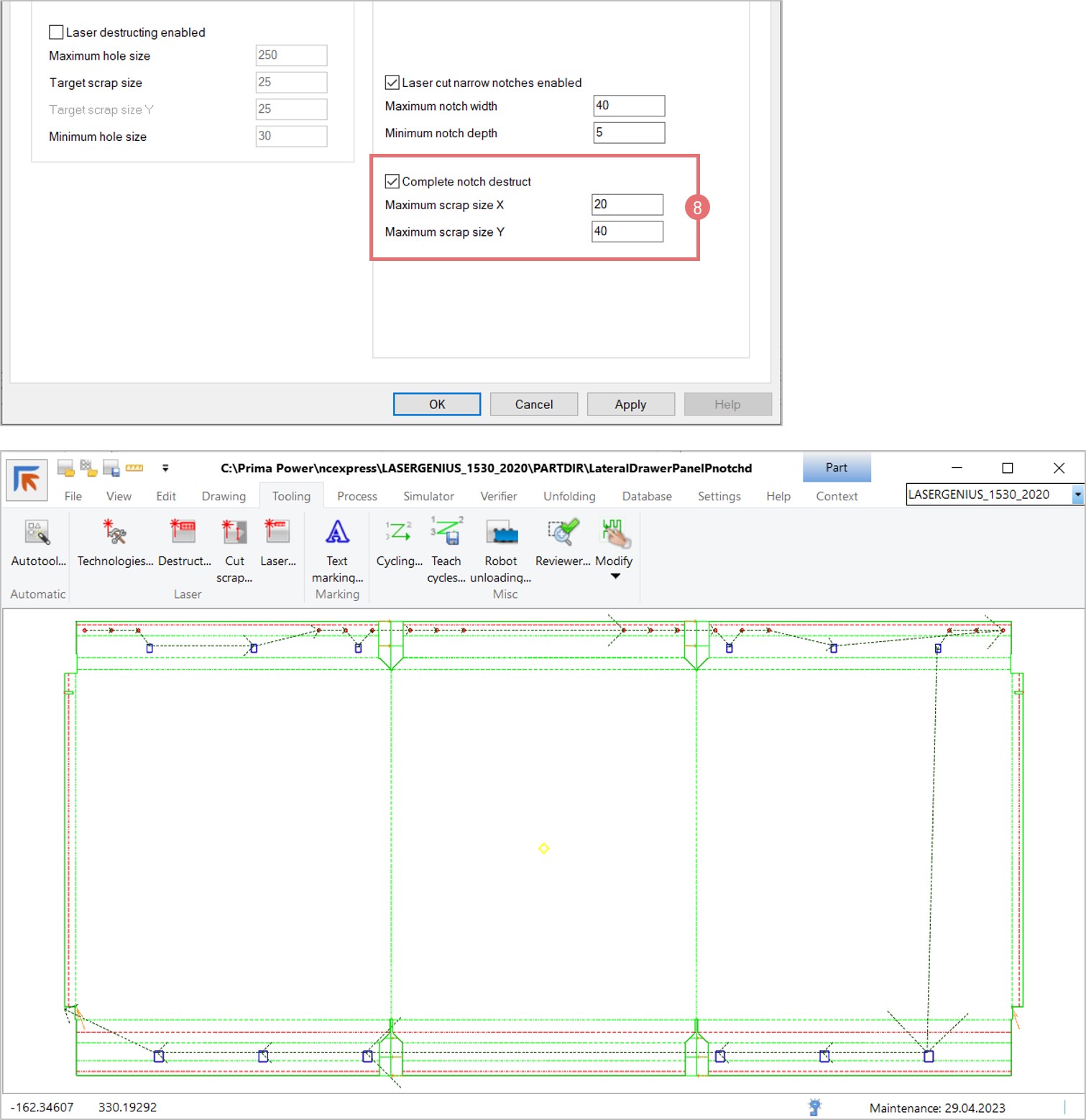
7. If a machine is equipped with a part picking and stacking robot (LST or PSR), it is possible to add laser cuts on narrow wells to ensure part picking reliability. Activate the Laser cut narrow notches checkbox in the Destruct tab in the Autotool dialog and specify the notch width and depth measures (7).

8. Depending on the notch size, it is possible to destruct them. The Destruct tab in the Autotool dialog has a dedicated section to set the size of the scrap pieces in X and Y direction for notches (8).

Tooling reviewer

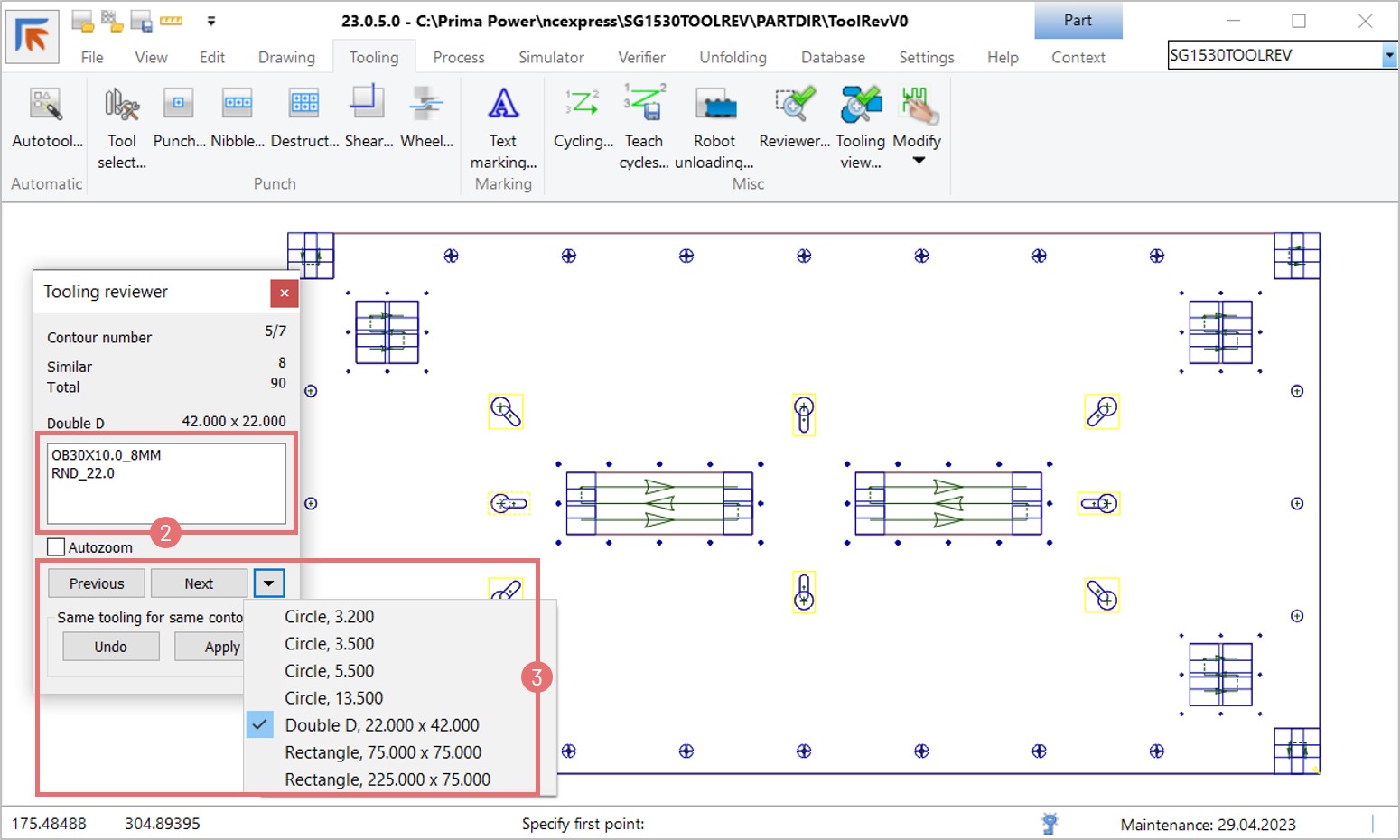
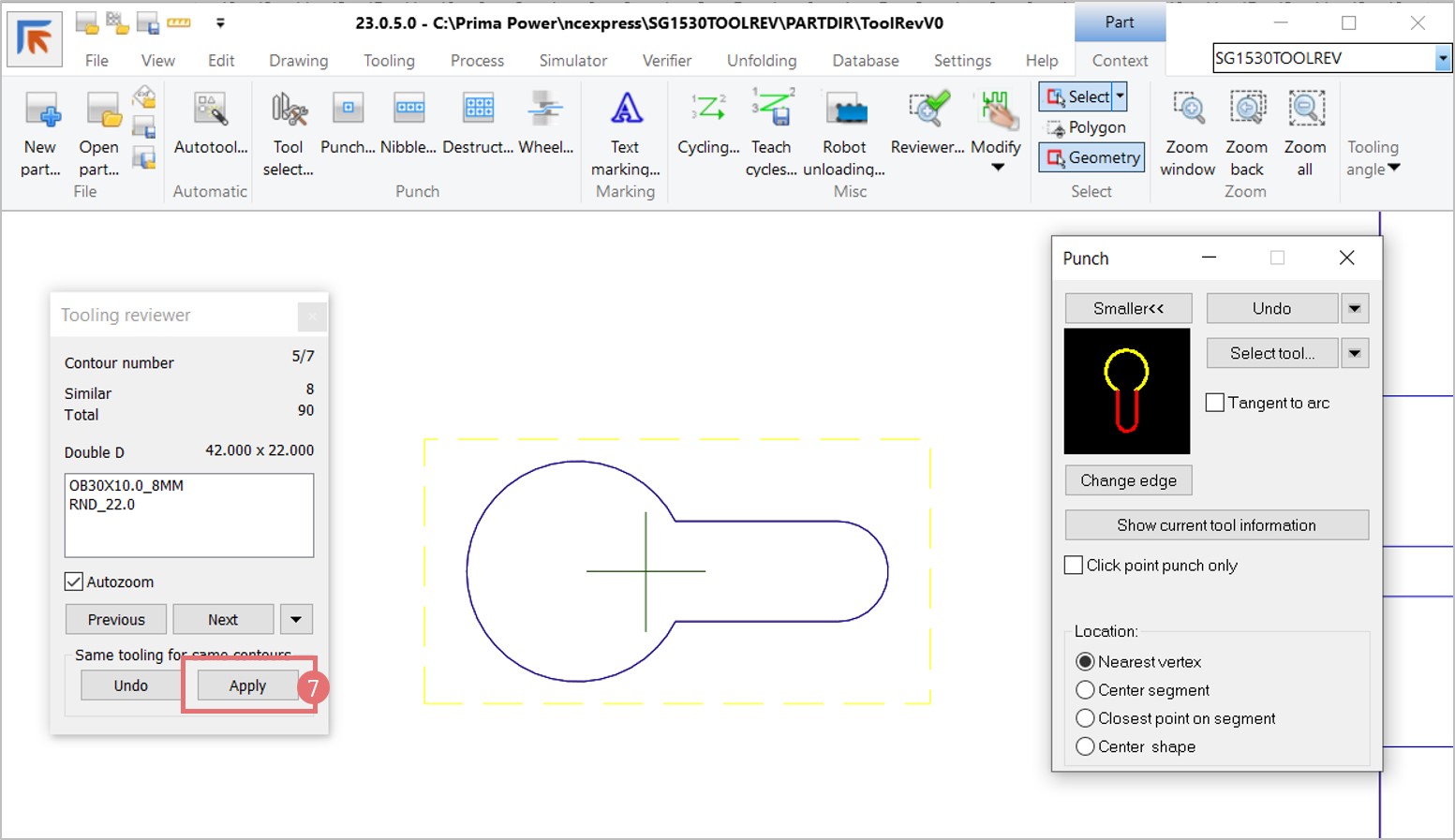
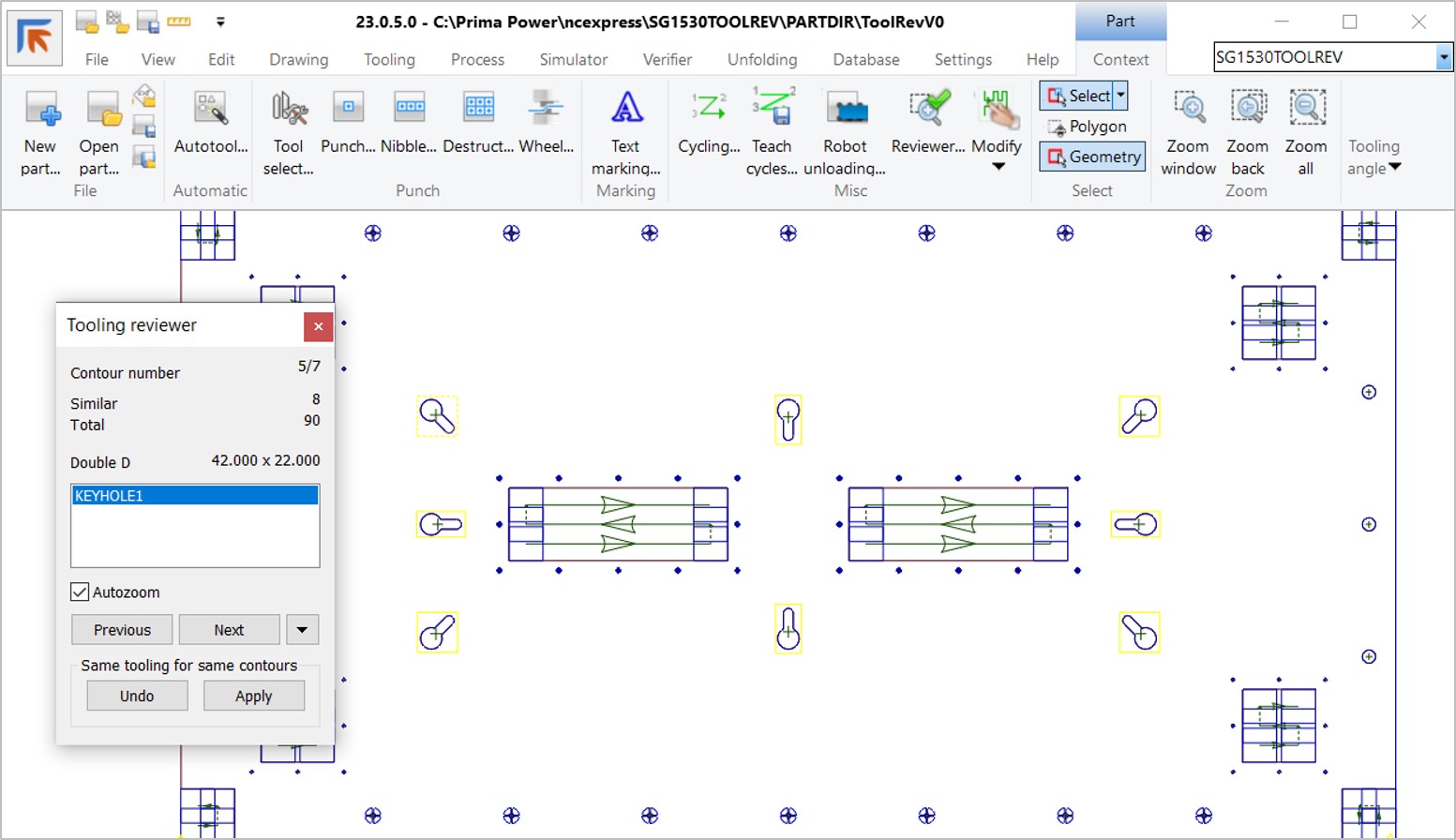
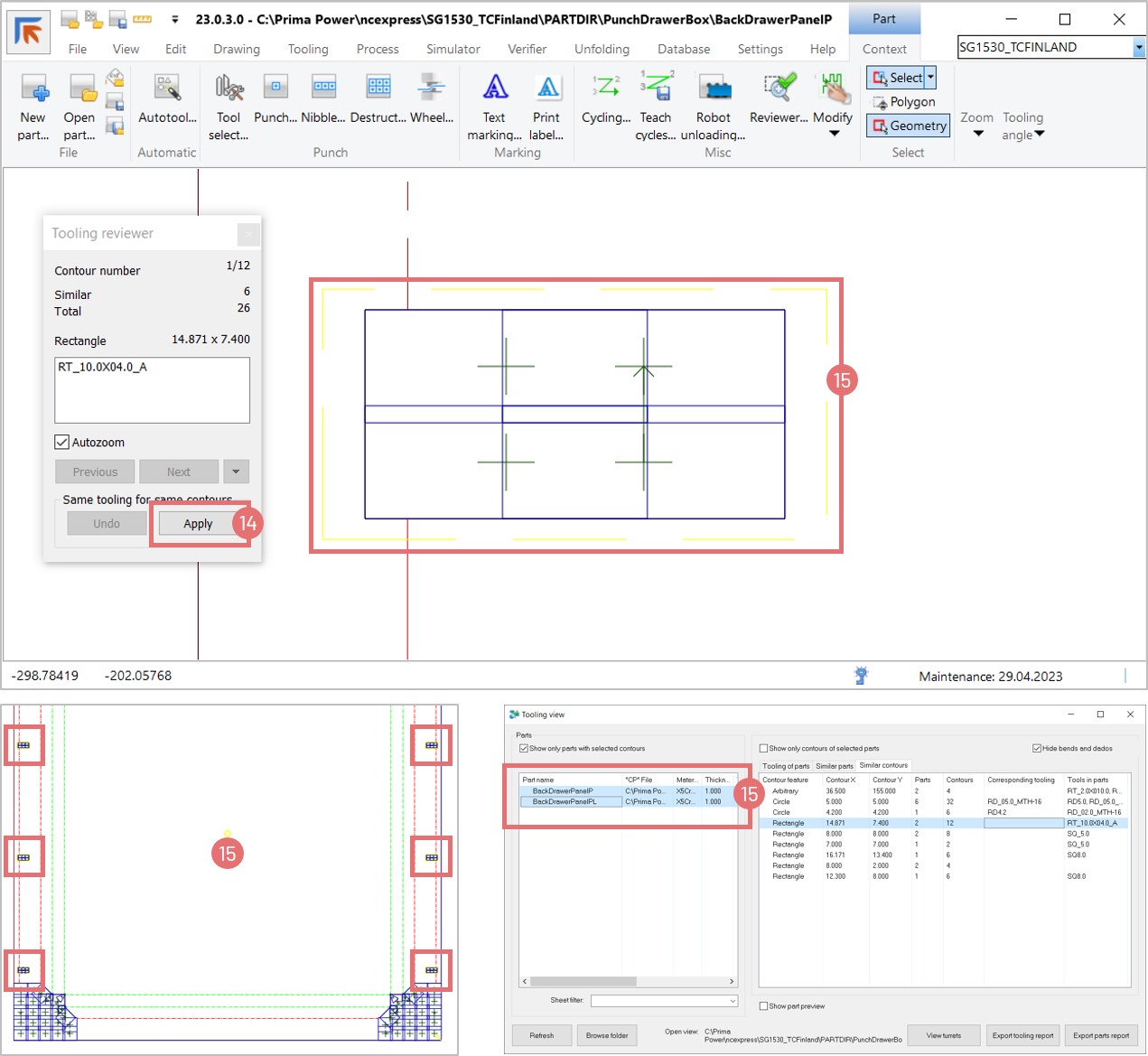
Tooling reviewer allows inspecting all internal contours in a part and, if needed, modifying them. The Tooling reviewer recognizes the same contours throughout the part. If tool hits of a specific contour are modified, it can be automatically applied to all the same contours found in a part.

1. Open a .cp file in NC express e3 or import geometry and run the Autotool function. Select the Tooling tab and open the Tooling reviewer dialog (1).

2. The Tooling reviewer shows the list of tools applied to an internal contour (2) and highlights them with yellow colour on a part. Use the Next and Previous buttons to view tooling of different contours found in a part or select the wanted one from the list (3). Select the Autozoom checkbox to maximize the selected contour.

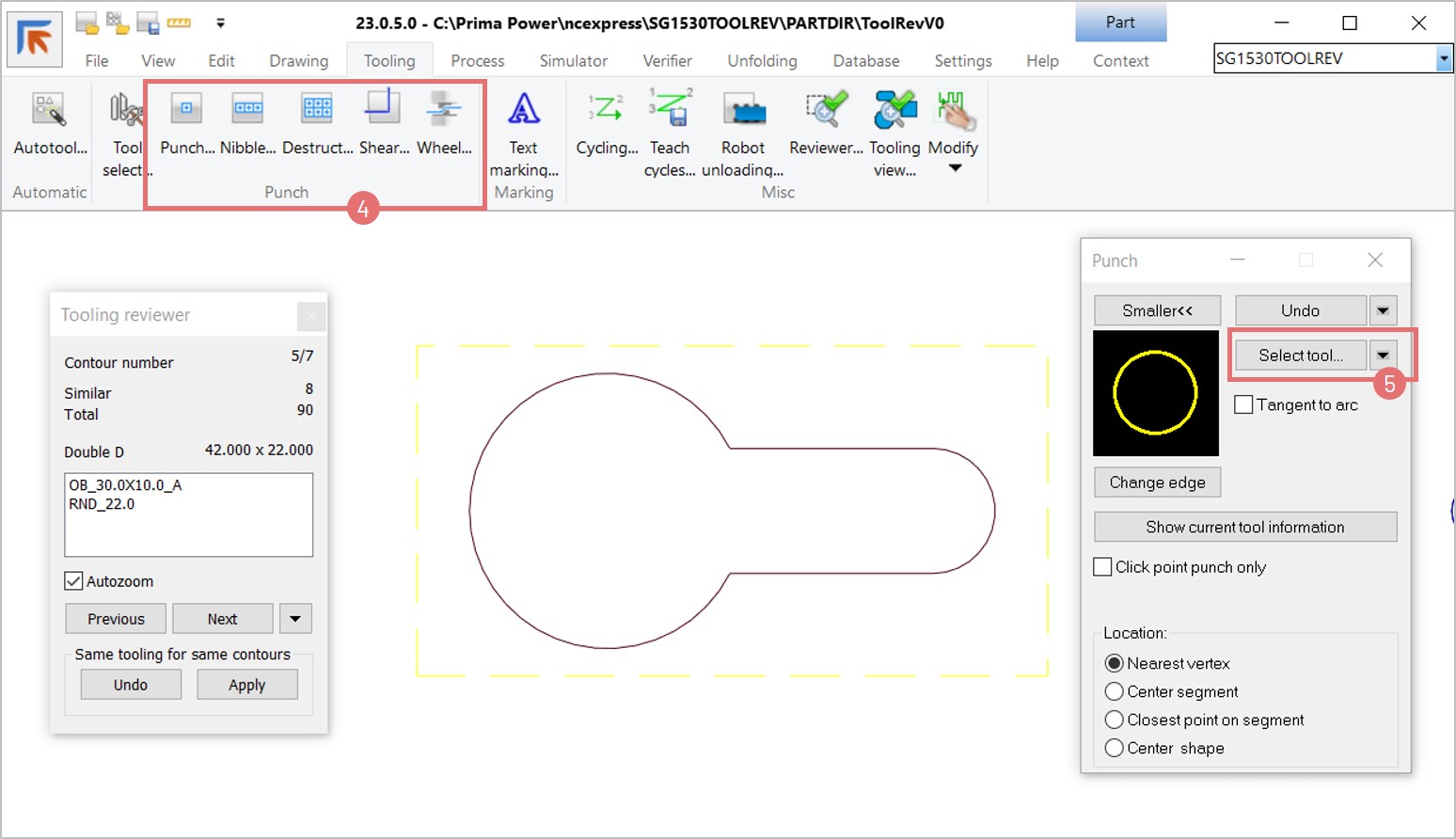
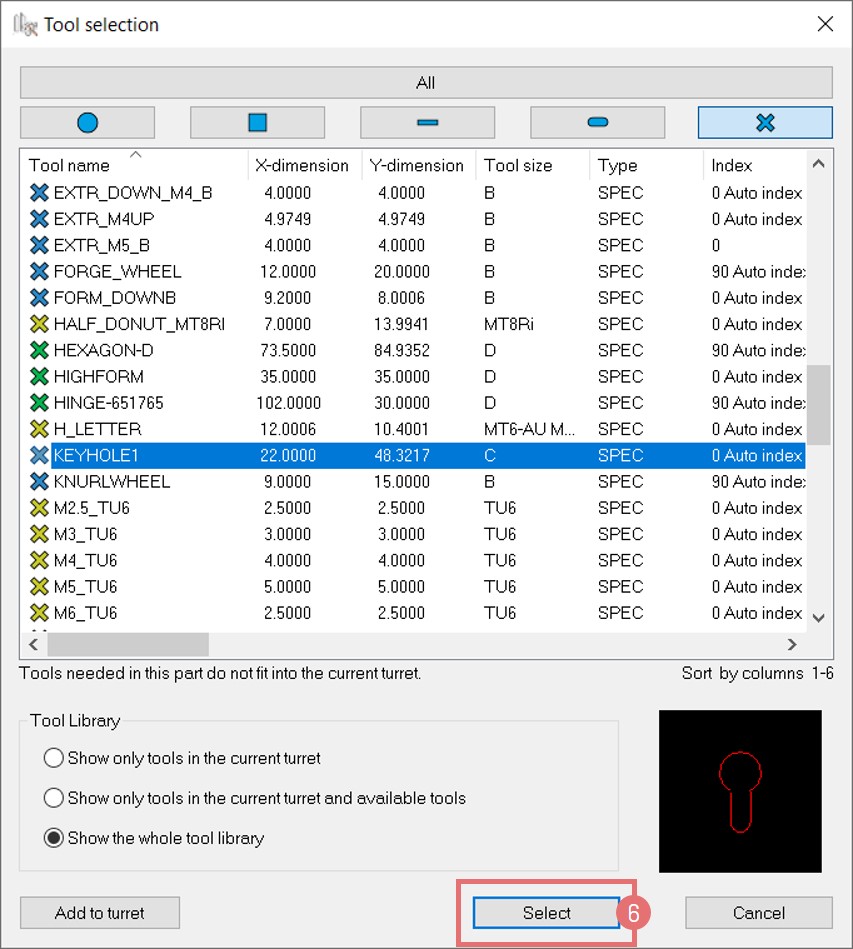
3. Delete the unwanted tool hits. To apply the new tool hits, select an interactive punch from the top ribbon corresponding to the contour type (4). Open the Tool library to find the needed tool (5).

4. Find the right tool and press the Select button (6).

5. Click on geometry to apply the tool hit. Click the Apply button in the Tooling reviewer window to apply the tool to all the same contours in the part (7).

6. Now all contours have the new tool hit applied. If needed, the tool hits will be automatically rotated to fit the geometry.

Tooling view

Tooling view functionality is available for NC Express e³  Punch and NC Express e³ Combi licenses.

Tooling view 

1. Tooling view is used to find parts with given tools and find tools that are used in parts tooling in a single window. OEM manufacturers can use it to build a consistent turret layout to minimize its setup during the mass production of standard products. Subcontracting job floors can refer to the dialog to adjust part tooling and fit more parts to commonly used turrets. Alternatively, Tooling view can be used to line up parts that fit a certain turret layout. This can be useful for factory floors where turret setup affects the part flow sequence.

2. The Tooling view dialog can be accessed from the Tooling tab in the miscellaneous section (1). Content of the Tooling view window is context-specific:

  • if nothing is open in NC Express e³, the dialog is initialized against the current part directory of the active machine;
  • if a part is open, the dialog shows the data of this part;
  • if a nest is open, the dialog shows data of the whole nest run;
  • it is also possible to use the Browse folder function (2) to see the tooling view of any folder containing .cp or .nst files.

3. The Tooling view dialog allows you to sort and filter data in several ways. To see the tooling of a single part, select part(s) from the Parts section and press the checkbox Show only tooling of selected parts (3).

4. To see all parts that use a certain tool, select tool(s) from the Tooling of parts list and press the checkbox Show only parts using selected tooling (4).

Find similar parts

1. The Part list on the left can be sorted based on their geometry similarity. Click on the Geometry similarity column to list similar parts consecutively (5).

2. Select the Show part preview check box to show picture when selecting a part (6).

3. Switch to the Similar parts tab (7). First, select the wanted part from the Parts table on the left and then select the wanted part from the list on the right to compare the parts with similar geometry.

Find parts with similar contours

1. Switch to the Similar contours tab (8). The list shows all contour features of the opened nest or folder. Select the Hide bends and dados checkbox to see only punching contours (9).

2. Select a part from the Parts list on the left and click the checkbox Show only contours of the selected parts to filter the list of contours (10).

3. Select the wanted contour from the list on the right and click the checkbox Show only parts with selected contours to filter the list of parts (11).

4. The Corresponding tooling column shows tools found in the Tool Library that can be applied to the contour. The Tools in parts column shows the tools that were applied to the parts currently listed in the Tooling view dialog (12). It is possible to modify the tooling of similar contours. Right click on a contour row and select the Open tooling reviewer option (13).

5. Add the wanted tools to the selected contour. Press the Apply (14) button to apply the same tooling to the similar contours of the opened part (if the contour is repeated) and to all the parts with the selected contours in the Tooling view dialog (15).

Other filtering options

1. If the Tooling view is initialized against a nest run, you can filter parts and their tools nested to a single sheet. Press on the Sheet filter button and select a sheet from the drop-down menu (16).

2. Alternatively, sorting in each column is supported by pressing on a column header (17). In the example below, the Times used column shows the quantity of tool elements applied in descending order.

3. Right-click on a part line to open the part in NC Express e³ or to show its location in a folder (18). Double click on a part line will also open the part in CAD view. If any changes are done to the part, press the Refresh button (19) in the Tooling view dialog to reload data shown in the dialog.

4. Right-click on a tool line to view it in the Tool library or to fill this tool when a part that uses it is open in NC Express e³ (20).

Turret view

1. Click on the View turrets button to select and view the turret layout. Tools that are currently shown in the Tooling of parts list are highlighted in green. Tools not loaded dialog shows the tools that are shown in the Tooling of parts list but are missing from the viewed turret (21). To view parts that are using not loaded tools, click the Show parts using tools button below (22).

2. The Tooling view dialog now shows the list of parts using not loaded tools.

NC Express 22.2 Technical Release Notes

NC Express e³ 22.2 is released. This version is the 2nd major release this year. 

You are entitled to this update when your maintenance is valid.

The 32-bit build is backwards compatible with older versions. We recommend this for updates.

The 64-bit build has the advantage of being able to handle large 3D-assemblies and it has the new DevExpress reporting module.

Note 1: The 64-bit build cannot use old customized 32-bit report templates. They must be made again on new syntax when moving from a 32-bit build to a 64-bit build.

Note 2: If you have software integrated to NC Express using ParaNCX-interface, please contact Prima Power before updating to 64-bit build. This concerns applications such as Tulus Office Premium, Tulus Office Power Processing, Batch Processing and PowerPlan, among others. The integrated software needs to compiled in 64-bit too.

NC Express 22.2 technical release notes

Overview of optimized sheet viewing methods

NC Express e3 offers multiple ways to preview an optimized sheet. Generally, they show tool packages, tool movements, tools and clamps protection areas, tool hits sequence, parts release order, etc. These methods include:

  • View only function of the Interactive optimizer
  • Simulator
  • NC code viewer
  • Verifier (available for Tulus machines with NC Express e3 Premium edition)

This article describes the functionality and differences between the methods.

The View only function of the Interactive optimizer

1. The View only function allows viewing the tool hits of an optimized sheet before postprocessing without the possibility to modify the data. Similarly as the Interactive optimizer, this dialog shows tool packages, the sequence in which tools are applied, the coordinates of the tool hits, and the order in which parts will be released from the sheet. Additionally, the View only dialog also shows the automatically generated motions and commands that are not shown in the Interactive optimizer window (1). These commands include:

  • MOTION
  • MACHINE_STOP
  • PRESORTING
  • BREAK_MICRO_JOINTS
  • Workchute (opening)
  • Workchute (closing)
  • Workchute (open)
  • Part# Scrap Removal
  • Part# Finished
  • Skeleton Unload
  • SHEET_UNLOAD
  • SHEET_AUTO_UNLOAD

2. Open an optimized sheet. Click the View only button in the Interactive optimizer section of the Context tab (2).

3. The Interactive optimizer window with disabled function buttons opens. The main view shows the tool packages on the selected sheet and the total number of the tool hits. Double click on a tool package line to view the order of the round tool (RD 20) hits (3).

4. The list of tool hits order, angle, and coordinates of the selected tool package are shown (4). The graphical view of the sheet is updated with the corresponding tool hit numbers and arrows indicating direction from one hit to another (5).

5. Select the Travel/Clamp zones checkbox to highlight the travel area and clamp protection areas on the graphical view (6).

6. Press the Next package button to exit the current view and go back to the list of tool packages (7). 

7. Double-click on the next tool package to see the order of the square tool (RECT 88) hits (8).

8. The graphical view of the sheet is updated to display the hits of the selected tool package.

9. The sheet unload button shows the selected unloading method in the Interactive Optimizer (9).

Simulator

1. The Simulator tab provides a graphical animation of the optimized sheet before postprocessing. This function gives the user a quick understanding how the sheet will be processed.

2. Open an optimized sheet. Select a nest from the nest explorer and press the Simulator tab (10).

3. Use the function buttons of the Simulator tab to control the animation. Refer to the right side of the window to track which zone, tool package, and tool hit is currently played (11).

4. It is possible to simulate only a range of tool hits. Select a line from the list, right-click on it and choose the Start option to mark the first tool hit (12). Select another line from the list, right-click on it and choose the End option to mark the last tool hit of the desired fraction (13). Press the Play button (14).

NC code viewer

1. The NC code viewer shows the NC program after postprocessing. Thus, it provides the most complete information about how the sheet will be processed including the estimated duration of each command. Select the sheet and press the NC code button (15). NOTE: If some changes are made in the NC code editor, they will be applied after accepting the nest.

2. NC Express e3 opens the NC code using notepad by default. It is possible to change the default NC code viewer. Go to the Settings -> Options and select the External programs tab. Type in a desired program name or browse the program with the More Options button (16).

Verifier

1. The Verifier tab provides a graphical animation of the optimized sheet after postprocessing. The Verifier shows exactly what happens at the machine because the animation is generated based on the NC code. The Verifier function is available only for the Tulus machines with NC Express e3 Premium edition.

2. Select a postprocessed sheet from the nest explorer and press the Verifier tab (17). The displayed NC command is highlighted at the bottom of the page (18). The head position and the total machining time can be seen on the left side of the page (19). Use the function buttons of the Verifier tab to play the animation or control it manually by dragging the slider at the bottom of the page (20).

Interactive optimizer

The Interactive optimizer allows adjusting the machining order of an optimized sheet manually. The function is available for all machine types. This article describes some examples for punching machines.

NOTE: the Interactive optimizer works inside a zone. Interactive zones are created automatically. If you need to create or modify repositions, use the Interactive Zones dialog first.

Example 1

1. Steel doors manufacturing produces parts from pre-cut sheets on a stand-alone punching machine. One sheet equals one part and there is no skeleton. The size of the part is 2000 x 1000 mm. There are 4 x 20 mm corner notches at each corner of the part. Two lower corner tool hits fall under the slow-motion zone (Y<100 mm) (1).

2. The axis movement in coordinates X1995 Y65.7 is estimated to take 3.379 seconds because the hit in the Y coordinate is below 100 mm, and the distance between the hits (corner notches) is 2000 mm. The Interactive optimizer can be used to add the NO HIT MOTION command in Y101 to avoid movement over the slow motion zone.

Using the Interactive optimizer to add a NO HIT motion

1. Open the Interactive optimizer dialog (3). Select the tool package where the NO HIT MOTION should be added (4).  

2. Select the Travel/Clamp zones checkbox to highlight the travel area and clamp protection areas on the graphical view (5).

3. The new NO HIT MOTION hits will be added above hits 3 and 4 (the slow motion zone) to shorten the time from hit 3 to hit 4. Select the Graphical mode and the Control (Virtual) hit checkboxes (6). Click on a desired area on the nest, the Verifying/Changing hit order window will open. Select the placement of the new hit (7) and press the Modifying virtual hit button (8). 

4. Give coordinates for the new tool hit. X coordinate remains the same as for hit 3, change the Y coordinate number to 101 (9) and press OK. 

5. Choose the No hit motion option and press OK (10). The new hit is added to the tool package (11). 

6. Repeat steps 4-6 to add the second NO HIT MOTION on the other side of the part (12).

7. Press the Save button to apply the changes (13).

8. Select the nest and press the Process button or press the Generate NC code button (14). DO NOT RE-OPTIMIZE the existing OPM files to save the manual modifications (15).

9. Press the NC-code button (16) to check the new axis movement time in the Y 101 coordinate (17). The manual modification in this example allows saving 2.552 seconds per part.

Example 2

1. Parts are made with a punching machine.  After automatic optimization, tool hits order includes punching the outside contours of a part before releasing the part. The Interactive optimizer is used to change the punching order where hits in 315 and 45 degree angles are punched before all the other contour tool hits.

Additionally, the large part size (900 x 550 mm) and very thin skeleton may affect part accuracy. To prevent this, the Interactive optimizer is used to reduce the Acceleration speed for the last nibbling line before releasing a part.

Using the Interactive optimizer to change tool hits order

1. Open a post-processed nest in NC Express e3. Press the Modify button (18) to open the Interactive optimizer dialog. Double-click on the desired Tool package (19).

2. Tool hits 3, 4, 11, 12, 19, 20, 27, and 28 are punched in an angle. Select tool hits 3 and 4 from the list by holding down the CTRL button, and press the Move up button until they appear on the top of the list (20).

3. Repeat this action for the corresponding tool hits on each part (21).

4. To change the Acceleration value, select the desired tool hits from the list by holding down the CTRL button (22) and press the Make button in the Control mechanism changes section (23).

5. Change the nominal value of the Acceleration field to 30 (24). If multiple tool hits are selected, a checkbox Apply to same tool left items appears (25). Select the checkbox to apply the same acceleration value to all selected tool hits. This will reduce the Acceleration speed for the X and Y axis to 30%, causing less deformation of the skeleton and thus more accurate parts. Press OK to save settings.

6. Press the Close button in the Interactive Optimizer window. Press the YES button to save the new tool hits order and the Acceleration values (26).

6. Select the nest from the nest explorer and press the Process button or the Generate NC code button (27). DO NOT RE-OPTIMIZE the existing OPM files to save the manual modifications (28).

7. To verify the applied changes, press the NC-code button (29).

NC Express 22.1 Technical Release Notes

It’s a delight to inform that now NC Express e³ 22.1 is released.

New machine features are supported on Laser , Punching and Combi machines. General usability has got some nice new enhancements as well. Please read information about new features at:

NC Express 22.1 technical release notes

From following link you can look video about new features:

NC Express 22.1 release video

New reporting using customizable templates

NC Express e3 version 22.1 is available in 32-bit or 64-bit builds. The 64-bit build supports the new reporting style using customizable templates. The installation includes software called Report Designer which provides nearly limitless customization possibilities to design a needed report template. The old reporting style works on the 32-bit build. 

1. Create a new nest run. Switch to the Context tab. The Report section has two new buttons: Sheet report and Run report (1). The Sheet report generates the report file of the currently open nest, and the Run report generates the report file for all the sheets in the current nest run.

2. Press the Run report button. The NC Express Report Viewer will open. There is a separate file for each existing report template. Choose the desired file from the drop-down menu (2). The report can be then exported to different third-party formats (e.g., pdf), sent using e-mail, or printed (3).

3. The report templates for the single sheet report are located in the ncexpress\report\Sheet reports folder. The default report templates for the nest run report are located in the ncexpress\report\Run reports folder.

5. The NC Express Report Designer allows creating new report templates. Copy one of the existing template files and modify it to  make a new template. Never modify the default template files, because they will be overwritten.

5. For more instructions on how to use the program, refer to the Report Designer Guide.pdf document. To learn about what data can be used to create a report, refer to the NC Express Report Designer, reporting fields.pdf document. The files can be found in the ncexpress\bin folder.

Settings

1. Open the Settings -> Options window and navigate to the Report tab (4). Select the Generate report PDF file automatically after postprocessing checkbox to include a report to the batch zip file (5). The sheet report is always included to the batch zip file. Select the Run report option from the drop-down menu to include also the run report (6). Choose which report template will be used for the automatically generated files from the drop-down menus (7).

2. Tool names are shown in the report files by default (8). If there is a need to hide the tool names from the report files, deselect the Draw tools to turrets and multi-tools checkbox (9).

Production labels

Production labels facilitate automated information flow from the ERP system to be printed or etched on a part. NC Express e3 allows using different methods: labeling using marking tools such as laser etching, diamond marking, pen, letter stamp; and labeling using a dedicated labeling device, such as Laser marker, Labeling device, and InkJet marking device.

Production labels using marking tools

Laser etching, Diamond marking, Letter stamp, Pen

1. Open a part in NC Express e3 and press the Text marking button (1). Select the <PRODUCTION_LABEL> from the list of the reserved words (2). It is possible to add multiple production labels to a part by adding a number in square brackets to the text field: <PRODUCTION_LABEL[1]> (3). Add a Scribing tool of a choice, for example, a letter stamp tool A_MT40 (4).

2. Add a second production label with the text <PRODUCTION_LABEL[2]> (5). This allows the Order Database to feed the production label text in two rows. Save the part.  

3. To feed production label text through the Order database, the text must be specified in an order file under the ProductionLabel column. Each new field in a label must be specified in parenthesis (6).

4. Open the Order database and import the order file.  Select the part lines and proceed to Nesting (6). 

5. It is possible to view or edit the production label’s text in NC Express e3. Open the Nesting parameters window, select the Parts list tab, and double-click on a part in the Scheduled parts list (8). Click the Labels button in the Modify part record dialog (9) to view or edit the label’s text (10). This feature can also be used when adding a new part to a nest manually.

6. The production label text in two rows has been added to the parts using a marking tool (11).

Production labels using a dedicated device

Laser marker, Labeling device, InkJet marking device

1. When a dedicated device is used for production labels, a labeling template must be configured in the LaserMarker.ink file (12). The file is located in the \MachineName\LIB folder. (NOTE! There can be only one file with the .ink extension in the LIB folder).

2. Open a part in NC Express e3 and press the Print Label button (13). Select the desired template from the drop-down menu (14).

3. To feed production label text through the Order database, the text must be specified in an order file under the ProductionLabel column. Each new row in a label must be specified in parenthesis (15).

4. Open the Order database and import the order file.  Select the part lines and proceed to Nesting (16). 

5. If necessary, view or edit the production label’s text in the Modify part record dialog (17).

6. The production label text in two rows has been added to the parts using the Laser marker device (18).

Prima Power Connect user manual

Prima Power Connect contains news articles with detailed explanations of commonly used NC Express e3 functions. It also gives notifications on available software updates and allows the status of created CSRs (Customer Support Requests) to be followed.

LICENSE ACTIVATION

1. Online activation: Open Prima Power Connect, go to the LICENSES page, and press the ACTIVATE UPDATE button (1).  

2. Off-line activation: Open Prima Power Connect, go to the LICENSES page, press the READ THE LICENSE IN FILE button (2), and browse the V2C-file.

3. Product key activation: a product key is a code that allows the activation of the NC Express e3 license. Open the .txt file received with the purchase, and copy the code. Open Prima Power Connect, go to the LICENSES page and press the ACTIVATE PRODUCT KEY button (3).

Insert the code and press NEXT (4) to see the list of licenses included in your order.

Review the licenses and press ACTIVATE (5).

SENDING FEEDBACK TO PRIMA POWER SUPPORT

1. It is possible to send feedback to Prima Power support by creating a problem.zip and a new support case in Prima Power Connect. This automatically creates the CSR issue for the Prima Power feedback system. In order to get support, NC Express e3 must have a valid maintenance contract (1).

2. Create problem zip

Open a part or a nest in NC Express e3, go to the Help tab and press the Create problem zip button (2), or simply use the CTRL + ALT + Z keyboard shortcut. It may take a few seconds to generate the file. The file will contain your part or nest and NC Express e3 machine configuration. Wait until a window pops up, which tells the name and the location of the created problem.zip file. Press OK to open Prima Power Connect to create the CSR (3).

3. Create a CSR

A new CSR template will pop up. Check the contact information, select a category from the drop-down menu. Fill all the fields carefully and especially make the description as accurate as you can. This significantly helps the problem-solving process. Add additional files to explain the problem. Press the Create button (4).

Now the issue status can be followed on the Prima Power Connect, Support page.

SOFTWARE UPDATES

1. The Updates feature (1) enables the latest software installer to be downloaded. After the download is completed the software can be installed with the INSTALL button (2). All updates are also available from the Prima Power download portal (3). Contact a Prima Power representative to gain access to the portal.

Alternatively, start the installer from the download folder. Click on the software name to see the download folder path (4).

SETTINGS

Open the Settings page from the top right corner (1). It is possible to set preferences to automatically open CSRs and the news after NC Express e3 has been started or to change the language of the Prima Power Connect interface.

It is recommended to keep the Automatic updates feature active, because older versions may not be supported anymore (2). The Automatic updates feature refers only to the Prima Power Connect application, not to office or CAM software.

TROUBLESHOOTING

1. License activation if a hardware key is used with Sentinel Admin Center

Open page http://localhost:1947 on your internet browser. Page Sentinel Keys (1) shows your dongle.

If the dongle is plugged in but not shown here, the drivers must be updated. Follow the link to Thales Sentinel Drivers and Downloads page: https://sentinelcustomer.gemalto.com/sentineldownloads/. Select Sentinel LDK RunTime & Drivers (2).

Select the latest version of the Sentinel HASP/LDK Windows GUI Run-time Installer from the list of available options (3) and download the driver file.

2. License activation if a software key is used

First, verify that the Sentinel LDK license manager is running in the Windows Services dialog (4). If the service is stopped, start it with a right mouse click.

If the Sentinel LDK license manager is not visible in the Windows Services window, the HASP/LDK Run-time Installer from Prima Power must be downloaded. This version contains the Prima Power Vendor library. Download the haspdinst_WAOWR.exe driver from the Utility folder in https://download.powerplatform.net/home (5) or contact a Prima Power representative.

Part group processing and Continuous part flow features

The Part group processing feature allows controlling parts flow by releasing a limited amount of parts at the same time. The Continuous part flow feature automatically distributes necessary punching hits between shearing hits allowing the parts to be released within a targeted time interval. The time interval is typically the bending time of the part. The features are used for PSBB lines with limited part buffering capacity or for punching-shearing machines with a sorting device (SU-P, C1500, STS, PSR).

Machine settings

1. Allow continuous part flow production for the sorting device in the PSBB Line. Go to the Settings tab and open the Machine settings dialog (1). Double click on the relevant device under the Sorting tab (2). Select the Continuous part flow checkbox and save the settings (3).

Part group processing

1. Open a nest, and go to the Optimizer dialog. Enable the Part group processing feature and specify the maximum part group size to be released (4).

2. To view the result open either the Simulator tab, Verifier tab, or press the View button (5). The Optimizer has created 56 punching/shearing packages to release parts in groups of 4 parts.

Continuous part flow

1. Open the Optimizer dialog. Enable the Part group processing feature and the Continuous part flow feature (6). Set the preferred parameters for continuous part flow: quantity of parts to be released at once and the targeted interval between the part groups’ releases. The interval typically equals the bending time of the part (7).  Continuous part flow can be useful for straight-through addresses: 10, 210, 610, 910.

2. To view the result open either the Simulator tab, Verifier tab, or press the View button (8). The Optimizer has created 145 punching/shearing packages to release two pars at a time within the targeted 20 second intervals.

Selecting tools for Part group processing

1. It is possible to control which tools undergo the Part group processing logic. For example, repeated application of forming tools might distort the sheet. It is recommended to tag the forming tool for the Part group processing logic to apply it right before a part is released.

2. Open the Optimizer dialog. Enable the Part group processing feature, and set the maximum part group size to ‘1’ to release parts one by one (9).

2. Switch to the Punch tab, and click the Sheet tools view button (10) The Sheet tool list allows viewing or modifying the default settings of the current nest run. Select the forming tool from the list and press the Part group processing switch (11). This setting applies to all the sheets in the current nest run. If none of the tools are tagged, all tools will undergo the part group processing logic.

3. All non-part group processing punching tools are applied in zone 1, then only 1 part is punched with the part group processing tool (forming tool) and released.

4. Whereas the Sheet tools view allows tools tagging on a nest level, it is possible to set it globally on a tool level. Open the Tool library setup window, locate the preferred tool, select the Part group processing checkbox, and save the setting (11). This setting applies to new nest runs.

Special tool definition

The definition of special tools’ features ensures a reliable fabrication process not only on the main machine but also in the following devices in a manufacturing line, for example, in a stacking device. The special tool features, such as the Form protection area, tool symmetry type, exit path instructions, etc. are defined once for each special tool and applied during optimization at the nest level, taking into account the tooling of neighboring parts.

There are three ways to add a special tool to the Tool Library:

  a. By using a tool definition wizard

  b. By using the Export geometry function 

  c. From a geometry opened in NC Express e3  (Arbitrary option)

New special tool definition wizard

1. Navigate to the Settings (1) tab and open the Add special tool window (2). Select the shape of the special tool (3). 

2. Input the width, length, and height values to define the shape dimensions (4) and press OK. NC Express e3 will create the geometry of the special tool based on the given values.

3. The Tool setup library will open, where additional features can be specified. Give the name of the new special tool (5).

4. Specify the selected tool’s symmetry type (6):

Square symmetry indicates that the tool will make the same hole or form if a part is turned by either 0 / 90 / 180 /270 degrees

Rectangular symmetry indicates that the tool will make the same hole or form if a part is turned by either 0 / 180 degrees

Round symmetry indicates that the tool will always make the same hole or form regardless of the part rotation. The round symmetry type is also used when the angle is not important, for example, in hexagon forms for clinch nuts. Tools with the Round symmetry type never need to be rotated

No symmetry indicates that the tool always needs to be rotated if a part is rotated, for example, louvers.

5. It is possible to assign different tool IDs if the Tool library has a special tool that would make the same punching or forming shape if turned by 90 / 180 / 270 degrees (7), however, this option is currently obsolete.

6. The Extra tool height (8) is relevant for the forming tools and indicates the height of the form (excluding the thickness of the material). This field needs to be specified if a stacking device is used because forming features need to be taken into account when calculating the maximum stack height.

7. The Exit direction angle forces the sheet to move in a certain direction right after the forming tool hit to prevent the form from getting stuck in the upper tool. Additionally, if several louvers appear on a part in a row, the Optimizer will automatically create a tool hit sequence in the corresponding direction, which significantly reduces the number of moves. The Exit direction angle (A) in this context means a path for the tool at zero-degree angle (note that the sheet will move in the opposite direction because the tool itself does not move). The Exit path length (B) indicates how far the motion away from the form should be before starting the next NC command. The Exit path length typically does not exceed the size of the form protection area in the direction of the exit (9).

8. Form protection area automatically prevents forms from being smashed by other tools. The size of the area equals the physical dimensions of the form (10). When the Form protection area is set, the Optimiser will automatically prevent other tool stripper plates from reaching this area after the form has been made. This logic is applied at a nest level, meaning that the tooling of the neighboring parts is taken into account. Specify the offset values to move the center point of the protection area from the strike point (11). Save the settings (12).

9. Now the LOUVER.cp file with tool geometry is created in the SPTOOLS folder of the selected machine. (Note! Never open these files to modify existing tools geometry. Instead, follow the Editing an existing tool geometry procedure, which is described at the end of the document).

Form protection area

1. To view where stripper plates would touch a part/nest, go to the View tab (13), and select the Strippers and protection areas checkbox (14). The tool strippers’ size is highlighted in yellow, and the form protection area is outlined in blue.

2. In the example below, an embossing tool is used close to the edge of the part, the tool hits sequence is created in the following way:

–      All other hits in a zone 

1. Nibble hits that would damage the forms are done first

2. Forming tool hits

3. Nibble hits to finish the outer contour of the part.

Creating a special tool by using the Export geometry function

1. Open a special tool’s drawing or a part drawing containing the tool geometry in NC express e3. Select the geometry of the special tool and open the right-mouse-click menu. Select Export geometry -> Special tool option (15).

2. Specify the tool’s name and symmetry type (16). Since the EARTH_SPEC_TOOL is a stamping tool, the additional tool features (forming features) can be omitted. Press the Save button.

3. The Basic information tab will open. Select the tool size (17) and the angle for the die slot (18). Die slots are defined by the tool size and shape. For example, tool sizes A and B typically have a die slot at 0 degrees; tool sizes C and D typically have die slots at 0 and 90 degrees; special tools can have die slots at either 0, 90, 180, 270  degrees, depending on the special tool geometry. For rectangular tools, the longest side must be placed horizontally. Die slot angle is not used for the round tools. Save the tool (19). 

4. Now the EARTH_SPEC_TOOL.cp file with tool geometry is created in the SPTOOLS folder of the selected machine. If there is a need to modify the tool geometry, follow the Editing an existing tool geometry procedure, which is described at the end of the document).

Editing an existing tool geometry or creating a special tool by using  the Arbitrary option

1. To view or modify a special tool’s geometry, click the Open geometry button in the Special tool tab (20).

2. Edit the tool’s geometry, dimension, zero degrees angle, or center point offset. In the example below, the zero degree angle is displaced. To set the correct zero point of the special tool geometry go to the Drawing tab and select Set origin to the center of geometry (21).

3. Move the geometry to the correct reference point of the tool (22).

4. To save the modified tool, go to the Settings tab and press the Add special tool button. Select the Arbitrary option to use the current drawing as the geometry of the special tool (23). 

5. If necessary, edit the Additional tool features. For example, if the geometry was rotated, the Exit direction angle and the Center point offset must be modified accordingly (24).

6. The Basic information tab will open. Select the tool size (25) and the angles for the die key/slots (26). Save the setting (27) to create a .cp file and add the tool to the Tools library.

Creating cluster tools using  the Arbitrary option

1. When creating a cluster tool from geometry in NC Express e3, it is necessary to state that the drawing has multiple outside contours. Navigate to the File tab and open the Properties dialog (28). Select the Multiple parts checkbox and press OK (29). Save the drawing by pressing the File -> Save button (30).

 2. To save the cluster tool, go to the Settings tab and press the Add special tool button. Select the Arbitrary option to use the current drawing as geometry of the special tool (31).

3. Continue with the basic tool setup procedure. Once the tool is created, the original .cp file can be deleted from the part directory.

NC Express 21.2 Technical Release Notes

It’s a delight to inform that now NC Express e³ 21.2 is released.

New machine features are supported on Laser , Punching and Combi machines. General usability has got some nice new enhancements as well. Please read information about new features at:

NC Express 21.2 technical release notes

Tool Library

The Tool library includes all the tools in the NC Express e3 database including their settings and features. Define all the tools in the Tool Library carefully, as their settings affect the automatic part programming, optimization process, and the tools used during the programming process are exported to the Tulus machines Tool library.

Basic tool information

1. Navigate to the Settings (1) tab and open the Tool library setup window (2).

2. Select the All button to see all the tools in the library or use the filtering buttons to show only Round, Square, Rectangular, Obround, or Special tools (2). The special tools category may include a wide variety of tools, such as forming, roll forming, marking, stamping, extrusion tools, as well as punching tools with an irregular shape.

3. The data about the selected tool is shown on the right. Edit the existing tool settings or create a new punching tool by pressing the New button (3). To create a new special tool, follow the Setting -> Add special tool procedure.

4. Specify the basic tool characteristics, such as the tool name, tool shape, and dimensions. Specify the angle of the die key/slots, depending on the tool size and shape (4). Tool sizes A and B typically have a die slot at 0 degrees; tool sizes C and D typically have die slots at 0 and 90 degrees. For rectangular tools, the longest side must be placed horizontally. The die slot angle can be blank for the round tools. Special tools can have die slots at either 0, 90, 180, 270 degrees and are defined individually for each special tool.

5. If there are tools with a relieved stripper for punching close to clamps, activate the Close to clamp tool mode. Go to the Settings tab and open the Machine settings dialog (5). Navigate to the Tools and Turret tab and select the Close to clamp tool mode checkbox (6).

6. Now the Close to clamp tool section is active in the Tool library setup dialog. Check the Relieved tool stripper checkbox if a tool has a one or two-sided relief for punching close to clamps (7). In order to calculate the correct Y-protection area value, measure the relieved stripper height (a), and reduce that number from the regular protection area height (73). Specify the height of the relieved tool stripper in the Y-protection area box (8). Add the same number to the machine control unit.

7. Each tool must have at least one die clearance value. Click the Add die button to add a new clearance value (9). Click on the quantity field to specify the number of physical dies used with the specified clearance (10). Click the Settings button to modify the clearance–specific settings.

8. Specify the Nibbling priority for the tool in a range from 0 to 10, where 0 indicates that this tool should be never used for nibbling, and 10 indicates that this tool will be used for nibbling without considering other tools. The same logic applies to the Punching priority (11). Some special tools, such as Wheel or Diamond marking should have the Punching priority set to zero. Check the Auto index checkbox to allow the Autotool to rotate this tool when the Autotooling is done against the main Tool library (12). If Autotool is using only a turret layout, auto-indexing of this tool depends on which station it is installed in. 

9. Assign the tool to a preferred Optimizing group from the drop-down menu to define its place in the tool hits sequence (13). If a tool was not assigned to an Optimizing group manually, it will be added to the first group in the Edit optimizing groups dialog automatically. Open the Edit optimizing groups dialog to align the groups in a preferred order, create new or delete existing optimizing groups (14).

10. Select the Away from the clamps checkbox to optimize the tool away from the clamps in the Y-direction. Select the Part group processing checkbox to apply this tool as the last tool before releasing a single part or a group of parts if the Optimizer is set to release the parts in groups (15) (Part group processing is available only for Punch Shear machines). The motion principle defines how the tool will be optimized through the nest (16).

11. Tool-related settings allow the nominal punching tool values to be changed (zero indicates that the value is not changed) (17):

-The stripper distance is the distance between the stripper plate and the top of the die. This setting is used for tall forming tools (it is strongly recommended to have the nominal value, o, in NC Express e3, and configure this setting at the machine).

-The lower limit defines the depth of tool penetration into the die (it is strongly recommended to have the nominal value, o, in NC Express e3, and configure this setting at the machine).

-The ram speed down setting allows the striking force to be decreased, and thus makes the punching operation quieter. Specify the percentage of the maximum speed from 1 to 100.

-The ram speed up setting allows decreasing the return speed to prevent slug pulling, especially for big tools. Specify the percentage of the maximum speed from 1 to 100.

-The delay before stroke is a small delay after axis positioning that can improve punching accuracy. The delay is given in milliseconds.

-The delay after stroke is a small delay after the punching stroke that can prevent forming tools from getting stuck in the die. The delay is given in milliseconds.

-The acceleration setting allows the acceleration speed for the X and Y-axis to be changed. Decrease the acceleration for special tools that cause a lot of tension on the material. Specify the percentage of the maximum speed from 1 to 100.

12. Select the Tool operating mode from the drop-down menu (18). Depending on the chosen mode, additional settings may appear. For example, for the tapping operating mode, add the Tapping rotating speed (19), Tapping length (20), and how close to the sheet surface tapping starts (21).

13. Select the checkbox (22) to save the settings only for the current machine if the common Tool library is used for programming multiple machines and the settings are different.

Current settings at the machine

1. It is possible to view the current tool settings on the machine in the Tool library setup dialog under the Machine tab (23). Allow NC express e3 to read a machine’s tool library by specifying the shared folder directories in the Settings -> Environment dialog (24).

Features

1. When unfolding a 3D model, NC Express e3 can recognize multiple features with hundreds of their dimensional variations. The list of the supported features can be found under the Features tab in the Tool library setup dialog (25).

2. When an unfolded part is converted to the 2D geometry, information about the features is stored in its contour. Open the right-click mouse menu and select the Feature info option (26). Check or edit the feature related values (27).

Laser tool definition for Laser-Punch Combi machines

1. The laser tool must be defined in the Tool library setup dialog. It is recommended to use the default name, LASER (28). (NOTE! In older machines the laser tool is called ´9000´). Once the tool is used never rename it because the tool name is saved in the part files. Select Path as the Tool shape (29).  There should be only one tool with the Path tool shape in the Tool library. The Laser tool must have a dedicated optimizing group (30). The LASER optimizing group should be moved to the bottom of the list in the Edit optimizing groups dialog (31).

Using NC Express e³ on a touch screen device

When NC Express e3 is used on a device with a touch screen, the user can interact with the program using touch gestures. This article describes the list of supported touch gestures and their functions in 2D and 3D environments.

Using the Part Cycling dialog

The Cycling dialog allows tailoring of the machining order by modifying the tool hits and cutting sequence on a part level, either during manual part tooling or after the Autotool function. Cycling is useful in various cases, for example, to protect forms on a part surface from being smashed by other tools, and to prevent floating scrap or sheet distortion. Furthermore, the Optimizer will follow the part cycling rules each time the part appears on a nest, providing control over automation in an easy and time-saving way.

Part cycling to prevent forms being smashed during shearing

1. Even if punching and forming tools are applied in the correct order, forms can still be damaged during the shearing process on SG and SBe machines. To prevent this, the Cycling dialog can be used to synchronize forming and shearing tool hits so that forms are made just before the part is released.

Open a part in NC Express e3 and go to the Cycling dialog under the Tooling or Context tab (1). Click on a feature on the part drawing in the desired sequence to add tool hits to the cycle. Select the tooling elements (2) and press the Sync settings button to create the hard cycle (3), where no other tools can be applied between the elements of this cycle.

2. When the part is nested, the Optimizer will create a tool hits sequence in the following way:

–   All other hits in a zone 
1. Scrap cuts
2. Emboss form for the first part
3. Shear cut to release the first part
4. Emboss form for the second part
5. Shear cut to release the second part, etc.

Using the Cycling dialog to prevent sheet distortion caused by forming operations

1.  When a part that contains several forming elements appears on a sheet multiple times, repeated forming may cause sheet distortion. To prevent this, the Cycling dialog is used to create a hard cycle where a part is released right after the forming operations.

Open a part in NC Express e3 and go to the Cycling dialog. Add internal laser cutting elements, then forming tool hits, and outside part contour as the last step in the cycle. Select all tooling elements and press the Sync settings button to create the hard cycle (4). Notice that the sync status will change to ON (5).

2. When the part is nested, the Optimizer will create a tool hits sequence in the following way:

–   All other hits in a zone 
1. Internal laser cutting for the first part
2. Forming hits for the first part
3. Outside contour cutting for the first. Part is released
4. Internal laser cutting for the second part.

Creating a soft cycle for forms

1.  In the example below, the part has 6 extruded holes. The Cycling dialog is used to create a soft cycle where all pre-holes are punched and then extruded with a threading tool. Open the Cycling dialog, apply tool filtering by selecting the desired punching tool from the drop-down menu (6). Select all the elements from the part drawing and press the Add to cycle button (7).

2. Choose the extrusion tool from the drop-down menu (8), select all the elements from the part drawing, and press the Add to cycle button (9) to add all forming elements to the cycle.

2. When the part is nested, the Optimizer will create a tool hits sequence in the following way:

–   All other hits in a zone 
1. Pre-punched hole for all holes
2. Threading with a tapping tool for all holes.

Using the Cycling dialog to prevent sheet distortion on perforated parts

1. The Cycling dialog can be used to automatically sort and sparse multiple rows of tools hits. Open the Cycling dialog, apply the tool filter (10), select all the desired elements from the part drawing, and press the Add to cycle button (11). 

2. The Cycle sorting dialog will pop up. Define the desired direction for swaths using the radio buttons. Define how to sparse the swaths in the Swath parameters section (12). For example, processing every second swath (13) will create the following pattern:

3. Modify the subswath number to skip some tool hits in the same row. For example, processing every third subswath (14) will create the following pattern: 

 Form protection area for the special tools

1. When forming tools are used, it is strongly recommended to define the Form protection area, which will automatically prevent forms from being smashed, eliminating the need to use the Cycling dialog. When the Form protection area is set, the Optimiser will automatically prevent other tool stripper plates from violating this area after the form has been made. Whereas rules given in the Cycling dialog apply only on a part level, the logic of the Form protection area is applied on a nest level, meaning that the tooling of the neighboring parts is also taken into account.

2. To view where stripper plates would touch a part/nest, go to the View tab (15), and select the Strippers and protection areas checkbox (16). The tool strippers’ size is highlighted in yellow, and the form protection area is outlined in blue.

3. To set the Form protection area, open the Tool library setup dialog, go to the Special tool tab (17), and define the length and width of the form protection area (18). The size of the area equals the physical dimensions of the form.

4. In the example below, an embossing tool is used close to the edge of the part, the tool hits sequence is created in the following way:

–   All other hits in a zone 
1. Nibble hits that would damage the forms are done first
2. Forming tool hits
3. Nibble hits to finish the outer contour of the part.

Corner rules

Using corner rules allows the automatic modification of a part’s geometry in places where two or more bend allowances overlap. It creates clean corner geometry that is easy to punch or cut and enables fabrication of high-quality bent parts. 

Corner rules functionality is available only in NC Express e3 Premium edition and NC Express e3 Unfolder.

1. The Corner rules dialog allows you to define how corners will be automatically processed. Open the desired part and press the Corner rules button under the Unfolding tab. Type the corner rule name and specify the desired rules (2). Use the + and buttons to create a new or delete an existing corner rule.

2. To apply corner rules, convert a model to sheet metal (4), select the part in the browser tree (5), and select the desired corner rule from part properties on the right side of the screen (6). Press the Unfold button to apply the selected corner rule (7).

3. Corner rules can be applied automatically when unfolding parts. This function must be set separately for each material type. Open the Material parameters dialog (8), select a material name from the drop-down list (9), and enable the Use corner rules feature (10). Choose the default corner rule for this material from the list of created corner rules. Press Ok to save the changes.

4. It is also possible to edit a bend corner relief manually. To select and edit a bend corner, click the selection filter button, then remove the Parts selection and choose Features (11).

5. Click on the desired bend corner to open the Modify bend corner reliefs dialog. Adjust the settings and save changes with the Modify button (12).

6. The new rules apply only to the selected corner (13).

7. Corner rules can be applied during part tooling for parts that had their bending lines unfolded in an external CAD software before importing to NC Express e3. Open the Autotool dialog, go to the Features tab and select the Apply corner rules checkbox. Choose the desired corner rule to be applied from the drop-down menu (14). Applying corner rules in this way also activates the Sharpen bend edges function automatically, which is explained on pictures 16-17 in this document.

8. Round bend reliefs are added and the correct tools are applied, but the original part geometry is not modified (15).

Sharpen bend edges

1. The Sharpen bend edges option allows NC Express e3 to automatically remove small segments from places where a bending line meets outside part geometry at an angle, making the edges clean and sharp.

Open a part, and go to the Unfolding tab. Open the Unfolding options dialog (16) and set the Sharpen bend edges option to True. The search distance for small segments is defined by the Allowance multiplier and is calculated as allowance multiplier times the bend allowance. The Allowance multiplier is set to 1 by default (17), although a higher value (1.5 – 2) can be used if the bend radius and the k-factor are small.

Applying corner rules with Property mapping

1. Another way to apply corner rules automatically is by using Property mapping. Corner rules can be specified in metadata during the CAD design phase. Then this metadata title can be converted to CAM functions by aligning the properties in the  Property mapping dialog under the Unfolding tab in NC Express e3.

This function allows designers to specify corner rules compatible with the design requirements of the products and to automate information flow.

Overview of labeling and marking technologies

NC Express e3 supports multiple technologies for parts’ labeling. These technologies can be divided into two categories: Labeling and Text marking.

Labeling is done with a dedicated device:

Text marking is done with a machine tool installed in the machine turret or main laser head, for example:

Labeling

1. Open a part in NC Express e3. In the Autotool dialog select the Label tab. Enable labeling with a checkbox (1). Select the desired template from the list of available printing devices (2). Specify the rotation and clearance around the printed label (3). Choose the position on the part where a label will be placed (4). If needed, a secondary label can be added to the same part by choosing its position from the dropdown menu on the right (5).

2. A label can be also added by pressing the Print label button in the Tooling tab. Choose the required device (7) and template ID (8) from the dropdown lists. Add free text to the label or choose one of the Reserved words text (9). Template ID is defined in a .ink file located in a machine’s LIB folder.

2. There are alternative ways to add a label to a part:

• Production label – the ERP system can feed any data to a label through an order file

• Order database – a quick way to add a label during Autotool
Database -> Orders -> Edit -> Labels

• Convert DXF to a label – allows a CAD designer to place a label precisely to fit the part shape
Settings -> Options -> Autotool -> Convert DXF text to print label

• Scripting – add PrintLabel command in a script template

• Use a Teach cycle to add a label.

3. If manually attached labels are used, a target printer can be configured for each label template. This allows printing labels on a dedicated label printer.

Labels are printed automatically during NC programs preparation (after the Accept button has been pressed in the nest explorer) and transferred to a machine operator with the ready NC programs.

Contact Prima Power for detailed instructions on Label printing in NC Express.

Text marking

1. Open a part in NC Express e3 for which marking will be set. Press the Text marking button in the Tooling tab (10). It is possible to either add a free text (11) or choose one of the reserved words from the drop-down menu (12).

2. The Text marking dialog allows the use of a simple font or TrueType fonts. Specify the font size and step size (13). Open the Tool library to select the desired tool for text marking (14). Press OK to confirm the changes.

3. Drag and drop the text into the correct position on the part.

4. To change the text font, enable the TrueType option (15), select a font, style, and size. Press OK to add the text marking  (16).

5. A part can be marked with a QR code or data matrix. Contact Prima Power for detailed information.  

Automatic serial numbermarking

1. Parts can be marked with a serial number for sequential marking of multiple parts. Open a part and go to the Text marking dialog. Select the Serial number option from the Reserved words menu (17) and save the part.

2. Create a new nest and add the saved part to the part list. Double click on the part line in the Scheduled section to open the Modify part record dialog. Set the start number for serial number marking (18) and press OK.

3. A different serial number is added to each part on the nest according to the number of nested parts.

NC Express 21.1 Technical Release Notes

NC Express e3 Technical Release Notes

It’s a delight to inform that now NC Express e³ 21.1 is released.

New machine features are supported on Laser , Punching and Combi machines. General usability has got some nice new enhancements as well. Please read information about new features at:

NC Express 21.1 technical release notes

How to run production orders using a static nest

Static nest is an elaborate nesting layout with a high sheet utilization rate, achieved by manual adjustments, such as:

• Interactive zones
• Manual/interactive nesting
• Interactive optimizer
• Interactive nest tooling

The same nesting layout and the optimized result can be used repeatedly for a different amount of ordered parts with the correct number of sheets and the work order ID.

Creating a static nest layout

1. Open an optimized sheet (OPM file) which will be used as a static nest layout. Right-click on the nest in the nest explorer and choose the Convert to static nest option (1). 

2. The optimized sheet will be saved to the Static nest database only after pressing the Accept button (2).

Running a production order using a static nest

1. Open the Order database and select the new order to be processed with a static nest. Right-click on the order and select the Set static nest option (3).

2. In the new window the list of compatible static nests with this order can be seen. The Selected parts list shows all parts selected in the Order database dialog, and the ordered quantity (4).  The Compatible static nests list shows nests that include all the selected parts (5).

3. Depending on the number of ordered parts, choose the best fitting static nest. Press the Select button (6) to update the Nested column in the Selected parts list (7) and the Extra parts list (8). The Extra parts list shows the parts that are present in the selected static nest but not in the ordered parts list. Press OK to set the static nest to the selected parts (9).

4. The Static nest column in the Order database is updated with the selected static nest name (10). To activate the Static nest column, right-click on the table header and select the Static nest option (11).

5. Check the desired part lines and proceed to Nesting (12).

6. Set the Part surplus threshold field to zero to ensure that the order is fulfilled, although some extra parts may be produced (13).

7. A new nest run is created using the static nest layout, and the number of sheets is multiplied automatically to produce the required quantity of ordered parts (14). Check the number of extra parts under the Quantity/Ordered column (15).

8. Select the nest and press the Process button. Do not reoptimize the cutting sequence to save manual adjustments of the static nest (16). Press the Accept button to create the NC program (17).

Importing static nests with an order file

1. There are two ways how to import static nests to the Order database with an order file.

a. Set a static nest ID for each part order line in the ERP system (18).

b. Specify an order ID and a static nest ID, leaving the part field empty (19). After importing the order file to the Order database, NC Express e3 will automatically explode the order according to the parts in the static nest layout (20). This function can be useful for ordering kits or product assemblies with a previously made static nest layout.

Using remnants with 2D laser machines

NC Express e3  allows you to save either rectangular or free-form remnants to the Material sheet database, and reuse them in future nest runs. This functionality is available for NC Express e3 Classic and NC Express e3 Premium editions.

Saving remnants to the Material sheet database

1. Remnants can be reused as material sheets only if this feature is activated. Go to the Settings tab and open the Options dialog (1). Under the Accept tab, select the checkbox Save remnant to the material sheet database (2).

Creating remnants

There are several ways to add remnants to the Material sheet database in NC Express e3. Choose the best fitting option from the alternatives below.

Creating full-sheet remnants

1. With a nested sheet (.nst file) open, go to the Laser Optimizer (3) dialog, select the Save remnant checkbox (4), and press OK. This option will save the whole sheet to the Material sheet database after the cutting process. The full-sheet remnant option is useful for expensive or high-thickness raw material.

2. Enable remnant marking with size or size + material code information in the Laser optimizer window (5).

3. When processing the sheet, edit and save the remnant ID (6).

4. When accepting the sheet, allow NC Express e3 to save the remnant to the Material Sheet Database (7).

Creating a free-form remnant

1. With a nested sheet (.nst file) open, you can manually define a free-form remnant edge before processing the sheet. Go to the Tooling tab and open the Cut scrap dialog (8). Select the Free line crop function (9) and click any points on the sheet to create a crop line, starting from one edge and finishing on the opposite edge.

2. When processing the sheet, edit and save the remnant ID (10).

3. You can mark the remnant ID on the sheet by enabling this function in the Cut scrap dialog (11). 

4. When accepting the sheet, allow NC Express e3 to save the remnant to the Material Sheet Database (12).

Creating rectangular remnants

1. With a nested sheet (.nst file) open, go to the Laser Optimizer dialog and select the Crop line checkbox (13). Depending on the nest layout, choose to crop the sheet in either X or Y directions (14). If parts are nested only in one corner, two remnants can be created from the same sheet. Choose X/Y option (15) to cut first in the X direction, or Y/X to cut first in the Y direction (16). Additionally, you can define the minimum remnant size (17). If a remaining sheet is smaller than the given number, the remnant will not be created.

2. Specify the scrap distance to define the size of the skeleton destruct pieces (18). You may enable the Post cutting option to cut the skeleton after cutting the parts. It is recommended to activate the Away from pins option to increase the robustness of laser cutting (19).

3. If a laser machine is equipped with the Loading and Unloading robot (LU), it is recommended to add micro-joints to the remnant (20). Go to the Laser Optimizer dialog and open the Crop settings window (21). Enable the use of micro-joints with a checkbox (22) and press OK.

4. When accepting the sheet, allow NC Express e3 to save the remnant to the Material Sheet Database (23).

Using remnants as material sheets

1. When creating a new nest, open the Material sheet list tab. The remnant sheet is now available in the Reserved sheets list (24). Select the sheet and press the Move up button (25) to move the remnant sheet to the top of the list. Depending on the nest, choose one of the fitting options from the Sheet utilization section. For example, the Use in listed order option (26) allows you to control which sheets will be used for nesting. Press OK to create the nest (27).

2. Now a free-form remnant is used as the material sheet in the new nest run.

NC Express e3 20.2 Technical Release Notes

NC Express e3 Technical Release Notes

It’s a delight to inform that now NC Express e³ 20.2 is released.

New machine features are supported on Laser , Punching and Combi machines. General usability has got some nice new enhancements as well. Please read complete instructions on how to use new features at:

NC Express e3 20.2 Technical Release Notes

Interactive zones

NC Express e³ automatically creates, optimizes, and post-processes nests. When optimizing, NC Express e³ will divide the sheet into zones. A zone is an area where the clamps stay in the same position and tooling operations are made. When you are not satisfied with the zones which are created automatically, the Interactive zones function can be used to modify, create or delete zones.

1. In this article, we will modify the automatic result (1) to the desired result (2) where we will create five zones, one for each column of parts, to reduce the sheet distortion while using the wheel forming tool.

2. It is recommended to use an optimized sheet (OPM file) to know the correct reposition distances. Open the Interactive zones dialog from the Context or Process tab (3). To start with, new zones must be created. First, enable the Zones list with a check box (4). Then, select the last available zone from the list to add a new one to the bottom of the list. Press the New button to create a new zone (5). Repeat these steps until you get 5 zones in total.

3. When the needed zones have been created, you can assign parts/tool hits to the desired zones. Before including parts/hits into a zone, first exclude them from their current zone. Enable the Graphic mode (6), set the regime to Parts (7), and select the Exclude (8) option. Select zone 2 from the list (9), drag the box around the right three columns of parts on a nest layout, and confirm the selection with a right mouse click. It is not obligatory to move or reposition clamps between the zones.

Parts/tool hits can be excluded from multiple zones at the same time by holding down the SHIFT key when selecting zones. However, parts/tool hits can be included in only one zone at a time.

4. Now include the middle column of parts to zone 3. Select zone 3 from the list (10), and enable the Include (11) option. Drag the box around the middle column of parts on a nest layout and confirm the selection with a right mouse click.

5. Include the fourth column of parts to zone 4 in a similar way.

6. Include the last column of parts to zone 5 in a similar way.

7. To ensure that all parts/tool hits have been assigned to zones, check that the Released item number is zero (12). If this number is different, add the unassigned items to a desired zone. You may highlight the unassigned items on a nest layout if they are difficult to locate. Deselect any zone by pressing on an empty space in the Zones list (13) and press the Show released hits button to highlight the unassigned items on the nest layout (14).

8. When ready, close the Creating zones dialog and select Yes to confirm the changes (15).

9. The Optimizer dialog will pop up. It will optimize all tool hits according to the assigned zones. Press OK to proceed (16).

10. Now the sheet is divided into five zones. When optimizing again, changes made in the Interactive zones dialog will be cancelled. This is also valid when clicking the Process button in the nest explorer (17). When clicking the Process button in the nest explorer, do not re-optimize the existing OPM files (18), otherwise, you will lose the manually specified zones. However, at this point, you can go to the Interactive zones dialog again to re-adjust the zones if needed.

How to clean drawings manually in NC Express e³

NC Express e³ can recognize and filter CAD layers and process geometry automatically. However, if you prefer to clean any entities manually, use the built-in CAD editing functions.

Rectangular selection

1. Enable the selection function on either the Context or Drawing tab (1) or press the F2 key. Drag a box around the elements which you want to select. If you drag a box from left to right, only shapes that fully fit into the box will be selected (2).

2. If you drag a box from right to left, all elements that are wholly or partially inside the box will be selected (3).


Inverse selection and inverse delete

1. Inverse selection allows you to select all elements in the drawing except the desired ones. In the example below, drag a box around the part and press the SHIFT + I keyboard shortcut to select all entities, except the part. This feature can be useful for removing unnecessary entities, for example, 2D drawing template (4).

2. Inverse delete allows you to delete all elements in the drawing except the desired ones. Select the desired element(s) and press the CTRL + DELETE keyboard shortcut to delete the rest of the elements (5).


Polygon selection

1. Polygon selection allows you to select multiple elements by drawing a polygon of any shape around them. Select the Polygon selection function in the Drawing tab (6) and draw a shape around the desired elements. Close the shape by connecting the two endpoints to enable the selection.


Multiple selection and copy

  • To select multiple elements, press and hold the SHIFT key and select the desired elements.
  • To copy, select the desired element(s), press the CTRL key, and drag the copy of the selected part(s) (7).
  • To align the part(s) with the X or Y axis, press and hold the SHIFT key while moving the part(s) (7).

How to set layer and linetype filters

Filtering by geometry layers, linetypes, and line colors allows you to examine the imported DXF/DWG drawings to recognize the correct product features.

CAD drawing layers

1. NC Express e³ filters geometry layers of an imported DXF/DWG drawing automatically. To view existing layers of an imported part, go to Settings -> Layers to open the Layers filter dialog (1). You can access the Layer Filter dialog only right after importing the drawing, when the original layers are still accessible.

2. The Layer filter dialog shows the list of layers in the current drawing (2). Use the functions of the Layer filter dialog to visually separate the layers and view what different linetypes and line colors mean.

3. First, uncheck neglected layers if available. In the example below, the Dimensions layer is deselected (3), allowing you to see the part shape.

4. In the example below, Inside_contours, Outside_contours, and Continuous linetype are selected to see the contours of the part. You can set these CAD layers to Closed contours filter in the NC Express e³ programming environment by selecting the Closed contours radio button (4) and pressing the Apply button (5). This will overwrite the existing layer filters. You can also edit layer filters in the Autotool dialog.

5. If a drawing contains several elements on the same layer, you can use linetypes or colors to separate these elements in the NC Express e³ programming environment. In the example below, the Inside_contours layer contains geometry that must be scribed. Filter the layer with the Yellow line color (6) and select the Etching radio button (7) to indicate that this element will be marked or scribed. Press the Apply button to save the changes (8).

6. In the example below,the Bend_UP and Bend_DOWN layers are selected (9) to see how the part will be bent. Select the Bending radio button (10) to set these layers to the Bending CAD layer filter and press the Apply button (11).


Autotool

1. You can review or edit CAD layer filters in the Autotool dialog. Go to Tooling -> Autotool and select the Layer filter tab (12). This shows the full filter, including the layers that are not present in the current drawing.

2. Edit CAD layer filters according to your preferences. If more than one name is added to the Layer column, separate them with commas. If you type All into a cell, all layers are valid for the filter category, except those that match other CAD layer filters.

There are five CAD layer filters in NC Express e³:

  • Closed contours: specify which layers/linetype/line color must be cut or nibbled;
  • Etching: specify which layers/linetype/line color to be marked or scribed;
  • Dados: layer filter is set to Dado (open contours) by default;
  • Bending: specify which layers/linetype/line color must be bent
  • Metadata: read metadata from a CAD drawing layer

3. You can read metadata from DXF/DWF files. First, enable this option in the Settings -> Options -> DXF import dialog (13). Use this option for both saving parts in the .cp format and for importing data into the Order database with the Load folder method.

4. Press the Tag names button (14) to set your tag names for the part name, material, thickness, assembly, and customer name and press OK.


Default layer filter values

1. Once layer filters are configured, NC Express e³ applies them to all imported drawings. If CAD layers are not filtered correctly, edit layer filters, or set them to the default values in the Autotool dialog. The correct default values are shown in the screenshot below (15).

Parametric programming

Parametric programming is ideal for manufacturers having order-based repetitive production where dimensions or features change.

Parametric programming is an option that can be purchased in addition to NC Express e³ Premium and NC Express e³ Classic editions.


Part scripting

1. Parametric programming allows you to create part programs through the use of variables such as length, width, product options, and variations. Define all variables in a script through which NC Express e³ can create new similar parts automatically. The easiest way to start parametric programming is to use Visual Basic scripts in the internal editor of NC Express e³ or an editor of your choice, for example, Visual Studio Code. You can also use external applications, such as C#, Visual Basic, MS Excel VBA, or any other OLE compatible application.

2. Creation of a script does not always require programming skills. To begin with, a script can be composed and edited from an existing part in NC Express e³. Open part and go to File-> Part scripting (1). Press the Compose button (2) in the Part scripting dialog to view its parameters.

3. You can review, modify, or create new parameters in the Compose script from part dialog. To edit parameter values, double click on the parameter line and input new values. To create a new parameter, press the Add button (3) and fill in the required fields (4). Press OK to save changes.

4. Tooling in the script can be done either automatically with the Autotool command or by applying individual tool hits. Select the preferred option in the Compose part from script dialog (5). With Autotool command (6), tool hits may vary from case to case. Individual tooling commands (7) allow you to create necessary custom patterns and cycles when preferred. Press the Create button (8) to compose the script automatically.

5. You can set material name, thickness, and turret in the script (9). Skip this section to allow the Order Database to fill these fields automatically when processing the order file. In this case, material name, thickness, and turret must be given by your ERP system or manually specified if you create an order file in Excel.

If desired, edit the script manually to define more parameters, for example, on which side door hinges will be placed (10). When the script is ready, save it to the desired folder (11).


Workflow

1. To enable automatic workflow, import an order file to the Order Database in NC Express e3. Order files can be generated automatically by your ERP system or created in Excel. The order file should have all the required parameters defined (12). Each part will be created and saved as a .cp file with a given part name (13). Note, that existing parts with the same name will be overwritten. If scripts are saved under the part directory, it is enough to specify only the script name in the order file (14). If not, you need to specify the full path to the file.

2. When an order file is imported, you can verify that all parameters are specified correctly in the Order Database. Double click on the order line and press the Parameters button in the Part preparation section (15).

3. To create parts from the script, select desired order lines, and press either Autotool or Nesting button (16). Both commands will run the script and save part files in the chosen folder.


Settings

1. If you prefer to use an external editor for part scripting, for example, Visual Studio Code or Notepad++, specify it in Settings -> Options -> External programs dialog (17). Please, contact Prima Power to get more information on part scripting.

Assembly processing in NC Express e³

Assembly processing functionality is available for NC Express e³ Premium edition.

Import

1. To import a 3D model to NC Express e³, you can drag and drop the file or use the File -> Import function. NC Express e³ supports an extensive list of native CAD file formats.

2. NC Express e³ allows you to change some importing options (1). It is recommended to use the default options (2). However, if the 3D model is not imported correctly, modifying Healing and Filtering options may help.

Healing options:

  • Sew sheet bodies – puts sheet bodies together to make a solid body (default)
  • Boolean solids – tries to put disjointed bodies together (may glue together bodies that must be separate sheet metal parts)
  • Remove small entities – removes very small faces or edges from the model
  • Optimize – calculates the faces and edges again to improve the model quality.

Filtering options:

  • Import hidden parts – if some parts of the model are missing, NC Express e³ will also import the parts that are hidden in the CAD system
  • Import inactive parts – similarly, NC Express e³ will also import the parts that are inactive in the CAD system
  • Import only the active configuration (default)


3. In the browser tree on the left you can see all parts in the assembly including those that are irrelevant for the CAM programming environment, for example, locks, screws, wheels, etc. (3). These parts need to be filtered out before sending sheet metal parts to production.

4. You can manually specify assembly filters to eliminate some parts from the 3D model. Go to the Unfolding tab and press the Assembly filters button (4). Filtering can be done by name, metadata properties, or physical properties.

On the example below:

  • with filters by name, NC Express e³ will exclude all parts that are having “ISO” in their name or which start with “M5_” or end with “_M5“ (5)
  • with filters by metadata property, NC Express e³ will exclude all parts that are Solid edge part documents (not sheet metal) or their material is set to “Generic“ (6)
  • with physical property filters, NC Express e³ will exclude parts with bounding box dimensions less than 50mm (x, y, z < 50mm) and parts with material thickness greater than 8 mm (7).


Process

1. The Assembly processing function allows you to automatically convert to sheet metal, save, autotool part files, and create an order for the imported assembly. Press the Process button under the Unfolding tab (8).

2. In the Process dialog you can see the list of sheet metal parts in the assembly. Select a part to view or edit part properties that were automatically set by Property mapping during the conversion process (9). Material thickness is recognized from the imported geometry. Properties are part-specific. If multiple parts are selected, you can modify properties that will be applied to all selected parts. Under the Settings tab, you can specify a subdirectory for the .cp and .pfp files (10). Saving settings are common for all parts of the list.

3. If you want to produce part only for a sub-assembly of the imported model, choose the name of a sub-assembly from the drop-down menu (11). By default the top-level assembly is selected.

4. Select desired parts from the list or press the Select all button (12), choose the workflow steps to be performed by NC Express e³ (13), and press the Process button (14).

Autobend function requires a Master BendCam Parametrics license. Please, consult Prima Power on NC Express e³ – Master BendCam integration.

5. After the autoprocessing is done, the part status will update in the Process dialog to ensure that all steps are performed successfully (15).


Production order

1. Specify the order details in a new popup window and press the Add order button (16).  Ordered quantity field refers to the top-level assembly, meaning that the number of parts will be multiplied automatically to get the right amount of assemblies.

2. Go to Database -> Orders, select order lines of the processed product assembly, and press the Nesting button to send the order to production (17).

How to use the Order database in NC Express e³

Order file import is available for NC Express e³ Classic and NC Express e³ Premium editions.

1. The Order database is used to process order files in ASCII or XML formats. An order file can be either exported automatically from an ERP system or created manually, for example, in Excel. Minimum information required to comprise a production order includes:

  • order ID
  • part name
  • part quantity
  • target machine.

For a more detailed description of an order file, read NC Express order import

To start the process, press the Import button (1) and select the needed file.


2. Alternatively, you can create a production order from:

  • a folder containing part drawings;
  • 3D models;
  • product assembly.

2a. Press the Load folder (2) button to import a folder with drawing files (.dxf, .dwg, 3D, etc.) to the Order database. In a new window specify the order details. It is possible to set the material thickness to zero (3) to automatically select it from the drawing file during unfolding. Press Add all now (4). The new order will be added with an expanded list of all parts in the folder.

2b. Press the Load 3D models (5) button to create an order from 3D assemblies. Specify the new order details. If there are missing part properties, the Part order dialog will open for those parts.

2c. Add assembly (6) function allows creating a new order for an assembly. In a new window specify the order details and press Add order (7). An assembly has a .ca extension and can be exported from the Unfolding dialog or created manually in File -> Create assembly dialog.


Multiple part file sources

The Order database can use either existing part files (.cp files) or create them automatically. The part source is read automatically from the order file and can be seen in the Order database. To view it, double click on the order line to open the Edit order dialog. See the selected option in Part preparation section (8):

  • existing part file – NC Express part file with .cp extension (default);
  • drawing file – the part will be automatically autotooled from the drawing file once Autotool or Nesting button is pressed (Autotool parameters can be given in the order file);
  • scripted part for parametric production (available only if Parametric programming optionis included in NC Express license).


Editing order info

1. You can edit or view order details in the Order database window. The right-click menu (9) allows you to edit order info, set or unset static nest and change the target machine. To change ordered parts quantity, simply double click on the Ordered quantity cell and edit the field (10).

2. You can also run production orders using a static nest. The static nest column is hidden by default. To view it, right-click on a list header and select Static nest. The static nest ID can be read automatically from the order file if provided or assigned manually in the Order database dialog. Right-click on the order line and select Set static nest (11). In the new window choose the suitable static nest layout (12).


Running production orders

1. Select order lines with a checkbox and press the Nesting button (13) to send the order to production. You can specify the Relative run folder path (14). Press OK to proceed to the nesting.

2. You can use the Order database to prepare parts for production in advance. Load a folder with drawing files and use Autotool function (15) to save them as part files. Check additional Autotool options in the new window (16).


Order status update

After accepting post-processed sheets, the Nested parts quantity is updated in the Order database (17). If an order was partially nested, only the remaining quantity of parts will be scheduled for nesting when this order is selected again. When all parts have been nested and accepted, the order will appear under the Completed tab in the Order database window (18).


Default options

You can customize some Order database options in Settings -> Options -> Order tab (19). Set these options according to your preference.

NC Express e3 20.1 Technical Release Notes

NC Express e3 Technical Release Notes

It’s a delight to inform that now NC Express e³ 20.1 is released.

New machine features are supported on Laser , Punching and Combi machines. General usability has got some nice new enhancements as well. Please read complete instructions on how to use new features at:

NC Express e3 20.1 Technical Release Notes


How to use tool groups in Punch Optimizer

Each tool in the Tool library is assigned to an Optimizing group. When programming a nest run, you can define the sequence of the Optimizing groups to set a preferred order in which the tools will be applied.

Specify default sequence of the Optimizing groups

1. In the Punch Optimizer window you can see the list of Optimizing groups for the current nest run (1). The top group will be applied first and bottom group – last. To change the sequence of the Optimizing groups in the list, select a group, and press Move up (2).


2. To add more groups from the Tool library, press the Insert button (3) and select a group from the items list below (4).


3. Once the group composition and order is set, press Use as default button (5) to apply this setting to all future nest runs.


Set optimizing group by Multi-Tool name

1. If Multi-Tools are used, it is possible to automatically use the Optimizing groups of each tool by selecting Assign Multi-Tools automatically function in the Punch Optimizer window (6).  This will create Optimizing groups for multi-tools overriding the rules given for each tool in the Tool library.


Tool library setup

1. In Tool library setup dialog you can assign tools to an Optimizing group. Select a tool from the list (7) and choose a group from the drop-down menu (8).


2. If a tool is configured to an optimizing group that was deleted from Feature.dat file, the Optimizer will give a warning, specifying the missing groups and the tools using them (9). To fix this, select an Optimizing group for the tool as shown in the previous step.


3. In Tool library setup dialog you can edit Optimizing groups. To add a new group, type in the name of the group, and press Add (10). Pick self-explanatory names, for example FORMING for forming tools, etc.


4. If a tool was not assigned to an Optimizing group manually, it will be added to the first group in Edit optimizing groups dialog automatically (11). That is why it is recommended to move REGULAR group to the top of the list.


5. If laser cutting is used, create a separate Optimizing group for the laser tool. LASER Optimizing group must always be applied last. If not, Optimizer will give a warning (12). To fix this, move the LASER group to the bottom of the list.


Bump nesting

The bump nesting function prevents overlaps when you move parts manually in a nest. With correct outer geometry and tooling of the part, this function lets you easily edit the nesting layout on 2D laser and punching machines. You can activate the Bump nesting function on the Edit or Context tab (1) and choose between Part separation, Common line, and Free move.


Part separation

1. Select the Part separation option in the Bump nesting dialog (2) to have a skeleton between the selected part and its adjacent parts.


2. You can give the distance between the tooling envelopes in the input field (3) or read the already specified rules, for example, part separation given in the Nesting dialog (4).


3. When it is not possible to keep the required part separation, the color of the input field changes to red.


Common line

1. Select the Common line option in the Bump nesting dialog (5) to allow an overlap of the tooling envelopes between the selected part and its adjacent parts. Thus, two parts can have a common line if the distance between them is the same as the width of the laser beam or parting tool width.


2. You can give the distance between the tooling envelopes in the input field (6) or read the already specified rules, for example parting tool width given in Part properties (7).

Free move

1. Select the Free move option in the Bump nesting dialog (8) to temporarily disable the bump nesting function and move the part(s) freely in a nest. This function can be used to move parts inside the geometry of other parts or out of the sheet edges. If the selected part has an overlap on other parts, this is highlighted in red.

How to copy and rotate parts on a nest

How to copy parts on a nest

1. Select part(s) on the nest, press CTRL button and drag the copy of the selected part(s). Release the mouse button to place the part(s) on the desired place.

2. If you want to align the part(s) with X or Y axis, press and hold SHIFT button while moving the copied parts.

3. Alternatively, you can use the function keys on the Edit tab. Select part(s), press Copy (1), Paste (2) and click on the empty area in the nest where you want to place the new part(s).

4. Copy, Cut and Paste functionalities are also available from the Right mouse click menu as well as CTRL+C, CTRL+X, and CTRL+V keyboard shortcuts (3). For more advanced options, use Copy functions in the Drawing tab.

5. To fill a nest with the selected part(s), click the Right mouse button and chose Griselecteparts from the menu. In the dialog box, you can define X and Y separation between the parts, nesting direction and the number of columns and rows (4) to define the area that will be filled with the selected part(s) (5).

How to rotate parts on a nest

1. Select the part(s) and press SPACE BAR to rotate the part(s) by 90 degrees.

2.Select the part(s), press left SHIFT+ SPACEBAR to rotate the part(s) 1 degree clockwise.

3. Select the part(s), press right SHIFT+ SPACEBAR to rotate the part(s) 1 degree counter-clockwise.

4. For 2D Laser machines, it is possible to rotate parts with a cursor. Select a part, open menu with the right mouse click and choose the Rotate with cursor option (4). Select the rotation center point with the cursor and rotate the part while holding the left mouse button down.

How to use inverse Selection and Delete functions

1. If you want to make modifications to all non-selected parts, press SHIFT+I buttons to activate the inverse selection. Similarly, select part(s) on the nest and press CTRL+DELETE buttons to delete all parts except for the selected ones.

Editing Quick Access Toolbar and Adding Keyboard Shortcuts

Using shortcuts can speed up your work with NC Express by accessing frequently used commands with simple keyboard combinations. This post describes how to customize Quick Access Toolbar with a variety of standard shortcuts and how to assign your own keyboard combinations to your favorite commands.

1. Quick Access Toolbar shows the shortcuts to selected commands. It can be located either below or above the ribbon (1). To customize the toolbar, select More Commands (2).


2. To find the needed command first, choose a category from a drop-down menu (3), locate the command in the list and press the Add button. This command will appear in the Quick Access Toolbar (4).

To create your own keyboard shortcuts, press the Customize button (5).


3. To find the needed command first, choose a category from the list on the left, select the command from the list on the right and press new shortcut keys on the keyboard, e.g., SHIFT+A (6).
Make sure that this combination is unassigned to other commands (7). If a combination is already in use, you will see the name of the assigned command (8).
Press the Assign button to save changes. Now you can use customized keyboard shortcuts to your favorite/ commonly used commands.
Reset All button (9) brings all default keyboard shortcuts back.


4. Default keyboard shortcuts

NC Express e3 19.2 Technical Release Notes

NC Express e3 19.2 Technical Release Notes

It’s a delight to inform that now NC Express e³ 19.2 is released.

New machine features are supported on Laser , Punching and Combi machines. General usability has got some nice new enhancements as well. Please read complete instructions on how to use new features at:

NC Express e3 19.2 Technical Release Notes


NC Express e3 19.1 Technical Release Notes

NC Express e3 19.1 Technical Release Notes

It’s a delight to inform that now NC Express e³ 19.1 is released.

New machine features are supported on Laser , Punching and Combi machines. General usability has got some nice new enhancements as well. Please read complete instructions on how to use new features at:

NC Express e3 19.1 Technical Release Notes

User manuals for CAD/Drawing and Unfolding can be access from Help menu now:


Autotool parametrization for punching

NC Express e³ Autotool parametrization for punching.

Correct settings for Autotool are important to get the best performance out of it.

  1. General

General


Machining mode:

Punch and nibble are should be always on when punching machine is in question.

Laser  is used when part has contours which punching can not Autotool.

Shear is used for outside contour cutting on punch-shear machines.

Use teach cycles is useful when customized teach cycles are done. For example punched pre-hole, formed extrusion and tapping with TU6.

Keep existing tooling is handy when first some tooling is done manually and then the rest can be added automatically. Set ‘Minimum shape length’ at ‘Settings’-page when using this feature.

Alternative tooling operator can select which tooling angles Autotool should do. This effects to part rotations in nesting.

CAD layer filter layer and line-type selects which are consider to be closed contours, etching, dados (open contours) and bendings. The correct settings depends on your CAD system which produce the drawings. This is filled “automatically” when you do the layer selection in ‘Settings’-‘Layers’:


LayerFilter

Tool library selects if you use specific turret or a complete tool library. When you use tool library, it can lead to many tool changes in machine because the tools are not locked to any turret stations. So most common is to use specific turret which has locked tools and that way minimize the tool changes at machine.

Preferable external shape sorting you select the sorting device you want to use for that part. This selection is not necessarily obeyed if the sorting device part size limitations do not match to part size. Then auto-tool takes next suitable sorting device automatically.

Use external micro-joints makes automatically the micro-joints to the part which are set in Micro-joint page. This disables automatically the sorting of the part.

2. Destruct

Destruct

Internal contour destruct the rectangular and round holes with the tools available. You can set the maximum sizes for rectangular and round contour  types. When Any contour type is enabled a separate advanced destruct function tries to find a solution for any types of internal holes.

External contour notch destruct the rectangular type notches. This functionality is mainly used in shear machines on which shearing process requires corner destruction.

Outside expansion is the minimum tool expansion outside of the part boundary. For punching machines the extension can be the size of a slitting tool (example 5mm). For punch-shear machines it is good to allow some small expansion to avoid “hairs” between sheared parts (example 0.2mm). The upper limit for tool expansion outside the part boundary is taken from ‘Settings’-‘Allowed outside shape extension’. When you leave ‘Outside expansion’ being smaller than ‘Allowed outside shape extension’, then Autotool has more freedom to choose tool size and expansion can vary between these two limits.
On punch-shear machine if you can allow small marks on neighboring parts, you can use roughly this value at ‘Nest’-‘Global parameters’-‘Commonline tolerance’ and set ‘Part separation’ down to 0. This way nearly all parts are commonlined (but you have small marks on neighbor parts from corner notch punch hits).

Any notch type enabled activates the separate advanced algorithm which tries to destruct any types of corners.

3. Micro-joint

MicroJoint

External micro-joints enabled set automatically the micro-joints to the external contour of the part.

Micro-joint length value effects to the strength of micro-joint. Larger value makes stronger micros and that way more accurate parts. On other hand the micros are more difficult to break when parts are removed from skeleton.

Minimum corner-micros value 4 is a good default setting because often sheet metal parts tends to have four corners where micro-joint can be attached.

Internal micro-joints enabled set automatically the micro-joints to the internal large scraps which are not destructed automatically with Internal contour destruct functionality.

Internal Micro-joint length must be larger than external because the shape of the micro is weaker (a tab).

Maximum arc length set the limit for micro-joint use when contour has arcs. When internal radius path length is smaller than value, the micro-joints are automatically set to linear segments between arcs.

On Micro-joint tools frame it’s possible to select special tools to create the micro-joint. Typically such a tool is a special tool, but also slim rectangular tools can be used for such purpose. The field ‘No overlap‘ gives the relative feed of the micro-joint tool (0.9 means 90% of the micro-joint tool length don’t need to be occupied by the adjacent tool). The field ‘Max hits‘  tells Autotool to apply micro-joint tool either on one (1) side of micro-joint, or both (2) sides of micro-joint, or omit (0) this tool on current material.


4. Settings

Settings

Punching and nibbling properties:

Extension set the nibbling line extension for straight lines around the part. The micro-joint positions neglect this setting. Give small positive value here to avoid unintentional micro-joints created on each corner. When a negative value is given here, a micro-joint is created on each outside corner.

Overlap length set the minimum overlap length of each hit.

Allowed outside shape extension set the maximum tool overhang outside the part boundary box. This is often set to too small value and forces the Autotool to use unnecessary small tools in corner destruction.

Scallop height controls nibbling marks from round tools (maximum allowed scallop height between two consecutive round hits). This depends on required part tolerance, values between 0.3-0.5 mm are often used.

Vertex tolerance sets the minimum arc perimeter value which is punched/nibbled and the maximum allowable length of a narrow corner slug. Smaller arcs than value given here are not tooled. Narrow internal corners (angle less than 90 degrees) are often impossible to punch fully clean and this parameter controls how deep punching needs to go in such a corner.

Tool selection factors:

Waste and Stroke factors are advisable to keep in 50/50. That gives optimal result in most of the cases. When ‘Waste’ factor is increased, then Autotool tends to pick smaller tools (=less waste). When ‘Stroke’ factor is increased, then Autotool tends to pick bigger tools (=less strikes).

Equalize tool priorities sets temporarily all tool priorities (from ‘Tool library’-‘Nibbling priority’ and ‘Punch priority’) to same level. This can be used to examine if priorities now negatively impact the overall outcome of Autotool. The field ‘Nibbling/Punch priority’ has significant impact on Autotool outcome, because Autotool will not even consider using any lower priority tool if it found a higher priority tool producing acceptable result (not violating minimum tool utilization-%, not violating tolerance etc).

Minimum % of tool utilization sets the minimum feed of a tool hit as percent of a tool width. This value can be set separately for all 6 regular shapes: Round, Rectangular, Square, Obround, Filleted Rectangle and Filleted Square. This percentage limits effectively punch tool usage for too short nibbles or too narrow destruct patterns, in order to avoid too much side-load for a tool.

Single hit tolerance:

Here you can set +/- tolerances for different tool shapes. The correct setting depends on your part tolerance requirement. Bigger tolerance makes Autotool more frequently choosing a single hit strike instead of nibbling the shape. When both ‘+‘ and ‘‘ buttons are pressed (default), the tolerance area is two-sided. When just button ‘+‘ is pressed, the tolerance area is positive (punch need being same or bigger than nominal geometry). When just button ‘‘ is pressed, the tolerance area is negative (punch need being same or smaller than nominal geometry).

Keep existing tooling:

Minimum shape length between existing tooled segments which will have new tooling. Interactively added punch/nibble hits leave often some untooled gaps in geometry, such as narrow corners, and this parameters tells to Autotool how long such segments can be safely ignored. Roughly this value is in same range as ‘Vertex tolerance’ above.


Laser-Punch common line

What can be done

– Parts in common line in one or in several groups, LP-CL routine will automatically combine and organize laser paths to prevent double cutting, and sort slugs and other scrap pieces between parts to scrap sorting places (slug hole or trap door).

– Skeleton can be left as it is or destructed to smaller pieces to be dropped in scrap sorting places. This is done automatically according to user’s request.

LP_commonline_example2

Fig. 1: Example nest with common line parts and separate parts.

Requirements

– Parts need to have Commonline option enabled (Part / File / Properties / Commonline).

LP_commonline_file_properties

Fig. 2: Enable common line in part properties.

– Parts need to be laser tooled outside, parts having different tooling type can be on the same plate separately, with clear spaces between parts.

– Parts should be able to process with in single zone (no extra long parts).

– Tabbed parts should not be in common line with other parts, but with clear space to each other. With tabbed parts on the plate, skeleton cannot be destructed.

CL_requirements

How to process Laser-Punch common line

1. Nest parts in common line or with spaces depending on the part type, example nest in figure 1.

2. Activate LP-CL from Automatic nest tooling / Laser common line.

LP_commonline_Selection

Fig. 3. Activate common line in automatic nest tooling.

3. To activate skeleton destruct, select laser from Destruct data/ Left / Method.

LP_commonline_Selection2

Fig. 4: Activate skeleton destruct.

4. Optimize the plate.

LP_commonline_example3

Fig. 5: Optimized common line plate.